Expense Categories help your company group costs under clear, consistent names. For example, you can use categories such as Travel & Transportation, Office Supplies, Fuel, Meals, Client Meeting, or Internet Bill.
The same category list is used in both Expenses and Bills. This makes it easier for managers and finance teams to review where the business is spending money.
Important: A category is required when creating a Bill, but it is optional when recording an Expense. An Expense saved without a category appears as Uncategorised.
Where to Find Expense Categories #
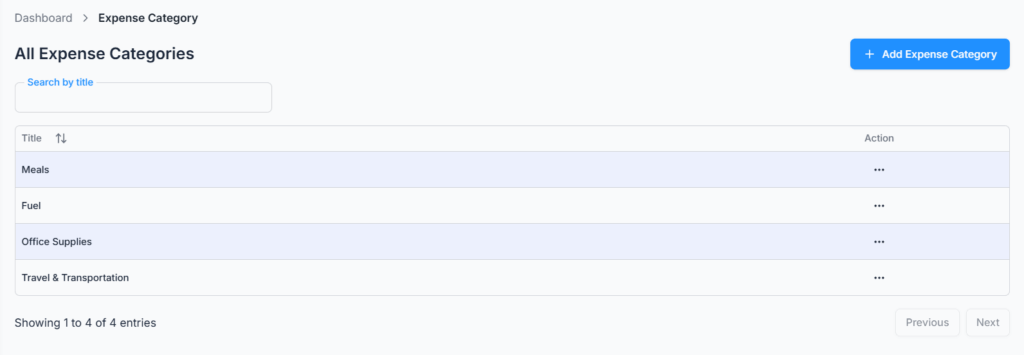
Go to Dashboard → Admin → Expense Category.
Your company starts with two ready-to-use categories:
- Travel & Transportation
- Office Supplies
You can keep these categories, rename them, or add more categories to match your business.
Who Can Manage Expense Categories #
The Subscriber Admin can view, add, edit, and delete expense categories. Employees need the appropriate Expense Category permission for each action:
- View — open the Expense Category page and see the category list.
- Create — add a new category.
- Update — rename an existing category.
- Delete — remove a category when the business rules allow it.
An employee may be able to select an existing category while recording an Expense or Bill without being allowed to manage the category list. Category management is normally given to the Subscriber Admin or a trusted finance user.
Understanding the Category List #
The page shows the category Title and an Action menu. The actions shown depend on the user’s permissions.
- Use Search by title to find a category quickly.
- Click the Title heading to change the alphabetical order.
- Use Previous and Next when the list has more than one page.
How to Add an Expense Category #
- Go to Dashboard → Admin → Expense Category.
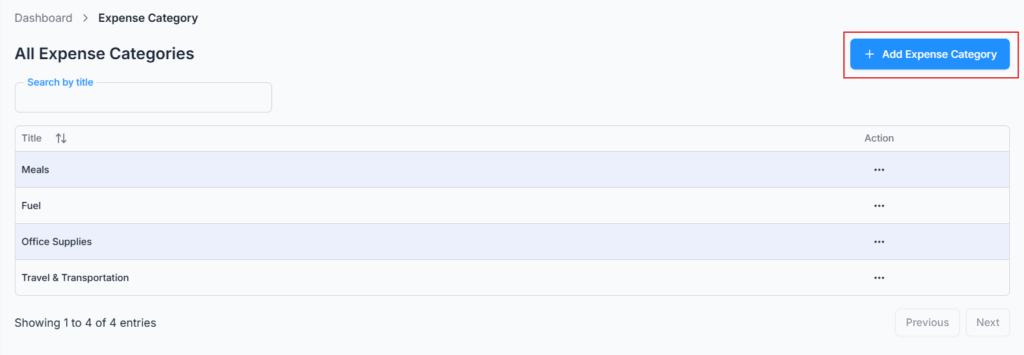
- Click Add Expense Category.
- Enter a clear category name in Title.
- Click Create.
The title is required, can contain up to 30 characters, and must be unique within your company.
Good Category Naming Examples
- Fuel
- Parking
- Office Supplies
- Client Meeting
- Software Subscription
How to Edit an Expense Category #
- Find the category in the list.
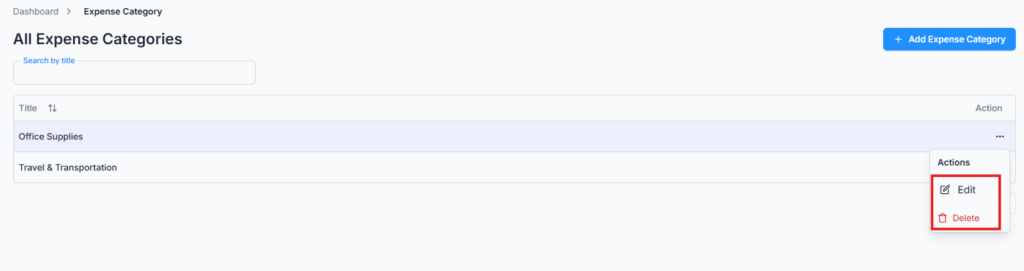
- Open its Action menu.
- Click Edit.
- Update the title and click Update.
Renaming a category updates the category name shown on Expenses and Bills already connected to it. Use a name that still makes sense for those earlier records.
How to Delete an Expense Category #
- Find the category in the list.
- Open its Action menu.
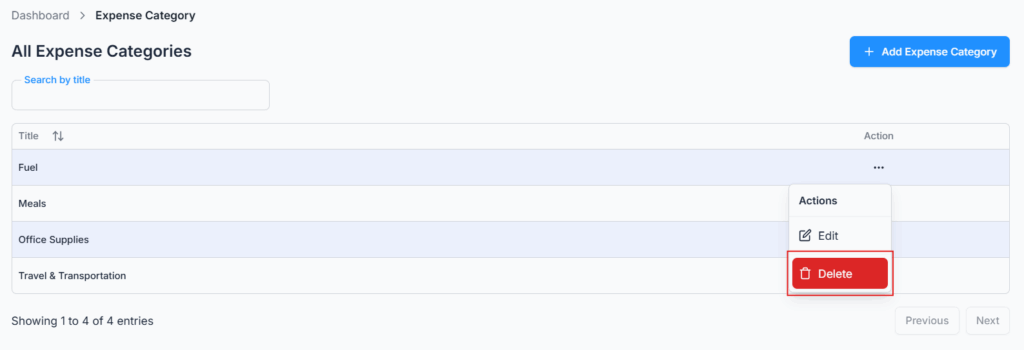
- Click Delete.
- Review the confirmation message and click Delete again.
Important: A category cannot be deleted while it is used by a Bill. Office-X blocks the deletion so the Bill keeps its required category. If the category is no longer needed, move those Bills to another suitable category first.
A category that is connected only to Expenses can be deleted. Those earlier Expenses remain in the expense list and show as Uncategorised. Review the affected Expenses before deleting the category if you want to keep their reporting organised.
How Categories Work in Expenses and Bills #
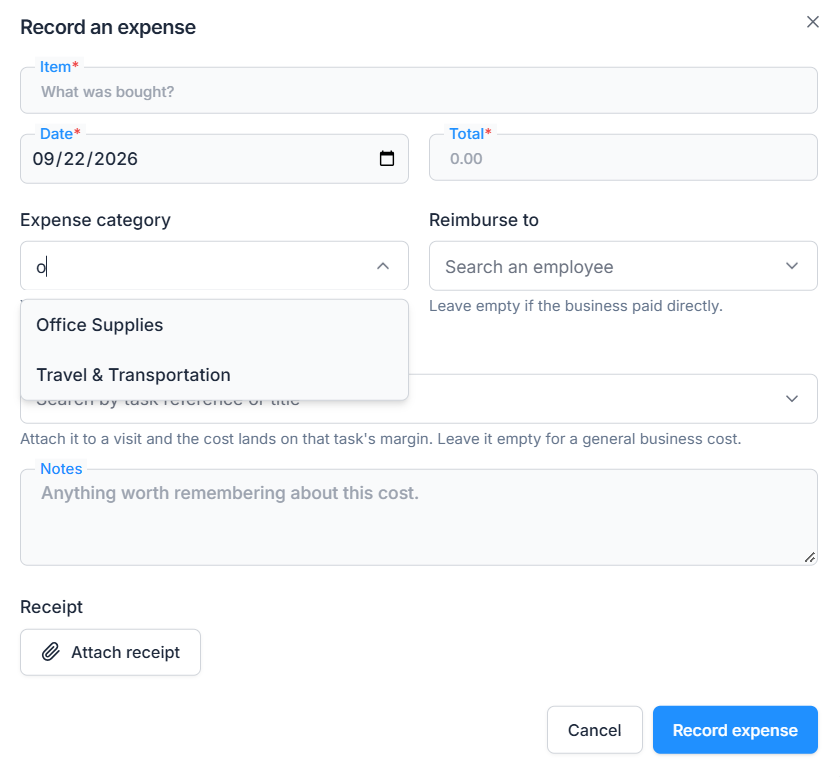
In Expenses #
Selecting a category is optional. If no category is selected, the Expense is saved as Uncategorised. A user can later add or change the category if they have permission to edit that Expense.
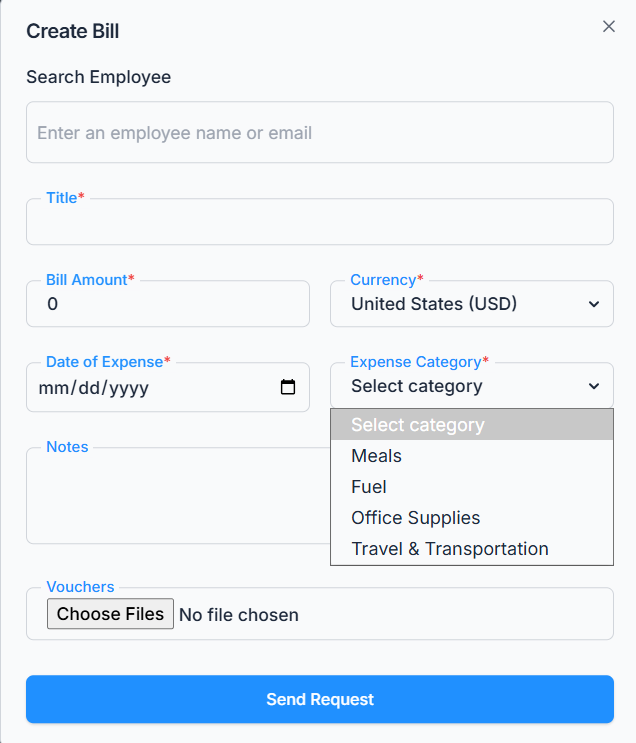
In Bills #
Selecting a category is required. The Bill cannot be created without one. A category that is already used by a Bill cannot be deleted.
Practical Example #
A company often pays for fuel, parking, and train tickets. The Subscriber Admin creates two categories: Fuel and Travel & Transportation. Employees choose Fuel for vehicle costs and Travel & Transportation for parking or train tickets. Later, the finance team can review spending with consistent category names instead of several slightly different labels.
Summary #
Expense Categories give your company a consistent way to organise spending across Expenses and Bills. The Subscriber Admin controls the complete category list, while employee access can be limited by action. Well-planned categories make expense review clearer and help the finance team understand business spending more quickly.
