Plan when work happens, group what ships together, and understand project health.
Who Can Use This Feature #
Tenant Admins can use these views in every project where they are enabled. Employees need project access and the relevant permission:
- Schedule work items to set Start date and Due date, together with sufficient Edit work items scope.
- Manage releases to create, edit, delete, and release versions.
- See insights to open project reporting.
- See workload & capacity to see named workload and capacity information.
- Export data to download project List data.
Schedule, Releases, and Insights can each be disabled under Settings → General.
Schedule #
Open Project → Schedule and switch between Timeline and Calendar.
Schedule brings dated work and important project dates into one place. Use it to answer practical planning questions such as what is happening now, which work overlaps, what is approaching its due date, and where holidays or time off may affect delivery.
Schedule is a read-only planning view. You cannot drag or resize a Timeline bar to change dates. Select a bar, Calendar item, or Unscheduled item to open the work-item panel, then update Start date or Due date there. The user needs Schedule work items and sufficient Edit work items scope to change those fields.
Filter the Schedule #
The filter bar applies to both Timeline and Calendar:
- Assignee: Show work assigned to one member or select Unassigned.
- Sprint: Show any sprint, Backlog work, or one specific sprint. This filter appears only when sprints are enabled, so it is not shown for Kanban projects.
- Hide completed: Remove items in the Done category from the current view.
- Clear filters: Return to the complete accessible schedule.
The page shows the number of items in the filtered result. If the view looks unexpectedly empty, clear the filters before changing project data.
Use the Timeline #
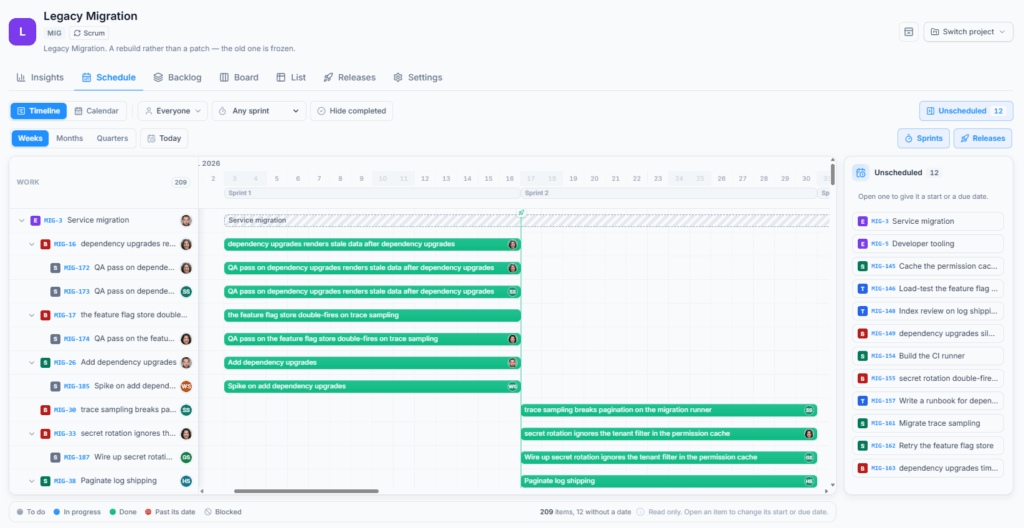
Timeline displays one row per work item. Parent and child items are shown as an expandable hierarchy, making it easier to compare a large outcome with the work beneath it. A parent without its own dates can still show a span derived from its dated children, but it remains in the Unscheduled list until its own Start date or Due date is added.
Each bar uses the item’s status category so To Do, In Progress, and Done have consistent visual meaning even when a project uses custom status names. The Timeline also identifies overdue work and work blocked by an open blocker relationship. Select a blocked indicator to understand which open items are holding it back.
Use the Timeline controls to change the view:
- Weeks: The closest view, useful for day-level planning.
- Months: The default balance between detail and range.
- Quarters: A wider view for longer plans.
- Today: Scroll back to the current date without changing any work.
- Expand or collapse: Show or hide child rows under a parent.
The Timeline automatically includes today in its date window. Work bars remain aligned to calendar days regardless of the viewer’s timezone.
Use the Calendar #
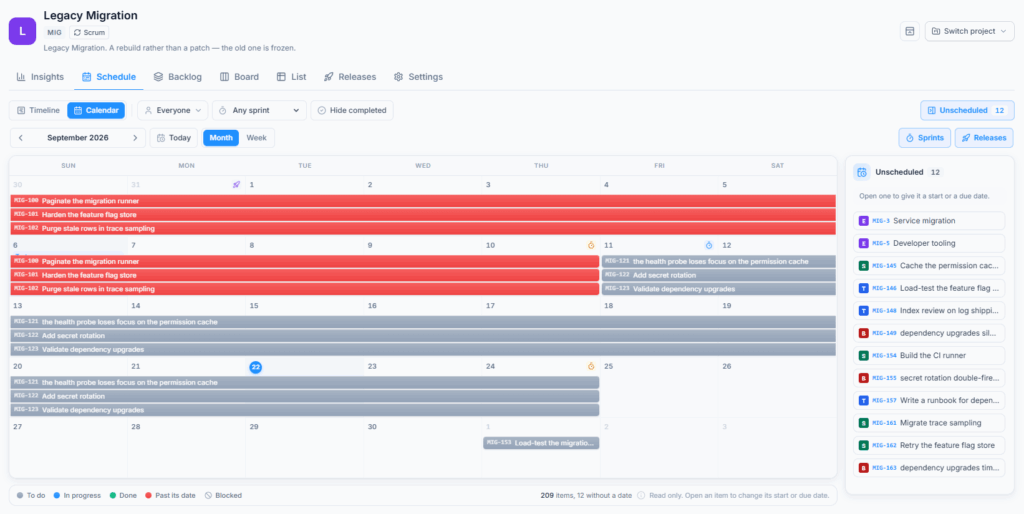
Calendar displays dated work as continuous segments across its scheduled days. Switch between:
- Month: Review the wider delivery period.
- Week: Focus on a shorter, more detailed range.
Use the previous and next controls to move through time, or choose Today to return to the current period. When more than three items need the same Calendar lane, Office-X groups the remaining entries behind a more-items indicator so the date stays readable.
Calendar highlights today’s date and distinguishes normal, in-progress, completed, and overdue work. Select an item to open its details.
Show Planning Overlays #
Schedule can add context without changing work-item data. Available overlay switches appear only when the project has relevant data:
- Sprints: Timeline shows sprint ranges. Calendar marks sprint start and end dates.
- Releases: Shows planned or completed release dates.
- Non-working days: Shades dates closed by the project working calendar, including applicable holidays and project closures.
- Time off: Shows approved leave against an assignee’s Timeline bar. This overlay is available in Timeline only.
Extra working days are included in the working calendar automatically. They are not hidden by an overlay switch because they define when the project is available to work.
Approved leave is planning context only. It does not reassign work, change the item’s dates, or update Attendance and payroll records.
Find Unscheduled Work #
An item is listed as Unscheduled when it has neither a Start date nor a Due date. Open the side panel to see the count and select an item that needs dates. An item with only one of the two dates can still appear on the schedule using the date it has.
The Unscheduled panel follows the active assignee, sprint, and completed-work filters. An empty panel therefore means everything in the current filtered scope has a date, not necessarily every item in the project.
Good to know: Schedule uses the project working calendar. Working days, hours, holidays, and exceptions affect planning and capacity.
The working calendar controls non-working shading and related planning calculations. Check Settings → Working calendar when the Schedule marks an unexpected date as open or closed.
Releases #
Open Project > Releases and select Create version. Releases use versions to group work intended to ship together. A version is separate from a sprint: a sprint describes when the team works, while a version describes what it intends to deliver.
Create a Version #
- Name: Required, up to 60 characters.
- Description: Optional, up to 500 characters.
- Start date: Optional planning start.
- Release date: Optional planned delivery date. It cannot be earlier than Start date.
After creating the version, open relevant work items and select it under Ships in. A version with no linked work shows that nothing points to it yet.
Use Found in to record the version where a problem or behaviour was observed. Use Ships in to record the version intended to contain the completed solution. Ships in drives Release scope and progress.
Read Version Progress #
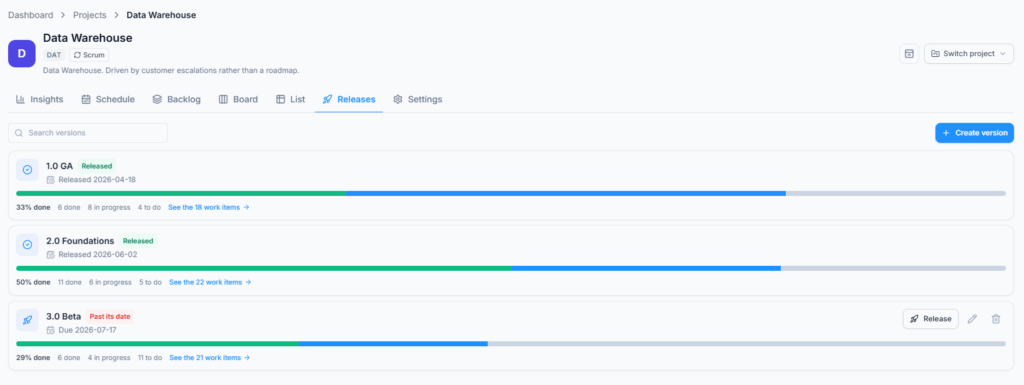
Each version shows its planned or actual release date and the linked work split into To Do, In Progress, and Done. The percentage reports the Done share of the total. Past its date appears when an unreleased version has passed its planned Release date.
Select See the work items to open List filtered to that version.
Edit or Delete an Unreleased Version #
Users with Manage releases can edit or delete an unreleased version. Deleting removes the version reference from linked work but does not delete the work items, comments, attachments, or statuses.
A released version becomes a delivery record, so Office-X no longer offers Edit or Delete actions for it.
Release a Version #
Select Release, confirm the actual Release date, and review total, Done, and still-open work. If work remains open, choose:
- Move to another version: Move incomplete items to another unreleased version.
- Keep in this release: Release while keeping the items linked and reported as incomplete.
- Remove from this release: Clear Ships in from the incomplete items without deleting them.
Done items remain connected to the released version.
Edit or Delete an Unreleased Version #
Users with Manage releases can edit or delete a version while it remains unreleased. Editing changes the version’s planning information but does not change the status or dates of linked work items.
Deleting a version removes that reference from its linked work items. The work items, their content, comments, attachments, and status remain intact. Review the linked work first because those items will no longer belong to that release.
A released version becomes a delivery record. Office-X no longer offers Edit or Delete actions for it because changing the record would rewrite what earlier work says was shipped.
Release a Version #
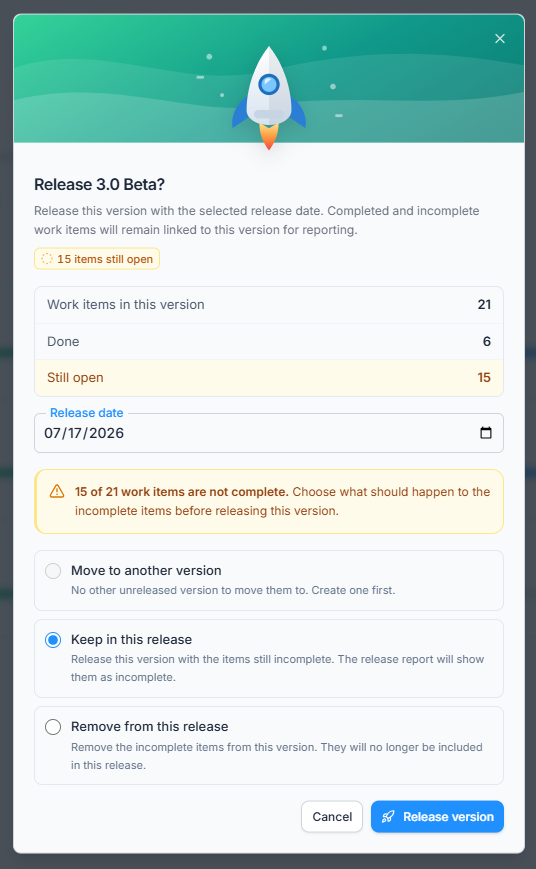
Select Release, confirm the actual Release date, and review the counts for total, Done, and still-open work. Completed and incomplete items can remain connected to the released version for reporting.
If every linked item is Done, no further scope decision is required. If work is still open, choose one of these options:
- Move to another version: Transfer incomplete items to another unreleased version before completing this release. A target version is required. If no other unreleased version exists, create one first.
- Keep in this release: Release the version with the items still incomplete. The release record continues to show those items as incomplete.
- Remove from this release: Clear the Fix version from the incomplete items. They remain in the project but are no longer included in this release.
The choice applies to incomplete work only. Done items remain part of the released version. Review this decision carefully because it defines what the release report will say was delivered, left incomplete, or moved forward.
Insights #
Open Project → Insights. Filter by date range, sprint, assignee, work type, or epic.
Insights turns project history and current work into practical summaries. It contains three areas: Summary, Ownership & progress, and Report. Scrum projects also receive Sprint overview charts.
Control the Reporting Scope #
The main filter bar affects the headline numbers, status and priority summaries, people table, and Epic progress. It supports:
- Date range: Choose a recent preset or a custom Start date and End date.
- Sprint: Include any sprint, one specific sprint, or work with no sprint. Scrum only.
- Assignee: Choose one person, anyone, or Unassigned.
- Work type: Limit results to one configured work type.
- Epic: Choose one parent Epic or work with no parent when Epic options exist.
The filter bar shows how many accessible items are in scope compared with the project’s accessible total. Filters are stored in the URL, so the same filtered view can be bookmarked or shared with another authorised user. The recipient still sees only the data their own permissions allow.
Select Clear to remove all active summary filters. Before quoting a number or comparing two screenshots, check both the active filters and the in-scope count.
Read the Summary #
The headline cards show:
- Work items: Total items in the current scope.
- To do: Items that have not started.
- Done: Completed items and their percentage of scoped work.
- Overdue: Open items whose Due date has passed.
- Unassigned: Items without a current assignee.
Where the work sits groups items into To Do, In Progress, and Done status categories. By status gives the count for each configured status, while Priority mix shows how work is distributed across the project’s enabled priority levels.
These are current-state counts. A large In Progress share can signal too much concurrent work, but it can also reflect a workflow with several active stages. Read the chart together with the project’s status design and WIP limits.
Understand Ownership and Progress #
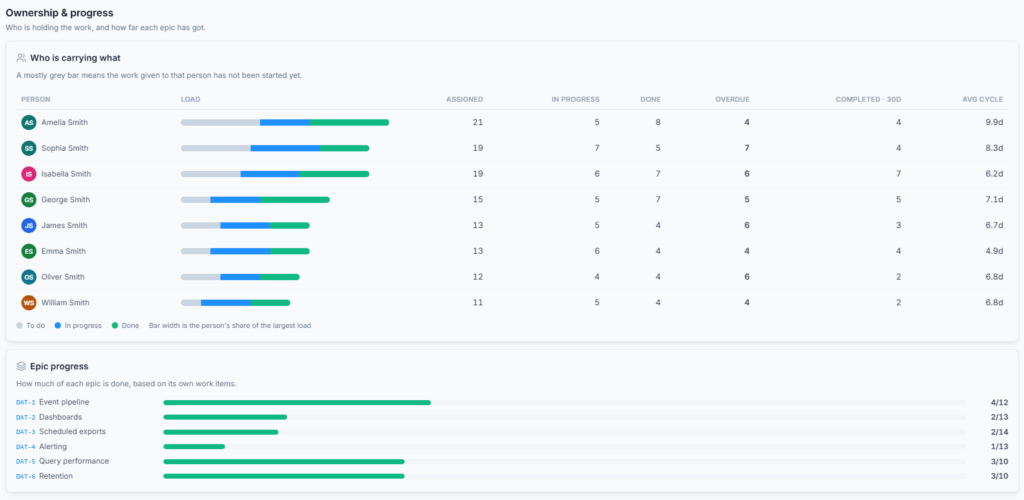
The Who is carrying what table appears only when the viewer also has See per-person insights. It shows each person’s:
- Assigned workload split into To Do, In Progress, and Done.
- Total assigned work.
- In-progress and Done counts.
- Overdue count.
- Items completed inside the selected date range.
- Average cycle time from the first move into progress until Done.
The width of each workload bar is relative to the person with the largest assigned load in the current scope. It helps compare distribution, but item counts do not measure effort by themselves.
Epic progress shows how many direct child work items under each Epic are Done compared with the Epic’s total child count. An Epic without children has no progress to calculate.
Read the Scrum Sprint Overview #
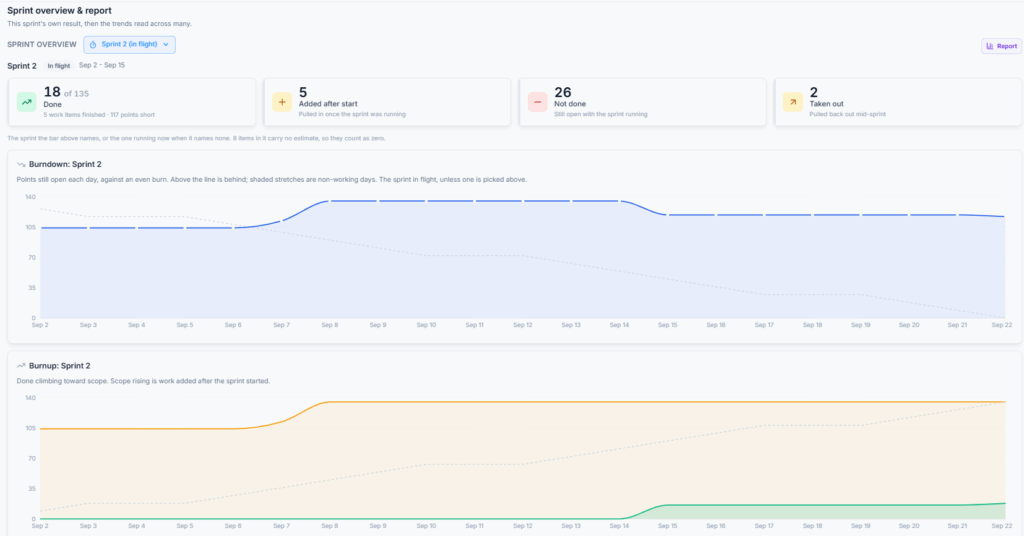
Scrum projects include a Sprint overview for the active sprint. When no sprint is active, Office-X can use the most recently completed sprint. Use the Sprint overview selector to look back at another sprint without changing the scope of every Summary card above it.
The Sprint summary explains what was committed, completed, left incomplete, added after the sprint started, or removed during the sprint. A completed sprint reads from the snapshot recorded when it closed, so later movement of those items does not rewrite the historical result.
Users with Start and complete sprints may see an option to reopen a completed sprint. Reopening returns it to In flight; it is an operational action, not merely a reporting filter.
Read Burndown and Burnup #
- Burndown shows how much estimated work remains on each day of the sprint compared with an even ideal burn. A line above the ideal suggests the team is behind that pace. Non-working days are shaded.
- Burnup shows completed work rising toward the total sprint scope. When the scope line rises, work was added after the sprint started.
Both charts need a sprint with Start and End dates. They also need estimated work. If sprint items do not contain story points or the applicable estimate unit, Office-X has nothing meaningful to draw.
Burndown and Burnup answer different questions. Burndown makes remaining work easy to see, while Burnup makes scope changes visible. Review them together when the sprint changes after it begins.
Read Velocity #
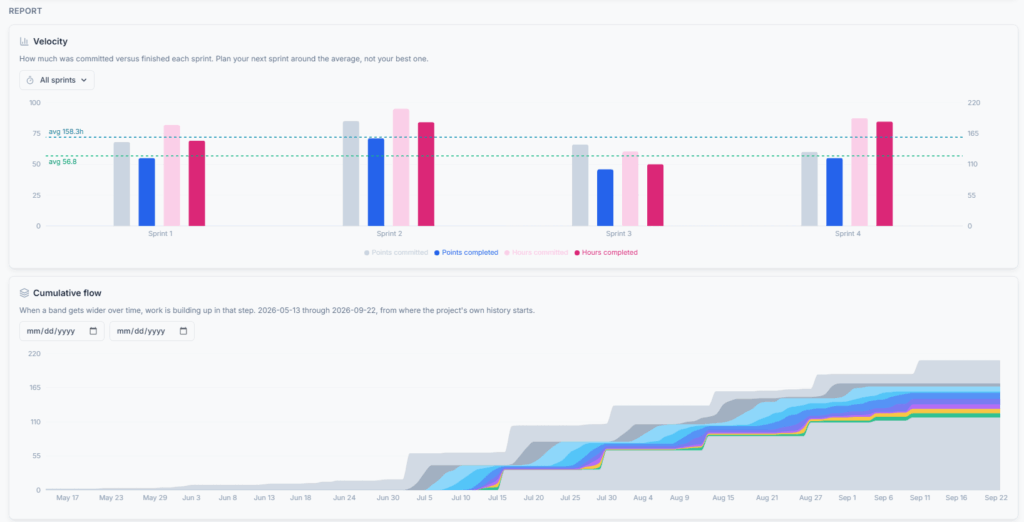
Velocity compares committed and completed estimates for finished sprints. It also shows the team’s average so future commitments can be based on a pattern instead of one unusually strong sprint.
Use the Velocity sprint selector to show all available completed sprints or one completed sprint. This selector controls the Velocity chart only. It is separate from both the main Summary Sprint filter and the Sprint overview selector.
Velocity appears only after at least one sprint has been completed. Compare sprints that use the same estimation approach. Story points and time are different units and should not be treated as one scale.
Read Cumulative Flow #
Cumulative flow shows how many items occupy each workflow band over time. When one band becomes wider, work is accumulating in that part of the process. A widening In Progress band with a stable Done band can indicate a bottleneck.
Cumulative Flow has its own date-range control. This range is independent of the main Summary range because the chart answers a historical flow question rather than only describing the current filtered snapshot. When no custom range is selected, it reads from the available project history.
Kanban projects use Cumulative Flow as their main trend report. Scrum projects can use it alongside sprint-specific Burndown, Burnup, Velocity, and Sprint summary.
Use Metrics Responsibly #
Use reports to start a conversation, not to score individuals. A high item count may mean small tasks; a low count may mean complex work. Review estimates, dates, blockers, and scope changes before drawing conclusions.
Insights is permission-aware. See insights opens the reports, while See per-person insights is required for named workload information. Filters never expand access beyond the work items the viewer is allowed to see.
Reporting also depends on data quality. Missing assignees, dates, estimates, parent links, status updates, or Fix versions can make a chart technically correct but operationally incomplete. When a number looks wrong, review the underlying items before changing the report.
Summary #
Use Schedule for timing, Releases for delivery scope, and Insights for project health. Scrum teams also receive sprint-specific charts; Kanban teams should focus on flow, aging, status, workload, and overdue work.
