Control how the project works, who can access it, what each role can do, and who receives project updates.
Project Settings is the control centre for the whole project. A change here can affect what appears in the project navigation, who can see or change work, how items move across the Board, how dates are calculated, and which updates people receive. Configure these settings before the project becomes busy, then review them whenever the team or delivery process changes.
Who Can Use This Feature #
Tenant Admins can open every Settings section in every project. Employees see Settings only when their project role grants at least one management permission. The Settings menu then shows only the sections they can open.
For example, an Employee with Manage members may see the Members section but not Roles & permissions. Someone with Manage statuses and workflow may configure the Board without being able to change project members. This section-by-section access keeps administrative responsibilities separate.
Go to Dashboard → Projects → [Project] → Settings.
Settings Routes #
Project Settings contains nine routes. A route appears only when the signed-in user has its required permission.
| Settings section | Required access | What it controls |
|---|---|---|
| General | Edit project details | Identity, manager, default assignee, project key, features, and Scrum run options |
| Members | Manage members | Direct members, team access, roles, exclusions, and individual permission exceptions |
| Board & workflow | Manage statuses and workflow | Statuses, transitions, Board columns, WIP limits, card display, and priorities |
| Work types & fields | Manage work types and fields | Work type names, hierarchy, availability, fields, order, and default type |
| Roles & permissions | Manage roles and permissions | Project roles and the permissions attached to each role |
| Notifications & email | Manage notifications | Event channels, recipients, and reminder timing |
| Working calendar | Manage the working calendar | Working days, daily hours, holidays, closures, and extra workdays |
| Activity log | Read the activity log | Filtered and exportable history of project changes |
How Changes Are Saved #
Most Settings controls save automatically after a short pause. A save indicator shows whether a change is saving, saved, or could not be saved. Leaving a field also asks Office-X to finish any pending save. If an error appears, correct the value and wait for the saved state before leaving the page.
Changing the Project Key is intentionally different. It has its own button because the key is part of the project URL and every work-item ID. Office-X checks that the new key is valid and available before saving it, then opens the Settings page at the new URL.
Some actions also require direct confirmation. Removing a status that still contains work requires moving those items first. Moving the project to Trash requires the project key. These checks protect connected project data from accidental changes.
Recommended Setup Order #
For a new project, this order keeps the configuration easier to understand:
- Complete General so the project identity, manager, default assignee, and available features are correct.
- Configure Work types & fields so the team creates the right kinds of work.
- Configure Board & workflow so those items have meaningful steps and valid transitions.
- Review Roles & permissions before inviting the wider team.
- Add people and teams in Members and give each one the appropriate role.
- Adjust Notifications & email so important updates reach the right people without creating noise.
- Confirm the Working calendar before using Schedule, sprint capacity, estimates based on working days, or reminders.
- Use the Activity log to review later configuration changes.
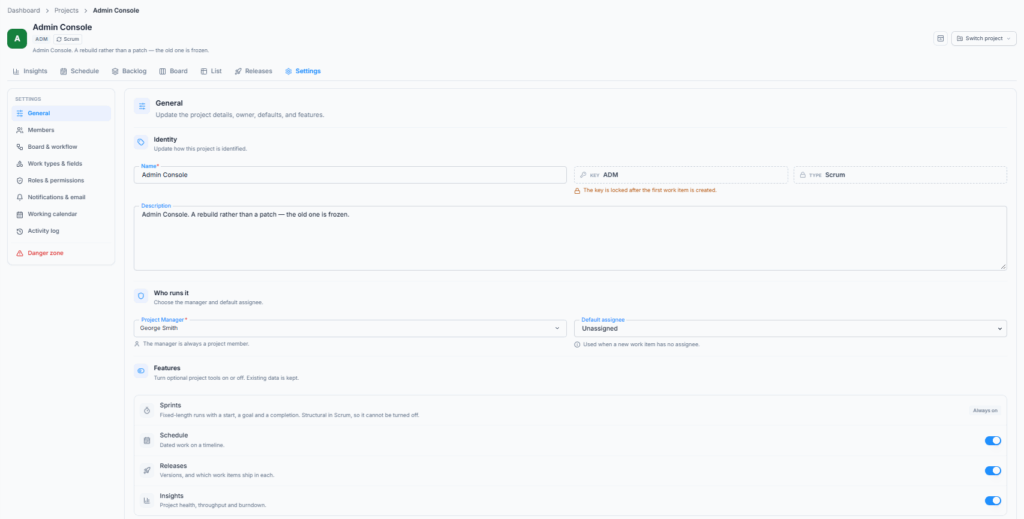
General #
Change the project name, description, manager, default assignee, project key when it is still editable, and the optional project features. Changing the manager also requires Manage roles and permissions because it moves the Project Manager role.
Identity #
- Name: The project name shown in the Projects directory, navigation, and project pages. It is required and can contain up to 120 characters.
- Key: A unique 2 to 10 character code containing only letters and numbers. Office-X stores it in uppercase and uses it at the beginning of work-item IDs, such as
WEB-42. - Description: An optional explanation of why the project exists and what successful completion looks like. It can contain up to 2,000 characters.
The project key can be changed only before the project has work items. After the first work item exists, the key is locked so existing IDs and links remain stable. When a key change is allowed, Office-X checks availability before enabling the save action.
Project Manager and Default Assignee #
The Project Manager is the person responsible for the project. Changing this person also moves the Project Manager role, so the editor needs both Edit project details and Manage roles and permissions.
Use Default assignee to decide who receives newly created work when the creator does not choose an assignee:
- Unassigned: New work starts without an owner.
- Project Manager: New work is assigned to the current Project Manager.
- A specific person: New work is assigned to the selected project member.
The default affects new work only. Changing it does not reassign existing items.
Project Features #
Use the feature switches to control which project tools appear:
- Sprints: Enables fixed-length planning cycles with a start date, goal, and completion flow. This option is available only for Scrum projects and is part of their core planning structure.
- Schedule: Shows dated work on the timeline and calendar.
- Releases: Enables versions and lets work items be connected to planned releases.
- Insights: Shows project health, throughput, workload, and Scrum reports where applicable.
Turning a feature off hides its tab but keeps the existing project data. If the feature is enabled again later, its saved data becomes available again.
Scrum projects can also enable Parallel sprints. Turning an optional tab off hides the view but keeps its existing data so it returns when the feature is enabled again.
Parallel sprints allows more than one sprint to be active at the same time. Keep it off when the team works through one shared sprint. Turn it on only when separate teams or workstreams need to run active sprints independently.
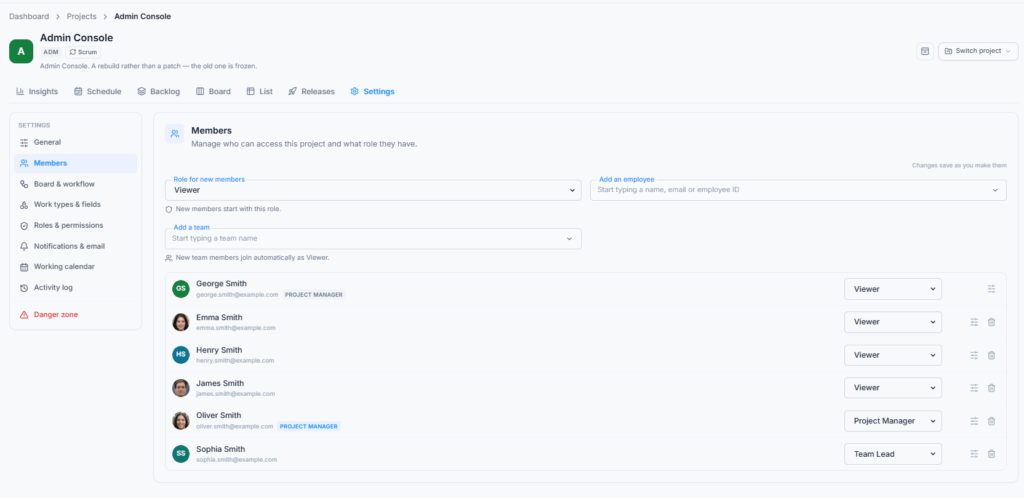
Members #
Add or remove employees and teams and assign their roles. Removing access does not erase work, comments, files, or history already contributed.
Add a Direct Member #
Choose Add an employee, search by name, email, or employee ID, select a role, and add the person. Office-X excludes people who already have direct access from the search results.
A direct role is useful when the person needs project access regardless of their team membership. New direct members start with the project default role unless another assignable role is selected.
Add a Team #
Choose Add a team, search for the team, and select the role its members should receive. Team access updates with the team roster, so a newly added team member can receive project access without being added to the project separately.
When a person reaches the project through a team, the Members page shows that source. You can exclude an individual from that team grant without removing them from the organisation or changing the team itself. The excluded person loses access from that team, but may still retain access through a direct membership or another team.
Roles and Permission Exceptions #
A member normally inherits all permissions from their assigned role. An individual exception can extend or reduce selected permissions for that person without changing the role for everybody else. Use exceptions sparingly because they make access harder to review later. The reset action removes the exception and returns the person to the permissions supplied by their role or team grant.
Users who can manage members cannot automatically assign every role. Without Manage roles and permissions, they can assign only roles at or below their own authority. This prevents someone from promoting another member above the access they are allowed to delegate.
Manage members and Manage roles and permissions are deliberately separate. The first controls who is present and which existing role they receive. The second controls what those roles are allowed to do. This prevents a member manager from quietly increasing the authority of a role.
Board & Workflow #
Configure statuses, categories, transitions, Board columns, ordering, and WIP limits. Every active status should belong to a visible column.
Statuses and Board Columns #
A status is a step in the life of a work item. Give each status a clear name and colour, then arrange statuses in the order the team normally follows. Status names can contain up to 60 characters.
Each status belongs to a category that explains its broader meaning. The first status is the initial step for newly created work. A status marked as done counts as completed work in the Board and reporting. Keep at least one clear starting status and one completed status.
Use the drag handle to reorder statuses. This order also matters when the workflow mode is One step at a time, because the next and previous steps are based on the saved sequence.
If a status still contains work, it cannot simply disappear. Choose another status and move the affected items there as part of the removal process. Review the destination carefully because the change affects every item currently using the removed status.
Work in Progress Limits #
A WIP limit sets the maximum number of items expected in a Board column. Allowed values are 1 to 999. Leave the value empty when the column should not have a limit.
Reaching a WIP limit warns the team that too much work is sitting in one stage. It does not replace permissions or workflow rules. Use the warning to finish or move existing work before starting more.
Careful: Removing a status from visible Board configuration can make work in that status appear missing from the Board.
Workflow Modes #
- Any step to any step: work can move between any statuses. This is the least restrictive option and the default starting point.
- One step at a time: work can move back or to the next status but cannot skip forward. Reordering statuses changes this sequence.
- Pick each move myself: a transition matrix controls every allowed From → To move.
Changing the workflow does not grant permission to move work. The employee still needs Change status and the applicable Edit work items scope.
With Pick each move myself, enable every valid source-to-destination combination in the transition matrix. Make sure each active, unfinished status has at least one useful way forward. A custom workflow that leaves a status with no exit can strand work there.
Resolutions #
Resolutions explain why completed work was closed. Examples include Done, Won’t Do, Duplicate, and Cannot Reproduce.
When an item first moves into a Done-category status, Office-X applies the default resolution automatically. Moving the item back to an unfinished status clears the resolution. An authorised user can select another active resolution while the item remains completed.
For each resolution, configure:
- Name: Required and unique, up to 60 characters.
- Description: Optional usage guidance, up to 200 characters.
- Default: The value automatically applied when work becomes Done.
- Available: Whether users can select it.
- Order: Its position in the Resolution picker.
Keep at least one resolution and exactly one default. A project can contain up to 30 resolutions. A resolution already used by work items cannot be removed. Make it inactive instead so existing items retain their historical result.
Board Display #
Choose which card fields appear: Assignee, Priority, Labels, Estimate, Due date, and Parent. Showing more than three is allowed but can make cards harder to scan. Selecting no specific fields lets the Board show all available fields.
You can also configure:
- Subtask display mode: group subtasks under the parent or show each as its own card.
- Show the Epic on subtasks: available when subtasks are grouped.
- Default swimlanes: none, parent, assignee, work type, or priority. A member’s own later choice can override the default for their view.
- Keep done work on the board for: 0–90 days. Enter 0 to hide completed work immediately.
- Priorities: rename the five fixed levels, choose which are offered, and select the default. At least one remains enabled. Existing work keeps a disabled priority value.
Work Types & Fields #
Configure work type names, hierarchy, appearance, feature fields, custom fields, availability, order, and the default type.
Hierarchy levels are:
- Subtask: Can exist only under another item.
- Standard: Normal Board-level work such as Story, Task, or Bug.
- Epic: Groups standard work.
- Initiative: Groups Epics.
For each type, configure its Name, Level, Description, Icon, Colour, availability, and default state. Drag types to change their display order. Keep at least one active Standard type and one active default type.
Feature Fields #
- Story points: Shows point estimation for the type.
- Ships in: Shows the version where the work is intended to ship.
- Found in: Shows the version where a problem or behaviour was observed.
Turning one of these fields off hides it for that type but preserves values already stored on existing items.
Custom Fields #
Select Add a field inside a work type. Custom fields belong to that type.
- Text: One text answer, with a configurable maximum up to 255 characters.
- Number: A number with a configurable maximum up to 15 digits. Signs and decimal points do not count as digits.
- Date: A valid calendar date.
- Select: One choice from a list containing up to 50 options or a lower configured limit.
- Checkbox: Multiple choices with a configurable maximum of up to 50 selections.
Mark a field Required when every item of that type must answer it. Make it inactive when it should disappear without deleting stored answers. Removing or deactivating a field does not silently erase values already saved on existing work items.
Roles & Permissions #
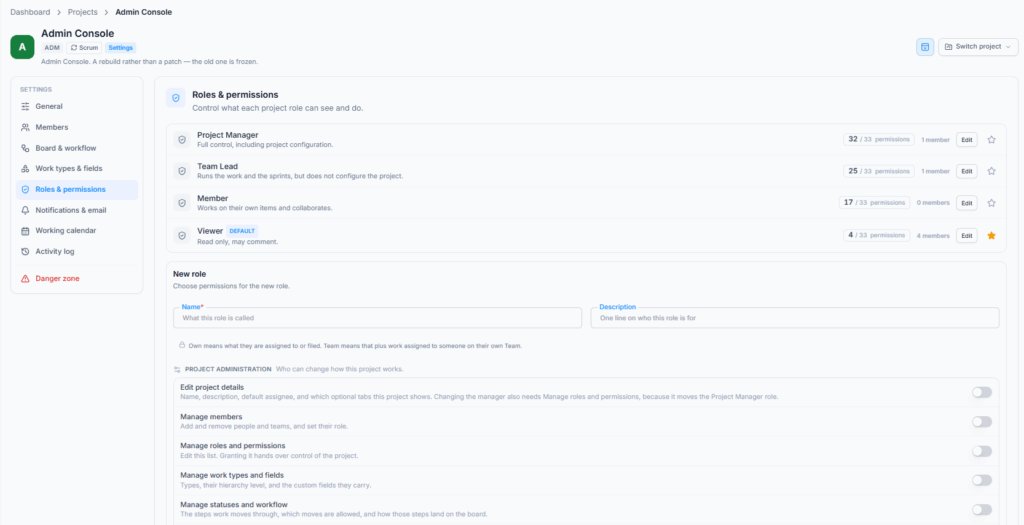
Roles bundle project permissions. Office-X starts with Project Manager, Team Lead, Member, and Viewer roles.
A role is the reusable permission set assigned to project members and teams. Edit a role when everyone holding that role should change together. Use an individual permission exception only when one person needs a genuine exception.
Create or Edit a Role #
Give the role a clear name and description, then enable only the permissions needed for that responsibility. A role name can contain up to 60 characters. The role editor shows how many permissions are granted and separates administrative, planning, work-item, collaboration, insight, and scoped permissions.
Mark one role as the default role. Office-X uses it when a new member is added without another role being chosen. Changing the default affects future additions only and does not change the roles of existing members.
Before deleting a role, move or reassign members who currently depend on it. Built-in responsibilities and active membership constraints may prevent a role from being removed until it is no longer in use.
The default role is given to new members unless another role is selected. Individual overrides can narrow or extend a member’s effective access only within the delegation rules enforced by Office-X. A person cannot use delegated administration to grant authority above the permissions they are allowed to control.
Permission Dependencies to Remember #
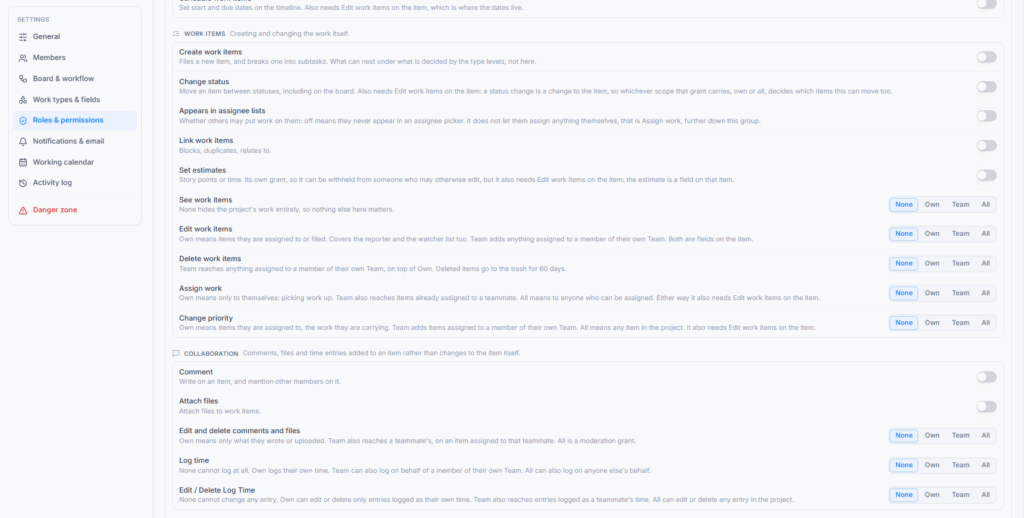
Some permissions work together. Granting only one side does not bypass the other check:
- Changing the Project Manager needs Edit project details and Manage roles and permissions.
- Moving an item to another status needs Change status and sufficient Edit work items scope.
- Assigning an item needs Assign work and sufficient Edit work items scope. The selected assignee must also have Can be assigned work.
- Setting points or time needs Set estimates and sufficient Edit work items scope.
- Adding a file needs Attach files and sufficient Edit work items scope.
- Setting start and due dates needs Schedule work items and sufficient Edit work items scope.
- See per-person insights is separate from general See insights because named workload information is more sensitive.
When access behaves differently from what a role name suggests, check the exact permission and its scope. Office-X evaluates the stored permissions, not the wording of the role name.
Company-wide Permissions #
- Create Project: create a Scrum or Kanban project.
- Manage All Projects: open and manage every project.
- Delete Any Project: company-wide deletion authority; does not by itself grant general project access.
These are assigned from the main Office-X Permissions area, not project Settings.
Project Administration #
- Edit project details: name, description, defaults, priorities, and optional tabs. Manager changes also need Manage roles and permissions.
- Manage members: add/remove people and teams and assign roles.
- Manage roles and permissions: create and edit roles and their authority.
- Manage work types and fields: types, hierarchy, fields, and default type.
- Manage statuses and workflow: statuses, transitions, columns, and WIP.
- Manage notifications: events, channels, audiences, and reminders; not email wording.
- Manage the working calendar: working days, hours, closures, and extra working days.
- Read the activity log: view and export the project audit trail.
- Delete the project: move it to Trash for 60 days.
Planning #
- Reorder the backlog: Change planning order.
- Move work into a sprint: Put work in a sprint, move it to another sprint, or return it to Backlog.
- Create and edit sprints: Manage sprint name, goal, and dates.
- Start and complete sprints: Run the sprint lifecycle.
- Manage releases: Create, edit, delete, and release versions.
- Schedule work items: Set Start date and Due date; also needs sufficient Edit work items scope.
Work, Collaboration, and Insight #
- Create work items: Create standard work and permitted subtasks.
- Change status: Move work through the workflow; also needs sufficient Edit work items scope.
- Appears in assignee lists: Allows other users to select this member as an assignee. It does not grant authority to assign work.
- Link work items: Add or remove relationship links.
- Set estimates: Set story points or time; also needs sufficient Edit work items scope.
- Comment: Add comments and mention accessible members.
- Attach files: Upload attachments without requiring Edit work items.
- See insights: Open project reports.
- See workload & capacity: Reveal named Insights workload, Backlog capacity, and Start Sprint capacity preview.
- Export data: Download List data as a spreadsheet.
Scoped Permissions #
Every scoped permission supports None, Own, Team, and All. Team refers to configured Office-X Team membership, not reporting-line subordinates.
Notifications & Email #
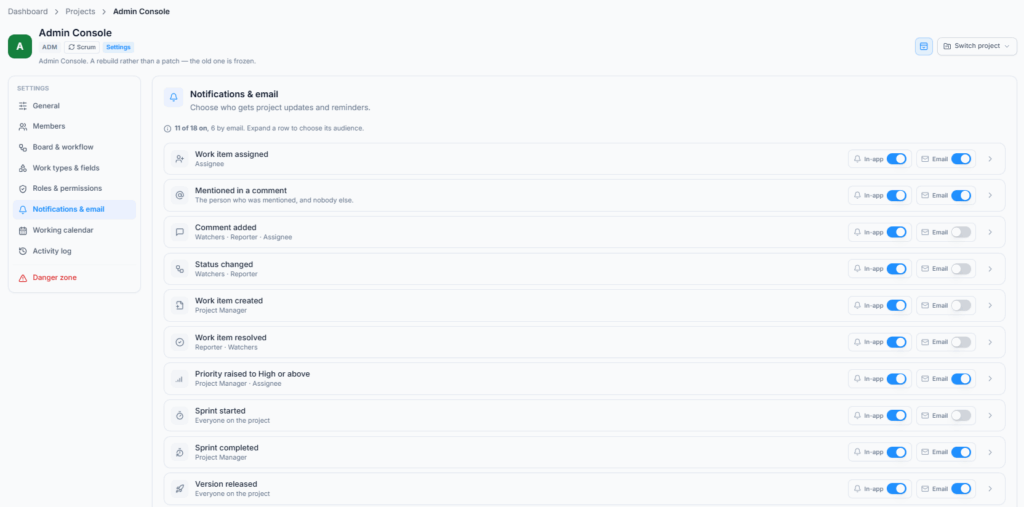
Each event can use In-app, Email, both, or neither. New projects enable in-app notifications for all events.
Open an event row to choose its channels and audience. Turning off both channels means that event sends no notification. Selecting Email does not remove the in-app option; both can be enabled together.
Use narrow audiences for frequent item activity and broader audiences only for major project events. This keeps routine changes useful without flooding every member.
| Event | Default audience | Default channel |
|---|---|---|
| Work item assigned | Assignee | In-app + Email |
| Mentioned in a comment | Mentioned person only | In-app + Email |
| Comment added | Watchers, reporter, assignee | In-app |
| Status changed | Watchers, reporter | In-app |
| Work item created | Project Manager | In-app |
| Work item resolved | Reporter, watchers | In-app |
| Priority raised to High or Highest | Project Manager, assignee | In-app + Email |
| Sprint started | Everyone on the project | In-app |
| Sprint completed | Project Manager | In-app + Email |
| Version released | Everyone on the project | In-app + Email |
| Added to this project | Added person only | In-app + Email |
Audience options are Assignee, Reporter, Watchers, current Project Manager, Everyone on the project, and Specific people. Mention and member-added audiences are fixed.
These audiences mean:
- Assignee: The person responsible for the work item when the event occurs.
- Reporter: The person who originally created or filed the work item.
- Watchers: Members currently following the work item.
- Project Manager: The person currently holding the Project Manager responsibility.
- Everyone on the project: All active members who can receive the project event.
- Specific people: A fixed list selected in the notification setting.
For Mentioned in a comment, Office-X sends only to the mentioned person. For Added to this project, it sends only to the person who was added. These audiences cannot be replaced with a broader group.
The actor is not notified about their own action. Office-X checks project and item access again before delivery.
For item events, Assignee, Reporter, and Watchers are resolved when the event happens, so reassignment and watcher changes are respected. Project Manager also means the person holding that role at send time. Specific people is a fixed selection and should be reviewed when membership changes.
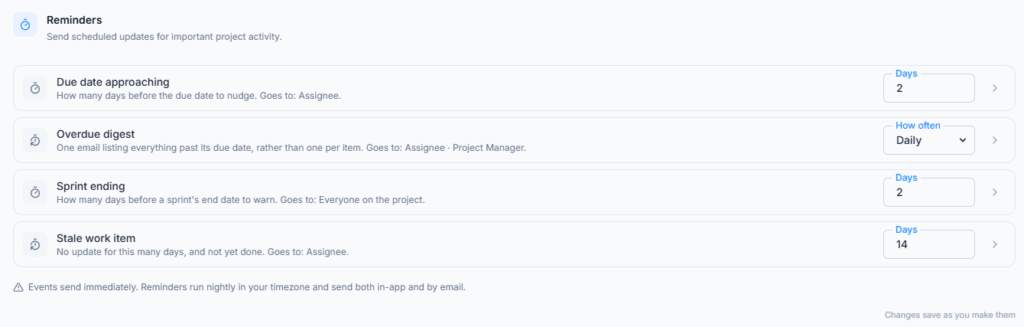
Scheduled Reminders #
- Due date approaching: 1–30 days; default 2 days; assignee.
- Overdue digest: Off, Daily, or Weekly; default Daily; assignee and Project Manager.
- Sprint ending: 1–14 days; default 2 days; everyone on the project.
- Stale work item: 3–90 days; default 14 days; assignee.
Reminders run nightly in the configured timezone and send in-app and email.
Reminder timing controls when Office-X should look for matching work:
- Due date approaching accepts 1 to 30 days and warns the assignee before the due date.
- Overdue digest can be Off, Daily, or Weekly and summarises overdue work for the assignee and Project Manager.
- Sprint ending accepts 1 to 14 days and warns project members before an active sprint ends.
- Stale work item accepts 3 to 90 days and alerts the assignee when an item has not been updated for the selected period.
Choose reminder values that give the team enough time to act. Very early reminders may be ignored, while very late reminders may leave no time to recover.
Email needs a recipient email address, working SMTP, and an active template. Item messages use Project Work Item; sprint, release, membership, and digest messages use Project Update. Edit their wording under company Email Templates, not project Settings.
Good to know: An email failure never blocks the project action.
Working Calendar #
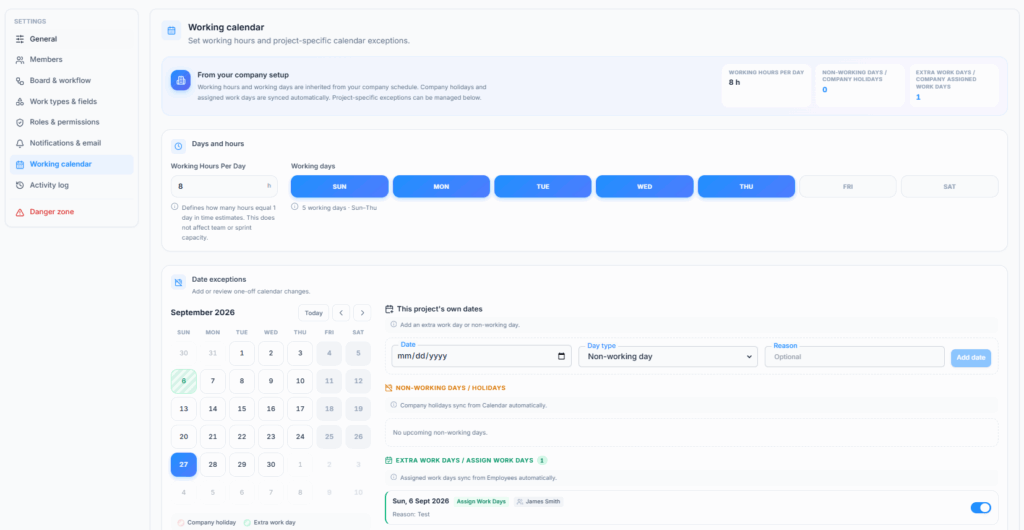
Inherit the organisation’s schedule or configure project working days, working hours, closures, and extra workdays. Schedule and sprint capacity use this calendar.
The Working Calendar tells Office-X when this project is expected to work. It affects Schedule shading, working-day calculations, sprint capacity, and date-based planning. It does not change an employee’s Attendance record, leave approval, or payroll hours.
Company Baseline and Project Adjustments #
The page starts with information from the company setup. Company working hours and working days provide the initial pattern. Company holidays and assigned workdays are synced into the project calendar automatically. The project can then decide whether to observe each company date and can maintain its own working pattern and exceptions.
Configure:
- Hours per working day: From 0.5 to 24 hours. Office-X uses this value when translating working days into time-based planning values.
- Working days: Select the weekdays on which the project normally operates.
- Non-working day: Close a particular date that would otherwise be a working day.
- Extra work day: Open a particular date that would otherwise be closed.
- Reason: An optional note of up to 200 characters explaining the exception.
Date exceptions take priority over the normal weekly pattern. For example, an extra workday can open a Saturday, while a non-working exception can close a normal Monday. A company holiday can be switched off for this project when the project will work that day. An assigned company workday can also be left out of the project calendar when it does not apply.
A closure removes one otherwise-working date. An extra workday opens one otherwise-closed date. Keep the hours-per-day value accurate because duration input and planning calculations use it when translating working days into time.
The calendar also displays relevant organisation holidays and assigned workday information so managers can understand why a date is open or closed. Review future exceptions when the organisation calendar changes, especially if the project uses a custom calendar.
Activity Log #
Filter the audit history by change type and date range, then export it when needed.
Use Filter by what changed to focus on a configuration or project area. Add From this date and Up to this date to narrow the period. Filters are kept in the page URL, so a filtered view can be bookmarked or shared with another authorised user. Changing a filter returns the list to its first page.
The log records who changed project configuration and tracked project work, what was affected, and when. It is an audit record, not an undo screen; correcting a mistake still requires the relevant permission on the original feature.
Export uses the current Activity Log context. The export does not give access to information the user is not permitted to view.
Danger Zone #
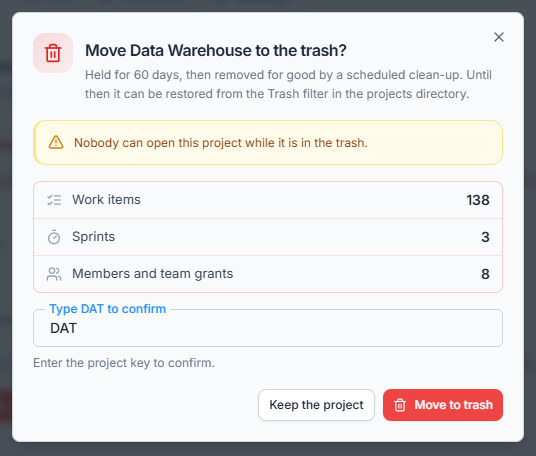
Moving a project to Trash removes it from normal use but keeps it recoverable for 60 days.
To move a project to Trash, open Danger zone, review the warning, and type the project key exactly as shown. After confirmation, Office-X returns to the Projects directory with the Trash filter selected.
A Project Manager with Delete the project can delete their accessible project. For company-wide administration, Manage All Projects and Delete Any Project work together. Delete Any Project alone does not provide general access to every project, and Manage All Projects alone does not authorise company-wide deletion.
Careful: After 60 days, Office-X permanently purges the project and its related project data.
During the recovery period, restore the project from Projects > Trash. Restoring returns the project to normal use with its retained configuration and related project data. Do not use Trash as long-term storage because permanent cleanup is scheduled automatically.
Summary #
Configure workflow and work types before the project grows, give each person the least access they need, keep notification audiences focused, and treat Trash as a 60-day recovery window, not permanent storage.
