The Invoices page shows your client what they owe and what they have already paid. From here a client can open any Invoice, check its payments and refunds, download a PDF copy, and pay online when you have online payment set up.
The page appears in the Client Portal sidebar when Show invoices is on under Dashboard → Admin → Client Portal.
Which Invoices Appear? #
Your client sees every Invoice you have sent to them, including the paid ones, so they can look back at their own history. They never see a draft or a voided Invoice.
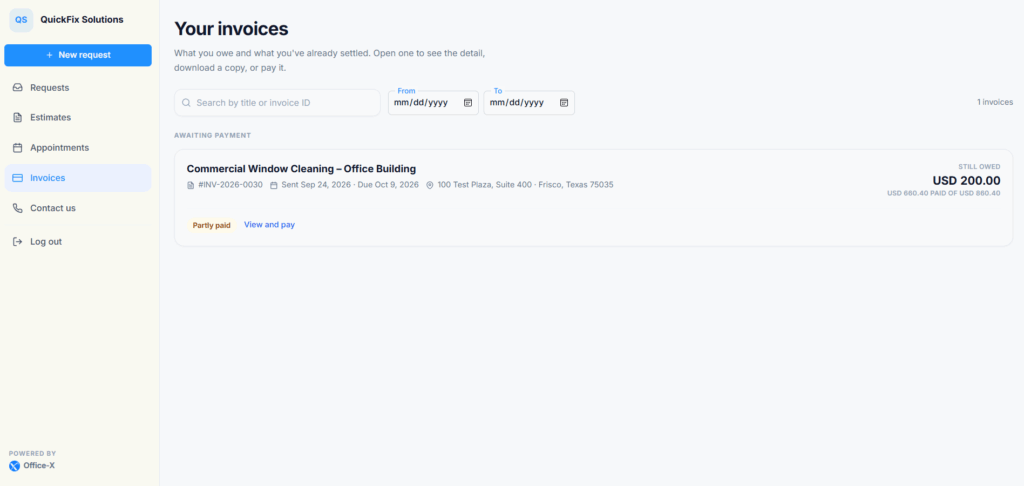
The list has up to three groups: Past due first (with a red heading), then Awaiting payment, then Paid. Each card shows:
- The Invoice title and number, for example #INV-2026-0042.
- The date you sent it and the due date.
- The service address.
- The Total. When part of it is paid, the card shows Still owed instead, with a line such as “USD 500.00 paid of USD 1200.00”.
- The status. A paid card also shows the date it was paid. An unpaid card shows View and pay.
To find one Invoice, your client can type in the search box, Search by title or invoice ID. Search also matches the status and the service address. The From and To dates narrow the list to Invoices sent in that period. The list shows 10 Invoices per page.
A client with no Invoices yet sees No invoices yet, with a note that their Invoices will appear here once work is billed.
Client-Facing Status #
The portal uses friendly status words. Here is how they match what you see on your Invoices list:
| The client sees | What it means | Your status |
|---|---|---|
| Awaiting payment | The Invoice is sent and nothing has been paid yet. | Sent or Viewed |
| Partly paid | Some money has come in, and a balance is still owed. | Partially Paid |
| Past due | The due date has passed, and money is still owed. | Overdue |
| Paid | The Invoice is fully paid. | Paid |
Good to know: A late Invoice can still show Awaiting payment in the list. When the client opens it, the amount box at the top counts the days, for example “3 days overdue”.
What the Client Can Review #
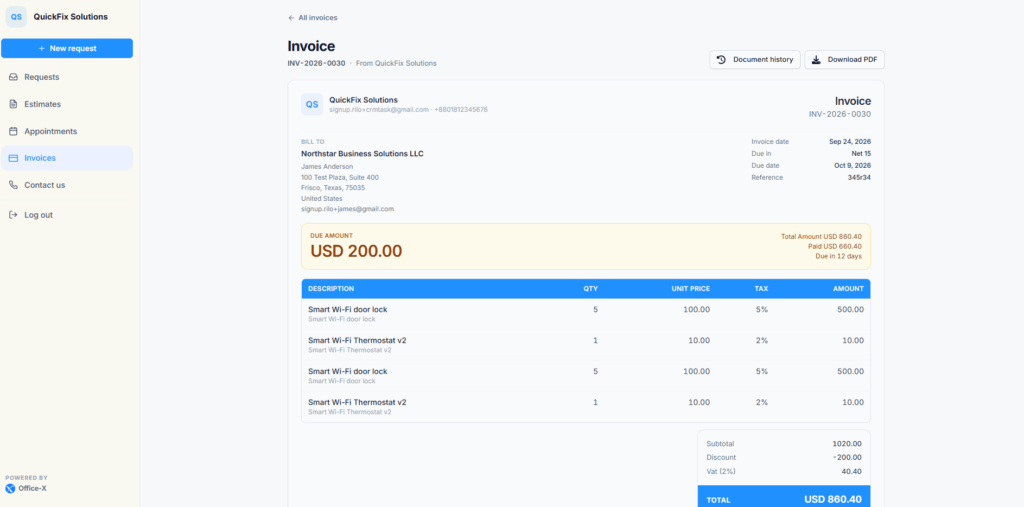
When your client opens an Invoice, they see the same document you sent. From top to bottom:
- The header: the Invoice number, “From” and your company name, your logo, and the Bill to details.
- The dates: Invoice date, Due in, Due date, and the client’s own Reference when you added one.
- The amount box: Due amount in large type, with Total Amount, Paid, and how long until it is due (for example “Due in 5 days” or “Due today”).
- The item table: Description, Qty, Unit price, Tax (the line’s tax rate, or a dash for no tax), and Amount.
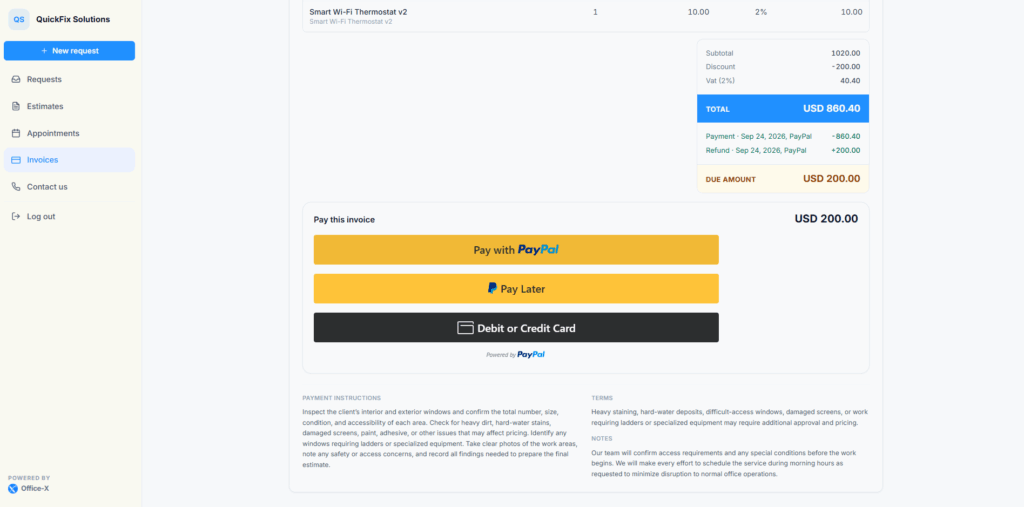
- The totals: Subtotal, Discount (when there is one), the tax line, Additional Discount (when there is one), and Total.
- Payments and refunds: one line for each, with the date and how it was paid, then the Due amount.
- Extra details: Payment instructions, Terms, Notes, and Attachments, when you added them.
Good to know: The Amount column is the quantity times the unit price, before tax. Tax is added once, in the totals. The tax line shows the tax name and rate that applied when the Invoice was created, for example “Sales Tax (8.25%)”. Changing your Invoice tax settings later does not change an Invoice already sent. A tax-exempt client sees a Tax exempt note.
When an Invoice bills only part of an Estimate, such as a deposit, a box at the top explains the split: Estimate total, Previously invoiced, This invoice, and Still to be invoiced. It adds: “Only the amount on this invoice is payable now. The rest of the estimate will be invoiced separately.”
Two buttons at the top help the client keep records:
- Download PDF opens the Invoice as a PDF in a new tab. It appears once the PDF is ready.
- Document history opens a side panel with a timeline, for example “You opened this invoice”, “Payment of USD 500.00 recorded”, and “This invoice was paid in full”.
The All invoices link at the top takes the client back to the list. Opening an Invoice for the first time changes its status on your side from Sent to Viewed.
Pay Online #
Clients can pay online when you have connected Stripe or PayPal under Dashboard → Admin → Integrations. The Pay this invoice panel then appears right under the Due amount. Online payment always pays the full amount still owed.
Here is what your client does to pay by card through Stripe:
- Open the Invoice and check the Due amount.
- Select the Pay button, for example Pay USD 700.00. It shows Preparing…, and then the card form opens on the page.
- Enter the card details and select Pay again. The button shows Processing….
- Wait on the page. The panel says Confirming your payment… and “This page updates automatically. No need to reload.”
- Once Stripe confirms the payment, the panel shows Payment received and “Thank you — your payment went through.” The Due amount, the payment list, and the status update.
With PayPal, the panel shows the PayPal buttons instead (it says Loading PayPal… for a moment). The client follows PayPal’s steps, and the panel then confirms the payment in the same way.
Some payment methods take longer to clear. If confirmation takes a while, the panel says “Your payment went through and is still being recorded.” and offers Check again. For a bank payment that is still on its way, the panel says “Your bank payment is on its way. Bank transfers take a few working days to clear — nothing more is needed from you, and you will get a receipt as soon as it lands.” The Pay button stays hidden meanwhile, so the client cannot pay twice by mistake.
Good to know: Ask clients not to pay again just because the page is slow to update. They should check the payment list and Document history first, and contact you if they are unsure.
When Online Payment Is Not Available #
When the client cannot pay online, the page shows a short Paying this invoice note instead of the Pay button. It tells the client why, for example:
- “Online payment isn’t set up for this business. See the payment instructions on this invoice.” You have not connected a payment provider.
- “Online payment is currently turned off. See the payment instructions on this invoice.” Your payment integration is switched off.
- “Card payment isn’t available on this invoice yet. See the payment instructions.” Your Stripe account setup is not finished.
- “This invoice is in USD, but online card payment is set up for CAD. See the payment instructions on this invoice.” The Invoice currency must match the currency of your payment account. Office-X never converts currencies.
In each case the client pays you another way, using the Payment instructions on the Invoice. Add clear instructions to every Invoice, such as your bank details or how to pay by check.
Offline Payments, Receipts, and Refunds #
When a client pays by cash, check, or bank transfer, an employee records the payment on the Invoice in your dashboard. The client’s portal then shows the new payment line, the lower Due amount, and the new status.
- Receipts: when your team records a payment, Office-X emails the client a receipt with a link to the Invoice, if Payment receipt is on under Dashboard → Admin → Notifications. For card payments, Stripe or PayPal may send the client its own receipt.
- Refunds: a refund shows as its own line, “Refund” with the date, and the amount is added back to the Due amount. The status changes to match, for example from Paid back to Partly paid.
Good to know: After a full refund, the whole Invoice total shows as owed again, and the client sees Awaiting payment (or Past due). On your own Invoices list, the same Invoice shows Fully Refunded. Tell your client what happens next, so they do not pay again by mistake.
What Happens for the Company? #
Your team prepares, sends, and follows up on Invoices from Dashboard → CRM → Invoices. An Invoice reaches the portal only after it is sent. The permissions that matter most here:
- Send / Resend / Void Invoice (For All): they can send an Invoice, which puts it in the portal, or void it, which removes it from the portal.
- Record Invoice Payment (For All): they can record cash, check, and bank payments.
- Refund Invoice Payment (For All): they can refund a payment.
Online payments are recorded automatically once Stripe or PayPal confirms them, even if the client closes the page early. Your team gets an in-app notification when a payment comes in. Depending on your Notifications settings, clients can also get Payment due soon and Overdue reminder emails.
The Subscriber Admin controls whether Invoices appear in the portal (Dashboard → Admin → Client Portal), the tax names and rates (the Invoice tax tab on the same page), and the payment provider (Dashboard → Admin → Integrations).
Example: Sarah Mitchell opens Invoice #INV-2026-0042 for USD 1,200.00. She pays USD 500.00 by bank transfer, and Danny Ruiz records it. Her portal now shows Partly paid, with USD 700.00 still owed, and she gets a receipt by email. A week later she opens the Invoice, selects Pay USD 700.00, and pays by card. Once Stripe confirms the payment, the Invoice moves to the Paid group.
