The Company page is your company’s home in Office-X. It shows your company’s details and a quick count of activity across the system. From here, you can also update your company information, change the company email and time zone, and publish your own Terms of Service and Privacy Policy for your clients.
Where to Find It #
- Company overview: Dashboard → Business → Company
- Edit company information: Dashboard → Business → Company → Edit Information
- Terms of Service and Privacy Policy: Dashboard → Business → Company → Manage Legal & Compliance
The page title reads Company Overview, and the breadcrumb at the top says Company Profile. Both names mean the same page.
Good to know: as the Subscriber Admin, you can also open the same overview from Settings (the gear icon at the top of the page) → Account tab.
Who Can Use This Feature #
- Everyone in your company can open the Company Overview. No permission is needed just to look at it. A few parts change depending on who is looking (explained below).
- The Subscriber Admin can change everything on this page without any permission.
- Employees can make changes only if you give them the permission below.
Permission Behavior
- Edit Company Profile
Required action: Update
Shows the Edit Information and Manage Legal & Compliance buttons. The employee can then save company details, change the company email and time zone, and edit and publish your Terms of Service and Privacy Policy.
Without this permission, an employee sees the overview only. Neither button appears. If they open the edit page or the Legal & Compliance page from a saved link, they see a no-access page instead.
You can give this permission to one employee, or to a whole team at once. It is in the Business group on the Permissions page. See the Permissions Management guide for how to assign permissions.
Good to know:
- Total Asset Value on the overview is shown only to the Subscriber Admin. It depends on the role, not on this permission, so an employee with Edit Company Profile still does not see it.
- The company email is also the email the Subscriber Admin signs in with. Give Edit Company Profile only to people you trust. Changing the email still needs a code from the current inbox, so nobody can do it without that inbox’s owner.
The Company Overview #
Open Business → Company from the sidebar. The page has three parts: Company Information, Company Details, and Legal & Compliance. Your company logo and name sit at the top, with the Edit Information button on the right (if you can edit).
Company Information #
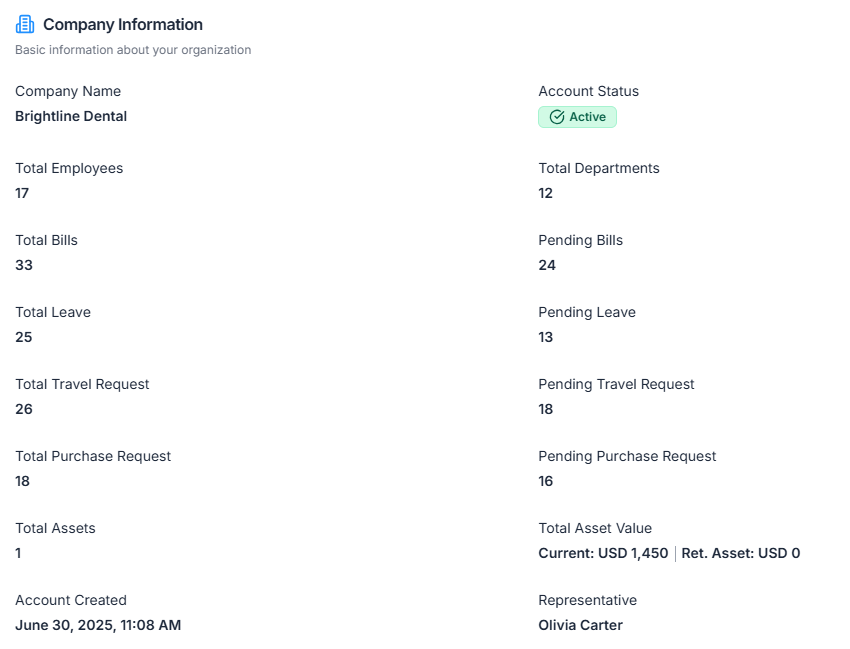
This card shows your company’s basic details and a running count of activity across Office-X:
- Company Name: your company’s name as it appears across Office-X.
- Account Status: normally Active. Suspended or Terminated appear only if Office-X has paused or closed the account.
- Total Employees: every employee record in your company, including inactive employees and people who have left.
- Total Departments: the number of departments you have created.
- Total Bills and Pending Bills: all bills submitted, and how many are still waiting for approval.
- Total Leave and Pending Leave: all leave requests, and how many are still waiting for approval.
- Total Travel Request and Pending Travel Request: all travel requests, and how many are still waiting for approval.
- Total Purchase Request and Pending Purchase Request: all purchase requests, and how many are still waiting for approval.
- Total Assets: the number of assets recorded in Asset Tracking.
- Total Asset Value (Subscriber Admin only): two figures side by side. Current adds up the purchase price of every asset that is not Retired. Ret. Asset adds up the purchase price of Retired assets. Both use your default currency code, for example “Current: USD 12,400”. Assets with no purchase price are not counted, and the value is the price you entered, not a depreciated value.
- Account Created: the date and time your company joined Office-X, shown in your company time zone.
- Representative: the name of your company’s main contact person. It is a display field only. It does not give that person any extra access.
Good to know: if your plan doesn’t include Asset Tracking, Total Assets and Total Asset Value are not counted, and they show 0.
Company Details #
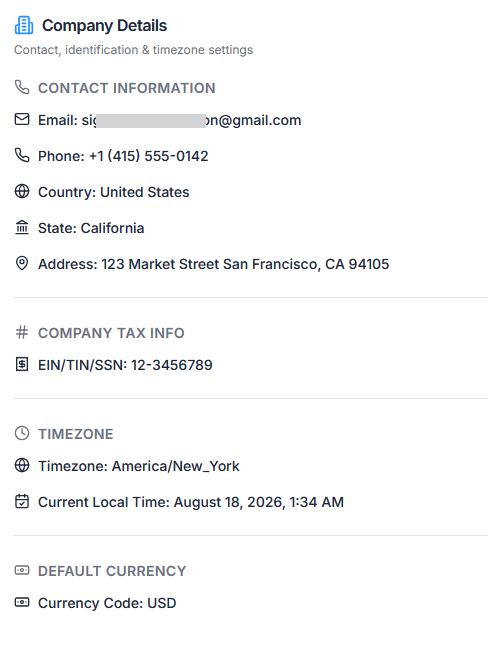
This card shows your contact details and company-wide settings at a glance. An empty field shows a dash (-).
- Contact Information: Email, Phone, Country, State and Address.
- Company ID: your company’s unique Office-X ID. It starts with
org_, for exampleorg_4kD9pXqLm2Ab. Office-X creates it for you, and it never changes, even if you rename the company. It is part of your public Terms of Service and Privacy Policy links (see Legal & Compliance below). It is also handy to quote when you contact Office-X support. - Company Tax Info: your EIN / TIN / SSN (tax identification number).
- Timezone: your company time zone, plus Current Local Time, a live clock showing the time in that zone right now.
- Default Currency: the currency code used across your company, for example USD. It comes from the currency marked as default under Admin → Currency. If none is marked, Office-X uses USD.
Legal & Compliance #
At the bottom of the overview, this card shows your own Terms of Service and Privacy Policy. Your clients see these documents, and they support your email and text consent records. Each row shows one of two badges:
- Published: you have published it. The row also shows the version and the date, for example “Version 2 · Updated Sep 28, 2026”.
- Default template: you have not published it yet.
If you can edit, select Manage Legal & Compliance to write and publish them. Everyone else sees the card without the button. Full steps are in Your Terms of Service and Privacy Policy below.

Edit Company Information #
On the Company Overview, select Edit Information. The button is shown only to the Subscriber Admin and to employees with Edit Company Profile.
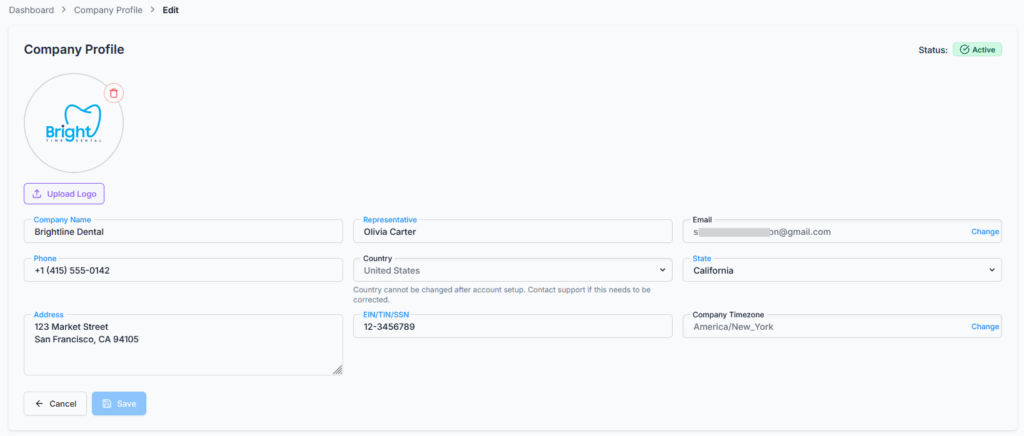
Here is what you can change on the edit page:
| Field | Rules |
|---|---|
| Company Logo | Select Upload Logo and choose a JPG, PNG or WebP image, up to 2 MB. A crop window opens so you can frame it as a square. Select the trash icon to remove the current logo. |
| Company Name | Required. Up to 70 characters. |
| Representative | Required. Up to 70 characters. |
| Locked on the form. Use Change next to it (see below). | |
| Phone | Optional. Up to 25 characters. |
| Country | Locked. It cannot be changed after your account is set up. |
| State | Pick from the list of states for your country. |
| Address | Optional. Up to 255 characters. |
| EIN/TIN/SSN | Optional. If you fill it in, it must be 5 to 25 characters, using only letters, numbers, hyphens and spaces. |
| Company Timezone | Locked on the form. Use Change next to it (see below). |
To save your changes:
- Make your changes.
- Select Save. The button stays grayed out until you have changed something, and while Company Name or Representative is empty or the tax number has an error.
- You see “Company profile updated”, and Office-X takes you back to the overview.
Select Cancel to go back without saving.
If the tax number breaks a rule, you see a message under the field, such as “EIN/TIN/SSN must be at least 5 characters long” or “EIN/TIN/SSN can only contain letters, numbers, hyphens, and spaces”.
Good to know: the country is locked because other settings depend on it. The note under the field says “Country cannot be changed after account setup. Contact support if this needs to be corrected.” If it is wrong, contact Office-X support.
Changing the Company Email #
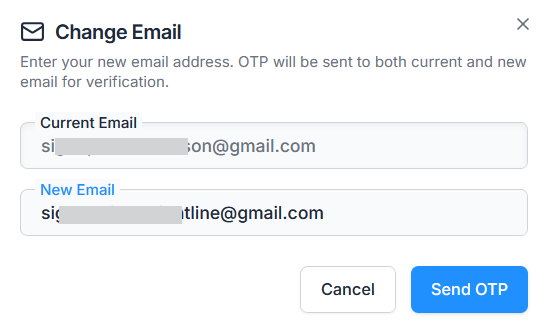
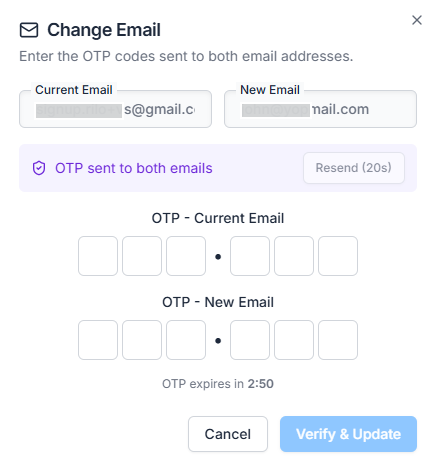
For security, you can’t type over the company email on the form. It is the email the Subscriber Admin signs in with, so Office-X checks both inboxes before it changes. Select Change next to the Email field, then:
- Type the address in New Email and select Send OTP. It must be a valid address, different from the current one, and not already used by another Office-X account.
- Office-X sends a 6-digit code to both addresses: the current email and the new one. You see “OTP sent to both email addresses.”
- Enter the code from the current inbox under OTP – Current Email, and the code from the new inbox under OTP – New Email. Tip: you can paste a whole 6-digit code into the first box.
- Select Verify & Update. You see “Email updated successfully.”
The codes only last a few minutes. The window shows a countdown (“OTP expires in 2:59”). When it runs out, it says “OTP has expired. Please resend.” Select Resend OTP to get two new codes. The button counts down for a few seconds after each send before you can use it again.
What changes when the email changes:
- The Subscriber Admin signs in to Office-X with the new email from now on.
- Your Office-X subscription billing email is updated to match. If that update fails, the change is undone and you see “Failed to sync email with payment provider. Please try again.”
- The change is saved as soon as you verify. You don’t need to press Save on the edit page.
Messages you might see:
- “This email is already in use by another account.” Choose a different address.
- “Invalid OTP for current email.” or “Invalid OTP for new email.” Check you put each code in the right row.
- “Please wait … seconds before requesting a new OTP.” Wait a moment, then resend.
Changing the Time Zone #
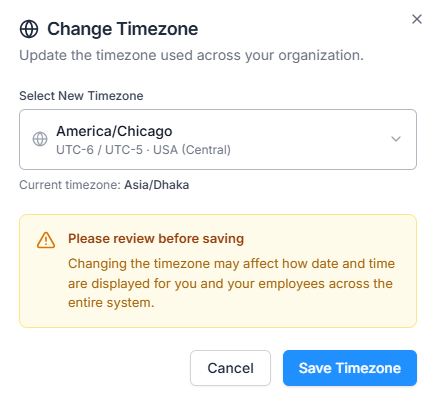
Like the email, the Company Timezone field is locked on the form. Select Change next to it, then:
- Open Select New Timezone and search by time zone, country or offset, for example “New_York”, “USA” or “UTC-5”. Each zone is listed with its offset, such as “America/New_York (UTC-5 / UTC-4)”, and the list is grouped by region. Your current zone is shown under the list.
- Read the warning: “Changing the timezone may affect how date and time are displayed for you and your employees across the entire system.”
- Select Save Timezone. The button stays grayed out until you pick a different zone.
- You see “Timezone updated successfully.”
Important: the new time zone is saved and used straight away, when you select Save Timezone. You don’t need to press Save on the edit page, and Cancel on the edit page does not undo it. It changes things for everyone in your company, for example:
- how dates and times are shown across Office-X,
- the available time slots on your booking pages,
- when scheduled reminders go out, such as reminders sent at 9:00 AM company time.
Double-check before you save.
Your Terms of Service and Privacy Policy #
Your clients deal with your business, not with Office-X. So when they book a service or send a request, they should agree to your Terms of Service and your Privacy Policy. The Legal & Compliance page lets you write both documents, publish them on a public web page, and keep a history of every version.
To open it, go to Business → Company and select Manage Legal & Compliance. You need to be the Subscriber Admin or have Edit Company Profile.
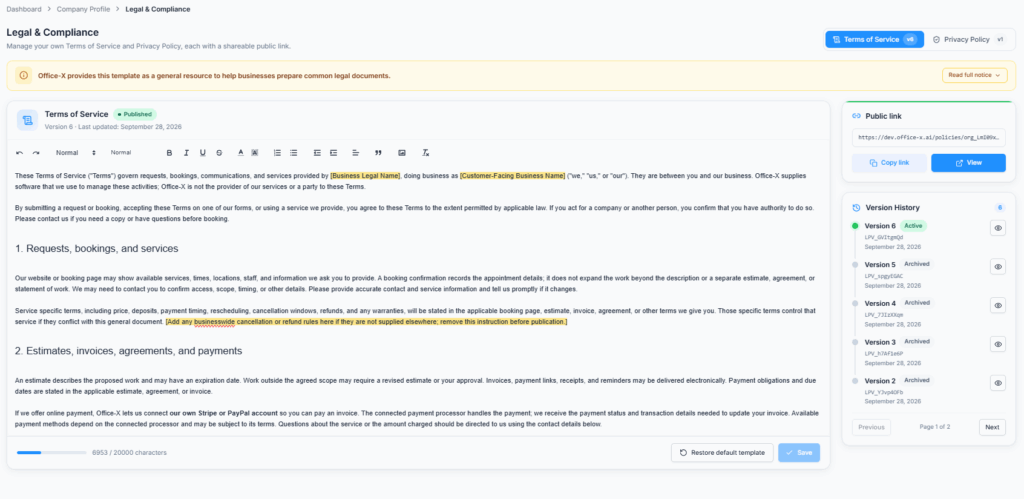
The page has two tabs, Terms of Service and Privacy Policy. They work the same way. Once a document is published, its tab shows the current version, for example v2.
Start From the Template #
You don’t have to start from a blank page. Until you publish, each tab is filled with a ready-made template written for service businesses. It covers bookings, estimates and invoices, online payments, e-signatures, emails and texts (including STOP and HELP), and your contact details.
- Parts you must fill in are highlighted in yellow, for example [Business Legal Name], [Customer-Facing Business Name], [Customer Support Email] and [Customer Support Phone]. Replace every one of them with your own details.
- Above the editor, a notice explains that the template is a general resource, not legal advice. Select Read full notice to read all of it. You are responsible for checking the wording fits your business and local laws. For anything important, ask a lawyer.
Good to know: Office-X does not check that you replaced the yellow placeholders. If you publish without replacing them, your clients will see text like “[Business Legal Name]” on the public page. Read the whole document once more before you publish.
Edit and Publish #
- Choose the Terms of Service or Privacy Policy tab.
- Edit the text in the editor. You can use headings, bold, lists and links.
- Watch the bar under the editor. It counts your characters, up to 20,000 per document.
- Select Publish the first time. After that, the button is called Save.
- You see “Terms of Service saved.” (or “Privacy Policy saved.”). The badge changes from Default template to Published, and the date shows under the title, for example “Version 1 · Last updated: September 28, 2026”.
Until you publish, a notice at the top says “Not published yet. This default template has not been saved.” While that notice shows, two things are true:
- your public link does not open,
- your booking and request forms do not ask clients to agree to that document.
After the first publish, Save stays grayed out until you actually change the wording. You can’t publish an empty document. You see “Terms of Service cannot be empty.”
Restore default template puts the original template back in the editor. If you have written something of your own, Office-X asks first: “Restore default template?” Restoring only changes the editor. Nothing is published until you select Save.
Good to know: heavy formatting also takes up space. If you see “… is too long. Keep it under 20,000 characters.” while the counter is still under the limit, shorten the text or remove some formatting, then save again.
Your Public Link #
Each document has its own web page that anyone can open, with no sign-in. The Public link card beside the editor shows the address. It looks like this:
- Terms of Service: your Office-X web address followed by
/policies/org_4kD9pXqLm2Ab/terms - Privacy Policy: your Office-X web address followed by
/policies/org_4kD9pXqLm2Ab/privacy
The org_… part is your Company ID, so the link never changes, even if you rename your company or publish a new version. Select Copy link to copy it (it shows “Copied!”), or View to open the page in a new tab. Both buttons work only after you publish. Before that, the card says “This link starts working once you publish.”
The public page shows your company logo and name, the document title, its Last updated date and the full text. If you have published both documents, each page links to the other (“Read our Privacy Policy →”). If someone opens a link for a document you haven’t published, they see “This page isn’t available”.
You can put these links on your own website, in your email signature, or anywhere clients need them.
Versions and Version History #
Every time you save a real change, Office-X keeps the old wording and creates a new version: Version 1, Version 2, and so on. This matters because a client agrees to the version that was live on the day they agreed. Office-X records that version number with their agreement, so you can always tell what they agreed to.
- Only one version is Active at a time. That is the one your public page shows. Older versions are marked Archived.
- Saving without changing any wording does not create a new version. You see “No changes to Terms of Service.”
- The Version History card (beside the editor) lists every version, newest first, 5 per page. Use Previous and Next to page through them.
- Each row shows the version number, Active or Archived, its version ID (for example
LPV_a1B2c3D4) and the date it was published. - Select the eye icon on a row to read that version’s full text in a window.
The Version History card appears after your first publish. Old versions can be read but not edited or brought back. To go back to older wording, copy it from the version window into the editor and save it as a new version.
Where Your Policies Are Used #
- Booking pages: once you publish at least one document, your public booking pages and on-site request forms show a box asking the client to agree to your Terms of Service and/or Privacy Policy, with links to them. The client’s agreement is saved on their client record, together with the version they agreed to, for example “I accept Riverside Cleaning Co.’s Terms of Service (Version 2) and Privacy Policy (Version 1).” See the Bookings guide for how the form looks to your clients.
- Your public links: anywhere you share them, such as your website.
- Company Overview: the Legal & Compliance card shows whether each document is published, and its current version.
Good to know: these are your documents for your clients. They are separate from the Office-X Terms of Service and Privacy Policy that you accepted when you signed up for Office-X.
Activity Log #
Office-X records these changes in Dashboard → Activity Log, with who made them and when:
- Company profile updates, including which fields changed, their old and new values, and whether the logo was replaced or removed.
- Email changes, for example “Company email changed from [email protected] to [email protected]”. Each request for a code is recorded too.
- Time zone changes, recorded as a company profile update.
- Policy updates, for example “Terms of Service updated (version 2)”.
Summary #
The Company page is where you keep your company’s information correct and publish the legal documents your clients agree to. Everyone in your company can view the overview. Only the Subscriber Admin, or an employee with Edit Company Profile, can make changes. With it, you can:
- See your company details, your Company ID and a quick count of employees, departments, bills, leave, travel and purchase requests, and assets.
- Update the logo, name, representative, phone, state, address and tax number.
- Change the company email safely, with a code sent to both the old and the new inbox. This also changes the Subscriber Admin’s sign-in email.
- Change the company time zone. It takes effect at once, for everyone.
- Write and publish your own Terms of Service and Privacy Policy from a ready-made template, share their public links, and keep a full version history.
