The Estimates module helps you prepare a clear price offer for a client, send it by email or text message (SMS), and track what happens next. You can offer one total, or let the client choose between several packages. The client can review the estimate, ask for changes, accept it with an electronic signature, decline it, and download a PDF copy.
Good to know: Estimates is part of CRM. CRM is a paid add-on for the Advance plan. If your company doesn’t have it yet, the Subscriber Admin can add it from Business → Billing & Payment. Once it is on, Estimates and the other CRM pages appear in the sidebar under CRM.
Two Sides to Every Estimate #
Every Estimate has two very different people looking at it:
- Your team (the Subscriber Admin, or an employee with the right Estimates permissions) creates the estimate, chooses the pricing style, sets the Valid Until date, sends it, answers change requests, and turns an accepted estimate into an invoice or a task.
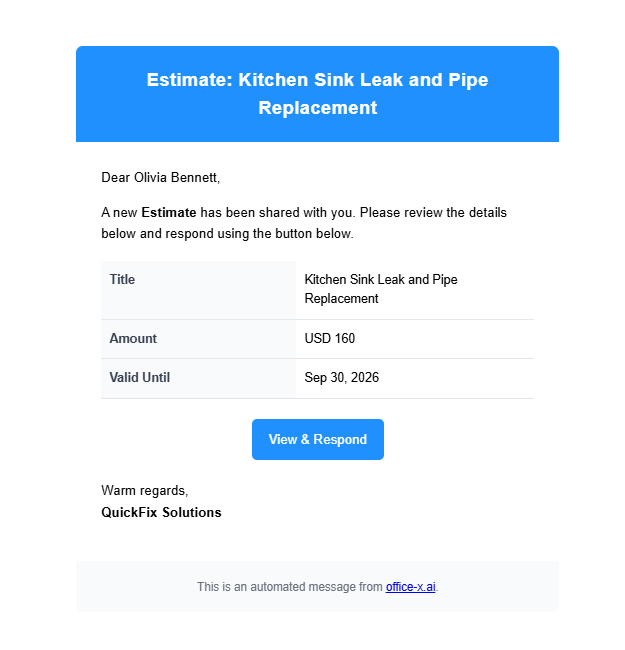
- The client receives a secure link by email or SMS. They don’t need an Office-X account. If your Client Portal is on and Show estimates is switched on (under Admin → Client Portal), the button in the email signs the client in to the Client Portal and opens the estimate there. Otherwise, and for text messages, the link opens a secure estimate page on its own. Both show the same document with the same buttons.
Example, start to finish: Sarah Mitchell needs a follow-up home cleaning visit, and you are pricing it for her. Here is what happens on each side:
| Step | You (your team) | Client |
|---|---|---|
| 1 | Create an Estimate for Sarah with one line item: Home Cleaning Service, Quantity 2, Unit Price $300, Tax 20%. The Grand Total is $720. Set Valid Until two weeks out and select Save Draft. | – |
| 2 | In the Estimate list, open the Action menu and choose Send via Email. The status changes to Sent. | – |
| 3 | – | Sarah receives an email with a button to review the estimate. |
| 4 | – | Sarah opens the estimate in the Client Portal, or on the secure estimate page. Office-X marks it Viewed. |
| 5 | – | Sarah selects Accept Estimate, draws or types her signature, ticks the Electronic Signature Disclosure box, and confirms. |
| 6 | The estimate becomes Accepted. The person who created it gets an Office-X notification and an email. | Sarah can download the signed PDF. |
| 7 | Use Convert to Invoice to bill the work, and Convert to Task to schedule it. | – |
Good to know: If the client declines an estimate, that is not the end. You can edit it to adjust the offer. Saving your changes reopens the estimate as Sent and emails the client a new link so they can review it again.
Who Can Use This Feature #
The Subscriber Admin can use every Estimate action without a separate permission. Your company’s plan still has to include CRM. Convert to Task also needs the Task Management add-on.
Employees need the permissions below. You grant them under Admin → Permissions → CRM – Estimates, and each one works on its own:
- Create / Duplicate Estimate
Required action: Create
Shows them the New Estimate button and the Duplicate option. There is no separate permission just for duplicating. - View All Estimates
Required action: View
Lets them see the Estimate list and open any estimate. Without it, the list stays empty and an estimate link shows a no-access page. - Edit Estimate (For All)
Required action: Update
Shows them the Edit option. It is also what lets them reply to a client in Change requests. - Delete Estimate (For All)
Required action: Delete
Only Draft estimates can ever be deleted. - Send / Resend / Void Estimate (For All)
Required action: Update
Covers sending and resending by email and by SMS, and voiding. There is no separate permission just for voiding. - Convert Estimate to Invoice
Required action: Create
Lets them turn an accepted estimate into one or more draft invoices. - Convert Estimate to Task
Required action: Create
Shows them the Convert to Task option on an accepted estimate. To open and save the task form, they also need Create Task (For All) or Create Task (For Subordinate) under Task Management. Without one of those, they see a no-access page.
A few related permissions live in other groups:
- Create Client (CRM – Clients) lets them save a new client from the estimate’s client picker.
- Create Item (CRM – Items) lets them save a new item from a line item picker.
- Convert Request to Estimate (CRM – Requests) lets them start an estimate from a request. They need Create / Duplicate Estimate as well.
- Manage Client Notifications lets them change the automatic estimate follow-ups under Admin → Notifications.
You can give these permissions to one employee, or to a whole team at once. See the Permissions Management guide for how to assign them.
Where an Estimate Can Come From #
There are three ways to start an estimate. Every one of them gives you a new Draft. Nothing reaches the client until someone on your team sends it.
- Create it directly
Go to Dashboard → CRM → Estimates and select New Estimate. The Create a new estimate page opens blank. This is best when you already know what you want to offer. - Convert a CRM Request
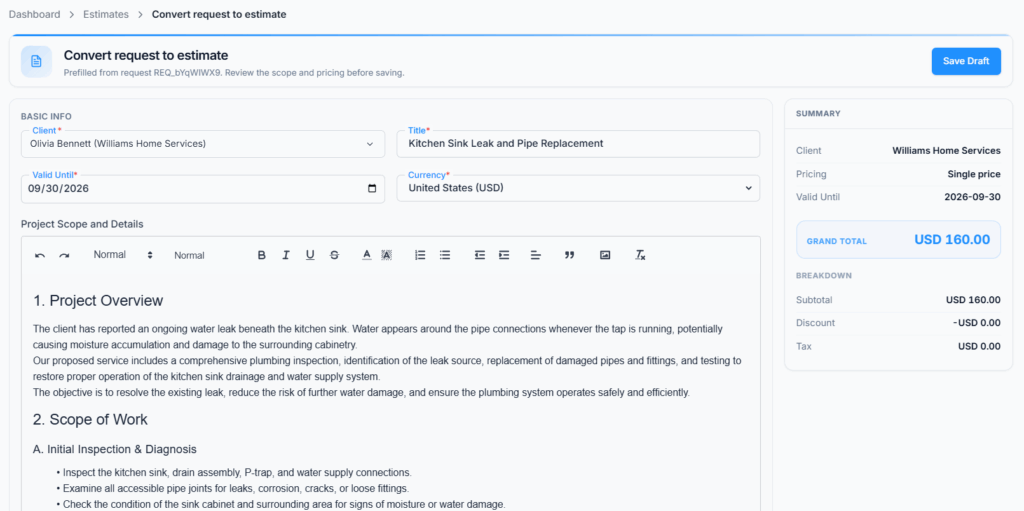
On the request, choose Convert to Estimate. The Convert request to estimate page opens with the note “Prefilled from request … Review the scope and pricing before saving.” The client, title, currency and requested line items are copied across. The request’s service details and service address are placed in Project Scope and Details, so the estimate still says where the work happens. Pricing starts as Single Price, and you can switch to Multiple Packages before saving. You choose the Valid Until date yourself. The new estimate is its own document, so changing its prices later does not change the original request. - Duplicate an existing estimate
Use Action → Duplicate on any estimate. This is handy for a similar offer or a repeat service. You can review and change everything before the new Draft is saved.
Important Request rule: a request can produce only one estimate. Once the estimate is saved, the request becomes Converted and links to it. Choosing Convert to Estimate again simply opens that estimate. An archived request shows “This request is archived. Restore it before converting it.” A cancelled request shows “This request was cancelled and cannot be converted.” If you delete the Draft estimate, the request goes back to its earlier status and can be converted again. See the Requests guide for more.
A request can be entered by your team, sent in by a client through the Client Portal, or created from a public booking link. Those are three ways a request begins. The estimate is only created when someone on your team converts that request. A booking or a Client Portal request never sends an estimate on its own.
Example: Mr. Sullivan sends a repair request for his apartment in Riverside through the Client Portal. Danny Ruiz reviews it and selects Convert to Estimate. The repair item and the service address arrive in a new Draft. Danny switches to Multiple Packages, adds a second package, saves the Draft and sends it. Mr. Sullivan picks one package and signs to accept it.
Simple flow: New Estimate, CRM Request, or Duplicate → Draft → send by email or SMS → client reviews → Accepted or Declined → Invoice and/or Task once accepted.
The Estimate List #
Route: Dashboard → CRM → Estimates. This is the first page you see when you open the module. The New Estimate button sits at the top right.
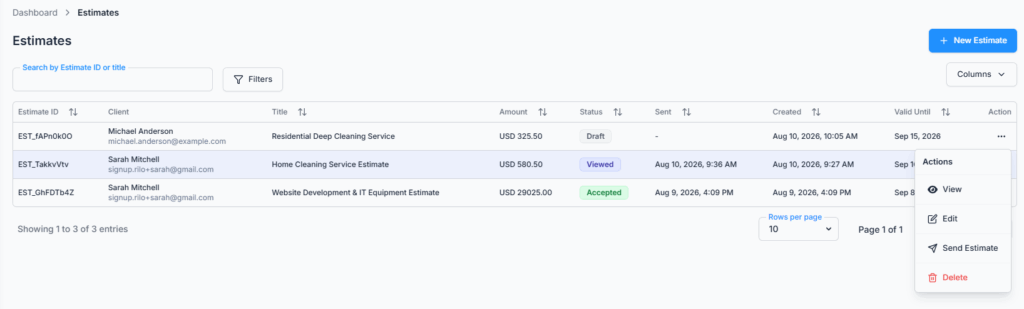
| Column | What it shows |
|---|---|
| Estimate ID | The estimate’s own number, for example EST_a1B2c3D4. |
| Client | The client’s name, with their email underneath. |
| Title | The estimate title. A long title is cut short; hover over it to read all of it. |
| Amount | The total, with its currency. Multiple Packages estimates also show a small package label (see below). |
| Status | Draft, Sent, Viewed, Accepted, Declined, Expired, Converted or Voided. |
| Sent | The date and time it was first sent. |
| Created | The date and time it was created. |
| Valid Until | The last day the client can accept it. |
| Action | The menu of things you can do with this estimate. |
Use the Columns button to show or hide any column except Action.
For a Multiple Packages estimate, the Amount column shows one package’s total. Before the client answers, that is the Recommended package, or the lowest-priced package when none is marked, with a label such as “3 packages”. After the client accepts, it shows the total and the name of the package they chose.
- Search – type in Search by Estimate ID, title or client. You can search by the client’s name or email too. Several words narrow the results, so “sarah cleaning” finds Sarah’s cleaning estimates.
- Filters – select Filters, pick a Status, then Apply Filters. Only statuses your estimates are currently in are listed. Clear All removes the filter.
- Sort – select the Estimate ID, Amount, Status, Sent, Created or Valid Until heading. Select it again to reverse the order. Sorting covers the whole list, not just the page you are on.
- Open – select any row to open that estimate’s View page.
The list shows 10 estimates per page by default. You can switch to 20 or 30. If nothing matches, you’ll see “No estimates found.”
The Action Menu #
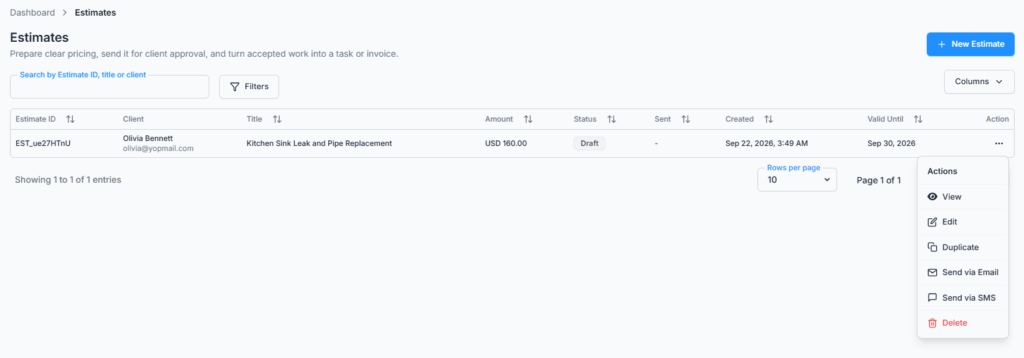
The Action menu only shows options that make sense for the estimate’s current status, and that you have permission for:
| Option | Shown when the estimate is |
|---|---|
| View | Any status |
| Edit | Draft, Sent, Viewed or Declined |
| Duplicate | Any status |
| Send via Email / Send via SMS | Draft |
| Resend via Email / Resend via SMS | Sent, Viewed or Declined |
| Convert to Invoice | Accepted |
| Convert to Task | Accepted |
| Void | Sent, Viewed or Declined |
| Delete | Draft |
The SMS options only appear when the client has a mobile or phone number saved. Void means withdrawing an estimate so the client can no longer act on it. The record stays for reference.
Creating an Estimate #
Select New Estimate. The Create a new estimate page opens. The form is on the left, a Summary panel is on the right, and the Save Draft button is at the top.
Basic Info #
- Client (required) – type to search by name, company or email. Only Active clients are listed. If nothing matches, the list offers Add new client “…”. This opens the Add a new client window with the name already filled in. A Customer needs a name plus at least one of email, mobile or phone. When you save, the new client is picked for you. Saving a new client needs the Create Client permission.
- Title (required) – up to 100 characters.
- Valid Until (required) – today or a later date. The calendar won’t offer a past date. The estimate stays open until the end of that day in your company’s time zone. The client cannot accept it after that.
- Currency (required) – pick from your company’s currencies.
- Project Scope and Details – optional. A text editor with paragraphs, lists, bold and italic text, links and images. Up to 5,000 characters, with a counter below the box. The layout is kept on your View page, the client’s copy and the PDF.
- Terms & Conditions – optional. The same editor, up to 2,000 characters. Useful for numbered clauses, payment terms, warranty, cancellation policy and exclusions.
- Notes for Client – optional plain text, up to 2,000 characters. A short note such as “We can start the week of the 12th.” It appears on the estimate, the client’s copy and the PDF.
Good to know: To email the estimate, the client needs an email address. To text it, they need a mobile or phone number saved with its country code. Check the client record before you send.
Pricing and Line Items #
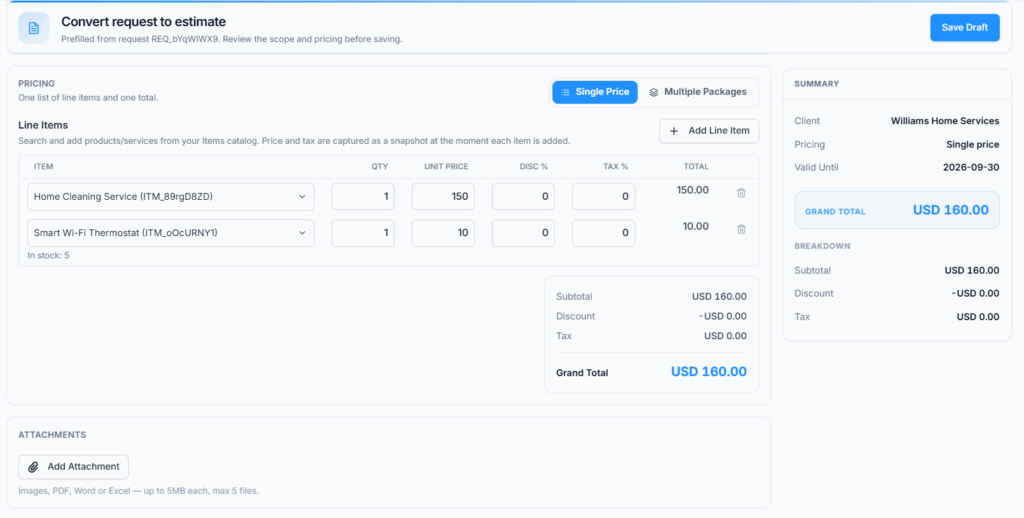
Choose Single Price (the default) or Multiple Packages. Both are explained in the next section. To add a line, select Add Line Item:
- In the Item box, type to search your Items by name or ID. Each result shows its price and, for products, the stock level.
- Pick an item. Its Unit Price and Tax % fill in from the Item settings. For a product you’ll also see “In stock: 12” or “Out of stock” under the name.
- If the item isn’t in your catalog yet, choose Add new item “…”. The Add a new item window opens with the name filled in. After you save it, it fills the current line. This needs the Create Item permission.
- Enter the Qty. Change the Unit Price, Disc % or Tax % for this estimate if you need to. Your changes don’t touch the Item itself.
- To remove a line, select the trash icon at the end of its row.
The limits you may run into:
- At least 1 line item, and up to 100.
- Qty must be more than 0 (the smallest is 0.01) and up to 1,000,000. Unit Price can be 0 up to 99,999,999. A number past these shows “That quantity looks wrong — check the decimal point” or “That amount looks wrong — check the decimal point”.
- Disc % and Tax % must be between 0 and 100.
While you build, the Total column shows each line’s full total, after its discount and tax. Below the table you see Subtotal, Discount, Tax and Grand Total.
Good to know: Tax on an estimate is set line by line, in the Tax % column. Estimates don’t have the Sales tax choice that invoices have, and the rates under Admin → Client Portal → Invoice tax apply to invoices only. A client’s tax-exempt setting doesn’t change an estimate either. For a tax-exempt client, set each line’s Tax % to 0 yourself.
Good to know: There is no deposit field on an estimate. You decide on a deposit later, when you use Convert to Invoice on the accepted estimate.
Attachments #
- Select Add Attachment to add files such as a spec sheet or a floor plan. The client can open them from their copy.
- Up to 5 files, 5 MB each. Allowed: images (PNG, JPG, WEBP), PDF, Word and Excel.
- A file that is too big or the wrong type shows a message such as “plan.zip is not a supported file type. Allowed: images, PDF, Word, Excel.” A sixth file shows “You can attach up to 5 files.”
- Files upload when you save the estimate. Remove one before saving with the small x on its chip.
The Summary Panel and Saving #
The Summary panel on the right updates as you type. It shows the client, the pricing style, the Valid Until date, and the Grand Total with a Subtotal, Discount and Tax breakdown. For packages, it shows a Headline Total and a package comparison instead.
Select Save Draft. You’ll see “Estimate created successfully” and return to the list. If something is missing, the message appears next to the field, for example “Item is required. Add at least one line item.” The new estimate is a Draft. Nothing is sent to the client, and no PDF is made until you send it.
Single Price and Multiple Packages #
The Pricing section has a switch at the top right with two ways to present the offer.
Single Price #
Use Single Price when the client needs one clear option: one list of line items and one total. The client accepts or declines the whole estimate.
Example: Two cleaning visits at $300 each, plus 20% tax, are offered as one total of $720.
Multiple Packages #
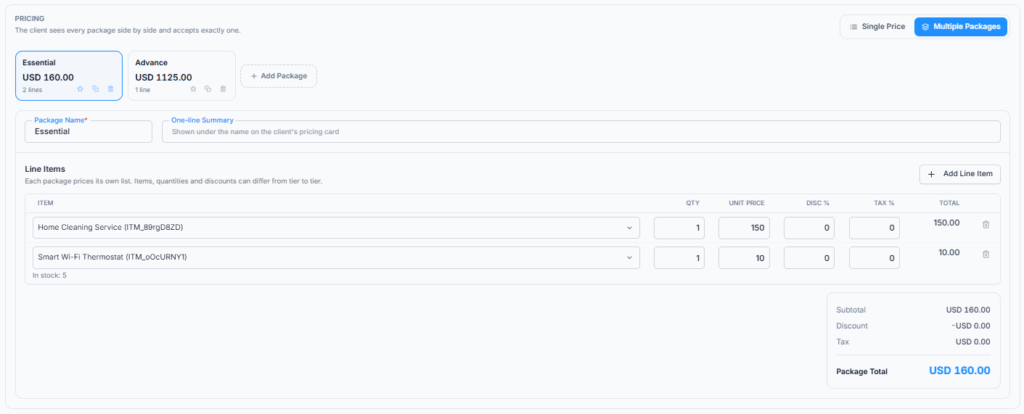
Use Multiple Packages when you want the client to compare choices such as Essential, Advance and Premium. The client sees every package side by side and accepts exactly one.
- Each package is a tab showing its name, its total and its number of lines. Select Add Package to add one. New packages are named Essential, Advance, Premium, Enterprise and so on, and you can rename them.
- You need at least 2 packages. There is no upper limit.
- Package Name is required, up to 40 characters, and every package needs a different name.
- One-line Summary is optional, up to 140 characters. It shows under the name on the client’s package card, so the client quickly sees who the package is for.
- Each package needs at least 1 line item, and can have up to 100. Items, quantities, prices, discounts and tax can differ from package to package. Each package has its own Subtotal, Discount, Tax and Package Total.
- Select the star on a tab to mark it Recommended. Only one package can be recommended, so marking a new one clears the old one.
- Select the copy icon to duplicate a package (the copy is named, for example, “Advance copy”), then change only the differences. Select the trash icon to delete a package. The last remaining package can’t be deleted.
- The Summary panel shows a Package Comparison. The Recommended package (or the cheapest one) is the Baseline, and every other package shows how much more or less it costs.
- After saving, packages are always shown from the lowest total to the highest.
Example: A maintenance company offers Essential for an inspection only, Advance for an inspection plus two repairs, and Premium for a full replacement with follow-up support. The client compares the included items and totals, selects Advance, signs and accepts. The accepted estimate and its PDF then use the Advance items and total.
Switching pricing styles: when you switch from Single Price to Multiple Packages, your existing line items are copied into a first package named Essential. Add at least one more package before saving, or you’ll see “Add at least 2 packages, or switch back to a single price”. When you switch back to Single Price, Office-X keeps the Recommended package, or the first package if none is recommended. If other packages would be removed, a Switch to a single price? window names the package you keep and how many will go. Choose Switch to single price or Keep packages. Nothing is lost for good until you save.
How the Totals Are Calculated
For each line item: Line Subtotal = Quantity × Unit Price. The Discount % comes off that subtotal first. Then the Tax % is charged on what is left after the discount, so tax is never charged on the discounted amount:
- Line Discount = Line Subtotal × Discount %
- Line Tax = (Line Subtotal − Line Discount) × Tax %
- Line Total = Line Subtotal − Line Discount + Line Tax
What the Amount column shows: on the client’s copy and the PDF, the last column is Amount = Quantity × Unit Price, before discount and tax. That way the column adds up exactly to the Sub Total below it, and the Discount and Tax are listed underneath. The PDF also has a separate TAX % column for each line. Your own View page shows the same Quantity × Unit Price figure in its last column.
Worked example: an estimate titled “Home Cleaning Service – Follow-up Visit,” for the client Sarah Mitchell, has one line item: Home Cleaning Service, Quantity 2, Unit Price $300, Tax 20%, no discount:
- Line Subtotal = 2 × $300 = $600 (this is also the Amount the client sees on the line)
- Line Discount = $0 (no discount)
- Line Tax = $600 × 20% = $120
- Line Total = Grand Total = $600 + $120 = $720
Estimate Lifecycle #
An estimate moves through these statuses:
- Draft – still being put together. The client can’t see it, not even in the Client Portal.
- Sent – you sent it by email or SMS. The client has a link but hasn’t opened it yet.
- Viewed – the client opened it at least once, from the link or from the Client Portal.
- Accepted or Declined – the client answered. Accepting needs an electronic signature. On a Multiple Packages estimate the client picks one package first. Declining needs a reason.
- Expired – the Valid Until date passed while the estimate was still Sent or Viewed, with no answer.
- Voided – you withdrew it while it was Sent, Viewed or Declined. The client can no longer open or act on it.
- Converted – the accepted estimate has been fully invoiced. A deposit or partial invoice does not mark it Converted. That only happens once the full accepted amount, or every line item, has been invoiced.
Good to know: A Declined estimate isn’t necessarily final. Editing it changes it back to Sent and emails the client a fresh link, so you can update the offer without creating a new estimate.
An estimate is marked Expired once its Valid Until date has passed. Office-X checks this whenever the client opens the estimate, and again once a day for every estimate.
Sending an Estimate #
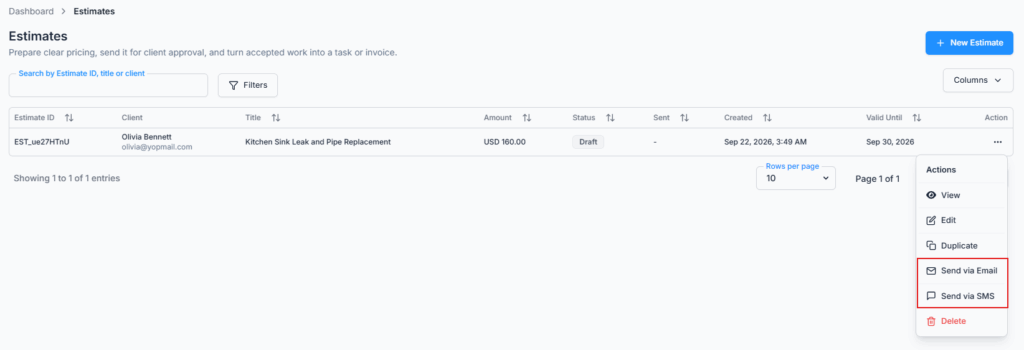
You send an estimate from the Action menu in the Estimate list. You can send it by email, by SMS, or both. The first successful send changes the status from Draft to Sent.
Send by Email #
- Open the estimate’s Action menu and choose Send via Email. The option reads “Sending email…” while it works.
- You’ll see “Estimate sent successfully”. The status changes to Sent.
- The client receives your company’s Estimate email with a button to review it. When the Client Portal is on and Show estimates is switched on, the button signs them in to the portal on this estimate. Otherwise it opens the secure estimate page.
- Office-X makes a PDF of the estimate. It is refreshed whenever you edit the estimate, and again when the client accepts, so it carries the signature and, for packages, the chosen package.
Email needs an address: if the client has no email address, Office-X stops and asks you to fix the client first. The estimate stays a Draft. You can change the email wording under Templates. See the Email Templates guide.
Send by SMS #
- Open the Action menu and choose Send via SMS. The Send estimate via SMS window opens.
- Check the To number and the number it will be sent from. Office-X uses the client’s mobile number first, then their phone number.
- Read or edit the Message. The ready-made text includes a short link to the estimate. Reset brings back the original wording. A preview and a character and segment counter show what the client will get. A non-Latin character or emoji means fewer characters fit in each segment, and your SMS provider bills per segment.
- Select Send SMS. You’ll see “Estimate texted to” followed by the number. A Draft becomes Sent, even if the client has no email address.
SMS needs two things: your company must connect an SMS account under Admin → Integrations → SMS Integrations, and the client needs a mobile or phone number saved with its country code. Without an SMS account you’ll see “No SMS account is connected yet. Connect one under Integrations → SMS Integrations first.” A number without its country code shows “This client’s number can’t be texted — save it with its country code on the client record first.” If the client has no number at all, the SMS option isn’t shown. The SMS link always opens the secure estimate page, not the Client Portal.
Resending #
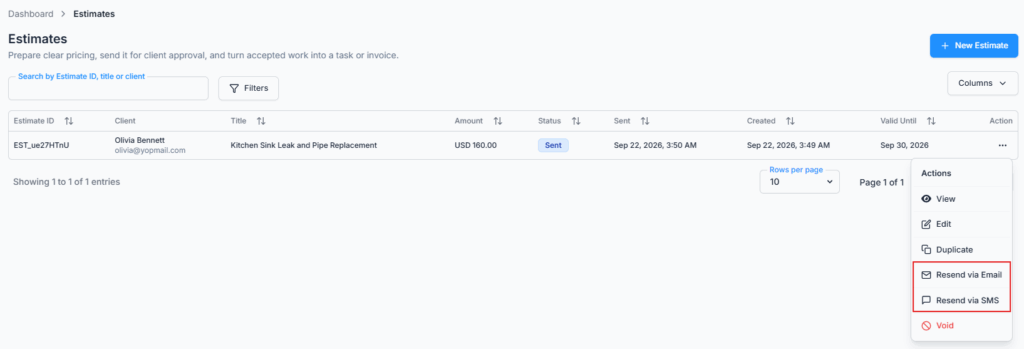
After the first send, the menu offers Resend via Email and Resend via SMS. Resend is available while the estimate is Sent, Viewed or Declined. You’ll see “Estimate resent successfully”. Links from earlier messages keep working, so the client can use any of them.
Good to know: You can’t resend by email once the Valid Until date has passed. You’ll see “This estimate’s Valid Until date has passed, so a resent link would already be expired. Edit the estimate to extend the date first.” Extending the date also keeps the client’s current link working, so you may not need to resend at all.
Good to know: Resending a Declined estimate does not reopen it. The client can read it and send change requests, but they can’t accept it. To give them a new offer they can accept, edit the estimate instead.
How long the link works: the client’s link keeps working for a short while after the Valid Until date, so they can still read and download the estimate. After that it stops opening. Voiding the estimate ends access straight away.
Automatic Follow-ups #
Office-X can chase an unanswered estimate for you. Set this up under Admin → Notifications, on the Estimates tab. There are three messages, and all three start switched off:
| Message | What it does | Suggested timing |
|---|---|---|
| First follow-up | Nudges a client who hasn’t answered. | 3 days after the estimate is sent |
| Second follow-up | One last nudge before the estimate runs out. | 7 days after it is sent |
| Expiring soon | A warning before the Valid Until date passes. | 2 days before it expires |
- You choose the timing for each one, in days or in hours.
- Follow-ups only go to estimates that are still Sent or Viewed. They stop as soon as the client accepts or declines, or the estimate is voided or expires.
- Each message is sent once per estimate. Office-X checks every hour.
- Email is the main reminder, so the client needs an email address. You can switch on an SMS that goes out with the email. It only sends when an SMS account is connected and the client has a number. A follow-up SMS is never sent on its own.
- An employee needs Manage Client Notifications to change these settings. See the Notifications guide for the full page.
What the Client Sees and Can Do #
The client sees the full estimate in the Client Portal, or on the secure estimate page. At the top is the title Estimate, the estimate number, and “From” your company name. The document shows your logo and address, Bill To, the Estimate Date and Expiry Date, the line items (#, Item & Description, Qty, Rate, Discount, Amount), the Sub Total, Discount, Tax and Total, and then Project Scope and Details, Notes, Terms & Conditions and Attachments.
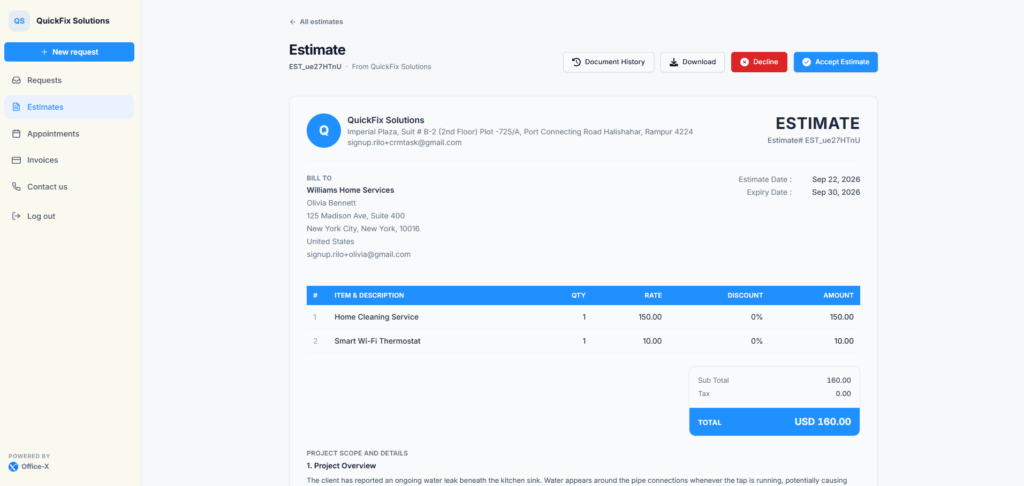
From there, the client can:
- Compare packages – on a Multiple Packages estimate, a Choose your package section shows a card for each package with its total, a short item list and a Recommended ribbon where you set one. Selecting a card switches the line items and totals below to that package.
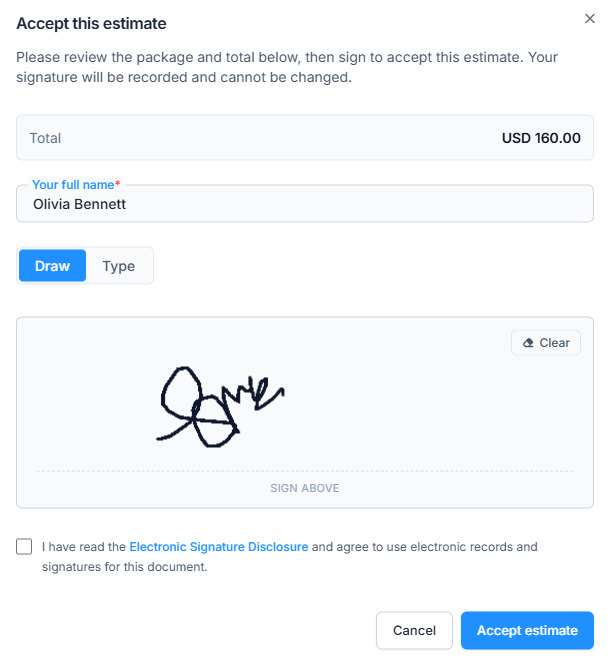
- Accept – while the estimate is Sent or Viewed and before the Valid Until date passes. The button reads Accept Estimate, or Accept plus the package name. The Accept this estimate window shows the package and total. The client enters Your full name (filled in for them, up to 120 characters), then signs on the Draw tab or the Type tab (typing offers a few handwriting styles). They tick the box to agree to the Electronic Signature Disclosure and select Accept estimate. Office-X won’t accept without the name, the signature and the ticked box. They then see “Thank you! Your acceptance has been recorded.” The signature, name and date are added to the bottom of the document and to the PDF.
- Decline – while the estimate is Sent or Viewed. The Decline this estimate? window warns “This action cannot be undone. The sender will be notified.” A reason is required, up to 500 characters, with a counter.
- Download – the PDF, at any status, once it is ready. Until then the button is grayed out with the hint that the document is still being prepared.
- Request changes – in the Change requests section, while the estimate is Sent, Viewed or Declined. Under What would you like changed? the client writes up to 2,000 characters and selects Send request. They can attach up to 5 files per message: images (PNG, JPG, WEBP) or PDF, 2 MB each. The section closes once the estimate is Accepted, Expired, Converted or Voided.
- Document History – a side panel listing when they viewed, accepted, declined and downloaded the estimate, each comment, and each time your team updated it (with what changed).
After an answer, a banner at the top says, for example, “You accepted this estimate on” and the date. An expired estimate shows “This estimate has expired and can no longer be responded to.” A voided estimate no longer opens: the client sees “Estimate not available”.
In the Client Portal, the client also has a Your estimates list. Estimates waiting for an answer are under Waiting on you and read “Awaiting your response”. Answered ones are under Earlier estimates as Accepted, Declined or Expired. Drafts, Voided and Converted estimates are not listed there. The Client Portal Estimates guide walks through the client’s side in full.
What your team receives: when the client accepts, declines or sends a change request, the person who created the estimate gets an Office-X notification and an email, with a button back to the estimate. When someone on your team replies in Change requests, the client gets an email with a working link back to the estimate. The reply is always saved, and the message after you send it tells you whether the client was emailed:
- “Comment added and the client has been notified.”
- “Comment added. The client has no email address on file, so no notification was sent.”
- “Comment added, but the client could not be notified by email. Their existing estimate link still works — reach them another way if it’s urgent.”
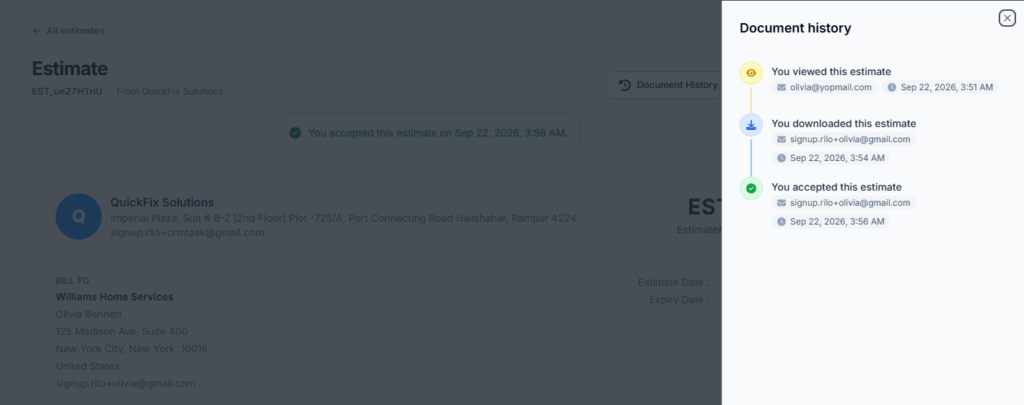
Good to know: opening the same estimate again doesn’t add another “viewed” entry. Only the very first open is recorded. Downloads are different: every download is recorded.
Viewing an Estimate (Your Side) #
Select a row in the list, or choose View from the Action menu. Your team’s own View page opens, separate from the client’s copy. The header shows the title, the Estimate ID and client name, the status, and a Download button once the PDF exists (from the first send onward). The page shows:
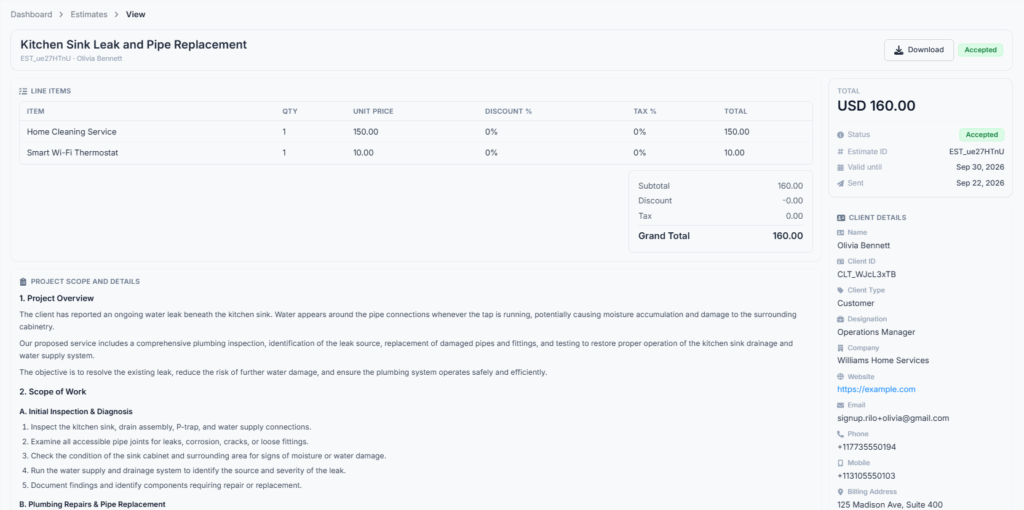
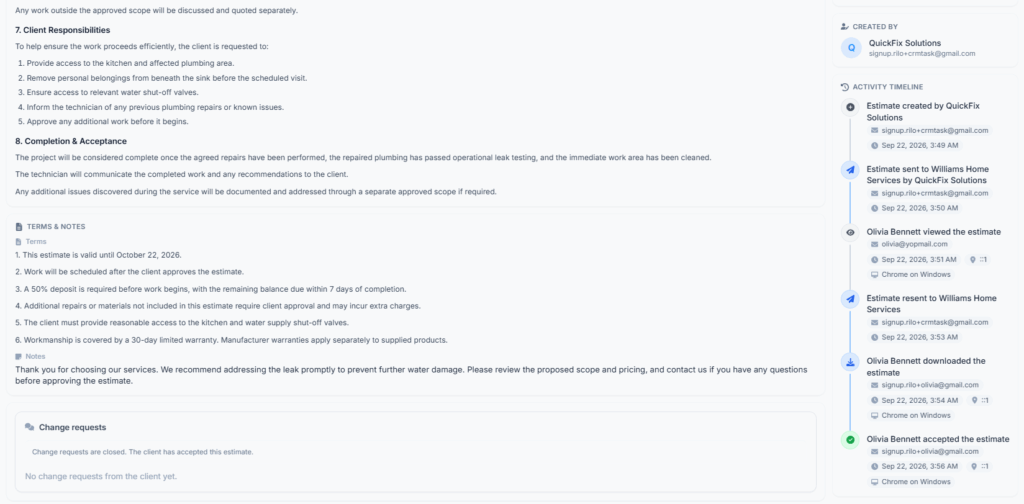
- Summary (top right) – the total, Status, Estimate ID, Valid until, and Sent date (“Not sent yet” for a Draft). If the estimate was turned into a task, a Task row links to it, and an Appointment row says “Confirmed” with the date, or “Not confirmed yet”. Without the Task Management add-on, the task link carries a lock.
- Packages – only for Multiple Packages. Select any package card to see its own line items and totals. After acceptance, the client’s choice carries an Accepted tag.
- Line Items – Item, Qty, Unit Price, Discount %, Tax % and a last column showing Quantity × Unit Price, then the Subtotal, Discount, Tax and Grand Total.
- Project Scope and Details, when it was filled in.
- Terms & Notes, when either was filled in.
- Attachments, when any were added. Select one to open or download it.
- Change requests – the same conversation the client uses. Write in Reply to the client and select Send reply. It is open while the estimate is Sent, Viewed or Declined. Before sending it reads “Change requests open once this estimate is sent to the client.” After acceptance it reads “Change requests are closed. The client has accepted this estimate.” Replying needs Edit Estimate (For All). The client sees your company name on your replies.
- Client Details – name, Client ID, client type, designation, company, website, email, phone, mobile and both addresses.
- Created By – who created the estimate, with their photo and email.
- Activity Timeline – everything that happened, in order: created, sent, resent (with the team member who resent it), viewed, accepted (with the package), declined (with the reason), downloaded, commented, voided, and every edit with each change shown as before → after. Client actions also show the time, IP address and device.
Good to know: Editing, sending, resending, duplicating, converting, voiding and deleting all live in the Action menu on the Estimate list, not on the View page.
Editing an Estimate #
Choose Edit from the Action menu. The Edit Estimate page opens with the same form as creating, and the current status at the top. Select Update to save. What happens depends on the status:
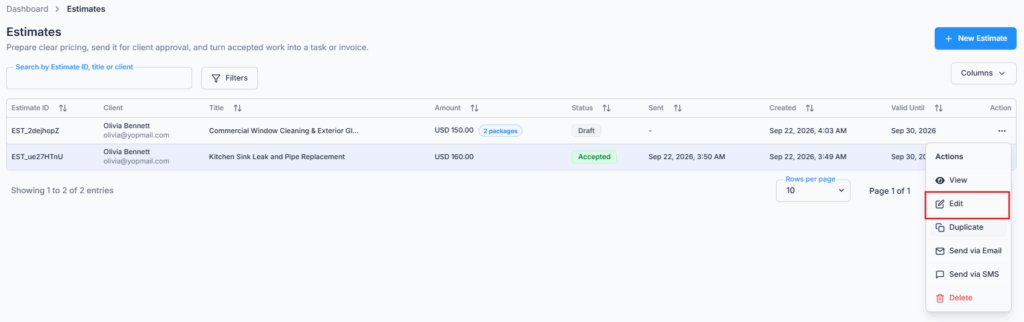
- Draft – edit anything. Nothing is tracked yet, because the client has never seen it.
- Sent or Viewed – still editable. Saving refreshes the PDF and records what changed (title, Valid Until, currency, pricing style, packages, line items, scope, Notes or Terms) in the Activity Timeline and in the client’s Document History. The Client field is locked, with the note “This estimate has already been sent, so its client can no longer be changed. Create a new estimate for a different client.”
- Declined – editable, including the client. Saving reopens the estimate as Sent and emails the client a new review link. You’ll see “Estimate updated and resent to the client for review.” The client needs an email address for this.
- Accepted, Expired, Converted or Voided – locked. The Edit option is hidden, and an old edit link shows “This estimate can no longer be edited.”
Good to know: Editing a Sent or Viewed estimate does not email the client or change their link. They see the updated version the next time they open it. To let them know, use Resend.
A Declined estimate is different: editing it emails the client a new link straight away.
If you move a Declined estimate to a different client, every link the old client had stops working before the new link goes out. The previous client can’t reopen, view or accept the offer.
Moving the Valid Until date later also keeps the client’s current link working for longer, so you don’t need to resend it.
Duplicating an Estimate #
Choose Duplicate from the Action menu. It works on an estimate in any status. The Duplicate Estimate page opens with the note “Copied from” and the original Estimate ID. It copies the client, title, pricing style, the line items or every package, currency, Project Scope and Details, Notes for Client and Terms & Conditions. The title stays the same until you change it. Valid Until keeps the original date when it is today or later. Otherwise it is set to 30 days from today. Nothing is created until you select Save Draft.
Good to know: attachments are not copied. The client’s package choice, signature, comments and history are not copied either. The result is always a separate Draft, so editing or sending it never changes the original estimate.
Moving an Accepted Estimate Forward #
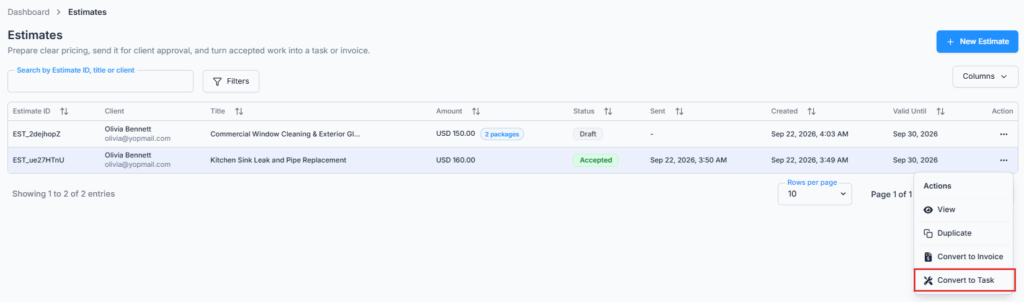
The two conversion options appear only once the client has accepted the estimate. For Multiple Packages, both use the package the client chose, never the other packages.
Convert to Invoice #
Choose Action → Convert to Invoice. The Convert estimate to invoice window opens. A note at the top tells you the estimate total, or how much has already been invoiced. Then:
- Under Amount to bill, pick one:
Full remaining bills everything not yet invoiced.
Deposit bills part now. Set Deposit type to Percent (%) or Fixed amount, then enter the value (50% is filled in for you). A percentage is always a share of the whole estimate. If less than that is left to bill, only what’s left is billed.
Custom lines lets you tick the line items for this invoice. Lines already invoiced show a Billed tag. - Check the preview: Amount on this invoice and Left to bill after this. A fixed deposit bigger than what’s left shows “Only … is left to bill on this estimate. Lower the deposit to continue.” With Custom lines, you must tick at least one line.
- Under Invoice Details, set the Invoice Date (today or earlier), the Payment terms, and the Due Date. The due date is worked out from the payment terms. To type your own, choose Custom date under Payment terms.
- Select Create Draft Invoice. The new draft invoice opens, with a message such as “Draft invoice created. 360.00 is still left to bill on this estimate.” Notes and terms are copied from the estimate, so edit them on the draft if needed before you send it.
One billing style per estimate: the first invoice decides how the rest are made. If you start with Full remaining or Deposit, later invoices can only use those two, and Custom lines is grayed out. If you start with Custom lines, later invoices must use Custom lines too. This keeps the same work from being billed twice.
A deposit invoice keeps the real items, each at a proportionally lower price, rather than one “deposit” line. The estimate stays Accepted while anything is left to bill. It becomes Converted when the full amount, or every line item, has been invoiced. Each invoice line keeps the Tax % it had on the estimate. Open the draft and check its sales tax before you send it, especially for a tax-exempt client. See the Invoices guide for what happens next. This option needs the Convert Estimate to Invoice permission.
Convert to Task #
Choose Action → Convert to Task. The Create Task page opens with the estimate’s title, client, accepted line items, totals and currency already filled in. The address is the request’s service address when the estimate came from a request. Otherwise it is the client’s shipping address, when there is one. Nothing is saved yet: you choose the schedule and the team members, then save the task.
- If a task was already made from this estimate, a notice says “This estimate already has a task”, names it, and offers Open the existing task. You can still save a second task when the work really needs separate phases or sites.
- Once saved, the estimate’s View page links to the task and shows whether the client has confirmed the appointment.
- Employees need Convert Estimate to Task, plus Create Task (For All) or Create Task (For Subordinate).
- If your company has CRM but not the Task Management add-on, Convert to Task still shows, with a lock. Hovering says “Needs the Task Management add-on. Click to see how to turn it on.” Selecting it opens a page that explains the add-on, with a See add-ons button.
Important order: if you need both a task and an invoice, create the task before the estimate is fully invoiced. Once the estimate is Converted, both conversion options disappear.
Voiding an Estimate #
Choose Void from the Action menu. It is offered on a Sent, Viewed or Declined estimate. This is how you withdraw an offer the client can still act on, since Delete only works on Drafts. In the Void Estimate window, select Void Estimate to confirm. You’ll see “Estimate voided.” Every link the client has stops working straight away, and the estimate moves to its final Voided status. The Activity Timeline records who voided it.
Office-X does not email or text the client when you void an estimate. If they need to know why the offer was withdrawn, contact them yourself.
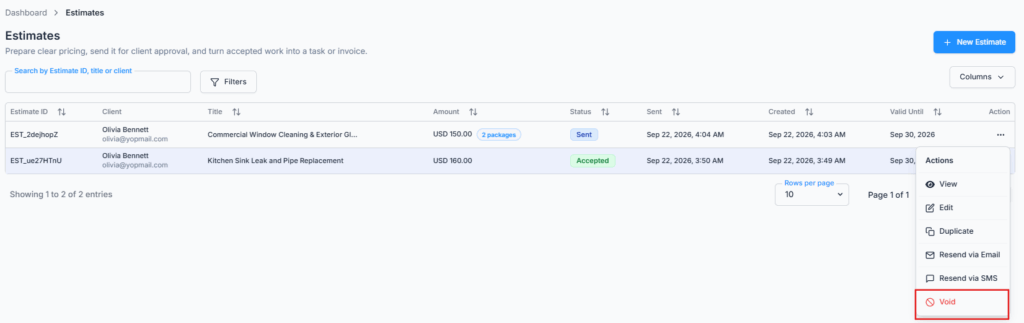
Good to know: voiding is permanent. You can’t reopen a Voided estimate the way editing reopens a Declined one. If the client still needs an offer, use Duplicate to start a new estimate from it.
Deleting an Estimate #
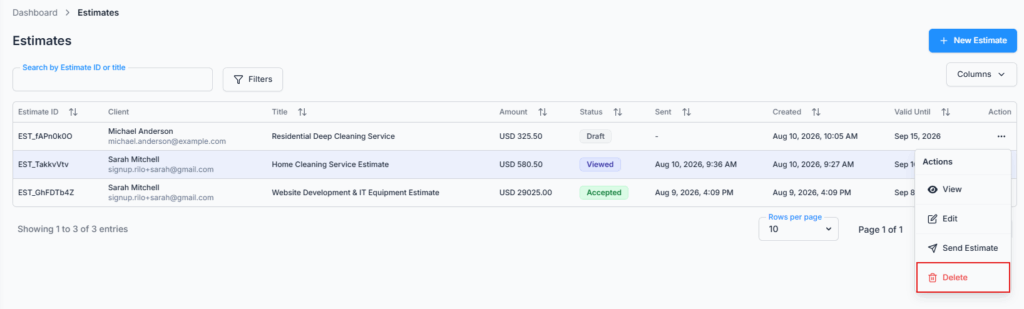
Choose Delete from the Action menu. It is only offered on a Draft. The Delete Estimate window asks you to confirm and warns “This action cannot be undone.” Select Delete, and you’ll see “Estimate deleted successfully”. If the Draft came from a request, that request goes back to its earlier status and can be converted again.
Once an estimate has been sent, it can’t be deleted and stays on record: “Only draft estimates can be deleted. Sent estimates are kept for record-keeping.” Use Void to withdraw it instead.
How Estimates Connect to the Rest of CRM #
- Clients – every estimate is for exactly one client, who can receive it by email or SMS. Only Active clients appear in the picker, and you can add a new client right from it. A client who is on an estimate can no longer be deleted.
- Items – each line item is picked from your Items catalog, which fills in the price and tax for you to adjust. Only Active items are offered, and you can add a new item right from the picker. An item used on an estimate can no longer be deleted.
- Requests – a request can be converted into one Draft estimate. Its client, title, currency, line items, service details and service address fill in the form.
- Invoices – an accepted estimate can become one full invoice, or several invoices for a deposit, the balance, or chosen line items.
- Tasks – an accepted estimate can fill in a new task when your company has Task Management. The linked task then shows on the estimate’s View page.
- Client Portal – sent estimates appear in the client’s Your estimates list when the portal is on and Show estimates is switched on. The client can come back to Sent, Viewed, Accepted, Declined and Expired estimates there. Drafts, Voided and Converted estimates are not listed.
Activity Log #
Besides each estimate’s own Activity Timeline, your company’s central log records every estimate created, edited, sent, resent (by email or SMS), voided and deleted, with who did it and when. It also records the client accepting, declining and downloading, and estimates expiring on their own. Open Dashboard → Activity Log and filter by Estimate. See the Activity Logs guide for how to search it. The client simply opening an estimate is only recorded in that estimate’s own timeline.
Summary #
Start an estimate from scratch, from a CRM request, or by duplicating an earlier one. Use Single Price for one offer, or Multiple Packages when the client should choose. Send it by email or SMS, and let Office-X follow up for you if you like. The client reviews it in the Client Portal or on a secure page, asks for changes, and signs to accept. Accepted estimates become invoices (in full, as a deposit, or line by line) and tasks. Only Drafts can be deleted. Sent estimates stay on record, can be edited until the client makes a final decision, and can be voided while still open.
