Skip to content
Office-X
Partners Pricing Add-ons FAQ Help Center
Sign in Start free trial →
Features & Solutions

Everything You Need to
Make Your Workplace Smarter

Office-X brings your people, payroll, clients, and daily operations together in one secure workspace.

Employee Management
Onboarding & Performance Manage and track growth
Attendance & OT IP-locked check in + overtime
Time off / Leave Requests, balances & approvals
Internal Support Tickets & helpdesk
Payroll Paystubs & Tax statements
Work Shifts Schedule Create and manage rosters
Business Management
CRM Manage leads, clients & sales
Estimate & Agreements Quotation + e-sign docs.
Web & AI Phone Bookings Automated scheduling
Project Management Plan sprints, capacity & delivery
Activity Log Who did what, when & where
Permissions & Approvals Multi-level approval flows
Business Management
Task Management Schedule crews & service visits
Expenses Track costs & reimbursements
Asset & Incident Tracking Track assets & report incidents
Bill, Travel & Purchase Approve & manage expenses
Holiday Calendar Company-wide holidays
Email Templates & SMTP Branded emails & delivery
Employee Management
Onboarding & Performance Attendance & OT Time off / Leave Internal Support Payroll Work Shifts Schedule
Business Management
CRM Estimate & Agreements Web & AI Phone Bookings Project Management Activity Log Permissions & Approval Flow Task Management Expenses Asset & Incident Tracking Bill, Travel & Purchase Holiday Calendar Email Templates & SMTP
Partners Pricing Add-ons FAQ Help Center
Sign in Start free trial

Getting Started

1
  • Getting Started with Office-X

Subscription & Billing

1
  • How Seats Work in Office-X

Features & Modules

96
  • Overview
  • Admin Module
    • Department
    • Designation
    • Pay Type
    • Employment Status
    • Leave Types
    • Benefits
    • Expense Category
    • Teams
    • Forms
    • Events & Announcements
    • Incident Configuration
    • IP Configuration
    • Currency
    • Support Categories
    • Integrations
    • Client Portal
    • Notifications
  • SMTP & Email Templates
    • SMTP Config
    • Email Templates
  • Business Management
    • Company
    • Billing & Payment
    • Payroll Configuration
    • Business Support
  • Privacy & Security
    • Security
  • Employees Module
    • Employee List
    • Adding a New Employee
    • View Employee Details
    • Edit an Employee
    • Reset Password
    • Work Hours/Shift Hours
    • Change Status
    • Assign/Unassign Seat
    • Opening Balance
    • Assign Work Days
    • Visual Guide
  • Activity Logs
    • Activity Logs
  • Performance Management
    • Performance Management
  • Work Shifts
    • Work Shifts
  • Permissions & Approval Flows
    • Permissions Management
    • Approval Flows
  • Holidays Calendar
    • Calendar
  • Expenses
    • Expenses
  • Attendance Management
    • Attendance Records
    • Individual Attendance Summary
    • Overall Attendance Summary
    • Visual Guide
  • Leave Management
    • Create Leave
    • Approve & Reject Leave
    • Cancel Approved Leave
    • View All Leaves
    • Visual Guide
  • Travel Requests
    • Create Travel Request
    • Approve & Reject Travel Request
    • View All Travel Requests
    • Visual Guide
  • Purchase Requests
    • Create Purchase Request
    • Approve & Reject Purchase Requests
    • View All Purchase Requests
    • Visual Guide
  • Payroll (Bangladesh)
    • Business → Payroll Configuration
    • Payroll Management
    • Income and Tax Statement
    • Visual Guide
  • Asset Tracking
    • Asset Tracking
  • Projects
    • Projects Overview and Setup
    • Manage Project Work
    • Scrum Projects: Backlog and Sprints
    • Kanban Projects: Continuous Work
    • Schedule, Releases, and Insights
    • Project Settings
  • CRM
    • Overview
    • Clients
    • Items
    • Docs
    • Requests
    • Estimates
    • Invoices
    • Agreements
    • Bookings
  • Client Portal
    • Requests
    • Estimates
    • Appointments
    • Invoices
    • Contact Us
  • Tasks
    • Schedule
    • History
  • Incident Report
    • Incident Report
  • Support
    • Create Support Request
    • Resolve Support Requests
    • View All Support
    • Visual Guide
  • Bill Management
    • Create Bill
    • Approve & Reject Bill
    • View All Bills
    • Visual Guide
View Categories
  • Home
  • Docs
  • Features & Modules
  • Client Portal
  • Contact Us

Contact Us

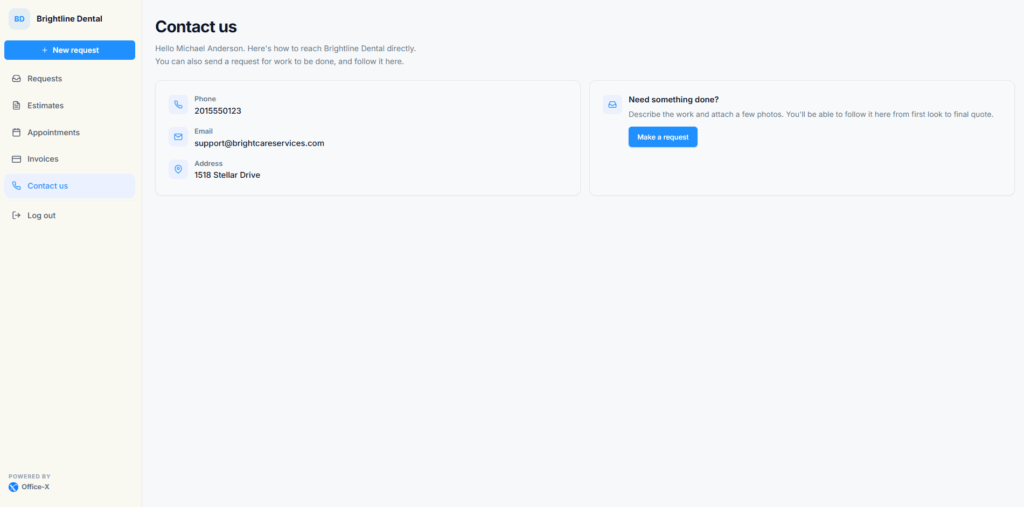
Contact us gives your clients one clear place to find your phone number, email address and business address. It is always in the portal menu while the portal is on, whatever other sections you hide, so a client can always reach you.
Set the Contact Information #

  1. Go to Dashboard → Admin → Client Portal.
  2. Open the Portal tab and find the Welcome and contact card.
  3. Enter the Phone, Email and Address clients should use. Every field is optional.
  4. Select Save settings. You see “Client Portal settings saved”.

The limits are 40 characters for the phone number, 200 characters for the email and 400 characters for the address. The email must be a real email address. If it is not, you see “Enter a valid email address, or leave it blank”. For the full settings page, see the Client Portal settings guide.

When You Leave a Field Blank #

A blank field is filled in for you from another place in Office-X:

  • Phone: the Phone in your company profile, under Business → Company.
  • Email: the Reply To Email (or else the Sender Email) of your active email sending setup, under Settings → SMTP. It is not the email you use to log in to Office-X.
  • Address: the Address in your company profile, under Business → Company.

If neither place has the detail, that line is left off the page. A field that holds only spaces counts as blank.

Good to know: anyone with your portal link can see the sign-in page. The sign-in page shows only the Address you typed in the portal settings, never your company address. Enter only an address you are happy to publish.

What the Client Sees #

The page greets the client by name, for example “Hello Sarah Mitchell. Here’s how to reach” followed by your company name. Below that are the contact methods you published or that were filled in from your company details:

  • Phone: tapping it on a phone starts a call.
  • Email: selecting it opens a new email to you.
  • Address: shown as text.

If no contact detail is available at all, the page says your company “hasn’t published contact details here yet”.

When Let clients raise requests is on, the page also shows a Need something done? card with a Make a request button that opens the new request form. When new requests are off, this card is hidden.

Contact us shows your details. It is not a chat or message form. The client uses the phone number or email address to reach you.

When Clients Should Use Contact Us #

  • They need to change or cancel an appointment. The Appointments page links here with “get in touch”.
  • They want to correct or add something to a Request they already sent. It helps if they quote the Request ID shown on the Request.
  • They have a question about an Estimate.
  • They need help with an Invoice or a payment.
  • They cannot find what they need in the portal.

Subscriber Admin Good Practice #

  • Use an email address and phone number that someone checks every day.
  • Put your business hours and how fast you usually reply in the welcome message. It shows at the top of the client’s Requests page.
  • Check the portal contact details whenever your company profile or email setup changes, since blank fields follow those.
  • Tell your team who answers client calls and emails.

Example: Sarah Mitchell has confirmed her on-site assessment visit but now needs a different day. On her Appointments page she selects “get in touch”, which opens Contact us, and calls 555-0142. Maria Lopez moves the visit. Sarah gets an email asking her to confirm the new time, and she confirms it on her Appointments page.

Updated on September 27, 2026
Invoices
Table of Contents
  • Set the Contact Information
    • When You Leave a Field Blank
  • What the Client Sees
  • When Clients Should Use Contact Us
  • Subscriber Admin Good Practice

Office-X brings your people, payroll, clients, and daily operations together in one secure workspace.

Facebook Linkedin Youtube

Company

  • Partner Programme
  • Pricing
  • Add-ons
  • Trust & Security
  • Free Migration

EMPLOYEE MANAGEMENT

  • Onboarding & Performance
  • Attendance & OT
  • Time off / Leave
  • Work Shifts Schedule
  • Payroll
  • Bills, Travel & Purchases
  • Internal Support

BUSINESS MANAGEMENT

  • CRM, Estimate & Agreement
  • Tasks Management
  • Projects (Scrum & Kanban)
  • Web & AI Phone Bookings
  • Activity log
  • Permissions & Approval Flow
  • Asset & Incident Tracking

Resources

  • Help Center
  • See how it works
  • FAQs
© Office-X. All rights reserved.
  • Terms of Service
  • Cookie Policy
  • Privacy Policy