Client Portal is the settings page for the private website your clients use to see their own work with you. The Client Portal is where a client sends you requests, reviews Estimates, confirms appointments and pays Invoices. On this page, you decide whether the portal is open, what clients can see there, and what contact details they find. You also copy the one portal link you share with every client, and you set up the sales tax that prints on your Invoices.
Route: Dashboard → Admin → Client Portal
Plan, Add-on and Permission Requirements #
- Plan and add-on: your company needs the Advance plan with the CRM add-on. Without CRM, the page shows a “not included in your plan” screen, even for the Subscriber Admin.
- Subscriber Admin: can always open and change this page. No permission is needed.
- Employees: can open the page only if you give them the permission below. Without it, they see a no-access screen.
In the permission list below, “you” means the Subscriber Admin who gives the access, and “they” means the employee who receives it.
| Permission | What it lets them do |
|---|---|
| Manage Client Portal | They can open this page and change everything on it: both the Portal tab and the Invoice tax tab. There is no view-only version. You find it in the Setting group of permissions. |
| Open Client Portal as Client (For All) | They can use Login as client on a client’s page to see that client’s real portal. It does not let them change anything on this settings page. You find it in the CRM – Clients group. |
For how to give a permission, see the Permissions Management guide.
What You Find on This Page #
| Tab | What it controls |
|---|---|
| Portal | Four cards: Your portal link, Portal access (the main on/off switch), What clients can see, and Welcome and contact. You save this tab with Save settings. |
| Invoice tax | Two cards: Tax registration (the tax number printed on your Invoices) and Tax rates (the sales tax choices your team picks from on an Invoice). You save this tab with Save tax settings. |
Good to know: each tab has its own save button. Saving one tab does not save changes you made on the other.
Your Company Portal Link #
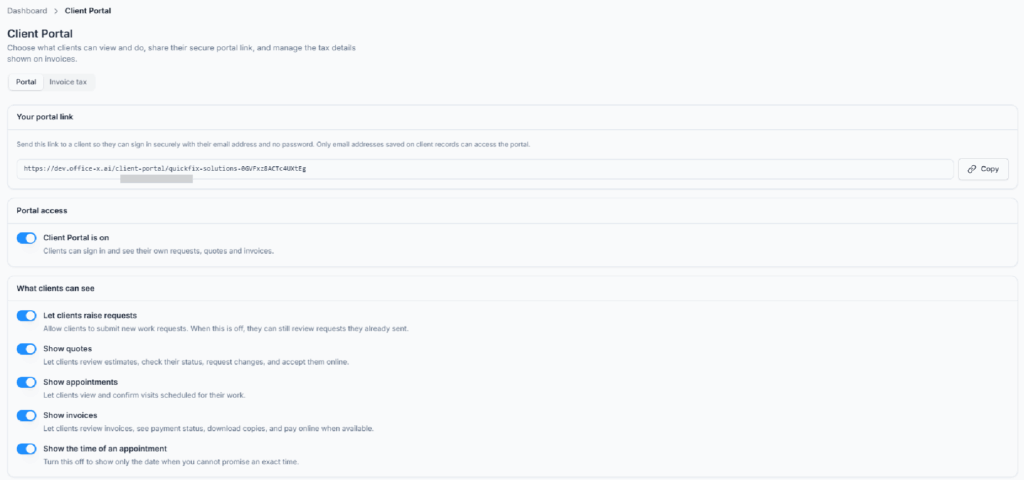
The Your portal link card shows one web address for your whole company. Every client uses this same link. The email address a client signs in with decides which records they see.
- Select Copy. The button changes to Copied and you see the message “Client Portal link copied”.
- Paste the link wherever your clients will find it: your website, your email signature, or a message to a client.
If your browser does not allow copying, Office-X shows the full address in a message so you can copy it by hand.
- Only an email address saved on an Active client record can sign in. An inactive client cannot get in.
- Clients do not need a password or an Office-X account. They sign in with a link sent to their email.
- The link includes your company name so it is easy to recognize. If you rename your company later, the old link keeps working.
- Older links that contain
/client-hub/still work. They open the same page in the Client Portal.
Portal Access: The Main Switch #
The Portal access card has one switch: Client Portal is on. It opens or closes the whole portal. It is on for every new company.
- On: clients can sign in and use the sections you turn on below.
- Off: every sign-in link stops working, and anyone already signed in is sent away. Visitors see a plain “not available” page. It does not say that you closed the portal.
- When you switch it off, a yellow warning explains what will happen, and the What clients can see switches turn gray until you switch the portal back on.
- Turning the portal off does not delete or change anything. Your Clients, Requests, Estimates, Tasks, appointments, Invoices and payments all stay exactly as they are. Clients just cannot reach them from the portal.
- Estimate and Invoice emails still reach your clients. When the portal is off, or when Show estimates or Show invoices is off, the email button opens a separate secure page for that one document instead of the portal.
Good to know: with the portal off, a client cannot confirm a booked appointment online. So when you book a visit, Office-X skips the “Please confirm your appointment” email and sends the “confirmed” email right away. See Requests for the full confirmation flow.
Important: the switch does not change anything until you select Save settings at the bottom of the tab.
Choose What Clients Can See and Do #
The What clients can see card has five switches. All five are on for a new company.
| Switch | When it is on | When it is off |
|---|---|---|
| Let clients raise requests | Clients can send you a new work request from the portal. | Clients cannot send new requests, even from an old link to the form. They can still see the requests they already sent. |
| Show estimates | Clients can review the Estimates you send them, check the status, ask for changes, accept online and download a copy. | Estimates disappears from the portal menu. An old portal link to an Estimate takes the client to Requests instead. |
| Show appointments | Clients can see the visits booked for their work and confirm a visit you booked. | Appointments disappears from the menu. Old appointment links go to Requests. Clients cannot confirm visits online, so Office-X sends the “confirmed” email as soon as you book. |
| Show invoices | Clients can review their Invoices, see what they owe, download copies and pay online when you have a payment option connected. | Invoices disappears from the menu. An old portal link to an Invoice takes the client to Requests instead. |
| Show the time of an appointment | Clients see the date and the start and end time of each visit. | Clients see only the date. Use this when you cannot promise an exact time. |
Requests is the portal’s home page, so it is always there while the portal is on. Contact us is always there too, so a client can always reach you.
Good to know: appointments come from booked visits, and booking a visit needs the Task Management add-on. Task Management is a separate add-on that needs CRM. Without it, the Appointments page has nothing to show.
Welcome Message and Contact Details #
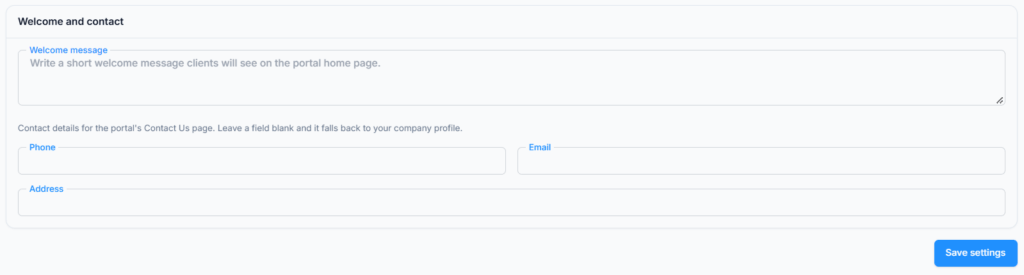
The Welcome and contact card holds the words your clients read in the portal. Every field is optional.
| Field | Where clients see it | Limit |
|---|---|---|
| Welcome message | At the top of the Requests page, the first page a client sees after signing in. | 500 characters |
| Phone | The Contact us page. | 40 characters |
| The Contact us page. | 200 characters, and it must be a real email address | |
| Address | The Contact us page, and also the public sign-in page. | 400 characters |
Example welcome message: “Welcome! Send us a new request any time, and call 555-0142 if something is urgent.”
If you leave a contact field blank, the Contact us page fills it in for you:
- Email uses the reply-to address (or the sender address) from your company’s email sending settings.
- Phone uses the phone number in your company profile.
- Address uses your company address.
Good to know: anyone with your portal link can see the sign-in page, even without signing in. So the sign-in page shows only the Address you type here. It never fills in your company address by itself. Enter only an address you are happy to publish.
If the email address is not valid, you see “Enter a valid email address, or leave it blank” when you save.
Save and Confirm the Portal Setup #
- Open Dashboard → Admin → Client Portal. The Portal tab opens first.
- Check that Client Portal is on is switched on.
- Under What clients can see, switch on the sections you want clients to use.
- Under Welcome and contact, add a welcome message and your contact details.
- Select Save settings. The button reads Saving… for a moment, then you see “Client Portal settings saved”.
- Select Copy on Your portal link.
- Before you share the link widely, test it. Open a test client (an Active client with an email you can read) and use Login as client, or sign in with that email yourself.
How Client Sign-in Works #
Here is what your client experiences. The Client Portal “Access and Navigation” guide walks through it screen by screen.
- The client opens your portal link and types their email address.
- The page changes to Check your email: “We have sent an email to … with a link that will securely log you in.” They always see this page, whether or not the email matches a client, so nobody can use the form to find out who your clients are.
- If the email belongs to an Active client, Office-X emails them a sign-in link. The subject is “Your sign-in link for” followed by your company name.
- The client selects the button in the email and lands in their own portal. They see only records linked to their own client record. They never see another client’s records or your dashboard.
- The link can be used again. The email tells the client to keep it, because the same link signs them in whenever they need it.
- A sign-in lasts 30 days on that device. After that, the client opens their link again or asks for a new one.
- Changing a client’s email on their client record stops every old link and signs them out on every device. They ask for a new link with the new address.
- An inactive client who opens an old link sees “This account is no longer active. Please contact us.”
- Too many requests: for safety, a client can ask for only a few links in a short time. If they ask too often, they see “Too many sign-in links requested. Please wait a few minutes and try again.”
You can change the wording and look of the sign-in email under Dashboard → Templates. Look for the Client Portal Login template. If you have not customized it, Office-X uses its standard design. See the Email Templates guide.
Open the Portal as a Client #
Sometimes you need to see exactly what a client sees, for example when Mr. Sullivan calls and says he cannot find his Invoice. You can open his real portal yourself.
- Go to Dashboard → CRM → Clients and open the client.
- Select Login as client at the top of the client’s page.
- The client’s portal opens in a new browser tab, already signed in as that client.
What you need, and the message you see if something is missing:
- The Open Client Portal as Client (For All) permission. Manage Client Portal is not enough. Without the right permission, the button does not appear.
- The portal must be on. Otherwise: “The Client Portal is turned off for your company. Turn it on under Admin → Client Portal first.”
- The client must have an email address. Otherwise: “This client has no email address on file, which the portal uses to identify them. Add one first.”
- Your company name must be set, because the portal address is built from it. Otherwise: “Your company name is not set, and the portal address is built from it. Set it under Business settings first.” You set it under Business → Company.
- The client must be Active. For an inactive client, the new tab shows “This account is no longer active. Please contact us.”
Good to know: anything you do in that tab, you do as the client. If you accept an Estimate or pay an Invoice there, it counts as the client’s action. Every time someone uses Login as client, Activity Log records who did it and for which client.
Invoice Tax: Registration Details #
Open the Invoice tax tab to set up the sales tax you add to your clients’ bills, such as sales tax, VAT or GST. This has nothing to do with payroll or income tax.
The Tax registration card holds your company’s tax registration. It prints on your Invoices, because many places require a registered business to show it.
- Label: what your tax number is called, for example “Sales Tax Permit”, “VAT”, “GST” or “Tax ID”. Up to 40 characters.
- Number: your registration number. Up to 60 characters.
- If you enter a Number, you must enter a Label too, so the Invoice does not print a number with no name. If you forget, you see: ‘Give the number a label — for example “VAT” or “GST”‘.
- The registration prints even on an Invoice for a tax-exempt client, because it identifies your business, not the client.
Invoice Tax: Rates and Defaults #
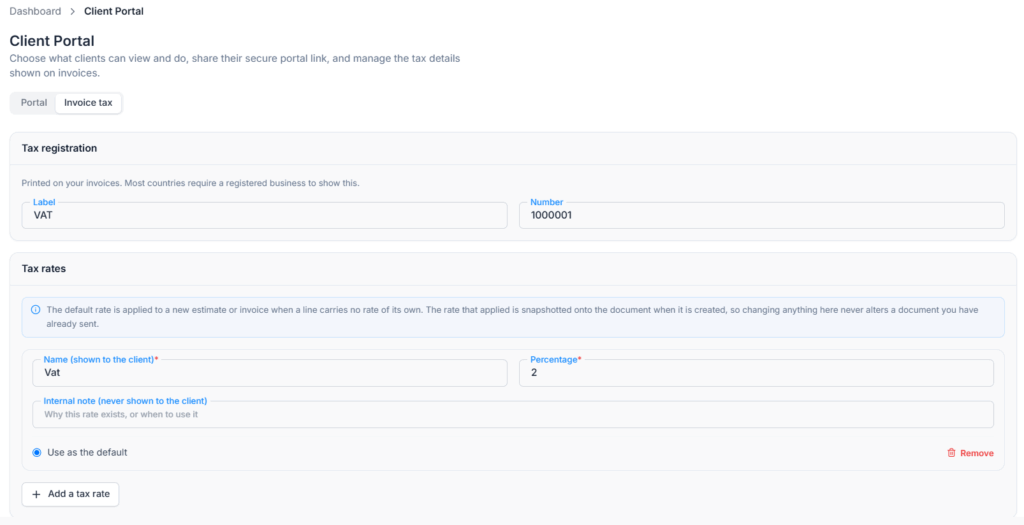
The Tax rates card is the list of sales tax rates your team can choose from when they build an Invoice. One rate can be the default, which new Invoices pick automatically.
To add a rate:
- Select Add a tax rate. A new rate box appears.
- In Name (shown to the client), type the name clients will see, for example “Sales Tax 8.25%”. Up to 60 characters.
- In Percentage, enter a number from 0 to 100. You can use up to two decimal places, for example 8.25.
- If you like, add an Internal note (never shown to the client), for example “Use for jobs in Oak Park”. Up to 200 characters. Only your team sees it.
- Select Use as the default on the rate that new Invoices should use.
- Select Save tax settings. You see “Tax settings saved”.
To delete a rate, select Remove on it, then select Save tax settings.
- You can save up to 30 rates.
- Each rate needs its own name. “Sales Tax” and “sales tax” count as the same name. If two match, you see “You already have a rate called” followed by the name.
- The first rate you add becomes the default by itself. Only one rate can be the default.
- If you remove the default rate, the first rate left in the list becomes the default.
- A rate box with no name is simply dropped when you save. It does not stop the save.
How Your Team Uses These Rates on an Invoice #
- The Invoice form has a Sales tax list. It shows No tax and each of your rates, with “(default)” next to the default one. A new Invoice picks the default for you.
- The chosen rate is charged on every line. If someone types their own tax rate on a line, that line keeps its own rate.
- No tax means exactly that: the Invoice has no sales tax from this list.
- A client marked as tax exempt never pays sales tax, not even a rate typed on a line. The form says so instead of showing the list.
- If you have no rates yet, the form says “No sales tax rates are set up yet. Lines keep whatever rate you enter on them.” with an Add a rate link to this page.
Good to know: these rates are for Invoices only. Estimates do not use this list. On an Estimate, each line has its own tax percentage. See the Invoices guide and the Estimates guide.
Invoices you already sent do not change. Office-X saves the rate name, percentage and your tax number on each Invoice when it is created. Once an Invoice is sent, its tax is fixed. If you change a rate’s percentage, a draft Invoice that uses it picks up the new percentage the next time someone edits and saves the draft. If you remove a rate that a draft uses, the person editing that draft sees “That sales tax rate is no longer available. Pick a rate again.”
Activity Log #
Office-X keeps a record of changes made on this page in Activity Log:
- Updated Client Portal settings: shows each switch that changed, with its old and new value. Changes to the welcome message and contact details are saved but not listed one by one.
- Updated sales tax settings: shows the tax label, how many rates you have, and which one is the default.
- Login as client: each use is recorded on that client, for example “Maria Lopez opened the Client Portal as Sarah Mitchell”.
