CRM: Manage the Complete Client Journey #
The CRM brings your clients, services, enquiries, estimates, invoices, agreements, and bookings into one connected workspace. It helps your team follow a client from the first conversation through approval, delivery, and payment without losing important details.
Route: Dashboard → CRM
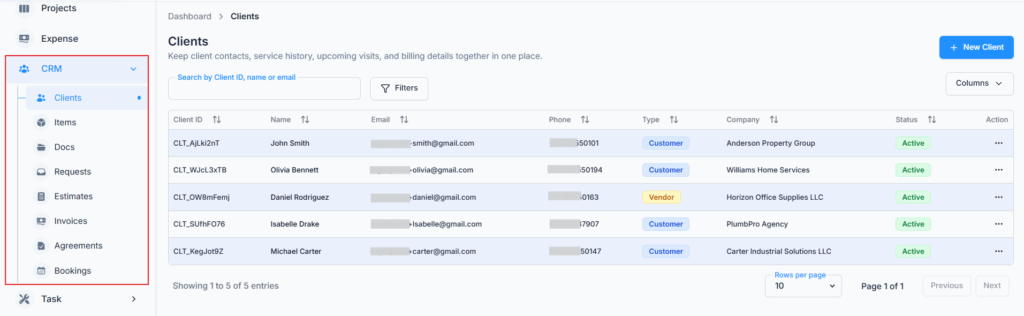
A Simple CRM Flow #
- Add or select the Client.
- Add reusable products or services under Items.
- Record the client’s need as a Request, or begin directly with an Estimate, Invoice, Agreement, or Booking when appropriate.
- Prepare and send an Estimate so the client can review and accept the offer.
- Turn an accepted estimate into a Task for delivery, or into an Invoice for billing.
- Send the Invoice, record or collect payment, and keep the complete history with the client.
Example: Bright Home Services receives a request from Maria for an air-conditioner service. The office reviews the request, schedules an assessment, prepares an estimate, and Maria accepts it. The office converts the estimate to a Task, schedules the service visit, and sends an invoice after the visit is complete. Maria can follow the client-facing parts of this journey in the Client Portal.
Who Can Use CRM? #
Subscriber Admin: can use all CRM areas included in the company’s subscription. The Subscriber Admin can also decide which employees are allowed to view, create, update, send, convert, collect payment, or remove CRM records.
Employees: only see the CRM areas and actions allowed by their permissions. Access is controlled separately for Clients, Items, Docs, Requests, Estimates, Invoices, Agreements, and Bookings. For example, an employee may be allowed to view requests and create estimates without being allowed to delete estimates or record invoice payments.
Clients: do not enter the internal CRM dashboard. They receive secure links or use the Client Portal to review their own information, submit requests, accept estimates, view appointments, check invoices, and pay online when an online payment option is available.
Good to know: CRM is not included in the Advanced Plan and must be purchased as an add-on. You can purchase CRM on its own, but the Tasks add-on requires CRM. To use Tasks, you must purchase both CRM and Tasks. Once the required add-ons are active, employee permissions determine who can access and use each feature.
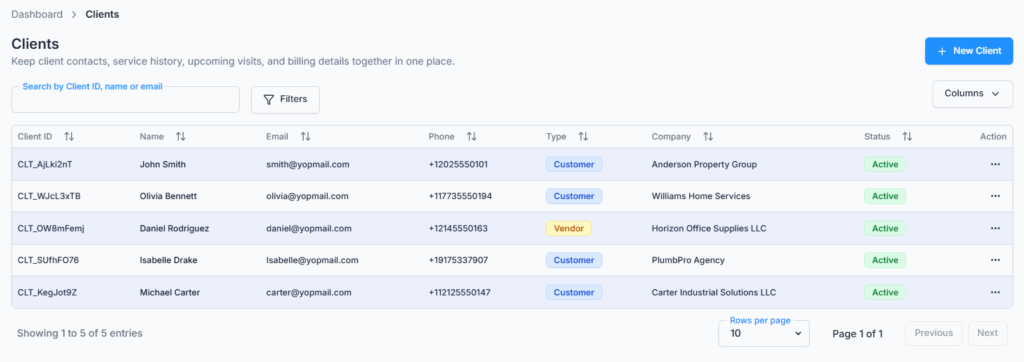
1. Clients #
Clients is the main contact list for the CRM. Keep names, company details, email addresses, phone numbers, addresses, status, and other business information here. A client can be a Customer you sell to or a Vendor you buy from.
- Use an Active client for current business.
- Use Inactive when you want to keep the history but stop the client from using the Client Portal.
- A valid client email is important for estimates, invoices, agreements, booking messages, and Client Portal access.
- From a client record, an authorised employee can review communication and open the Client Portal as that client for support or checking.
Example: Add Maria as an Active Customer with her email, phone number, billing address, and service address. When the team creates her request, estimate, task, or invoice, they can select the same client instead of entering her details again.
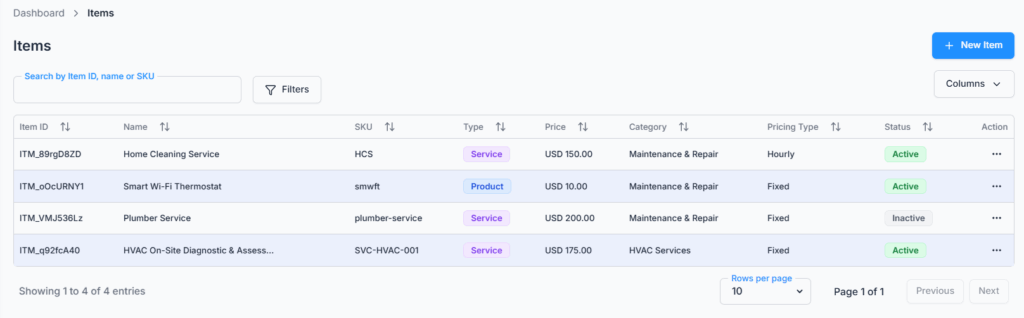
2. Items #
Items is your reusable list of products and services. Save the item name, description, selling price, cost, tax choice, and vendor information once, then add it quickly to requests, estimates, invoices, and task pricing.
Items can be activated, inactivated, edited, duplicated, or removed according to the employee’s permission. Inactivating an item keeps its past use intact while preventing it from being chosen for new work.
Example: Save “Standard AC Service” with its normal price and tax rate. When Maria requests service, the office adds this item to her estimate and can still adjust the quantity or price for that specific estimate.
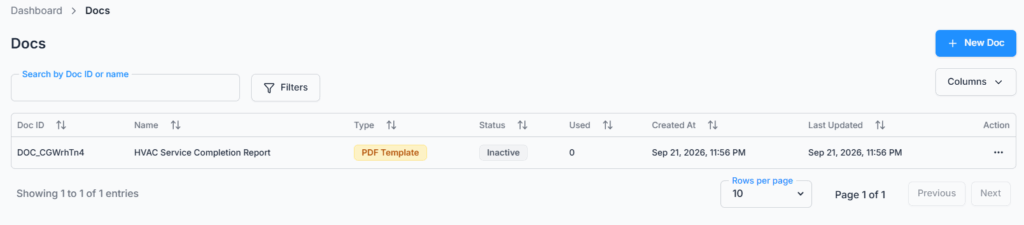
3. Docs and Agreements #
Docs holds reusable document templates. You can prepare a template in the document builder or start from a PDF, add fields, and define signer roles. Use a Doc when the same agreement format will be sent to different clients.
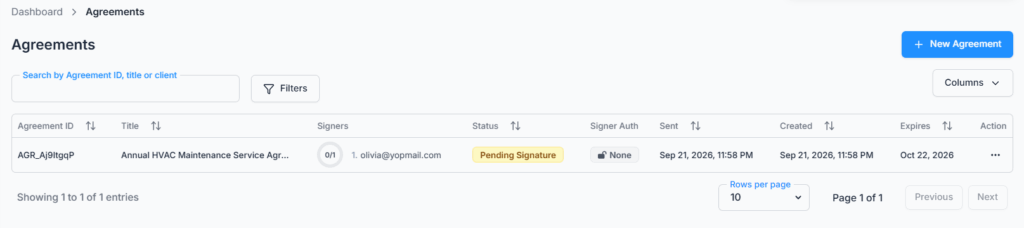
Agreements are the client-specific documents created from those templates. Add the client, choose the template, assign the signers, choose how each signer verifies their identity, and send it for signature.
- Draft: still being prepared.
- Pending Signature: sent and waiting for signatures.
- Partially Signed: at least one signer has signed, but others are still waiting.
- Active: every required signature is complete.
- Declined, Expired, or Terminated: the agreement did not continue or was ended.
Client flow: the client opens the secure agreement link, completes any identity check you selected, reviews the document, fills the assigned fields, and signs. If several people must sign in order, the next person receives access after the earlier signer finishes.
4. Requests #
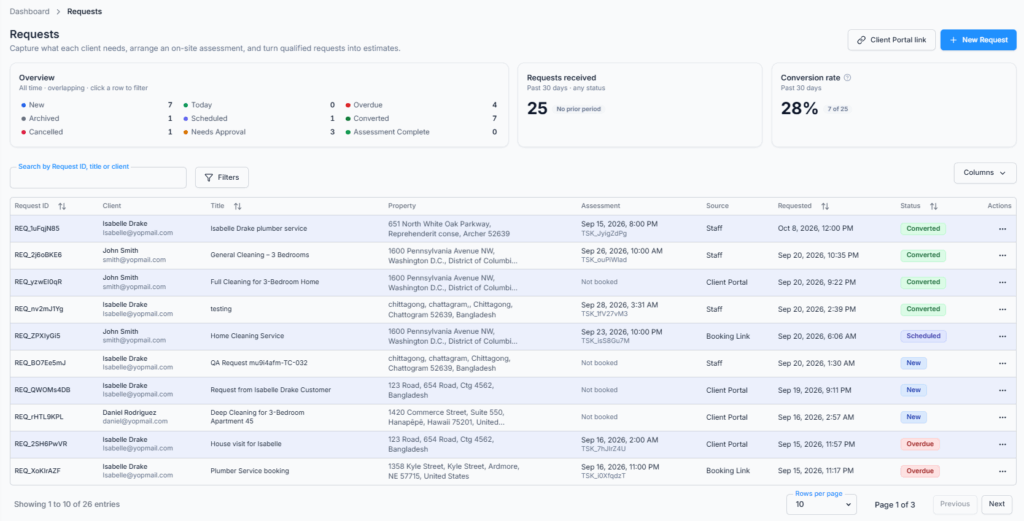
A Request records what a client needs before a final offer or schedule is agreed. It can be created by an employee, submitted from the Client Portal, or received from an on-site booking link.
A request can include the client, service address, title, details, salesperson, requested products or services, pricing, photos, internal instructions, assessment checklist, assigned people, and the person responsible for the assessment result.
Typical Request Flow
- New or Needs Approval: review the client’s need and confirm that the request should move forward.
- Unscheduled: an assessment is needed but no visit has been booked yet.
- Scheduled: the assessment visit has a date, time, assignee, and status owner.
- Today or Overdue: these labels help the team notice an assessment due today or one that has passed its planned time.
- Assessment Complete: the site visit and checklist are complete.
- Converted: the request has been turned into an estimate.
A request can also be Archived when it should be kept but removed from active follow-up, or Cancelled when it will not continue. Archived requests can be restored.
Example: Maria submits photos and explains that her AC is not cooling. The office assigns Sam for an assessment. Sam completes the checklist and records what is needed. The office then selects Convert to estimate, and the request details help prepare the offer without starting again.
5. Estimates #
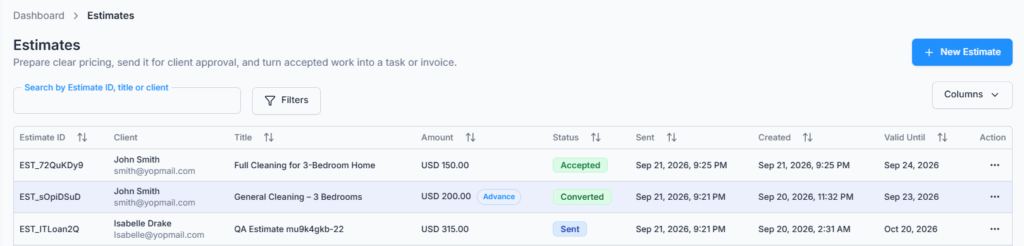
An Estimate is the offer you send before the client approves the price and scope. It can include one price option or several packages, items, discounts, taxes, service and billing addresses, scope, terms, attachments, an expiry date, and a client reference.
- Draft: being prepared and not visible to the client.
- Sent or Viewed: the client can review it and respond.
- Accepted: the client selected an option, confirmed the offer, and signed when required.
- Declined or Expired: the client declined it or the valid-until date passed.
- Converted: it has been used to create the next business record.
- Voided: it was withdrawn and should no longer be used.
The client can review the estimate, choose a package when packages are offered, download a copy, comment or request changes, accept and sign, or decline with a reason. After acceptance, an authorised employee can convert it to an Invoice or a Task. Converting to a Task also requires the Tasks feature and the correct Task creation permission.
Example: The office offers Maria “Repair” and “Replacement” packages. Maria chooses Repair and accepts. The team converts that accepted estimate into a Task, where the selected service and client details are already prepared for scheduling.
6. Tasks and Delivery #
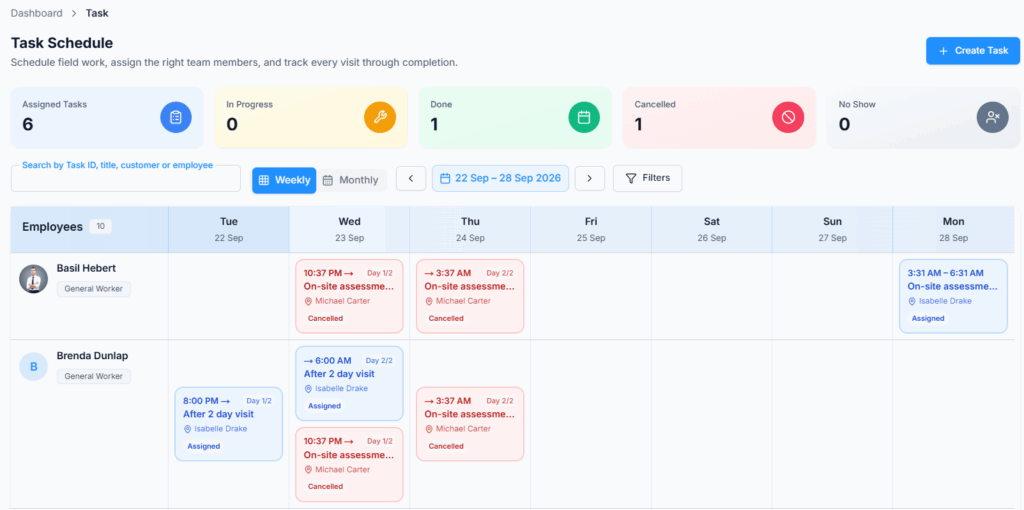
CRM and Tasks work together. An accepted estimate can become a Task, and completed, uninvoiced task visits can later be selected when creating an Invoice. This connects the approved price, scheduled visits, completed work, and final billing.
Task access is controlled under Task permissions and may require a separate Tasks subscription feature. Read the separate Task guide for one-off and recurring setup, assignments, visits, status ownership, checklists, time, expenses, and billing rules.
7. Invoices and Payments #
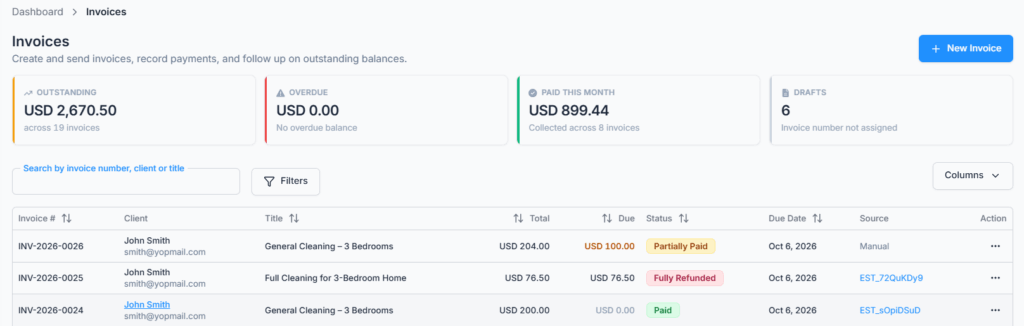
An Invoice requests payment from the client. Create one from an accepted estimate, from completed and uninvoiced task visits, or as a new invoice. Add the invoice date, due terms, items, discounts, taxes, addresses, notes, and attachments before sending it.
- Draft: can still be edited or deleted by an authorised user.
- Sent or Viewed: delivered to the client and awaiting payment.
- Partially Paid: some payment has been recorded, with a balance still due.
- Paid: the balance is fully settled.
- Overdue: the due date passed while a balance remained.
- Voided: the invoice was withdrawn and is no longer payable.
Payments can be recorded for methods such as cash, bank transfer, cheque, card, mobile wallet, or another method. When an online payment service is connected, the client may also pay from the Invoice page. Refunds and payment changes are controlled by separate permissions.
Important: once an invoice has been sent, keep the financial record clear. If it should no longer be collected, void it and prepare a corrected invoice instead of treating the sent record like a draft.
8. Bookings #
Bookings lets you publish a service that clients can book from a public link or embedded page. Set the service information, duration, location type, available staff, availability, questions, and notification choices.
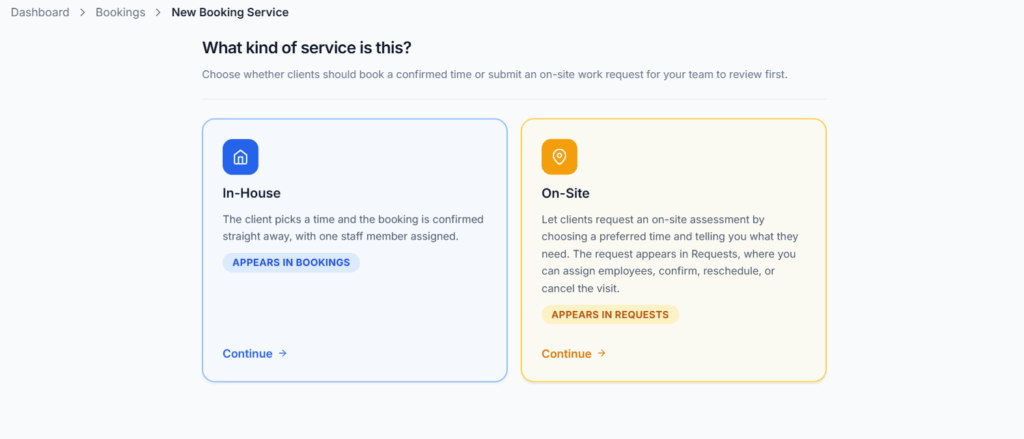
- In-House: the client selects an available time and the booking is confirmed immediately.
- On-Site: the client selects a preferred time and provides the address and details. This creates a Request that the team reviews before confirming or changing the assessment visit.
Example: A consultation at your office can use In-House booking. An inspection at the client’s property should use On-Site booking so the office can check travel, staff availability, and visit details before confirming.
What the Subscriber Admin Should Set Up #
- Confirm that CRM, and Tasks when needed, are included in the subscription.
- Add the employees and teams who will handle sales, scheduling, delivery, agreements, billing, and payments.
- Give each role only the permissions needed for its responsibilities.
- Create common Items and Docs so employees can work consistently.
- Set up booking services, client messages, payment options, and the Client Portal as needed.
- Test the complete flow with a sample client before sharing public links.
What Employees Should Do #
- Search before adding a client to avoid duplicate records.
- Keep the client email, phone number, addresses, and status current.
- Use Requests for early enquiries and assessment needs.
- Check prices, tax, scope, dates, and recipients before sending client-facing documents.
- Use the correct status so colleagues can understand the next action.
- Convert records when possible so the business journey stays connected.
- Record payments, cancellations, declines, and reasons promptly.
Complete Business Example #
- Maria uses the Client Portal to request an AC service and adds two photos.
- The office checks her Active client record and assigns Sam for an assessment.
- Sam completes the assessment checklist and records the required service.
- The office converts the Request into an Estimate using saved Items.
- Maria reviews the Estimate in the Client Portal and accepts the Repair package.
- The office converts the accepted Estimate to a Task and books the service visit.
- Maria sees the appointment and confirms it. Sam completes the visit and checklist.
- The accounts employee creates an Invoice from the completed visit and sends it.
- Maria pays online, or the office records her payment, and the Invoice becomes Paid.
