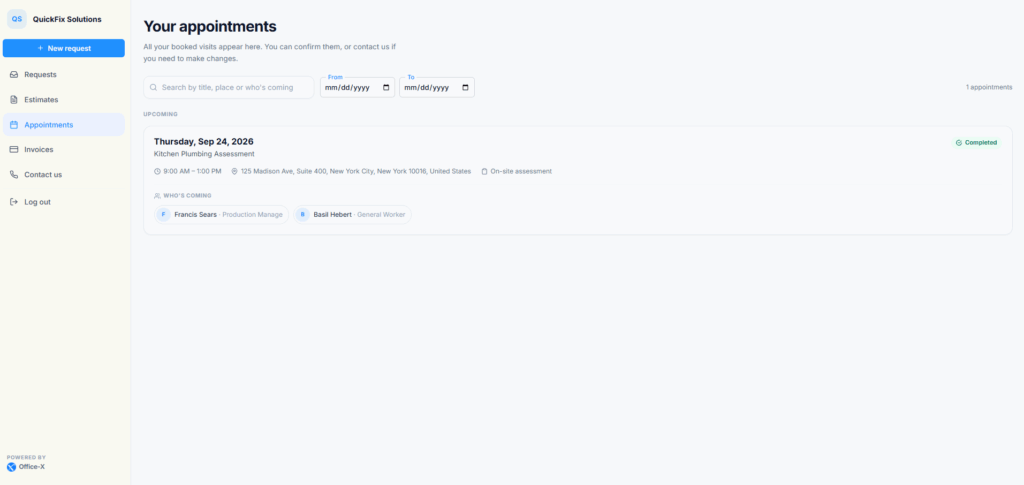
The Appointments page shows your client every visit you have booked for them. That includes on-site assessments booked from a Request and service visits from a Task. Your client can see when you are coming, where, and who is coming, and can confirm the time with one click.
The page appears in the Client Portal sidebar when Show appointments is on under Dashboard → Admin → Client Portal. Visits are part of Task Management, so the page lists visits only when your company has the Task Management add-on. Without it, the page stays empty.
How Your Client Is Asked to Confirm #
When you book a visit, Office-X first asks your client to confirm the time. The “confirmed” email goes out only after the client says yes. This is how it works:
- You book the visit. That can be an on-site assessment on a Request, or a new Task.
- Your client gets an email. For an assessment, the subject is Please confirm your appointment. For a service visit, it is Please confirm your service visit. The email shows when, where, and who is coming, and has a Confirm my appointment button.
- The button signs your client in to the Client Portal and opens the Appointments page.
- Your client selects Confirm appointment on the visit.
- Office-X sends the confirmation email: Appointment confirmed for an assessment, or Your service visit is confirmed for a service visit.
If your client calls you instead, you can record their yes. The same confirmation email then goes out, and the visit shows as confirmed in their portal. See “What Happens for the Company?” below.
Good to know: A few cases work differently:
- If your client cannot answer in the portal (the portal is off, Show appointments is off, or the client has no email address), no request to confirm is sent. The confirmation email goes out straight away instead.
- If the client picked the time themselves through your booking link, they are not asked to confirm. Approving the booking sends them a confirmation.
- For a repeating job, only the first visit sends the “please confirm” email. The later visits still appear on the Appointments page, and your client can confirm each one there.
- An assessment’s request to confirm can also go by text message, if you have SMS set up. A service visit’s request to confirm is email only.
- These emails follow your settings under Dashboard → Admin → Notifications: Assessment booking confirmation for assessments and Visit confirmed for service visits. When one is off, neither the request to confirm nor the confirmation goes out for that kind of visit. The visit still appears in the portal.
- If you move an on-site assessment to a new time, the client’s earlier confirmation is cleared, and they get a new email asking them to confirm the new time.
- If you move a service visit (a visit on a Task), the client gets the “visit rescheduled” email, but they are not asked to confirm again. A visit they already confirmed keeps showing Confirmed by you. If the new time matters, give the client a quick call to check it still suits them.
Find the Right Appointment #
The page title is Your appointments. Visits are grouped so the next one is always near the top:
- Today: visits booked for today, in your company’s time zone.
- Upcoming: future visits, soonest first.
- Not yet scheduled: a visit that is booked in but has no fixed time yet. The group says “Booked in, but we haven’t fixed a time with you yet.” Your clients will rarely see it.
- Past: earlier visits, most recent first.
A visit you parked with “schedule later” on a Task does not show here. It appears once you give it a date.
To find a visit, your client can type in the search box, Search by title, place or who’s coming. Search also matches the status, the group name, and the words “on-site assessment”. The From and To dates narrow the list to visits on those days. The list shows 10 visits per page.
A client with no visits sees Nothing booked yet, with a note that their visits will show up here once they are arranged.
What the Client Sees #
Each visit is a card with:
- The day, with the weekday, for example “Tuesday, Oct 6, 2026”.
- The visit title.
- The start and end time, when Show the time of an appointment is on.
- The service address.
- An On-site assessment tag, when the visit comes from a Request.
- Who’s coming: each team member’s name, job title, and profile photo (or their first initial when there is no photo).
- The visit status.
The page never shows your team’s phone numbers or email addresses, their other work that day, the instructions you wrote for the crew, or any prices.
Appointment Status #
- Booked: the visit is booked, and the client has not confirmed it yet.
- Confirmed by you: the client confirmed the time, in the portal or by phone.
- In progress: the team has started the visit.
- Completed: the visit is done.
- Could not be completed: the team came but could not do the work, for example because nobody was home. The client can get in touch to book a new time.
A cancelled visit is removed from the client’s list, so nobody waits in for a visit that is not coming.
Confirm a Visit #

Here is what your client does to confirm:
- Open Appointments, either from the sidebar or with the button in the email.
- Find the visit under Today or Upcoming. Check the date, the time (when shown), the address, and who is coming.
- Select Confirm appointment. The button shows Confirming… for a moment.
- The message “Thank you — your visit is confirmed.” appears. The status changes to Confirmed by you, and the card says “You confirmed this on” and the date.
Next to the button, the card says “Let us know this time works for you, or get in touch to change it.” The get in touch link opens Contact us. Clients cannot reschedule, cancel, or take back a confirmation from this page. They contact you for any change.
The Confirm appointment button appears only on a visit that is today or later, is Booked or In progress, and has not been confirmed yet. It never appears on a completed or past visit. If the visit changed after the page was opened, the client sees “This visit can no longer be confirmed. Please contact us if you need to change it.”
Date and Time Visibility #
You choose whether clients see the time of a visit. The switch is Show the time of an appointment under Dashboard → Admin → Client Portal. Turn it off when you cannot promise an exact time.
- On: each card shows the date plus the start and end time, for example 9:00 AM – 11:00 AM.
- Off: each card shows the date only. The time is left out of the page completely, not just hidden.
Good to know: This switch changes the Client Portal only. The visit emails your client receives, such as the “please confirm” email, still show the booked time.
What Happens for the Company? #
Your team books and manages visits from Requests and Tasks. Whatever you change there (the time, the team, the status) shows up on the client’s Appointments page.
When a client confirms in the portal, you see it here. There is no separate alert.
- On a Request: the Client confirmation panel of the assessment changes from Waiting for the client to Confirmed, shows “Client confirmed” with the date and time, and records that the confirmation email was sent. The Request’s timeline also shows the client’s confirmation.
- On a Task: the visit shows Customer confirmed this visit with the date and time. Before that, it shows Customer has not confirmed yet and when the email asking them was sent.
To record a yes given over the phone:
- On a Request: under Client confirmation, select Yes, mark as confirmed. This needs Book / Reschedule On-site Assessment Visit (For All), Book / Reschedule On-site Assessment Visit (For Subordinate), or Resend Assessment Booking Confirmation to Client.
- On a Task: select Confirmed over the phone, then Yes, confirmed. This needs Edit Task (For All) or Schedule / Reschedule Task Visits (For All).
On a Request, you can also send the “please confirm” email yourself with Send confirmation request (or Resend confirmation request). That button disappears once the client has confirmed.
Depending on your Notifications settings, your client may also get emails before a visit, when the crew is on the way, when a visit is moved or canceled, and when it is completed.
Example: Danny Ruiz books a furnace inspection for Mr. Sullivan’s Oak Park home on Tuesday, October 6, 9:00 AM – 11:00 AM. Mr. Sullivan gets the “Please confirm your service visit” email, selects Confirm my appointment, and then Confirm appointment in the portal. He receives “Your service visit is confirmed”, and Danny sees Customer confirmed this visit on the task. A week later Mr. Sullivan needs a different day, so he uses get in touch to call the office. Danny reschedules the visit, and the new date appears on Mr. Sullivan’s Appointments page.
