Task History is where you look back at your work, and across all of it. The Schedule is the live planning board for the days ahead. History is the record: every Task your company has taken on, every visit that was booked, who went, when they really started and finished, how each visit ended, and what is still waiting to be billed.
Route: Dashboard → Task → History
Availability: Task History is part of the Task add-on. Your company must be on the Advance plan and must buy the Task add-on. Task works on top of CRM, so the CRM add-on must be active too. If Task is missing, this page shows a screen saying Task isn’t included in your plan, with a See add-ons button. If CRM is missing, it says “Task needs CRM”, with an Add CRM button. The Subscriber Admin manages add-ons from Business → Billing & Payment.
Three People, Three Different Views #
| Who | What History means for them |
|---|---|
| The office – Subscriber Admin, coordinator, accounts | The company’s whole record. Month-end reviews, billing checks, answering client questions, closing finished Tasks, and the Excel export. |
| The employee | Their own visits and their reporting team’s: what is coming up, what they attended, how long it took, and how it ended. |
| The client | No access to this page at all. They see their own appointments in the Client Portal, and they receive Estimates and Invoices separately. |
Who Can See History? #
The Subscriber Admin sees the whole company’s history. No permission is needed.
Employees always see their own work and the work of everyone in their reporting chain. The reporting chain means the people who report to them, the people who report to those people, and so on down. No permission is needed for this. “Their work” means something slightly different on each tab:
- Visit history: visits where they, or someone in their reporting chain, is assigned.
- Scheduled tasks: Tasks where they, or someone in their reporting chain, is on any visit, is part of the Task’s usual crew, or created the Task.
To widen what they can see, you grant these permissions under Admin → Permissions → Task Management:
| Permission | Action | What it adds here |
|---|---|---|
| View Task History (For All) | View | Both tabs show the whole company: every visit in Visit history and every Task in Scheduled tasks. It does not show prices on its own. |
| View Scheduled Tasks (For All) | View | The Scheduled tasks tab shows every Task in the company. Visit history stays at their normal scope. It used to be called “View Scheduled Tasks & Pricing (For All)”. It no longer shows prices. |
| View Task Details (For Others) | View | Open a visit they did not create and are not assigned to. This is also the permission that shows prices: the Total column, visit amounts, Product / Service lines and the billing figures. Without it, they see a dash (—) where a price would be. |
| View Time Entries (For All) | View | See everybody’s hours on a visit and in a Task’s Timesheet. Without it, an assignee sees only their own hours. The visit’s status owner always sees the whole visit’s hours. |
The buttons on this page each need their own permission:
| Permission | Action | What it unlocks here |
|---|---|---|
| Create Task (For All) | Create | The Create Task button on the Scheduled tasks tab, and Add visit on an As-needed Task. |
| Create Task (For Subordinate) | Create | The same two buttons, for work given to themselves and their reporting chain. |
| Edit Task (For All) | Update | Edit, in the list and on the Task page. |
| Close Task (For All) | Update | Close task on the Task page. This permission is new. Nobody has it until you grant it. |
| Schedule / Reschedule Task Visits (For All) | Update | Schedule, for a visit that is still waiting for a date. |
| Create Invoice | Create | Create invoice. You find it in the CRM – Invoices group, and your company also needs the CRM add-on. |
You can give these to one employee or to a whole team at once. See the Permissions Management guide.
Good to know: seeing a row is not the same as opening it. A manager sees their team’s visits in Visit history, but opening a visit they are not on, and did not create, needs View Task Details (For Others). Without it, the visit’s title is not a link, the row has no Action menu, and hovering over the title says “you can only open your own tasks.” The visit rows on a Task page work the same way: selecting one shows “You don’t have permission to view this task”.
Two History Views #
History has two tabs. Pick the one that matches your question:
| Tab | The question it answers | One row is |
|---|---|---|
| Scheduled tasks (opens first) | “What work do we have on, for whom, and has it been billed?” | One Task: a One-off job or a Recurring arrangement, with all of its visits. |
| Visit history | “What actually happened, and when?” | One visit: a single booked appointment, with its crew, its times and its outcome. |
Example: Mr. Sullivan in Riverside has a monthly cleaning Task with twelve visits. Scheduled tasks shows it as one row: “4/12 done”, Active. Visit history shows twelve rows, one for each month, so you can check who went in March and when they finished.
Good to know: an on-site assessment booked from a CRM Request is a visit with no Task around it. It appears in Visit history, with the Source Request, but not in Scheduled tasks.
Find the Records You Need #
Each tab has its own search box and its own Filters button. Search updates the list as you type. Filters wait until you select Apply Filters, and Clear All removes them. The number on the Filters button shows how many filters are in use.
| Scheduled tasks | Visit history | |
|---|---|---|
| The search box says | “Search by task ID, title, client” | “Search by Task ID, title, client or employee” when you can see the whole company, or “Search by Task ID, title, client” when you see your own team. |
| Search finds | The Task ID (TSR_…), the Task title, and the client’s name, company or email. Two words narrow the list: “Sullivan cleaning” finds only Tasks that match both. | The visit ID (TSK_…), the visit title, the service address, the client (name, client ID, email, phone, mobile or company), and the assigned employee’s name or email. |
| Filters | Status: All, Active or Closed. Schedule type: All, One-off or Recurring. | Status: Assigned, In Progress, Done, Cancelled or No Show. Source: Request or Task. From Date and To Date. |
| Order | Newest Task first. | Most recent scheduled visit first. |
| Rows per page | 10, 20 or 30 | 10, 20 or 30 |
There is no separate employee or client dropdown. To see one person’s visits, or one client’s, type their name into the search box. When you only see your own team, the search box does not mention employees, but typing a team member’s name still works.
Useful Visit history filters:
- Done when you prepare billing or review finished work.
- Cancelled when you check lost appointments.
- No Show when you arrange another visit, or talk to a client about a missed appointment.
- Source: Request means an on-site assessment booked from a CRM Request. Task means any visit created in Task Management, including work converted from an accepted Estimate.
- From Date and To Date filter by the visit’s scheduled date, in your company’s time zone. The To Date cannot be earlier than the From Date. Use them for a month-end or accounts review.
Every status option in the filters has a small (i) icon. Hover over it to read what that status means. For example, Closed says “Shut by the office. Every visit had to be done or cancelled first. Anything still unbilled can be invoiced after closing.” The same sentence appears when you hover over a status badge in the list.
If nothing matches, Visit history says “No tasks match this search or filter.” and Scheduled tasks says “Nothing matches that”.
Good to know: a visit has one shared status for its whole crew. Filtering by Done returns visits that were done, never “visits where one person finished”.
Scheduled Tasks List #
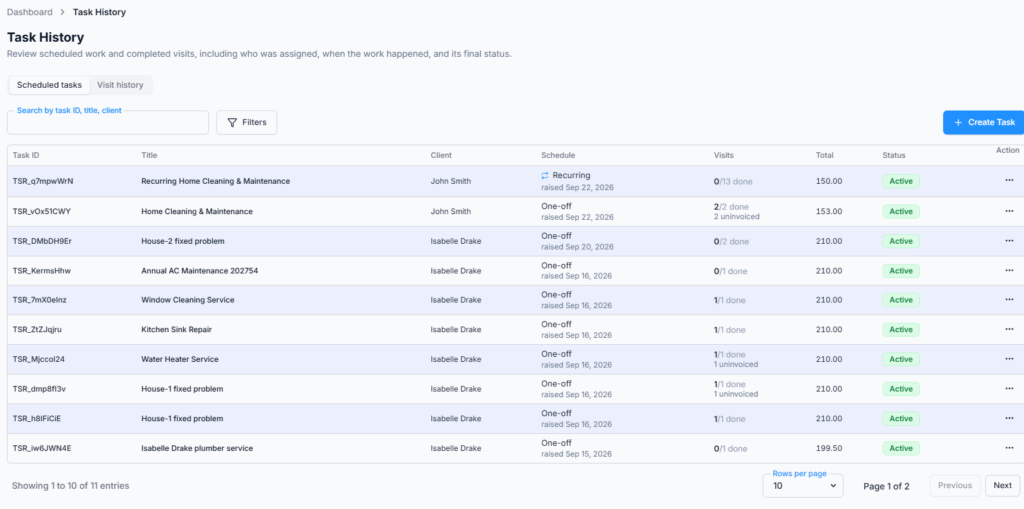
This tab lists your Tasks, one row each:
| Column | What it shows |
|---|---|
| Task ID | The Task’s own ID, for example TSR_a1B2c3D4. Each visit inside it has its own ID that starts with TSK_. |
| Title | The Task’s name. A long title is cut short. Hover over it to read it all. |
| Client | The CRM client the work is for. |
| Schedule | One-off or Recurring, and “raised” with the date the Task was created. |
| Visits | How many visits are Done out of the total, for example “4/12 done”. If some Done visits are not on an invoice yet, you also see, for example, “2 uninvoiced”. |
| Total | The Task’s total price. You see a dash (—) without View Task Details (For Others). |
| Status | Active (green) or Closed (red). Hover over it to read what it means. |
| Action | The row menu. See below. |
Select any row to open its Task page. If you can create Tasks, a Create Task button sits above the list. If there are no Tasks yet, the tab says “No scheduled tasks yet” and explains what a scheduled task is.
| Action | Who sees it | What it does |
|---|---|---|
| View | Everyone who can see the row. | Opens the Task page. Selecting the row does the same. |
| Edit | The Subscriber Admin, or an employee with Edit Task (For All). | Opens the Edit Task page for the whole Task. |
| Create invoice | The Subscriber Admin, or an employee with Create Invoice, when your company has the CRM add-on. | It depends on how the Task is billed. A Visit based Task opens the Task page with Select visits to invoice already open, so you choose the visits. A Fixed price Task opens a new invoice already filled in with the Task’s items. A One-off Task split into payments first asks “Which payment is this invoice for?” and then opens the invoice for that payment. |
Important: View Task History (For All) and View Scheduled Tasks (For All) only decide which rows someone can see. They do not let anyone edit, see prices, close or invoice. Each of those is a separate permission.
Good to know: a Closed Task still offers Edit and Create invoice. Closing never stops you from billing work that has not been invoiced yet.
What View Shows on a Scheduled Task #
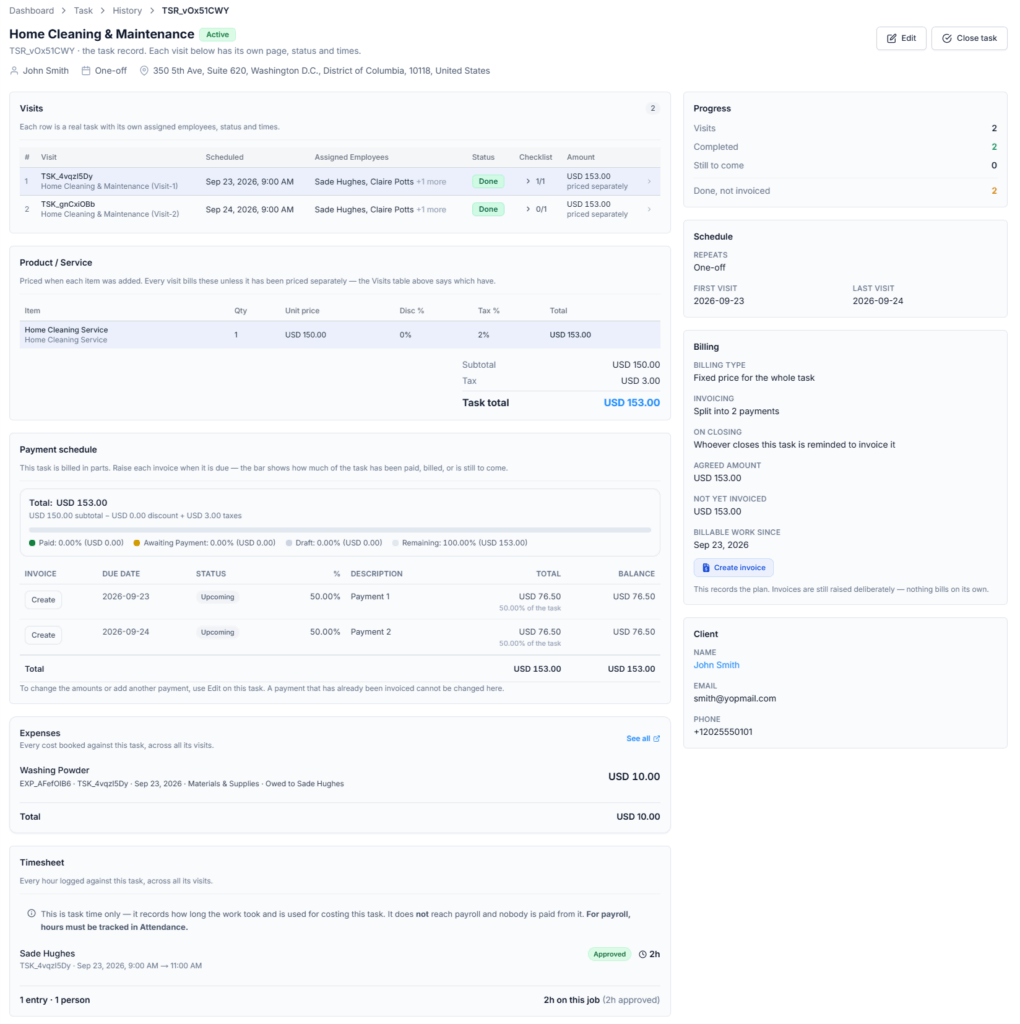
The Task page is the complete record of one Task. The Task Schedule guide explains it in full, under The Task Page. In short, you will find:
- The header: the title, the Active or Closed badge, the TSR_ ID, the client, the schedule in words and the service address. Edit and Close task appear when you are allowed to use them.
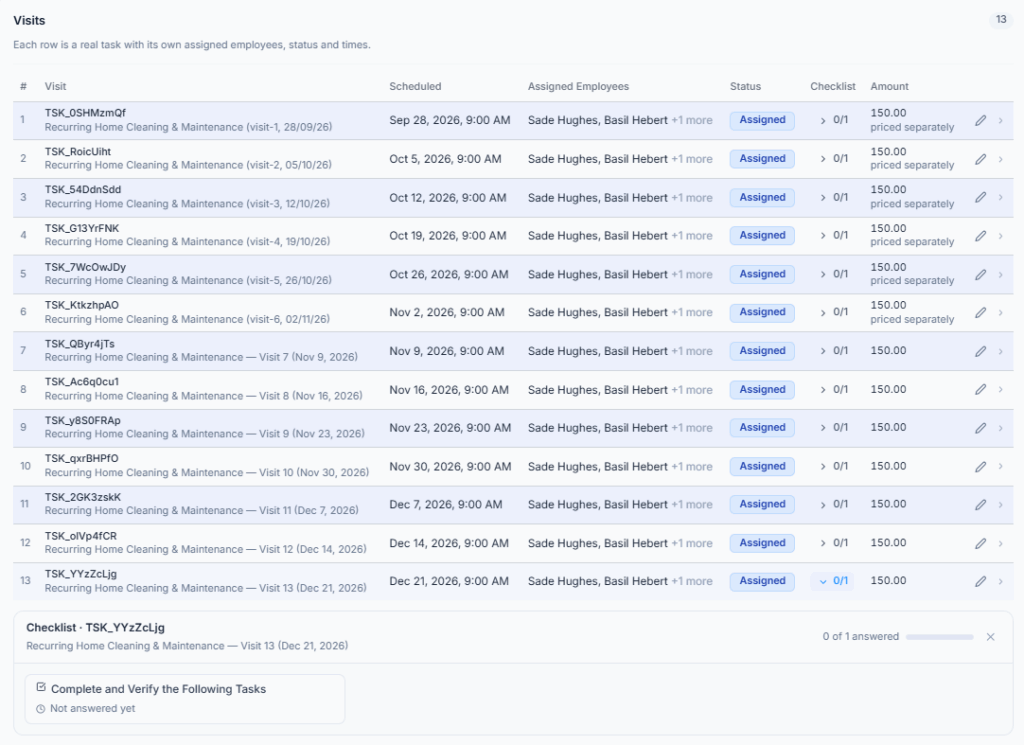
- Visits: one row per visit, with its number, visit ID, scheduled time, assigned employees, status and checklist progress. If you can see prices, it also shows the visit’s Amount, with “priced separately” when that visit has its own price. Select a row to open the visit. Select the checklist count (for example 3/5) to read that visit’s answers below the table.
- Waiting to be scheduled: only on older Tasks that still have visits with no date. These visits hold nobody’s time and cannot be billed. Someone with Schedule / Reschedule Task Visits (For All) selects Schedule and gives each one a date and time.
- Product / Service and Payment schedule: the Task’s items and prices, and its payment plan if a One-off Task is split into payments. You see these only with View Task Details (For Others).
- Expenses and Timesheet: read-only totals of costs and hours across all the Task’s visits. You add or correct them on the visit they belong to. See all on the Expenses card opens Dashboard → Expense, filtered to this Task. The Timesheet reminds you that task time is for costing only and never reaches payroll.
- Instructions & notes, Progress, Schedule, Billing and Client: the shared instructions and internal notes, the visit counts (Visits, Completed, Still to come, and Done, not invoiced), the repeat rule and dates, the billing plan and what is not yet invoiced, and the client’s email and phone. The client’s name links to their CRM record.
Two notices you may see on a Recurring Task:
- An interrupted save. If saving a Recurring Task stopped part-way (for example, the tab was closed), the Visits card says “Not every visit of this schedule has been booked yet… The save was interrupted before it finished.” It shows a Book remaining visits button, and the Schedule card shows “Visits booked up to” a date. Only the person who created the Task, or the Subscriber Admin, can finish booking. Anyone else who presses the button sees “Only the person who created this task can book its remaining visits.” A Closed Task cannot book more visits.
- As needed. A Recurring Task set to As needed books no visits by itself. The Visits card says “This task repeats as needed, so no visits are booked automatically. Use Add visit when the client needs one.” Add visit needs Create Task (For All) or Create Task (For Subordinate), and it is not offered once the Task is Closed.
Good to know: on a very long Task, the Task page lists the first 200 visits, and its Progress card counts only those. The Visits column in the Scheduled tasks list always counts every visit. To see the later visits, search Visit history for the Task’s title.
What Edit Can Change on a Scheduled Task #
Edit opens the Edit Task page. It looks like the Create Task form and shows the whole Task, including the schedule it already follows. Some parts are locked, because changing them safely needs an action on the visit itself. The Task Schedule guide covers this page in full, under Edit a Task or a Visit.
| You can change | You cannot change here |
|---|---|
| The title, service address, currency, internal notes, and Buffer (minutes): travel or clean-up time after each visit, up to 24 hours. | The client. The field says “This task is booked and cannot change its client.” |
| On a One-off Task: each open visit’s title, instructions and checklist. Saving updates the real visits. | One-off or Recurring, the repeat rule, or any visit’s date and time. Use Reschedule on the visit, which checks everyone’s availability. |
| On a Recurring Task: the shared instructions and checklist. Office-X asks first, tells you how many booked visits the change will reach, and then updates them. Visits that were given their own wording are left alone unless you include them. | Who attends, and the status owner. Use Reassign on the visit. |
| Product / Service, prices and the billing plan, if you have View Task Details (For Others). Without it, those sections are hidden and saving leaves them as they were. | A Done or Cancelled visit. It stays as the record of what happened. Checklist answers employees already gave are kept. |
Change one visit’s price: on a Visit based Task, each visit row on the Task page has a pencil (hover text: “Edit this visit’s line items”). It opens Edit Visit, where you can add or remove items and change quantities and prices for that visit only, then select Save this visit. Select Use the task’s items to go back to the Task’s own price. You need both Edit Task (For All) and View Task Details (For Others). A visit that is already invoiced opens read-only with “This visit has already been invoiced. Edit or void the invoice instead.” A Cancelled visit says “This visit was cancelled, so there is nothing to bill for it.” Fixed price Tasks have no pencil, because their price is agreed once for the whole Task.
Understand Visit History #
Each row is one visit:
| Column | What it shows |
|---|---|
| ID | The visit ID, for example TSK_a1B2c3D4. |
| Task | The visit’s title. Select it to open the visit. |
| Clients | The client the visit is for. |
| Assigned To | The first person on the visit. For a crew, a See N more button opens the list of everyone on it. “No assignee” means nobody is on it yet. |
| Source | Request or Task (see the filters above). |
| Scheduled Date | The booked date. A visit that runs over several days shows a date range. |
| Actual Time | When the visit really started and finished. It says “Not started” before anyone starts, and, for example, “Started 9:05 AM · Not finished yet” while the visit is running. |
| Status | The visit’s outcome. Hover over it to read what it means. |
| Action | View, on visits you are allowed to open. Selecting the row does the same. |
The five visit statuses, in short (the Task Schedule guide explains each one under Visit Statuses):
- Assigned: booked and on the crew’s schedule. Nobody has started it yet.
- In Progress: someone has started it on site, and hours are being counted.
- Done: finished on site. A visit has to be Done before it is normally invoiced.
- Cancelled: called off. The crew’s time is freed, the checklist is closed, and it cannot be billed.
- No Show: the crew attended and the client was not there. It stays on the record so it can be rebooked, and you may choose to bill it when you charge for attendance.
Read Scheduled Date and Actual Time together. They show the difference between when you promised to be there and when the visit really started and ended. A crew shares one visit row, one set of actual times and one outcome.
View and Edit an Individual Visit #
Select a row, or View, to open the visit’s own page. You can always open a visit you are on or created. Anyone else’s needs View Task Details (For Others). The Task Schedule guide explains this page in full, under Open a Visit. When you are looking back at past work, these are the parts you will use most:
- Schedule vs actual: Current Scheduled and Actual side by side, plus Initial Scheduled once the visit has been rescheduled. A buffer shows as, for example, “+30m buffer — occupied until 1:30 PM”. A Cancelled or No Show visit shows its reason, who recorded it and when.
- Customer: name, customer ID, phone, mobile, alternative number, email, fax and the service address, with call and Copy address shortcuts. It also says whether the customer confirmed the visit, for example “Customer confirmed this visit” with the date.
- The work record: instructions, attachments, checklist answers, and the visit’s own Timesheet and Expenses, each shown as far as your permissions allow.
- Timeline and Comments tabs: the Timeline lists who created, started, completed, rescheduled, reassigned or cancelled the visit, and when. You see it if you are on the visit, created it, or have View Task Details (For Others). Comments stay open until the visit is Done or Cancelled.
What Edit opens depends on the visit:
- A visit that belongs to a Task: Edit opens that Task’s Edit Task page, so one visit never quietly disagrees with the rest of the Task.
- A standalone visit: an on-site assessment from a CRM Request, or an older visit with no Task, opens a small Edit dialog for that visit only.
- Finished visits are locked: a Done or Cancelled visit has no Reschedule, Reassign or Edit buttons, and its Comments are closed. A No Show stays open, with a Reschedule visit button to rebook it.
Do not use Edit for everything: Edit changes the Task’s or visit’s information. Reschedule moves the visit and checks for clashes. Reassign changes the crew and the status owner. The status buttons record the outcome. Keeping these separate keeps the Timeline accurate and applies the right permission to each decision.
Understand the Task’s Own Status #
Each visit has its own outcome. The Task around them, the One-off job or Recurring arrangement, has one of two states:
- Active: the Task is live. Even when every visit is finished, it stays Active until somebody closes it, because the office usually still has reviewing and billing to do.
- Closed: the office has formally finished with it. Unbilled work on it can still be invoiced.
To close a Task, open it and select Close task. You need Close Task (For All). The Subscriber Admin always has it. The button stays grayed out until every visit is Done or Cancelled and no visit is waiting for a date. A No Show is not final enough: reschedule it or cancel it first. Hover over the grayed-out button to see what is still in the way. The Task Schedule guide walks through every step, under Close the Task.
Good to know: finishing the last visit does not close the Task by itself. Closing changes no visit and no money. If the Task is set to remind on close, Office-X sends a “ready to invoice” reminder, but it never creates or sends an invoice. There is no button to reopen a Closed Task, so close it only when the work is really finished.
Closed is a decision, not an outcome. It means “we are done with this arrangement”, which is different from “the last visit went ahead”.
Review a Past Visit #
- Open Visit history and find the visit with the search box or the filters.
- Open it. Check the client, the service address, the crew and the status owner.
- Compare Current Scheduled with Actual, and read any Cancelled or No Show reason.
- Review the checklist answers, comments, attachments, hours and expenses your permissions let you see.
- Open the Timeline tab to see what changed, who did it and when.
- To check billing, open the Task page from the Scheduled tasks tab. The Progress card shows Done, not invoiced, and the Billing card shows what is Not yet invoiced.
Good to know: the Timeline is what answers “why”. It records who started the visit, who completed it, who rescheduled it and when, including when the office recorded an outcome on the crew’s behalf. That is exactly what a client question turns on a month later.
Export Visit History #
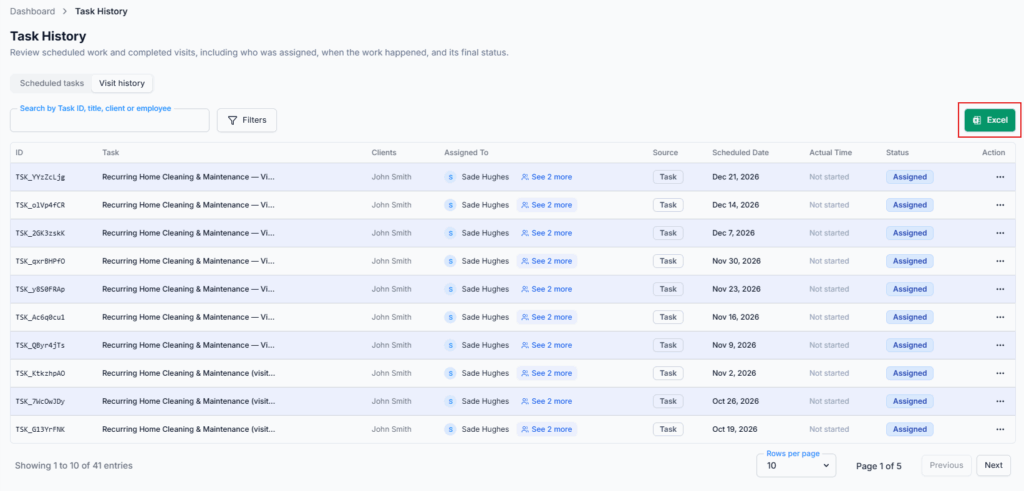
Use the Excel export when you need to review or share the visit record outside Office-X. The export is on the Visit history tab only.
- Open the Visit history tab.
- Set the search and filters you want, and check the dates.
- Select Excel. The button says “Preparing…” while Office-X gathers the rows.
- The file task-history.xlsx downloads.
- Every matching visit, not just this page. The file follows your search and filters, and includes every row that matches, even when the list runs over several pages. It only ever includes visits you are allowed to see.
- Columns: Task ID, Task, Client, Location, Assigned To, Date, Scheduled, Actual and Status. Location is the service address. It is in the file even though the table on screen has no column for it.
- Your company’s clock. Dates and times use your company’s time zone. The top of the sheet says “Task History” and “Generated:” with the date, time and time zone.
- Up to 5,000 visits per file. If more match, you get the most recent 5,000 and a warning: “Only the most recent 5000 tasks were exported. Narrow the date range to get the rest.” Export again with an earlier date range to collect the rest.
- Nothing to export. If no visit matches, Office-X says “There is nothing to export.” and does not create an empty file.
Example: for a monthly service report, set From Date and To Date to the month, filter Status to Done, check the results and select Excel. The file holds every Done visit for that month, even when the list on screen runs over several pages.
History and Billing #
History is where the office checks what is ready to bill. The Visits column in Scheduled tasks shows how many Done visits are still uninvoiced. The Task page shows the amount. From there, Create invoice works like this:
- Visit based Task: Select visits to invoice opens. Done visits that are not billed yet are ticked for you. You may also tick an Assigned or In Progress visit to bill ahead, or a No Show when you charge for attendance. Cancelled visits are not listed. A visit already on an invoice is grayed out and names it, for example “Already invoiced · INV-2026-0042” or “Already paid · INV-2026-0042”. If you untick everything, the dialog says “No visits selected. The task’s own items will be billed.”, which suits a deposit. Select Continue to open the invoice.
- Fixed price Task: the invoice opens with the whole agreed price, billed once however many visits it takes.
- One-off Task split into payments: the Task page’s Payment schedule shows each payment as Upcoming, Draft, Awaiting Payment or Paid. Select Create on an Upcoming row to bill that payment only. Once billed, the row shows the invoice number as a link to the invoice. Voiding that invoice puts the row back to Upcoming. The Create invoice button on the Billing card bills everything still owed in one invoice.
- Closed Tasks: unbilled work on a Closed Task can still be invoiced.
Good to know: a Task’s invoice frequency, and “remind me on close”, only send a “ready to invoice” reminder to the staff member chosen under Admin → Notifications, on the Invoices tab. As the Billing card says: “The settings above are only a plan. No invoice is created or sent automatically — someone has to press Create invoice.” See the Invoices guide.
For the Employee: Your Own Work History #
You do not need a permission to look back at your own work. Open Task → History. Visit history shows the visits you were assigned to, and those of anybody who reports to you.
- Check your own record before a question about a job: Scheduled Date against Actual Time, and whether your hours were approved. Task time is for costing only. It does not change your Attendance, wages or payroll.
- Answer a client’s question about a past visit: open it and read the checklist answers, the comments and the photos you left.
- Find a No Show you attended when the office asks whether it should be rebooked. Filter Status to No Show.
Good to know: a Task you created but are not assigned to does not appear in Visit history, because that list is built from the people on each visit. It does appear in Scheduled tasks, where you can open the whole Task.
For the Client: What They Can Look Back At #
Clients never see this page. What they can look back at is their own, and only what your Client Portal settings allow. The Task Schedule guide covers the client’s side in full, in Part 3.
- Their appointments in the Client Portal, if Appointments is turned on. Each visit shows as Booked, Confirmed by you, In progress, Completed, or Could not be completed for a No Show. A booked visit they have not confirmed yet has a Confirm appointment button. Cancelled visits are not listed.
- The emails they were sent at the time: the “please confirm your appointment” request, the confirmation, reminders, changes, a new time, on the way, completed, cancelled, or could not be completed. Which of these go out depends on your settings under Admin → Notifications. Clients often quote these emails back to you.
- Their invoices, once you send them.
They never see your crew’s instructions, checklist answers, internal comments, the Timeline, task time, expenses, Task prices, other clients’ visits, or employee contact details. Prices reach them only through an Estimate or Invoice you send.
Operational Review Example #
At month-end, the operations manager opens Visit history, filters Status to Done and sets the dates to the current month. She opens Maria Lopez’s visit to Mr. Sullivan in Oak Park, checks that the checklist is complete, and reviews Danny Ruiz’s approved hours and the parking expense. Then she opens the Task from Scheduled tasks. The Progress card shows 1 visit Done, not invoiced. The accounts employee selects Create invoice, keeps that visit ticked and continues to the invoice.
Good Practice #
- Record the real outcome of every visit on the day, so History stays true.
- Read No Show and Cancelled reasons before you arrange another visit.
- Fill in missing checklist answers, hours and expenses before the billing review.
- Give View Task Details (For Others) only to people who need to see prices.
- Use the Timeline when you answer client or employee questions.
- Close finished Tasks, so Active really means “still running”.
Summary #
History has two tabs: Scheduled tasks for each whole Task, and Visit history for each single visit. The office uses it to review the month, check the record before billing, close finished Tasks and answer questions. An employee sees their own work and their reporting team’s. The client never sees this page, and uses their own Appointments, Estimates and Invoices instead.
The one habit that makes it all work is recording the real outcome on the day. History, billing, the client’s own page and the Excel export all read from that single answer.
