Manage incoming work continuously and limit how much the team starts at once.
Kanban projects do not use sprints. Work enters the Board directly and moves through the workflow as capacity becomes available.
Who Can Use This Feature #
Tenant Admins can use every Kanban project. Employees need project access and the appropriate work-item scopes. Seeing work, editing it, assigning it, changing status, and ranking it are separate permissions.
Where to Find It #
Open Dashboard → Projects → [Kanban Project] → Board.
How Kanban Differs from Scrum #
- There is no Backlog tab.
- There are no sprint containers, sprint capacity controls, or sprint reports.
- New work can enter the Board directly.
- WIP limits help the team finish active work before pulling in more.
Manage the Flow #
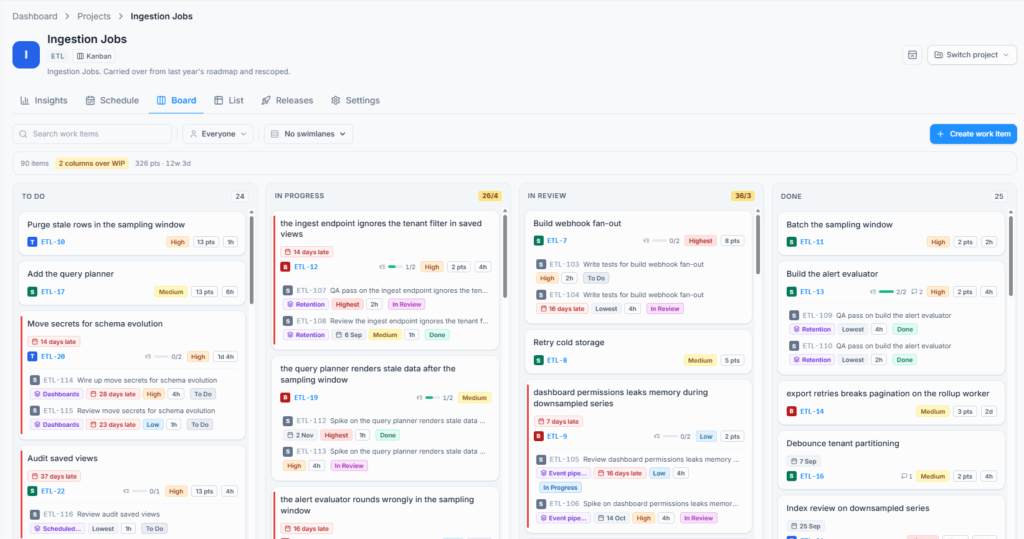
Create incoming work, prioritise it, and pull the next item when the team has capacity. Drag a card to change status. Use assignee filters and swimlanes to focus the Board.
Work-in-progress Limits #
A WIP limit is the recommended maximum number of items in a workflow stage. It makes congestion visible and discourages the team from starting more work while too much is already active.
Project managers configure WIP limits under Settings → Board & workflow.
When a column reaches its limit, treat it as a signal to finish or unblock work. Moving another item into an already-full stage can be restricted by the Board rule. Do not increase the limit automatically every time it is reached; first check whether the stage itself is the bottleneck.
Filters and Swimlanes #
Assignee filters temporarily narrow the cards shown without changing them. Swimlanes divide one Board into horizontal groups, such as work by epic or assignee, so the team can compare parallel streams. Clearing a filter or returning to no swimlane restores the full Board.
Use List, Schedule, and Insights #
Use List for detailed filters, inline edits, and bulk changes. Use Schedule when work has start or due dates. In Insights, focus on status distribution, workload, aging, overdue work, and cumulative flow.
A widening In Progress band in cumulative flow can indicate a bottleneck.
A Practical Kanban Routine #
- Review blocked and overdue work.
- Finish or unblock active work before starting more.
- Pull the next highest-priority item when a column has capacity.
- Keep assignees, dates, and status current.
- Review WIP and cumulative flow regularly.
If You Expected Backlog or Sprint Controls #
The project was created as Kanban. Its workflow is continuous, so Office-X does not show Scrum Backlog or sprint controls. Create a Scrum project when the team needs fixed sprint planning.
Summary #
Use the Kanban Board as the team’s live queue, respect WIP limits, and pull new work only when capacity is available. Use List, Schedule, and cumulative flow to investigate details and bottlenecks.
