The Clients module is your company’s address book for the CRM. It holds everyone you do business with: the customers you sell to and the vendors you buy from. Requests, Estimates, Invoices, Agreements, Tasks, Expenses, and Bookings all connect to a client, and an Item you buy in can name its vendor. Each client also has its own page that shows their work, what they owe, their upcoming visits, and every email and text you have sent them.
Where to Find It #
Go to Dashboard → CRM → Clients.
Good to know: Clients is part of the CRM add-on, which is sold on the Advance plan. If your company hasn’t turned CRM on, this page shows a screen that explains how to add it. That applies to everyone, including the Subscriber Admin.
Customer vs. Vendor #
Every client is one of two types:
- Customer: someone you sell to. Customers receive your Requests, Estimates, Invoices, Agreements, and visits. When someone books through your public Booking page, Office-X finds the Customer with that email, or creates a new one for you.
- Vendor: someone you buy from. When you tick I purchase this from a vendor on an Item, the Vendor picker lists your Active vendors only (see the Items guide).
Example: a home services company has Sarah Mitchell set up as a Customer. She receives Estimates and signs Agreements. James Carter is set up as a Vendor. His company, Precision Audio Supply Co., supplies the equipment behind the company’s “Home Theater System” Item.
Who Can Use This Feature #
The Subscriber Admin can always create, view, edit, delete, and activate or inactivate any client. No extra permission is needed.
Employees need permissions. You give them from Admin → Permissions → CRM – Clients. Each one works on its own:
- Create Client
Required action: Create
Lets them add a client with the New Client button on the Clients page, or with Add new client inside a client picker. It also lets them use Add new vendor on an Item. - View All Clients
Required action: View
Lets them see the Clients list, with every client in the company. Without it, the list stays empty. - Edit Client (For All)
Required action: Update
Lets them edit any client’s details. It also lets them see a client’s bank details. - Delete Client (For All)
Required action: Delete
Lets them permanently delete a client that isn’t used anywhere yet. - Activate / Inactivate Client (For All)
Required action: Update
Lets them switch a client between Active and Inactive, without giving them the rest of the edit form. - View Client Details (For All)
Required action: View
Lets them open a client’s own page (Client View Details). They need View All Clients as well. Without this permission, the client’s name is plain text, the row doesn’t open, and View is missing from the Action menu. - View Client Billing (For All)
Required action: View
Lets them see the Billing section on a client’s page: invoices, payments, refunds, and what is still due. They don’t get the full Invoices list. View All Invoices also opens this section. - View Client Schedule (For All)
Required action: View
Lets them see the Schedule section on a client’s page: that client’s upcoming and past visits. They don’t get the full task schedule. View Task Schedule (For All) also opens this section. - View Client Communications (For All)
Required action: View
Lets them see the Communication tab on a client’s page: consent choices and the emails and texts sent to that client. They still only see messages from the areas they are allowed to view. - Open Client Portal as Client (For All)
Required action: Update
Lets them use the Login as client button on a client’s page. It opens that client’s real Client Portal in a new tab, for support and checking.
You can give these permissions to one employee, or to a whole team at once. See the Permissions Management guide for how.
Good to know: a client’s bank details are private. Only the Subscriber Admin and employees with Edit Client (For All) can see them. Everyone else sees the rest of the client’s details as normal, with the bank section left out.
Creating a Client #
- Go to Dashboard → CRM → Clients.
- Click New Client at the top right. The Add a new client form opens.
- Fill in the sections described below. Only the Name is marked as required, but a Customer also needs one way to reach them.
- Click Save. You see “Client created successfully”, and the new client appears at the top of the list.
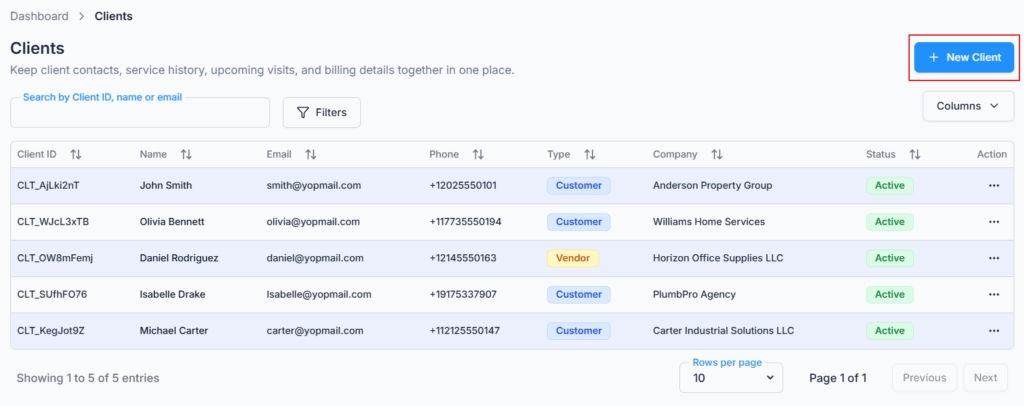
Every new client starts as Active. There is no Status field in the form. To change the status later, use Activate or Inactivate (see below). Office-X also gives each client a Client ID, such as CLT_a1B2c3D4.
Name & Contact #
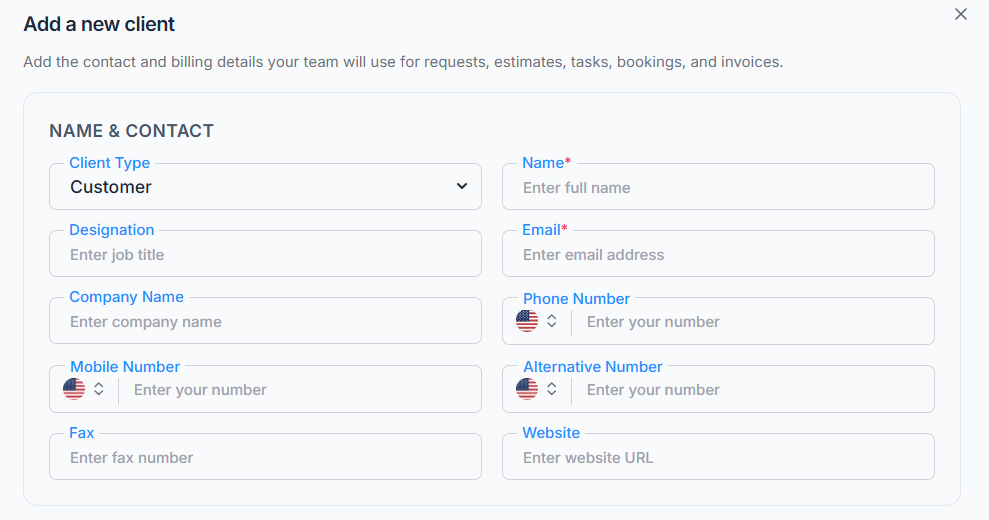
- Client Type: Customer or Vendor. It starts as Customer.
- Name: required, up to 100 characters. Spaces at the start and end are removed.
- Designation: the person’s job title. Optional, up to 100 characters.
- Email: optional, up to 254 characters. If you type one, it must be a real email address. The Client Portal and all emailed CRM documents use this address.
- Company Name: optional, up to 100 characters.
- Phone Number and Mobile Number: optional, up to 20 characters each. Pick the country, then type the number, for example 555-0142. Once you pick a Billing Address country, the phone fields start from that country.
- Alternative Number: optional, up to 20 characters. Use it for a second contact number.
- Fax: optional, up to 30 characters.
- Website: optional, up to 200 characters. Type an address such as acme.com or https://acme.com. Spaces are not allowed. If the address isn’t valid, you see “Enter a valid website address, for example acme.com”.
The contact rule. A hint at the top of this section tells you what the client type needs:
- A Customer needs a name and at least one of Email, Mobile Number, or Phone Number. If none is filled in, saving stops with “Add at least one way to reach this customer: an email, a mobile number or a phone number.” The message goes away as soon as you type a number.
- A Vendor needs only a name (“Only the name is required for a vendor.”). Adding contact details is still a good idea.
- Alternative Number and Fax don’t count, because they are backup contacts.
- Picking a country code alone doesn’t count either. Type the full number.
One email per client. Each email address can belong to only one client in your company. Office-X ignores uppercase and lowercase when it compares them. If the email is taken, you see “Another client in your company already uses this email. Use a different email, or leave it empty.” Clients without an email can still be saved, so search by name, company, and phone first to avoid creating the same client twice.
Good to know: a Customer saved with a phone number only can’t sign in to the Client Portal and can’t receive emailed Estimates, Invoices, or statements. Add an email when you want to send those.
Addresses #
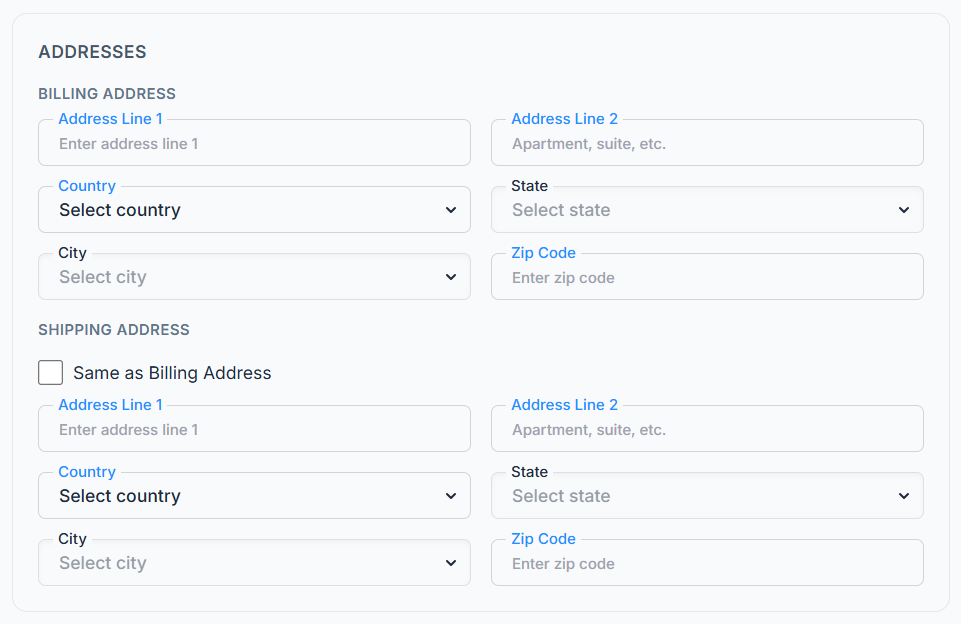
The Billing Address and Shipping Address have the same fields. All of them are optional:
- Address Line 1 and Address Line 2 (for an apartment, suite, and so on): up to 200 characters each.
- Country, then State, then City: pick each one from a list. State opens after you choose a country, and City opens after you choose a state. Changing the country clears the state and city.
- Zip Code: up to 20 characters.
Tick Same as Billing Address when both addresses are the same. The shipping fields are hidden, and Office-X copies the billing address into them as you type. If you untick the box later, the copied address stays, so you can edit it.
Tax (Additional Info) #

- This client is tax exempt: a checkbox. When you tick it, the Tax Rate field is hidden and cleared. The client’s page then shows Exempt — no tax charged.
- Tax Rate (%): a number from 0 to 100, with up to two decimals. It only shows when the client is not tax exempt.
Bank & Financial Details (Bill Pay ACH Info) #
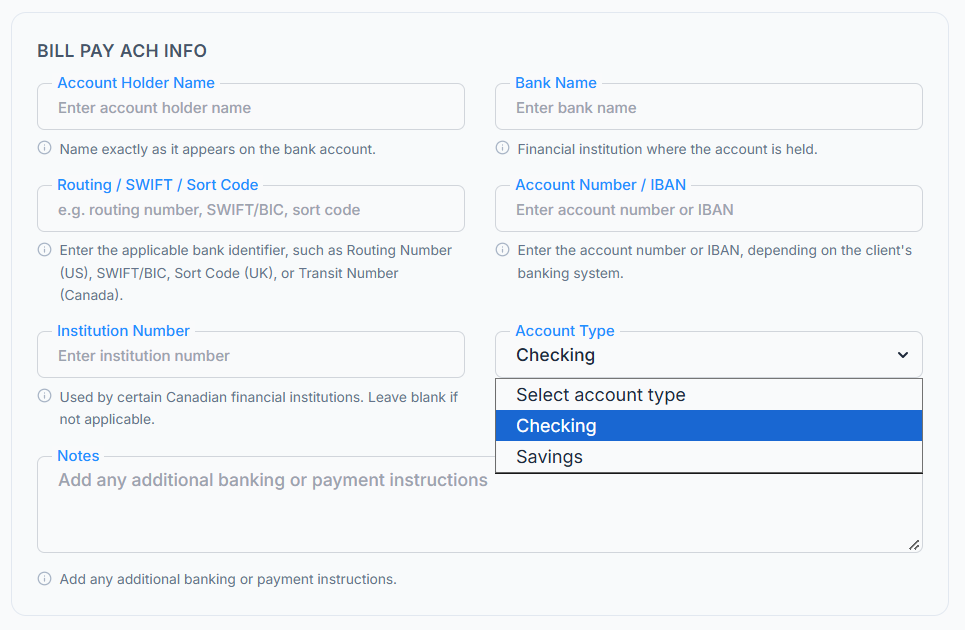
Use this section when you pay a vendor or collect from a customer by bank transfer. Every field is optional, and each one has a short hint under it:
- Account Holder Name: the name exactly as it appears on the bank account. Up to 150 characters.
- Bank Name: up to 150 characters.
- Routing / SWIFT / Sort Code: the bank’s identifier, such as a US routing number, a SWIFT/BIC, a UK sort code, or a Canadian transit number. Up to 50 characters.
- Account Number / IBAN: up to 50 characters.
- Institution Number: used by some Canadian banks. Leave it blank if it doesn’t apply. Up to 20 characters.
- Account Type: Checking or Savings.
- Notes: any extra banking or payment instructions. Up to 1,000 characters.
Good to know: the routing code and the account number are stored securely. On the client’s page, the account number is hidden except for its last four digits. Click the eye button (Show account number) to see it in full. Only give Edit Client (For All) to people who really need these details.
Notes & Attachments #
- Internal Notes: optional, up to 500 characters. These notes are for your team only. The client never sees them in the Client Portal.
- Attachments: optional. You can add up to 6 files in total. Each file can be a JPG, PNG, or PDF of up to 2 MB. A bigger file is refused with “File is too large. Maximum size is 2MB.” A seventh file shows “Maximum 6 attachment files allowed.” You see a preview of each file, and the ✖ removes it before you save.
Worked example: Maria Lopez adds the vendor James Carter. She sets Client Type to Vendor and Company Name to “Precision Audio Supply Co.”. She leaves Same as Billing Address unticked, because bills go to Denver, CO and deliveries go to Boulder, CO. She ticks This client is tax exempt, attaches a W-9 (PDF) and a business card (PNG), and adds the note “Preferred vendor for home theater equipment”. No email or phone is needed, because James is a Vendor.
Creating a Client While You Work #
You don’t have to leave a half-finished form when the client isn’t in Office-X yet. The client pickers on these screens let you add one on the spot:
- Creating or editing a Request
- Creating or editing an Estimate
- Creating or editing an Invoice
- Creating or editing an Agreement
- Create Task (with the Task Management add-on)
Here is how it works:
- In the Client field, type the person’s name, for example “Sullivan”.
- If no client matches, the list shows Add new client “Sullivan”. Click it.
- The same Add a new client form opens on top of your work, with the name already filled in and the type set to Customer.
- Add at least an email, mobile, or phone number, then click Save.
- The form closes and the new client is already picked in your Request, Estimate, Invoice, Agreement, or Task. Carry on where you left off.
This shortcut follows the same rules as the Clients page. The contact rule and the one-email-per-client rule still apply. Saving also needs the Create Client permission; without it you see “You don’t have permission to perform this action”.
Vendors are even quicker. In an Item’s Vendor picker, type the vendor’s name and click Add new vendor “[name]”. Office-X creates an Active Vendor with that name straight away, with no form, and picks it for you. You see Vendor “[name]” created. You can add the vendor’s contact, address, and tax details later from CRM → Clients.
Good to know: client pickers only list Active clients, and they list both Customers and Vendors. You can search by name, company, email, or Client ID. The Request and Create Task pickers also search by phone number.
[Screenshot: a client picker showing the Add new client option]
Active vs. Inactive Status #
To change a client’s status, open the Action menu (⋯) on their row and click Inactivate (or Activate for an Inactive client). The same button is at the top of the client’s own page. You see “Client status updated successfully”.
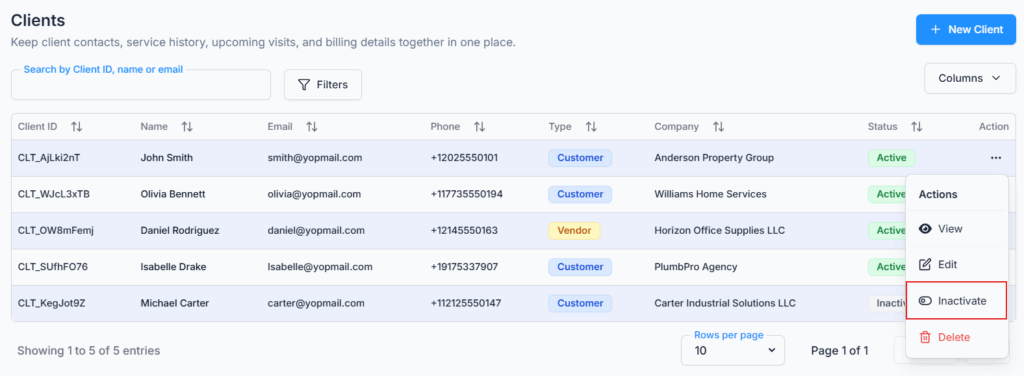
When a client is Inactive:
- They no longer appear in client pickers, so nobody can pick them for a new Request, Estimate, Invoice, Agreement, or Task.
- An Inactive Vendor no longer appears in the Item Vendor picker.
- They can’t use the Client Portal. A sign-in link they already have stops working, and they see “This account is no longer active. Please contact us.” A new sign-in link isn’t sent to them.
Good to know: Inactive doesn’t change anything that already exists. An Item that already names the vendor, or an Estimate, Invoice, or Agreement already linked to the client, stays exactly as it is. Switch the client back to Active at any time to use them again.
Editing a Client #
- Open the Action menu (⋯) on the client’s row and click Edit. You can also click Edit at the top of the client’s own page.
- The Edit Client form opens with the client’s current details. It has the same sections as the create form.
- Make your changes and click Update. You see “Client updated successfully”.
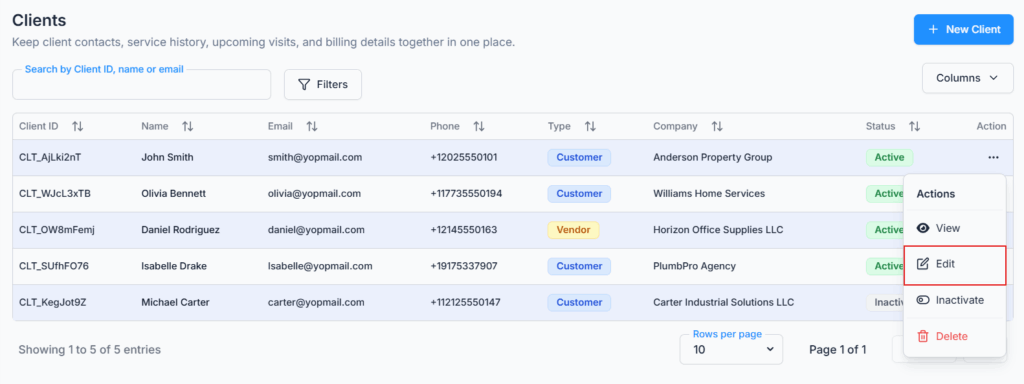
- You can change every field, including Client Type and the bank details. Status is changed with Activate / Inactivate, not in this form.
- The contact rule applies to edits too. If you change a Vendor into a Customer, add an email, mobile, or phone number before you save.
- You can clear the email, as long as a Customer still has a mobile or phone number.
- Removing an attachment deletes that file when you click Update. The 6-file limit counts the files you keep plus the new ones you add.
Security note: when you change a client’s email address, Office-X signs them out of the Client Portal and their old sign-in links stop working. That way, the old inbox can’t keep opening the account. The client signs in again with a link sent to the new address.
Deleting a Client #
- Open the Action menu (⋯) on the client’s row and click Delete. You can also click Delete at the top of the client’s own page.
- The Delete Client box asks you to confirm. It says the action can’t be undone.
- Click Delete. You see “Client deleted successfully”. The client and all their attachments are removed for good. If you deleted from the client’s own page, you go back to the Clients list.
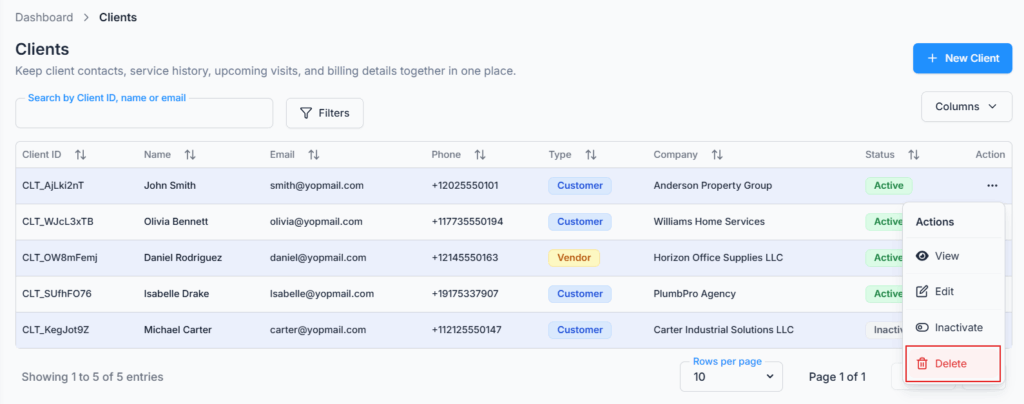
Important: you can only delete a client that isn’t used anywhere. Office-X stops the delete while the client is linked to any of these:
- an Invoice (including a draft)
- an Estimate
- a Request
- a scheduled Task, or any of its visits
- an Expense
- an Agreement
- an Item that names them as its Vendor
The message tells you what is in the way, with counts and a few references you can search for. For example: “This client can’t be deleted because it is still used by 2 invoices (INV-2026-0042, INV-2026-0045) and 1 estimate (EST_a1B2c3D4). Mark the client Inactive instead to stop it being picked for new work.”
Good to know: Bookings don’t block a delete, because each Booking keeps its own copy of the contact’s name and email. When a business relationship ends, setting the client to Inactive is usually the better choice. It keeps their history easy to find.
The Client List #
Go to Dashboard → CRM → Clients. The page shows every client in your company, newest first.
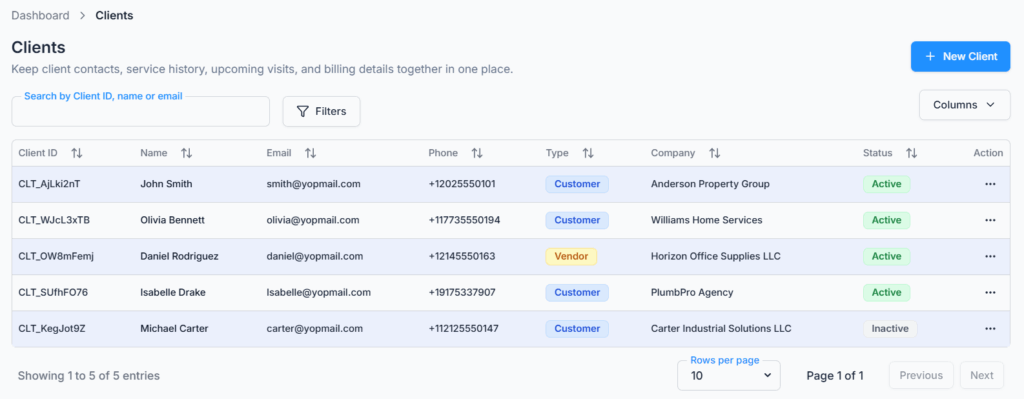
The table has these columns: Client ID, Name, Email, Phone, Type (Customer or Vendor), Company, Status (Active or Inactive), and Action. Use the Columns button to show or hide any column except Action.
- Search: type in Search by Client ID, name or email. Each word you type must match, so “sarah mitchell” finds Sarah Mitchell.
- Filters: click Filters, choose a Client Type (All, Customer, or Vendor) and a Status (All, Active, or Inactive), then click Apply. The filters you chose show as badges under Active filters. Clear resets both.
- Sort: click a column header to sort by it. Click again to reverse the order. Sorting reorders the rows on the page you are looking at.
- Pages: show 10, 20, or 30 clients per page.
- Open a client: click the name, or anywhere on the row. This needs View Client Details (For All). Long names are shortened with “…”.
The Action menu (⋯) shows only the options you are allowed to use:
- View: opens the client’s page. Needs View Client Details (For All).
- Edit: needs Edit Client (For All).
- Inactivate or Activate: needs Activate / Inactivate Client (For All).
- Delete: needs Delete Client (For All).
If you can’t use any of them, the Action cell stays empty. When nothing matches your search or filters, the table says “No results found”.
How Clients Connect to the Rest of CRM #
A client record is the center that the rest of the CRM builds on:
- Requests: every Request is for one client.
- Estimates: every Estimate is for exactly one client. You can’t save an Estimate without one.
- Invoices: every Invoice is billed to one client. Their payments and refunds show on the client’s Billing section.
- Agreements: linking an Agreement to a client is optional. The people who sign are added by name and email, so the client link is for your own records.
- Tasks: with the Task Management add-on, each scheduled Task and its visits belong to one client. The client’s page shows those visits in its Schedule section.
- Items: an Item you buy in can name the Vendor you buy it from. Only Active Vendors appear in that picker.
- Bookings: when someone books through your public Booking page, Office-X matches them to a client by email. If there is no match, it creates a new Customer for them, so the same person booking twice keeps one record. You don’t need to create these clients first.
Activity Log #
Office-X records every client you add, edit, activate, inactivate, or delete, with who did it and when. An edit lists exactly which fields changed. The Activity Log also records each time someone uses Login as client and each statement emailed to a client.
The routing code and account number appear only partly hidden in the log. It shows you that they changed, without becoming a second place to read a full account number. Go to Dashboard → Activity Log and filter to Client. See the Activity Logs guide for how to search it.
Client Portal Access #
The Client Portal is a private website where your clients see their own work with you. An Active client with an email address can sign in when your company has the portal turned on under Admin → Client Portal. They only see their own Requests, Estimates, Appointments, and Invoices, and only the pages your company has turned on. A sign-in lasts 30 days.
The Subscriber Admin, and employees with Open Client Portal as Client (For All), can open a client’s portal with the Login as client button on the client’s page. It’s useful for support (“What do you see on your screen?”) and for checking your setup.
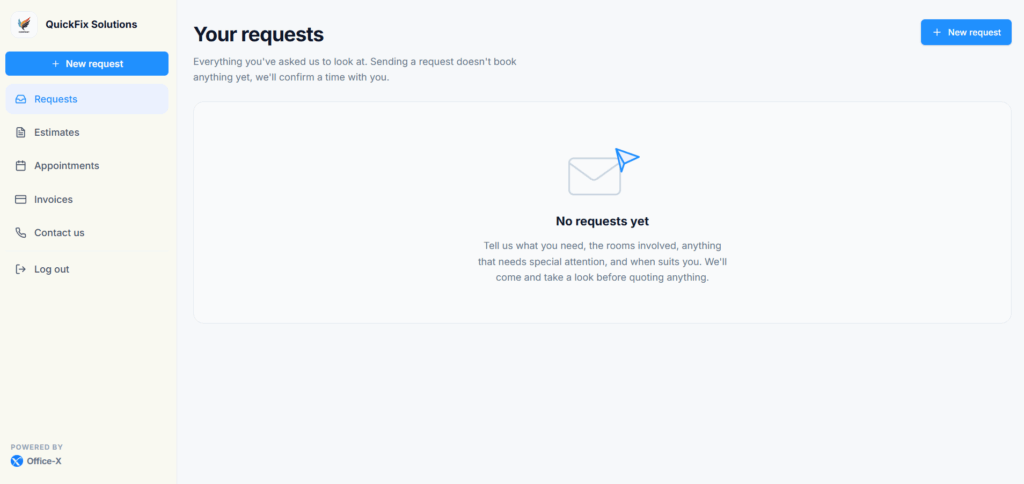
Login as client works only when all of these are true. If one is missing, you see a message that tells you what to fix:
- The Client Portal is turned on. Otherwise: “The Client Portal is turned off for your company. Turn it on under Admin → Client Portal first.”
- The client has an email address. Otherwise: “This client has no email address on file, which the portal uses to identify them. Add one first.”
- Your company name is set under Business → Company, because the portal address is built from it.
- The client is Active. For an Inactive client, the new tab says “This account is no longer active. Please contact us.”
Client View Details and Workspace #
Each client has their own page, called Client View Details. It brings their profile, work, money, visits, consent, and messages into one place. It answers the questions a client usually asks on the phone: What is happening with my job? What do I owe? When is the next visit? Did you send me that invoice?
To open it, an employee needs both View All Clients and View Client Details (For All). The Subscriber Admin can open every client’s page.
How to Open Client View Details #
- Go to Dashboard → CRM → Clients.
- Find the client with Search or Filters.
- Click the client’s name, click anywhere on the row, or choose View from the Action menu.
If the name isn’t a link and View is missing, the employee can see the Clients list but doesn’t have View Client Details (For All). The page has its own web address, so you can bookmark it or send the link to a colleague who has access.
Client Header and Quick Actions #
The top of the page gives you a quick summary before the detailed sections.

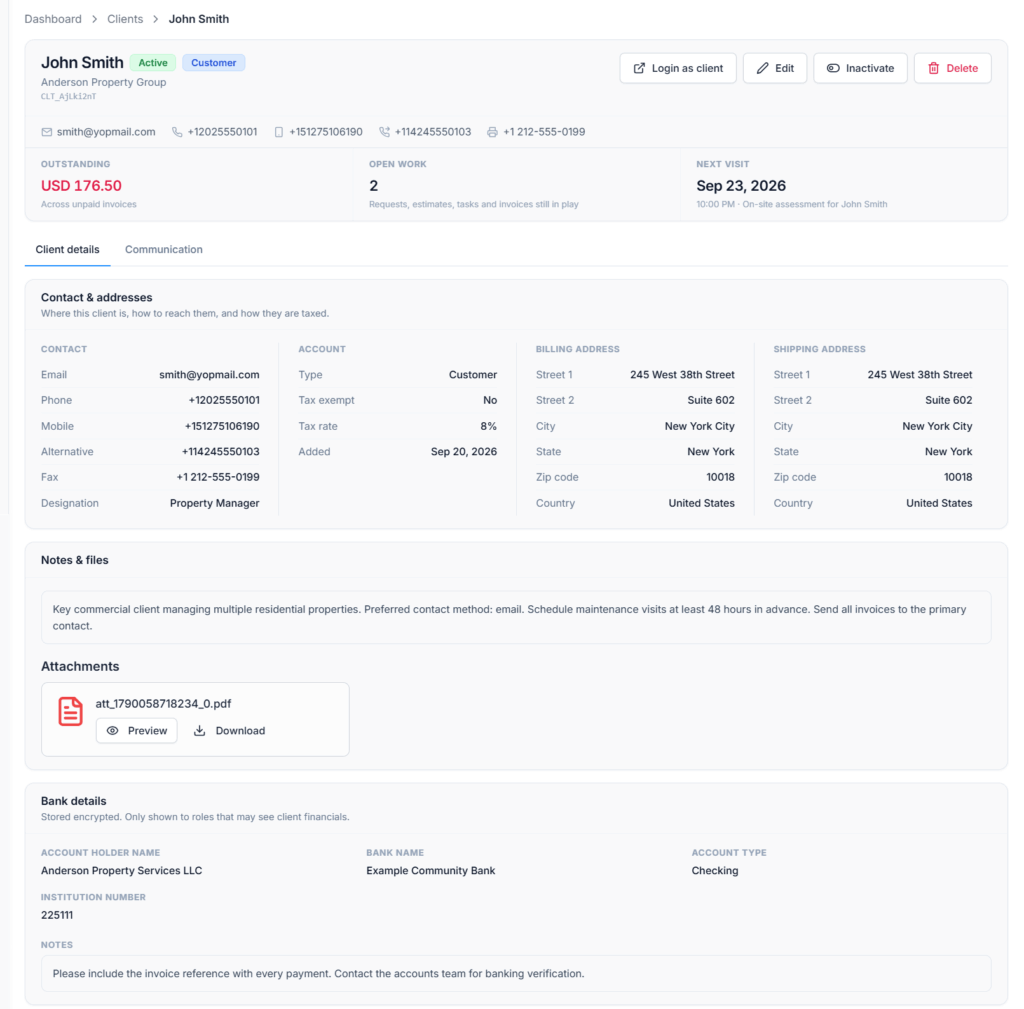
- Who they are: the client’s name, an Active or Inactive badge, a Customer or Vendor badge, the company name (when there is one), and the Client ID.
- Contact shortcuts: the email, phone, mobile, alternative number, fax, and website, each as a clickable link. Click an email to write to the client, or a number to call it. Hover over a shortcut to see which field it is. Empty fields are left out, and a number saved in two fields is shown once.
- Login as client: opens the client’s real Client Portal in a new tab. Needs Open Client Portal as Client (For All). See Client Portal Access above.
- Edit: opens the Edit Client form. Needs Edit Client (For All).
- Inactivate or Activate: changes the client’s status. Needs Activate / Inactivate Client (For All).
- Delete: opens the delete confirmation. Needs Delete Client (For All). Any linked Invoice, Estimate, Request, Task, visit, Expense, Agreement, or Item stops the delete.
Important: Login as client opens a real client session, not a preview. Anything you do there counts as the client’s own action. For example, you could accept an Estimate or pay an Invoice on their behalf. Give this permission only to trusted support or management staff. Each use is recorded in the Activity Log.
Business Summary at the Top #
- Outstanding: what the client still owes on sent Invoices, for example “USD 1250.00 — Across unpaid invoices”. Each currency is shown on its own line; different currencies are never added together. When nothing is due, it shows Nothing owed.
- Open work: how many of the client’s items still need action. Hover over the (i) for the full rule. It counts Requests not yet converted or archived; Estimates not yet accepted, declined, expired, converted, or voided; scheduled Tasks not yet completed, closed, or canceled; and Invoices that were sent but aren’t paid or voided. Draft Invoices are not counted.
- Next visit: the date, time, and title of the next booked visit. If there is none, it shows None booked.
Important: these numbers only include the areas you are allowed to see. If Billing is locked for you, Outstanding isn’t the full picture. If Schedule is locked, Next visit isn’t either. Check for a lock message in the section below before you tell a client “there’s nothing there”.
Client Details and Communication Tabs #
- Client details: contact details and addresses, notes and files, bank details, Work & documents, Billing, and Schedule.
- Communication: the client’s consent choices and their history, plus the emails and texts sent to the client.
Inside the Client Details Tab #
Contact & Addresses #
This section shows only the details that were filled in, so you don’t have to read past empty rows. It has four columns:
- Contact: email, phone, mobile, alternative number, fax, website, and designation. If none were saved, it says “No contact details recorded.”
- Account: Customer or Vendor, Tax exempt (always shown, as “No” or “Exempt — no tax charged”), the tax rate when there is one, and the date the client was added.
- Added by: the employee who created the client, with their photo and email, when Office-X knows who it was.
- Billing address: the full billing address, or “No billing address recorded.”
- Shipping address: the full shipping address. If Same as Billing Address was ticked, the billing address is shown here.
Notes, Files, and Bank Details #
- Notes & files appears when the client has internal notes or attachments. Click an image or PDF to open it.
- Bank details appears when bank information was saved and you are the Subscriber Admin or have Edit Client (For All). It can show the account holder name, bank name, account type, routing / SWIFT / sort code, account number / IBAN, institution number, and notes.
- The account number shows only its last four digits. Click the eye button to show it in full, and only when you really need it.
An employee who can open the client’s page but can’t edit clients doesn’t see the Bank details section at all.
Work & Documents #
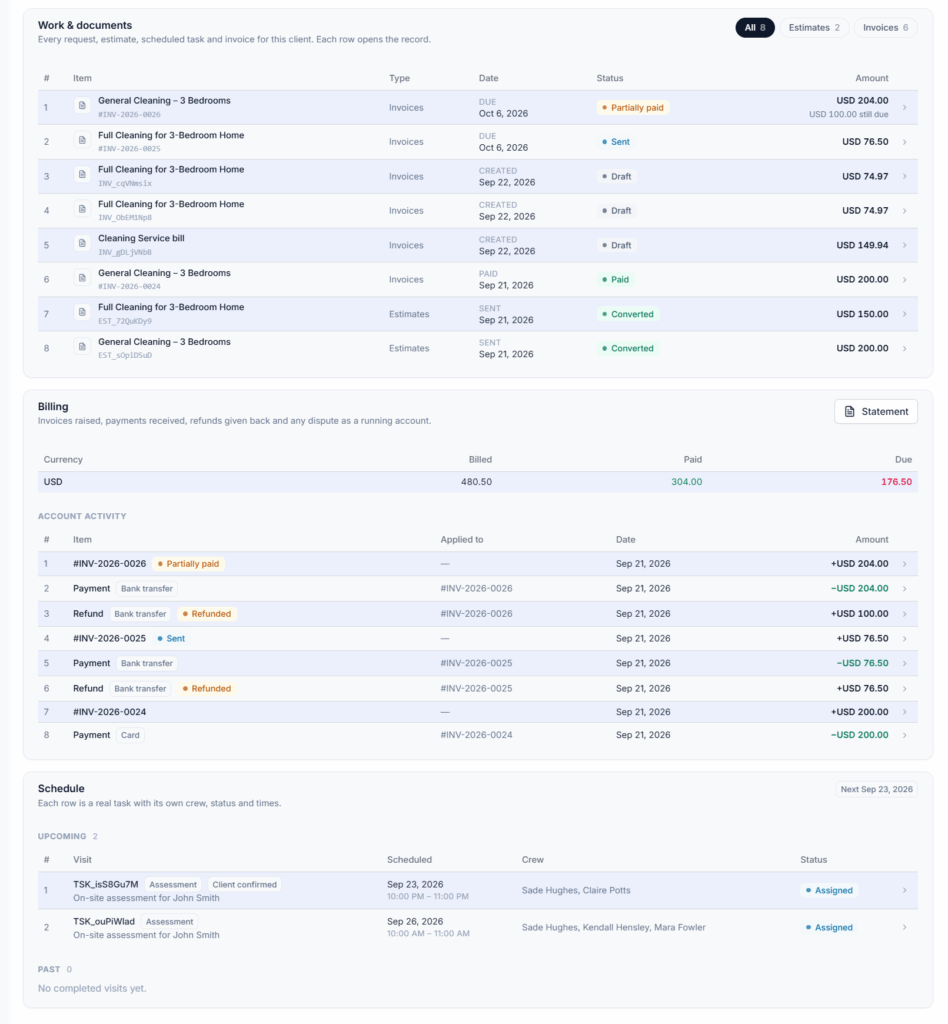
This section puts the client’s Requests, Estimates, scheduled Tasks, and Invoices into one list, newest first. You can follow a job from the first request to the final invoice. Click any row to open that record.
- Filter chips: All, Requests, Estimates, Scheduled tasks, and Invoices, each with its count. A chip only appears for an area you can view where the client has records, and the chips only show when there are at least two areas.
- Item: the title and reference, for example #INV-2026-0042.
- Type: Requests, Estimates, Scheduled tasks, or Invoices.
- Date: a label tells you what the date means. Requests show Requested. Estimates show Sent, or Created if not sent yet. Scheduled tasks show Created. Invoices show Due, Paid once paid, or Created for a draft or voided invoice.
- Status: the record’s current status, such as Sent, Accepted, Partially paid, Paid, or Past due.
- Amount: the total and its currency. A dash (—) means the record hasn’t been priced yet. A part-paid Invoice also shows how much is “still due”.
The list shows 10 rows per page. For a very busy client, it keeps only the most recent records of each type and says so under the table (“Older records are on that module’s own list”). Use the Requests, Estimates, Invoices, or Tasks pages for the full history.
Access: each type follows its own permission:
- Requests: View All Requests
- Estimates: View All Estimates
- Scheduled tasks: View Scheduled Tasks (For All)
- Invoices: View All Invoices or View Client Billing (For All)
If you can’t view any of these, the section shows a lock and the message “You do not have permission to view this client’s requests, estimates, tasks or invoices. Ask an administrator if you need it.” Seeing a row here doesn’t open every record: opening an Invoice or Task still follows that area’s own rules.
Without the Task Management add-on: scheduled Task rows still appear, so the client’s history is complete. Each one carries a small lock. Hover over it to see “Needs the Task Management add-on. Click to see how to turn it on.” Clicking the row opens a screen that says Task isn’t included in your plan, with a See add-ons button.
Good to know: Agreements, Bookings, and vendor Items are not listed in Work & documents. Use their own CRM pages for those. Emails and texts about Agreements and Bookings still appear in the Communication tab.
Billing #
Billing answers two questions: How much have we billed this client? and What is still due? It reads like a bank statement. An employee can see it with View Client Billing (For All) or View All Invoices. Otherwise it shows “You do not have permission to view this client’s billing. Ask an administrator if you need it.”
- Currency summary: one row per currency, with Billed, Paid, and Due. An amount still due shows in red.
- Account activity: invoices, payments, refunds, and disputes in date order, newest first. The columns are Item, Applied to (the invoice a payment or refund belongs to), Date, and Amount.
- A sent Invoice adds to what is due (+). A payment takes it down (−) and shows how it was paid. A refund adds money back to what is due (+) and has a Refunded badge.
- A pending or failed payment is shown with its status badge, but it doesn’t change Paid or Due until it clears.
- A dispute (a card chargeback) shows the amount being held, such as “USD 200.00 held”, and its current status. It doesn’t change the balance. If the dispute is lost, a refund row appears and the balance changes then.
- Draft and voided Invoices are not charges, so they aren’t listed here.
- Click any row to open the Invoice it belongs to.
Account activity shows 10 rows per page. It’s based on the client’s most recent invoices. When older ones exist, a note says “Older ones are on the Invoices list.” If nothing has been billed, the section says “Nothing billed to this client yet”.
Schedule #
Schedule lists the client’s visits in two groups, Upcoming (soonest first) and Past (most recent first). The next appointment is always easy to find. On-site assessment visits booked from a Request and visits from a scheduled Task both appear here. A tag next to the heading shows the date of the next visit.
- Each row shows the Visit reference and title, when it is Scheduled (date, start, and end time), the Crew, and the Status.
- An Assessment tag marks an on-site assessment booked from a Request.
- A Client confirmed tag appears once the client confirms the appointment. They can do this with Confirm appointment in the Client Portal, or your team can mark it as confirmed over the phone.
- If nobody is assigned, the Crew column shows Unassigned.
- Past includes visits that are done, canceled, or marked no-show, and any visit whose start time has passed.
- Click a row to open the full visit.
Upcoming and Past each show their count and page on their own, 10 rows at a time. When “Nothing booked.” or “No completed visits yet.” appears, that group is empty. For a client with a long history, a note says the page shows the nearest and most recent visits; the full history is on the Tasks pages.
Access: Schedule needs View Client Schedule (For All) or View Task Schedule (For All). Without either, it shows “You do not have permission to view this client’s visits.”
Without the Task Management add-on: the visits are still listed, each with a small lock. Clicking a visit opens the screen that explains the add-on. If the section can’t be shown at all, it says “This client’s visits come from the Task Management add-on, which isn’t on your plan.”
Inside the Communication Tab #
The Communication tab is for the Subscriber Admin and for employees with View All Clients, View Client Details (For All), and View Client Communications (For All). Without the last one, both sections show a lock instead. The tab only shows messages from the areas the employee can also view.
Consent #
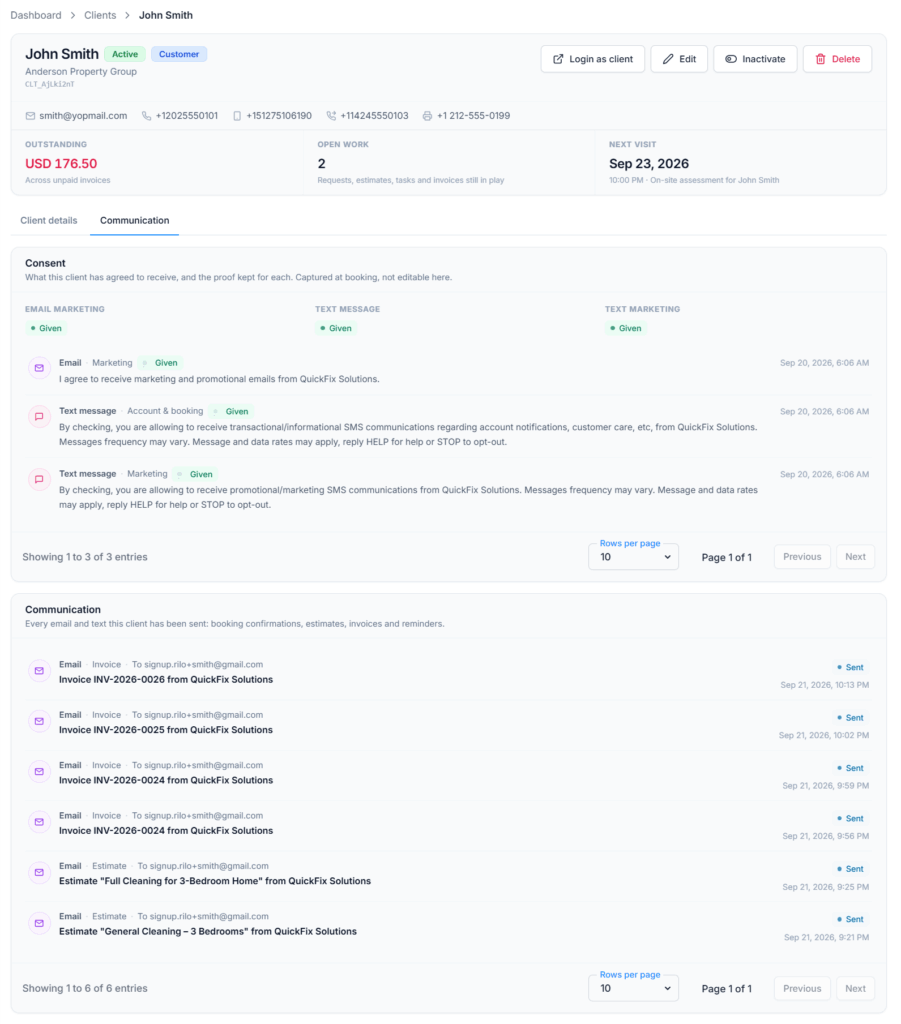
Consent shows what the client has agreed to receive, and the proof kept for each choice. It is read-only; you can’t change consent from this page.
- Email marketing: Given or Not given.
- Text message: whether the client agreed to account and appointment texts. Given or Not given.
- Text marketing: Given or Not given.
Below the three choices is the history. Each entry shows Email or Text message, Account & booking or Marketing, Given or Revoked, the exact wording the client saw, and the date and time. Consent is recorded from the boxes the client ticks on your Booking forms. It also changes when the client replies to a text:
- Replying STOP turns off both text choices.
- Replying START turns account and appointment texts back on. Text marketing stays off until the client ticks that box again.
The history shows 10 entries per page. You can change it to 20 or 30. If nothing was recorded yet, it says “No consent recorded yet”.
Communication History #
This section lists the emails and texts sent to the client, newest first. It covers Requests, Estimates, Invoices, Agreements, Bookings, and task visits, plus Client Portal sign-in links and account statements.
- Channel filters: when the client has both emails and texts, use All, Email, or Text message. Each chip shows its count.
- Each row shows the channel, the area it’s about (such as Estimate, Invoice, or Scheduled task), who it went to, the subject or text, the send status, and the date and time.
- Email statuses: Sent, Partly delivered, Failed, or Not sent. Text statuses: Queued, Sent, Delivered, Undelivered, Failed, or Not sent.
- Click a row to see the details: Sent on, Status (with the reason when a message wasn’t sent), Channel, Type, Subject, To, and Open status. Below that you see the full email exactly as the client received it, or the text message.
- Open status tells you whether the client clicked the link in the message: Opened with the date and time, or Not opened yet. No link means the message had no link to track. It doesn’t prove the client read the whole message.
The list shows 10 messages per page. You can change it to 20 or 30. If nothing was sent yet, it says “No emails or texts sent to this client yet”.
Practical Client Workspace Example #
Sarah Mitchell calls. She asks whether her last payment arrived, when the crew is coming next, and whether you sent her the invoice reminder. Maria Lopez answers all three from Sarah’s client page, while Sarah waits on the line:
- Maria opens Sarah’s page and checks Outstanding at the top.
- In Work & documents, she clicks the Invoices chip to find the invoice.
- In Billing, she sees the payment row, the date it arrived, and what is still due.
- In Schedule → Upcoming, she reads the next visit’s date, time, and crew (Danny Ruiz).
- On the Communication tab, she finds the reminder email, when it was sent, and whether Sarah opened its link.
Maria doesn’t have to jump between four different pages to answer one call.
Why a Workspace Section May Be Locked or Missing #
- The employee doesn’t have that section’s permission. The section shows a lock and says “Ask an administrator if you need it.”
- The employee can see the client, but not the related Requests, Estimates, Invoices, Agreements, Bookings, or Tasks.
- Your company doesn’t have the Task Management add-on. Task rows and visits then carry a lock that leads to the add-on screen.
- There is nothing saved. Notes & files and Bank details are hidden when they are empty.
- Something went wrong while loading. The section shows “Could not load this client’s activity.” with a Try again link. The client’s contact details still show.
A locked or missing section doesn’t mean the client record is damaged. The Subscriber Admin can check the employee’s permissions and the company’s add-ons.
Create or Send a Client Statement #
A statement is a PDF summary of the client’s account: every invoice, payment, and refund, with a running balance. The Statement button is at the top of the Billing section. It appears when the client has account activity and you can see Billing. Office-X builds a fresh statement each time, so it always includes the latest invoices and payments.
Statement Periods #
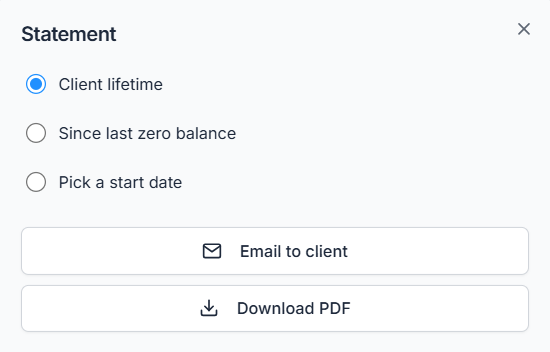
- Client lifetime: the whole account history.
- Since last zero balance: starts just after the last time the account was fully paid up. If it has never reached zero, the whole history is used.
- Pick a start date: everything from the Start date you choose. The statement carries in the correct starting balance from before that date.
The PDF shows your company details, the statement date, the period, and the client as the recipient. Each currency has its own table with a Starting Balance, each invoice, payment, and refund, a running balance, and the Due Balance at the end. Draft and voided Invoices are left out. A period with nothing in it says “No account activity in this period.”
How to Create the Statement #
- Open the client’s page and stay on the Client details tab.
- Go to Billing and click Statement.
- Choose Client lifetime, Since last zero balance, or Pick a start date. For the last one, pick the Start date.
- Click Download PDF to save the statement, or Email to client to send it. After an email, you see “Statement emailed to” and the client’s address.
Permissions: Download PDF needs View All Invoices. Email to client needs Send / Resend / Void Invoice (For All). Without them you see “You don’t have permission to perform this action”. View Client Billing (For All) alone shows the Statement button but can’t produce the statement.
If the client has no email, Email to client is grayed out and the box says “Add an email address to the client record to send it directly.” Download the PDF instead and share it your usual way.
Each emailed statement is recorded in the Activity Log for that client, and it appears in the client’s Communication tab.
Summary #
Clients is the address book behind Office-X CRM. A Customer needs a name plus an email, mobile, or phone number; a Vendor needs only a name. You can add a client from the Clients page or straight from a picker while you work. Each client’s page brings together their contact details, Requests, Estimates, scheduled Tasks, Invoices, visits, consent, and messages, and permissions keep each section with the right people. Office-X won’t delete a client that is still used by any Invoice, Estimate, Request, Task, visit, Expense, Agreement, or Item, so set the client to Inactive when the relationship ends and keep their history easy to review.
