The Items module is your CRM catalog. It is where you keep the Products and Services your company sells. Once an Item is saved, you can pick it on Requests, Estimates, Invoices and Tasks, instead of typing the same name, price and tax rate every time.
Good to know: Items is part of CRM, which is a paid add-on for the Advance plan. If your company doesn’t have CRM yet, the Subscriber Admin can turn on the CRM add-on from Business → Billing & Payment. Items and the other CRM pages become available right away.
Where to Find It #
Route: Dashboard → CRM → Items
Before You Start #
Two quick things save you a trip back here later:
- Set up your currencies first. The Currency dropdown on the Item form only lists the currencies your company has added under Admin → Currency, for example United States (USD). If the one you need isn’t there, add it there first.
- Know who supplies the item, if you buy it in. The Vendor box searches your Active clients of the Vendor type. You can add the vendor in the Clients module first, or just type a new name in the Item form and choose Add new vendor.
Product vs. Service #
Every Item is one of two types. You choose it in the Item Type box, and a new Item starts as a Product.
- Product is a physical good, like a water heater or a smart thermostat. Only Products show the Stock Quantity, Stock Unit, Manufacturing Part No and Serial Number fields. When you pick a Product on a line item, you also see a small In stock or Out of stock hint under it.
- Service is work your company does for a client, such as consulting, installation, maintenance, cleaning or design work. A Service has no stock, part number or serial number. If you switch an Item from Product to Service, Office-X clears its part number and serial number.
Good to know: stock is for your information only. Office-X does not lower Stock Quantity when you add a Product to an Estimate or an Invoice, so keep that number up to date yourself.
Who Can Use This Feature #
The Subscriber Admin can always create, view, edit, duplicate, delete, and activate or inactivate any Item. No extra permission is needed.
Employees need permissions, which you grant under Admin → Permissions → CRM – Items. Each one works on its own:
- Create Item
Required action: Create
They see the New Item button, and they can save a new item from a line-item picker. - View All Items
Required action: View
They see the Item list and can open any Item’s details. - Edit Item (For All)
Required action: Update
They see Edit in the Action menu. - Delete Item (For All)
Required action: Delete
They see Delete in the Action menu. - Activate / Inactivate Item (For All)
Required action: Update
They see Activate or Inactivate in the Action menu. - Duplicate Item (For All)
Required action: Update
They see Duplicate in the Action menu. Saving the copy creates a new Item, so they also need Create Item.
An employee with none of these sees a “no access” page on Items. An employee who can create but not view sees an empty list. You can assign these permissions to one employee, or to a whole team at once. See the Permissions Management guide for how.
Creating an Item #
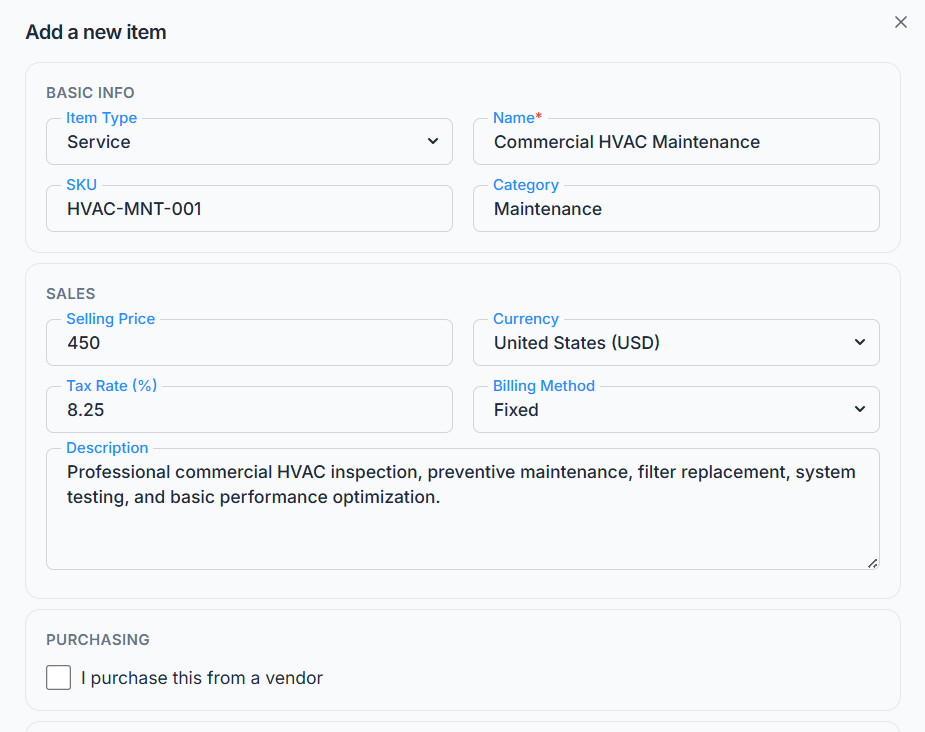
- Go to Dashboard → CRM → Items and click New Item. The Add a new item window opens.
- Fill in the sections described below. Only Name is required.
- Click Save. You see “Item created successfully”, and the new Item appears at the top of the list with an Item ID such as ITM_a1B2c3D4.
Good to know: a new Item is always Active. The form has no Status box. To take an Item out of use, use Inactivate in the Action menu (see below).
Basic Info #
- Item Type: Product or Service. Starts as Product.
- Name: required, up to 100 characters. Spaces at the start and end are removed, so a name made of only spaces is treated as empty.
- SKU (your own stock code): optional, up to 50 characters. Each SKU can be used by only one Item. Office-X ignores upper and lower case here, so “HT-2000” and “ht-2000” count as the same code. If it’s taken, you see “An item with this SKU already exists”. You can’t change the SKU after you save the Item.
- Category: optional free text, up to 100 characters. It’s not a fixed list, so type whatever grouping suits you, for example “Home Audio” or “Cleaning”.
Sales #
- Selling Price: a number of 0 or more, with cents. Starts at 0. If you empty the box, it saves as 0.
- Currency: optional. Pick one of your company’s currencies (see Before You Start).
- Stock Quantity: Products only. A number of 0 or more, and fractions are fine (for example 2.5). Starts at 0.
- Stock Unit: Products only. Optional, up to 30 characters, for example “pcs”, “box” or “lbs”.
- Tax Rate (%): a percentage from 0 to 100. Starts at 0. See “How the Tax Rate Works” below.
- Pricing Type: optional. Choose Hourly, Fixed or Per Unit. These are the only three options. It’s a label that helps you and your team, and you can filter the list by it.
- Description: optional, up to 500 characters.
How the Tax Rate Works #
When you pick an Item on a line item, Office-X copies its name, Selling Price and Tax Rate (%) onto that line. You can then change the price or tax for that one document. What happens next depends on the document:
- Requests, Estimates and Tasks use the Item’s own tax rate as the line’s tax. If the Item’s rate is 0, the line has no tax until you type one in.
- Invoices also have a Sales tax box. Its rates come from Admin → Client Portal → Invoice tax, and a new invoice starts with the rate you marked as the default. A line keeps the Item’s own rate when it is above 0. A line at 0% takes the invoice’s Sales tax rate instead. If you choose No tax, only lines with their own rate are taxed.
- Tax-exempt clients: if a client is marked “This client is tax exempt”, every line on their invoices is 0%, whatever the Item says.
Good to know: the price and tax are copied at the moment you pick the Item. If you change the Item later, Requests, Estimates, Invoices and Tasks that already use it keep their own figures.
Purchasing #
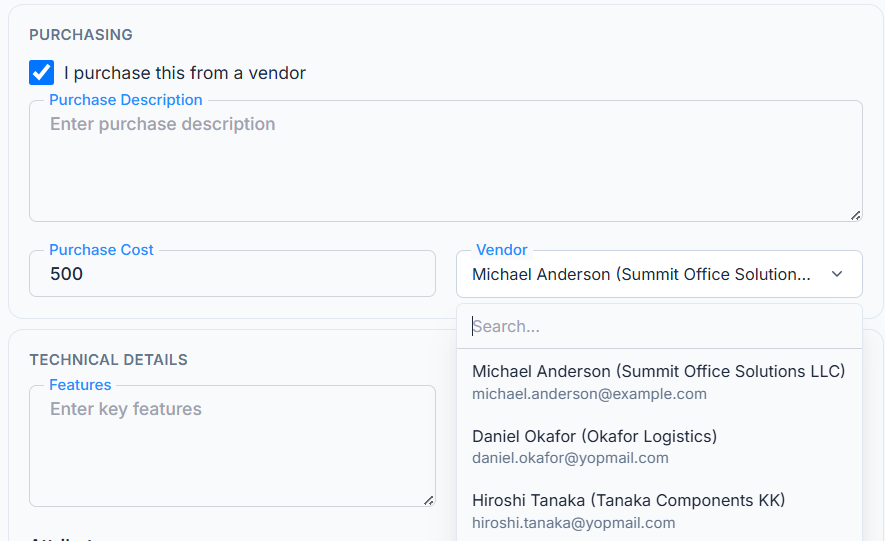
Tick I purchase this from a vendor if you buy this Item from a supplier. Three more fields appear:
- Purchase Description: optional, up to 500 characters.
- Purchase Cost: what you pay for it. A number of 0 or more, with cents. Starts at 0.
- Vendor: optional, so you can save the purchase details before you’ve chosen a supplier. Start typing to search your Active vendors by name, company or email. Results show the vendor’s name, their company in brackets, and their email.
Adding a new vendor on the spot: if the search finds nothing, the list shows Add new vendor “[the name you typed]”. Click it and Office-X creates an Active vendor with that name straight away, with no extra window. You see “Vendor “[name]” created”, and the new vendor is already selected in the box. The name can be up to 100 characters. This needs the Create Client permission; without it, you see “You don’t have permission to perform this action”.
Good to know: a vendor made this way has only a name. When you’re done with the Item, open CRM → Clients to add the vendor’s email, phone, company, address and other details. The vendor is created even if you then close the Item form without saving.
Technical Details #
All of these are optional:
- Manufacturing Part No: Products only, up to 100 characters.
- Serial Number: Products only, up to 100 characters.
- Features: up to 500 characters.
- Specifications: up to 500 characters.
Attributes #
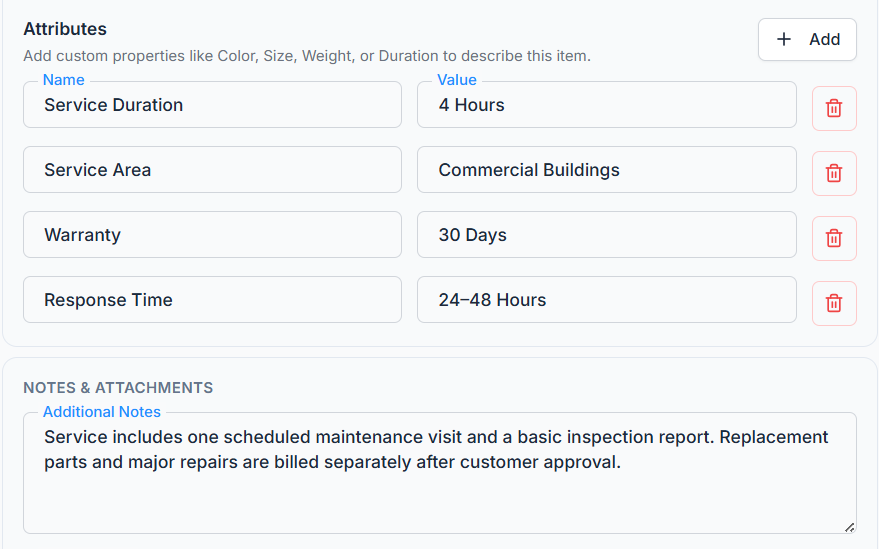
Attributes sit at the bottom of Technical Details. Use them for your own properties, like Brand, Model, Color, Size, Weight or Duration. Click Add for a new row, then fill in a Name (up to 50 characters) and a Value (up to 100 characters), for example “Color” and “Black”. Both are required once you add the row, so remove any empty row with the trash icon before you save. There’s no limit on how many rows you add.
Notes & Attachments #
- Additional Notes: optional, up to 500 characters.
- Attachments: optional. Up to 6 files per Item, JPG, PNG or PDF only, 2 MB or less each. You see a preview of each image and the file name of each PDF, and you can remove one with the ✖ button. A wrong file type or a file that’s too big is skipped with a warning, and a seventh file shows “Maximum 6 attachment files allowed.”
Worked example: “Home Theater System” is a Product, SKU “HT-2000”, Selling Price $2,000 (USD), Tax Rate 8%, Pricing Type “Per Unit”, with the attributes Color: Black and Weight: 22 lbs. It’s marked as bought from the vendor “James Carter (Precision Audio Supply Co.)” for a Purchase Cost of $1,800. “Home Cleaning Service” is a Service, Selling Price $300, Pricing Type “Hourly”, with a Duration attribute of “2 hrs” and no vendor.
Creating an Item While You Work #
You don’t have to leave a Request, Estimate, Invoice or Task to add a missing Item. Every line-item picker lets you create one on the spot. This works on Requests, Estimates (including each package), Invoices, the Create Task page and a visit’s billing.
- In the line’s item box (Search item by name or ID), type what you’re looking for. Office-X searches your Active Items by name, Item ID and SKU. Each result shows the name and Item ID, plus the price and, for Products, the stock.
- If nothing matches, the list shows Add new item “[what you typed]”. Click it.
- The same Add a new item window opens on top of your work, with Name already filled in. Complete any other fields you need.
- Click Save. The Item is added to your catalog, and it’s picked on that line with its price and tax rate filled in. The rest of your document stays exactly as you left it.
Good to know: saving the new Item needs the Create Item permission. Without it, the window opens but Save shows “You don’t have permission to perform this action”. Click Cancel to go back without creating anything.
[Screenshot: an Estimate line item showing the Add new item row, and the Add a new item window opened on top]
Active vs. Inactive Status #
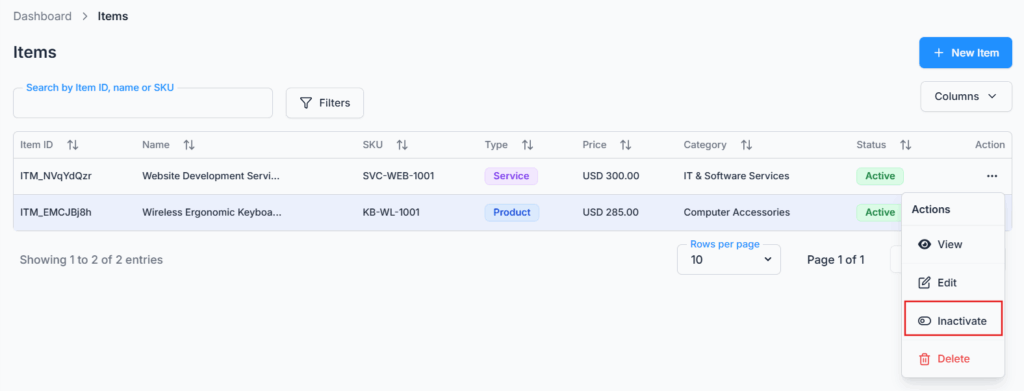
Open the Action menu on an Item and click Inactivate (or Activate for an Inactive Item). You see “Item status updated successfully”, and the Status badge changes.
An Inactive Item no longer shows up when you search for an Item on a new line, on any Request, Estimate, Invoice or Task. Lines that already use it are not affected, and those documents stay fully editable. You can make it Active again at any time.
Editing an Item #
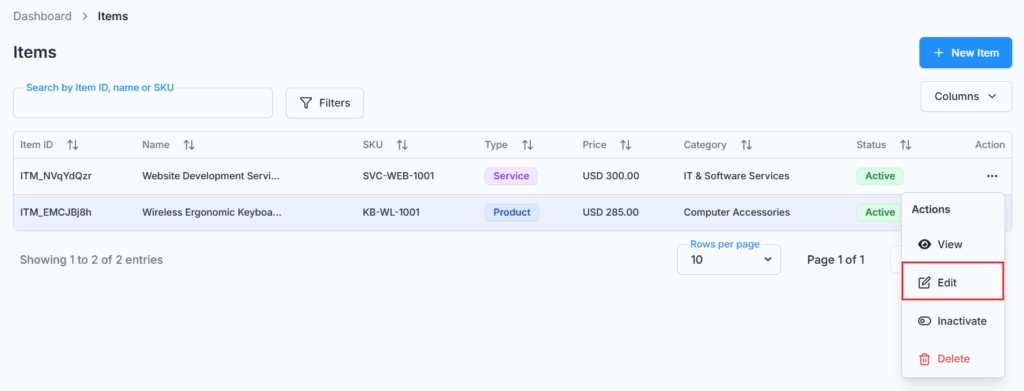
- Open the Action menu on the Item and click Edit. The Edit Item window opens with the current details filled in.
- Change what you need. You can change the Item Type, and add or remove attachments (still 6 files at most in total).
- Click Update. You see “Item updated successfully”.
Good to know: the SKU box is grayed out when you edit. Hover over it to see “SKU cannot be changed after creation”. Status isn’t on this form either; use Activate or Inactivate in the Action menu.
Duplicating an Item #
Use Action → Duplicate when a new Product or Service is close to one you already have. The Duplicate Item window opens with everything copied for you to review: type, name, description, pricing, currency, tax, category, pricing type, attributes, stock, technical details, purchasing details and vendor, notes and attachments.
- Change the Name. It’s copied exactly, so the copy would otherwise look the same as the original in every picker.
- Enter a new SKU if you use them. The SKU box starts empty because each SKU can belong to one Item only.
- Check the price, vendor and attachments, then click Save Duplicate. You get a brand-new Item with its own Item ID. The original isn’t changed.
Good to know: the copy keeps the original’s Status, so duplicating an Inactive Item gives you an Inactive copy. The copy also points to the same attachment files as the original. If you later remove one of those attachments from either Item, or delete the original Item, the file may stop opening on the other one. To be safe, remove the copied attachments on the duplicate and upload fresh copies.
Deleting an Item #
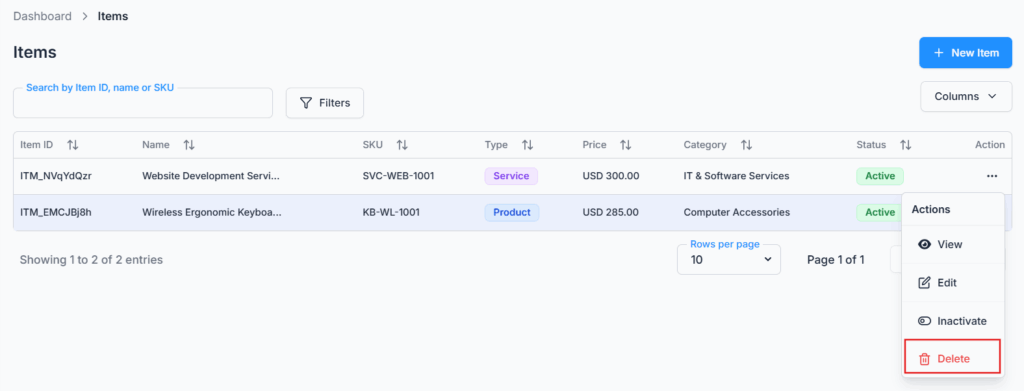
Open the Action menu and click Delete. The Delete Item window asks “Are you sure you want to delete [name]? This action cannot be undone.” Click Delete to confirm. You see “Item deleted successfully”, and the Item and its attachments are removed for good.
Important: you can’t delete an Item that is on an Estimate. Office-X stops you with a message like “This item is already in use by 2 estimates and cannot be deleted.” This keeps your Estimates intact.
Good to know: this check only looks at Estimates. If an Item is on a Request, Invoice or Task (but no Estimate), the delete goes ahead. The next time someone edits and saves that Request, Invoice or Task, they see “One or more selected items were not found” until they remove that line. So if you’ve used an Item anywhere, set it to Inactive instead of deleting it.
Inactive is the safe way to retire an Item. It stops appearing for new lines, and everything that already uses it stays as it is and can still be edited.
The Item List #
Route: Dashboard → CRM → Items
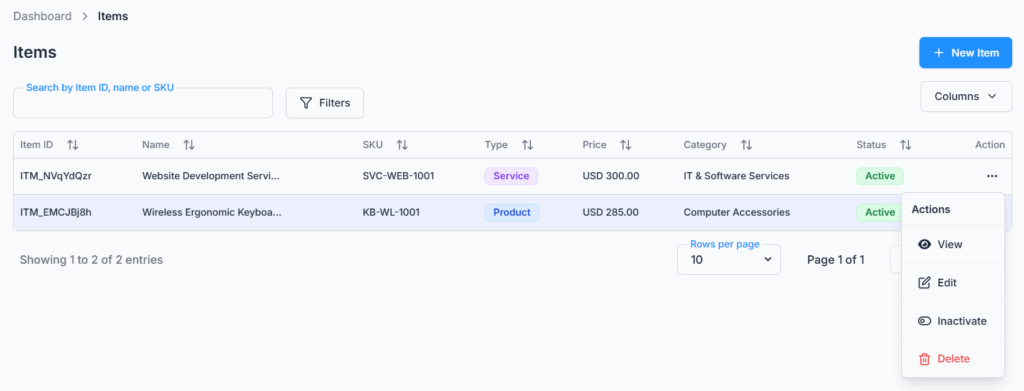
The table shows Item ID, Name, SKU, Type, Price (with its currency, for example “USD 2000.00”), Category, Pricing Type, Status and an Action column. Use the Columns button to show or hide any column except Action. A long name is cut short; hover over it to read all of it.
- Search: type in Search by Item ID, name or SKU.
- Filters: click Filters and choose Item Type (All, Product, Service), Status (All, Active, Inactive) and Pricing Type (All, Hourly, Fixed, Per Unit). Click Apply Filters, or Clear All to start over. The Filters button shows how many filters are on.
- Sort: click a column header to sort the rows on the page you’re looking at. Click it again to reverse the order.
- Pages: show 10, 20 or 30 Items per page. The newest Items come first.
If nothing matches, the table says “No items found.” Click anywhere on a row (not on the Action button) to open the read-only Item Details window. It shows every section of the Item, its attachments, and who created it. The Action menu offers View, Edit, Duplicate, Activate or Inactivate, and Delete, depending on your permissions.
How Items Connect to the Rest of CRM #
- Requests, Estimates, Invoices and Tasks: Items are the building blocks of their line items. Picking one fills in its name, price and tax rate, which you can then adjust on that document. Each line keeps its own copy of the name, so renaming an Item later doesn’t reword documents you’ve already sent. Missing an Item? See “Creating an Item While You Work” above.
- Clients: the vendor you pick under Purchasing is a Vendor-type client. The link works both ways. Once an Item names a client as its vendor, that client can’t be deleted, and the Clients page tells you which Item is using it. If you set that vendor to Inactive, Items that already name it keep it.
Activity Log #
Office-X records every time someone creates, duplicates, edits, activates, inactivates or deletes an Item, with who did it and when. An edit also shows exactly which fields changed, so a surprise price change is easy to trace. Go to Dashboard → Activity Log and filter by Item. A vendor added from the Item form is recorded as a new client. See the Activity Logs guide for how to search it.
Summary #
Items is your reusable catalog of what you sell. It saves you typing the same product or service details into Requests, Estimates, Invoices and Tasks. The price and tax rate are copied onto a line when you pick the Item, so later catalog changes never rewrite existing records. On Invoices, a line with no tax of its own takes the invoice’s Sales tax rate. You can add a missing Item or vendor right from the picker, and Duplicate helps you build a similar offering quickly. For anything you’ve stopped selling, use Inactive rather than Delete: it disappears from new lines while old records stay intact.
