The Bookings module gives each service you offer its own public page, where a client can pick an open time. An In-House service confirms the appointment on the spot. An On-Site service collects the client’s preferred time, address and job details, and sends them to CRM → Requests for your team to review and approve.
Good to know: Bookings is part of the CRM add-on. If your company does not have CRM, the Bookings pages show a “not included in your plan” screen. On-Site services also lean on the Task Management add-on: approving an On-Site request books a visit on your Task schedule, so without that add-on the Approve button shows a lock.
Choose the Service Type First #
- In-House: use it when one staff member meets the client at your business, by phone, or by video. The client picks an open time and the booking is confirmed straight away. The card says Appears in Bookings.
- On-Site: use it when your team has to go to the client’s address. The client picks a preferred time, enters the address, and explains what they need. The submission lands in CRM → Requests, and it is not a confirmed visit until someone in the office approves it. The card says Appears in Requests.
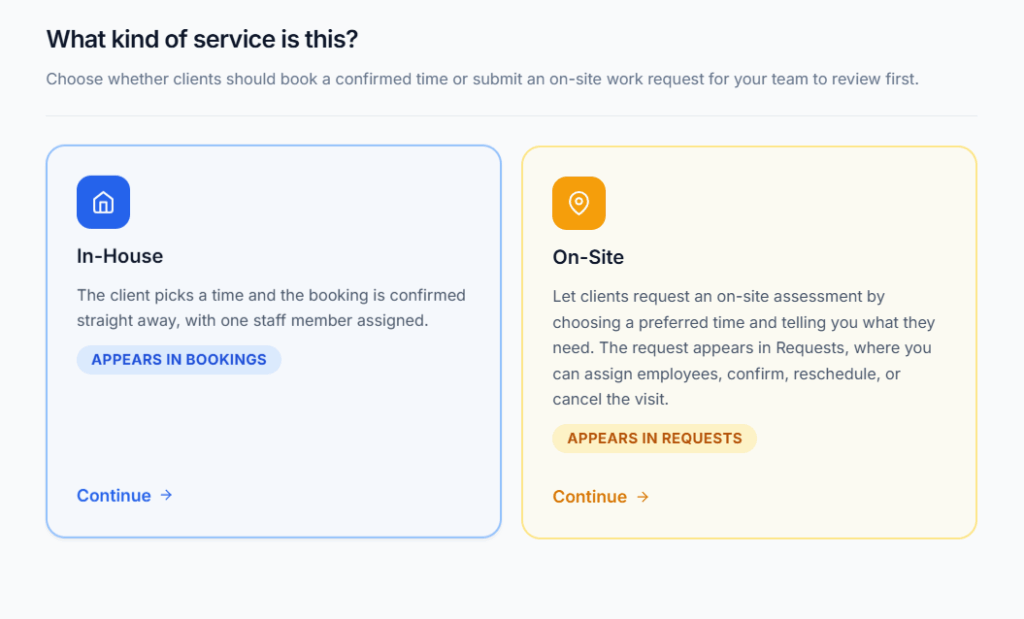
You choose the type on a page of its own, What kind of service is this?, before the service form opens. Once the service is saved, the type is fixed. The edit form says so: “The booking type is fixed once a service exists.” The type changes the staff setup, the client’s form, the notifications, and where the client’s submission ends up. Here is everything that differs, in one place:
| In-House | On-Site | |
|---|---|---|
| Use it for | An appointment at your place, by phone, or by video. | Work at the client’s own address. |
| Staff | Exactly one staff member. | Several named staff members or one team, never both. |
| A time is offered when… | That one person is free. | Every crew member is free at that moment. |
| Location | In-person (with an address), Phone call (with a phone number) or Video call (with a meeting link). | Always the client’s address. The page says “We come to your address”. |
| Name and Phone | You choose whether to ask for them. | Always asked for, always required. |
| The client’s form asks | Contact details, your own questions, and an optional Notes box. | Contact details, what they need (required), the service address (street and city required), and your own questions. |
| The button says | Confirm Booking | Send Request |
| What happens on submit | The time is reserved and the appointment is confirmed on the spot. | Nothing is held. The preferred time is saved for the office to review. |
| The client then sees | A Booking Confirmed! screen, with a button to cancel. | Request sent, with a reference and “Someone will be in touch to confirm a time to visit.” |
| Email at that moment | A confirmation with a calendar invite. | None, because nothing is confirmed yet. The email goes out when the office approves the request. |
| SMS at that moment | “Booking confirmed”, if you turned it on. | “Request received”, if you turned it on (see Notifications below). |
| The result lands in | Client Responses, on the service page. | CRM → Requests, with the status Needs Approval. |
| You manage it with | Reschedule, Cancel, Mark No-show, and Book for a Client for phone or walk-in customers. | The request screen: approve and book the visit, move it later, or turn the request down. No Book for a Client. |
| The service page shows | Statistics: Total, Confirmed, Cancelled, No-show. | A count of requests received, and a View Requests button. |
| By AI phone call | The agent can book, and can cancel an existing booking. | The agent sends a request, and never promises the visit is confirmed. |
| Where it can lead | The appointment itself. | An assessment visit, then an Estimate, then a job. |
One question decides it: does somebody have to travel to the client? If yes, choose On-Site. You can’t promise a time until you know the address, the work and which crew can get there. If the client comes to you, or you meet on a screen or by phone, choose In-House, and the client gets their answer right away.
Example: use In-House for a 30-minute consultation at your office. Use On-Site for an air-conditioning inspection at Mr. Sullivan’s house in Riverside, where the office needs to check the address, the travel and the crew before it confirms the visit.
Two Ways Your Clients Can Book #
You set up a service once: its hours, notice rules, limits and questions. Clients can then reach it in two ways:
- Online, through your booking link. You share the public link, or place it on your website, and the client picks a time themselves. This works as soon as the service is saved. There is nothing else to set up.
- By phone, through an AI voice agent. If you connect ElevenLabs under Admin → Integrations and turn on AI Calling for a service, clients can call your number and talk to the voice agent. For In-House, it can book an open appointment. For On-Site, it collects the address and the job details and sends a request with a preferred time.
The important part: the web page and the phone follow the same service rules. Both respect the open hours, buffers, notice rules, required questions and limits. In-House results appear in Client Responses. On-Site results appear in CRM Requests. Every result shows how it came in, so the office knows whether the client used the web or the phone.
Good to know: AI Calling is optional. If you don’t connect ElevenLabs, online booking works exactly the same. You just don’t get the phone option. If you do connect it, you choose which services the AI agent may offer, one switch per service.
Phone calls also get one thing the web route does not: an AI Call History. It keeps a record of every call, including calls that did not end in a booking or a request. There is a full section on it further down.
For an In-House service there is also a third route, where you book for the client. If someone phones or walks in, Book for a Client lets an authorized employee pick a time and type in the details. On-Site services don’t have Client Responses or Book for a Client. Their submissions are handled in CRM Requests.
Before You Start #
A few things to get right first. Each one saves confusion later:
- Check your company timezone. Every time in Bookings uses your company’s timezone from Business → Company: the hours you set, the times clients see, and the times in their emails. Set it correctly before you set anyone’s hours. (More in “A Word About Timezones” below.)
- Make sure your staff can be assigned. The staff picker only lists active employees with a license. People who are inactive, resigned, terminated, suspended or retired, or who are on maternity, paternity, sick or vacation leave, are left out. The picker says so: “Only active, licensed employees show up here.“
- Set their hours before you share the link. If the staff member has no weekly hours saved, clients see a page with no times on it. You set hours inside the service form. They belong to the person, so every service that person runs uses the same weekly hours.
- Decide how clients hear from you: Email, SMS, or both. Email works right away. SMS only reaches a client if your company has connected an SMS provider under Admin → Integrations → SMS, and the client has agreed to texts. See “Notifications” below.
- Publish your Terms of Service and Privacy Policy if you want clients to accept them. You publish them under Business → Company → Manage Legal & Compliance. Once either one is published, the booking page shows an “I accept…” checkbox with a link to it. With neither published, no checkbox appears.
- For On-Site services, check your add-ons. Approving a request books a visit on the Task schedule, which needs the Task Management add-on. Without it you can still receive requests, but not approve them.
Two Sides to Every Booking #
Every Booking Service has two very different people involved:
- You (the Subscriber Admin, or an employee with the right Bookings permissions): you choose the service type, assign the staff or team, set the hours and rules, decide what to ask, and share the public link.
- The client: the person booking. They never log in to Office-X. They open your link, pick a time that is really open, and confirm.
In-House example, start to finish: Maria Lopez offers 30-minute consultations, and Sarah Mitchell wants to book one. Here is what happens on each side:
| Step | You (Admin) | Client |
|---|---|---|
| 1 | Create a “30-Minute Consultation” In-House service, assign Maria, and set her hours (Monday–Friday, 9 AM–4 PM) in the same form. Save, then share the link. | – |
| 2 | – | Sarah opens the link and sees a calendar of open times. Office-X has already worked out which times Maria is really free. |
| 3 | – | Sarah picks a time, fills in her details, and clicks Confirm Booking. |
| 4 | Office-X adds Sarah to your Clients list (or finds her existing record) and blocks that time for everyone else. You don’t do anything here. | – |
| 5 | Maria gets an in-app notification about the new booking. | Sarah sees a Booking Confirmed! screen and gets an email with a calendar invite and a link back to her booking. |
| 6 | If Sarah needs a different time, you reschedule it for her from the dashboard. She can’t reschedule herself, only cancel. | Or Sarah cancels from her link and books a new time herself. |
Keep this example in mind as you read on. Most of this guide is a closer look at one row of that table.
Who Can Use This Feature #
The Subscriber Admin can always create, edit, delete and manage every Booking Service and every booking. No permission is needed.
Employees need the permissions below. You grant them under Admin → Permissions, in the CRM – Bookings group. Most come in pairs, and the part in brackets decides how far the permission reaches:
- (For Own) or (For Own / Assigned): only the services the employee is assigned to, and the bookings on them. For an On-Site service, being a member of its assigned team counts too.
- (For All): every service and every booking in the company.
Here is what each permission lets them do:
- Create Booking Service (For Own)
They can create a service, but only for themselves. The staff picker is replaced by “This will be assigned to you.” (On-Site: “Requests from this service will be assigned to you.“), and they can’t pick a team. - Create Booking Service (For All)
They can create a service for any eligible employee, or, for On-Site, for a team. - Edit / Activate-Deactivate Booking Service (For Own)
For services they are assigned to: edit the service, change its Notification Settings, flip its AI Calling switch, and activate or deactivate it. - Edit / Activate-Deactivate Booking Service (For All)
The same, for every service in the company. - Delete Booking Service (For Own)
Delete a service they are assigned to, as long as nobody has booked or requested it yet. - Delete Booking Service (For All)
The same, for every service in the company. - View Bookings (For Own / Assigned)
See the services they are assigned to (by name, or through the assigned team) and the bookings on them. - View Bookings (For All)
See every Booking Service and every booking in the company. - Manage Bookings (For Own / Assigned)
Reschedule, cancel, mark No-show, and use Book for a Client, on bookings and services assigned to them. - Manage Bookings (For All)
The same, for every booking in the company.
Create permissions alone don’t show the list of existing services. An employee who holds only a Create permission sees the New Service button and nothing else. To see the list, they also need a View Bookings permission.
The Manage Bookings permissions cover In-House bookings. On-Site submissions are CRM Requests, and they follow the Request permissions. To approve one, they need Book / Reschedule On-site Assessment Visit (For All) or Book / Reschedule On-site Assessment Visit (For Subordinate). To turn one down, they need Cancel / Turn Down Request (For All). See the Requests guide for the full list.
You can give these permissions to one employee, or to a whole team at once. See the Permissions Management guide for how.
Good to know: being the staff member on a service is not a permission by itself. It decides which services an “Own” permission reaches, but they still need the permission. For example, an assigned staff member with no Manage Bookings permission can see their bookings but can’t reschedule or cancel them.
Good to know: if an employee with an “Own” edit or delete permission is on an On-Site service only through its team, the row’s Action menu on the list doesn’t offer them Edit, Notification Settings, Activate / Deactivate or Delete. They can still open the service and use the Edit buttons on the service page. Naming them on the service directly gives them the full menu.
Good to know: the AI Call History page is not controlled by the Integrations permissions. It follows two Bookings permissions: View Bookings (For All) or Manage Bookings (For All). Anyone you trust with the full booking list can also read the calls behind it. The Subscriber Admin always can.
The Booking Services List #
Go to Dashboard → CRM → Bookings. This is the first page you see. It lists every kind of appointment your company offers, not the individual bookings. You open a service to see who has booked it (see “Viewing a Booking Service” below).
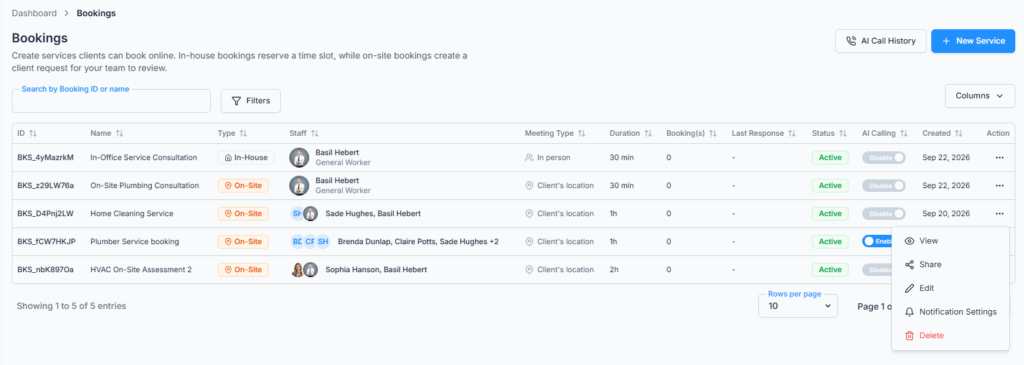
At the top right you’ll find New Service (to create one) and AI Call History (if you can see it). The table shows:
- ID: the service’s own id, for example BKS_a1B2c3D4.
- Name and Type (In-House or On-Site).
- Staff: the assigned staff member, the named crew, or the team.
- Meeting Type: In person, Video call, Phone call, or Client’s location for On-Site.
- Duration.
- Booking(s): how many bookings (In-House) or requests (On-Site) have come in.
- Last Response, Status, AI Calling and Created.
- Search: type in Search by Booking ID or name.
- Filters: Type, Status and AI Calling, so you can focus on the services you need.
The list shows 10, 20 or 30 rows per page, and the Columns option hides any column you don’t need. The AI Calling column is a switch you can flip right from the row. You need an Edit permission for that service to use it. Hover over it for a reminder: turning it off only takes the service off the AI agent’s menu. The booking link and your own bookings keep working.
The Action menu (the three dots) on each row holds up to six choices. Which ones you see depends on your permissions and on whether the service has any results yet:
| Action | When it appears |
|---|---|
| View | Always. |
| Share | Always. It opens the link, the website button code and the embed code. |
| Edit | Only while the service has no bookings or requests yet. |
| Notification Settings | Always, with an Edit permission. You can change these for the life of the service. |
| Activate / Deactivate | Only after the first booking or request arrives. |
| Delete | Only while the service has no bookings or requests yet. |
Good to know: that swap is on purpose. Before anyone books, a service is a draft you can change freely. Once a booking or request exists, it was made against that service’s times, staff and questions, so Office-X locks them. You keep two safe controls instead: Deactivate to stop new submissions, and Notification Settings to change what clients are told. If a service with bookings somehow reaches Delete, you’ll see “Cannot delete — 3 responses already reference this service. Set its status to Inactive instead.“
Deactivating is not deleting. An Inactive service keeps its history, disappears from your company booking page, stops taking submissions from its own link, can’t be booked from the dashboard, and is no longer offered by the AI agent. You can activate it again at any time.
Step 1: Create a Booking Service #
A Booking Service is one thing clients can book or request, such as “30-Minute Consultation” or “Home Inspection.” To create one:
- Go to Dashboard → CRM → Bookings and click New Service.
- On What kind of service is this?, click the In-House or On-Site card, then Continue.
- The New Booking Service form opens. The top bar shows the type you chose. Click Change if you picked the wrong one.
- Fill in the sections described below. Click Preview at any time to see the form the way your client will see it.
- Click Save. If something is missing, Office-X scrolls you straight to the first field that needs attention.
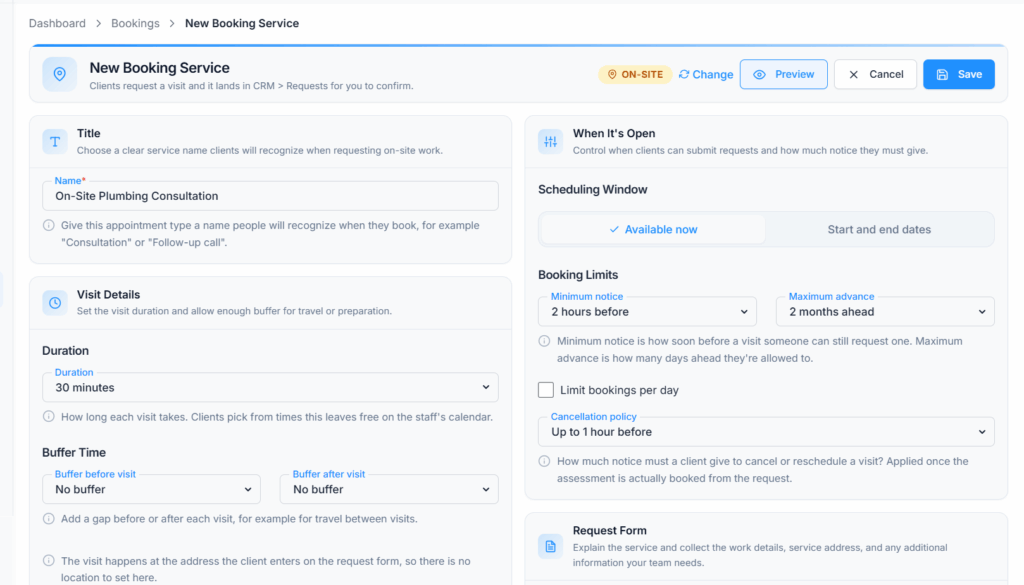
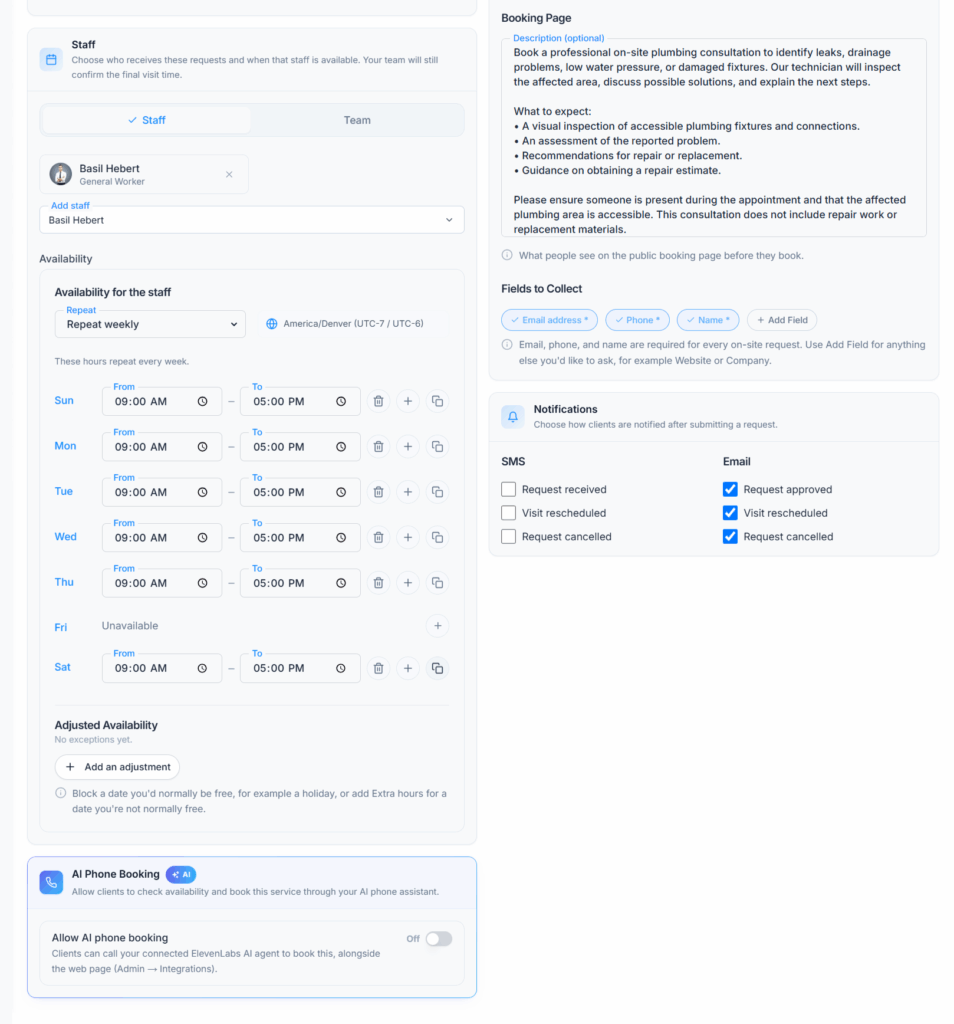
The form has the same sections for both types. A few of them are named differently for On-Site:
| In-House | On-Site | What you set there |
|---|---|---|
| Title | Title | The service name. |
| Appointment Details | Visit Details | Duration, buffers, and (In-House only) the location. |
| Availability | Staff | Who does the work, and their hours. |
| AI Phone Booking | AI Phone Booking | Whether the AI phone agent may offer this service. |
| Booking Limits & Policy | When It’s Open | Date window, notice, how far ahead, daily limit, cancellation policy. |
| Booking Form | Request Form | The description and the questions the client answers. |
| Notifications | Notifications | Which emails and texts the client gets. |
Title and Appointment Details #
- Name (required, up to 200 characters). Pick a name clients will recognize, for example “Consultation” or “Follow-up call”. Office-X also builds the service’s link from this name (more under “Public Link”).
- Duration: how long each appointment or visit lasts. Pick a preset from 15 minutes to 4 hours, or choose Custom and set hours and minutes. The shortest is 5 minutes and the longest is 8 hours (“Duration cannot exceed 480 minutes“). The default is 30 minutes.
- Buffer Time: Buffer before appointment and Buffer after appointment (for On-Site: before and after the visit). This is a gap Office-X keeps free around every booking, for example to prepare or to travel. Choose No buffer, a preset up to 1 hour, or Custom, up to 2 hours each. Both start at No buffer.
- Location and Conferencing (In-House only): under Where will this take place? choose In-person, Phone call or Video call. In-person asks for an Address. Phone call asks for a Phone number. Video call asks for a Meeting link. Each can be up to 500 characters. The client sees the address or meeting link on the booking page and in their confirmation email.
An On-Site visit always happens at the address the client types in, so there is no location to set. The form says: “The visit happens at the address the client enters on the request form, so there is no location to set here.“
Staff and Availability #
In-House (the Availability section): search for one staff member under Assign staff (“Search staff by name…“). Picking a different person replaces the first one. Click the small X on their card to change your choice. If you save without anyone, you’ll see “A staff member must be assigned“.
On-Site (the Staff section): choose Staff or Team at the top:
- Staff: use Add staff to add one or more named people. Each one appears as a card with an X to remove them.
- Team: use Assign a team to pick one team. The note under it explains that Office-X always uses whoever is on the team today, not a fixed list saved now.
You can’t use both at once. Switching from Staff to Team (or back) sets the other side aside, and Office-X remembers your picks if you switch back. If you save with nobody, you’ll see “Assign at least one staff member or a team“. The message only appears after you click Save, and it clears as soon as you pick someone.
Good to know: with a team, Office-X always reads the team’s current members. Add someone to the team next month and they join this service straight away. Remove them and they drop out. You never have to come back and re-save the service.
Everyone you put on a service gets an in-app notification, “Booking service assigned: 30-Minute Consultation“, so they know bookings may start arriving. For a team, every current member is told.
Once someone is picked, the hours panel appears below, titled Availability for …. Hours belong to the person, not to one service. The panel shows your company timezone next to a Repeat choice, which decides where the hours come from:
- Repeat weekly: the usual choice (“These hours repeat every week.“). Each day from Sun to Sat has its own row. An empty day reads Unavailable. Click + to add hours, with a From and To time. A day can have more than one range, for example 9:00 AM–12:00 PM and 1:00 PM–5:00 PM for a lunch break. The copy icon, Copy this day’s hours to every other day, saves you typing the same hours seven times.
- Custom…: the same weekly grid, but it repeats only every few weeks. Set Repeat every 1 to 12 weeks, a Starts date the cycle counts from, and whether it Ends Never or On a date. Use it for a clinic every other week. If you leave the dates out, you’ll see “Custom repeat needs a start date” or “Pick an end date, or choose Never“.
- Does not repeat: no weekly pattern at all. Click Add a date and give each date its own From and To time. Good for a short campaign or a visiting specialist. Every row needs a date (“Every date row needs an actual date“).
Adjusted Availability handles the exceptions. Click Add an adjustment, then choose:
- Block time off: removes hours the person would normally have, for a holiday or a training day. It shows in the list as “Blocked: …”.
- Extra hours: adds hours that would not normally exist, even on a day with no weekly hours, such as one Saturday morning. It shows as “Extra hours: …”.
Set the From and To date and time, then click Add. The end has to come after the start (“End must be after start“). New lines are marked (unsaved) until you save the whole form. Use Delete (or Remove for an unsaved line) to take one away.
Worked example: Maria Lopez works Monday–Friday, 9:00 AM–4:00 PM. She is at a conference on August 1 and 2, so you block those two days. She offers one extra Saturday clinic on August 10, 10:00 AM–1:00 PM, so you add Extra hours for that morning.
Good to know: nothing in this panel is saved until you click Save on the whole form. That way, a half-finished draft never changes the hours of the person’s other, live services.
Good to know: weekly hours are shared. Editing them here also changes every other service the same person runs. That is usually what you want (one person, one working week), but keep it in mind before you shorten someone’s hours from inside one service. Adjustments work differently: an adjustment you add from a service applies to that service only. The list shows all of the person’s upcoming adjustments, including ones added from their other services. So to block a holiday everywhere, add it on each of their services.
Good to know: for an On-Site service with several people, or a team, the panel is titled Availability for the staff or Availability for the team. It opens with the first person’s hours, and when you save, the same hours are saved for every person on the crew. Check this before you save if your crew members keep different hours.
Good to know: switching between the repeating modes and “Does not repeat” doesn’t erase the other one. Your weekly grid and your list of dates are both kept, so you can switch back later without redoing anything. Adjustments are only offered in the repeating modes. In “Does not repeat” mode you edit the date list instead, and any adjustment saved earlier still applies.
Booking Limits & Policy #
On an On-Site service this section is called When It’s Open. The settings are the same:
- Scheduling Window: choose Available now (the default), or Start and end dates to open the service only between two dates. Outside that window, nobody can book or request it. The start date can’t be in the past (“Scheduling window start date must be today or a future date“), and the end can’t come before the start (“End date must be on or after the start date“).
- Minimum notice: how soon before the start time someone can still book. For example, “2 hours before” means nobody can book a time that starts less than 2 hours from now. Choose from No minimum notice up to 2 days before, or Custom (in hours). The default is 2 hours.
- Maximum advance: how far ahead clients may book, from 1 week ahead to 1 year ahead, or Custom (in days). The default is 2 months ahead (60 days).
- Limit bookings per day: optional. Tick it and enter a Maximum bookings per day (it starts at 4). Once that many confirmed bookings exist for this service on a day, the rest of that day is no longer offered. Each service keeps its own count. A canceled booking gives its place back. Only confirmed In-House bookings count, so On-Site requests never use up this limit.
- Cancellation policy: how close to the start time a client may still cancel their own booking. Choose No cancellation policy, Up to 1 hour before (the default) through Up to 48 hours before, or Custom (in hours). The In-House booking page tells the client the number you set: “Free cancellation up to 1h before your appointment.“
Good to know: the client of an On-Site service doesn’t see a cancellation policy on the page. They see “Your preferred time is not confirmed yet, we’ll be in touch to finalize it.” instead, because nothing is booked until you approve the request.
Booking Form: What to Collect From the Client #
On an On-Site service this section is called Request Form. It has two parts.
Booking Page: the Description (optional) box, up to 2,000 characters. Clients read it on the booking page before they book, so it is a good place to say what is included, what to bring, or where to park. A long description shows the first lines with a Show more link.
Fields to Collect: click a field to add it to the form or take it off. A field that is on shows a tick and a star (*), which means it is required.
- Email address *: always on and always required. It is how Office-X recognizes a returning client, and where the confirmation goes.
- Phone and Name: your choice on an In-House service. Turn one on and the client must fill it in. Turn it off and it disappears from the form.
- Add Field: your own questions, up to 20 per service, for example Website or Company. Type the label (up to 200 characters) right into the new field, and click Optional / Required to switch between the two. Every field needs a label (“Every custom field needs a label.“). Clients answer each one in a text box.
The In-House form also has a Notes (optional) box the client can use for anything else. Every answer is kept with the booking, and you see it when you expand the booking’s row.
Good to know: an On-Site service always asks for Email, Phone and Name, and all three are required. Somebody has to be reachable at the address on the day, so you can’t switch them off. On-Site also always asks for the service address and a description of the work.
Good to know: turning on any SMS notification turns Phone on and makes it required. A text can’t reach a client whose number you never asked for. While any SMS box is ticked, the Phone field stays locked on.
Notifications #
Each service decides which messages its clients get, on two channels, SMS and Email, at three moments. Here you choose which messages go out, not their wording. In-House emails use your company’s Booking email template, and On-Site emails use the Request Appointment template. You can edit both under Templates (see the Email Templates guide). Texts use your company’s standard SMS wording.
| Moment | In-House (SMS and Email) | On-Site (SMS) | On-Site (Email) |
|---|---|---|---|
| 1 | Booking confirmed | Request received | Request approved |
| 2 | Booking rescheduled | Visit rescheduled | Visit rescheduled |
| 3 | Booking cancelled | Request cancelled | Request cancelled |
The On-Site labels differ for a good reason. An On-Site submission is not a confirmed visit, so there is no honest “confirmed” email to send when it arrives. The email goes out when someone in the office approves the request and books the visit. The SMS is a lighter “we got your request” note, sent when the request arrives. Approving sends no text.
- Out of the box: all three Email boxes are ticked, and all three SMS boxes are not.
- The client must hear about moment 1 somehow. You can’t untick both the Email and the SMS box for the first moment. The form says “Select Email or SMS to notify the client“. The Notification Settings window says “Select Email or SMS for the confirmation notification“.
- Changeable for the life of the service. The Notifications section only appears in the form when you create a service. Afterward, use Notification Settings in the row’s Action menu, or the Edit button on the Notifications card of the service page. Then click Save Notifications. This works even after bookings exist.
Good to know: an In-House text only goes out when three things are true: the box is ticked here, the booking has a phone number, and the client has agreed to texts. Office-X checks the client’s agreement at the moment of sending. A client who has since replied STOP gets no more texts, even about a booking made months ago. Email has no such condition.
Good to know: the On-Site Request received text also depends on a company-wide switch. Under Admin → Notifications, on the Request tab, the Request received message must be on, with its SMS channel on. It is off out of the box. The client must also have agreed to texts.
Good to know: these boxes control what the client receives. Your staff’s notifications are separate. See “What Office-X Sends, and to Whom” near the end of this guide.
Public Link #
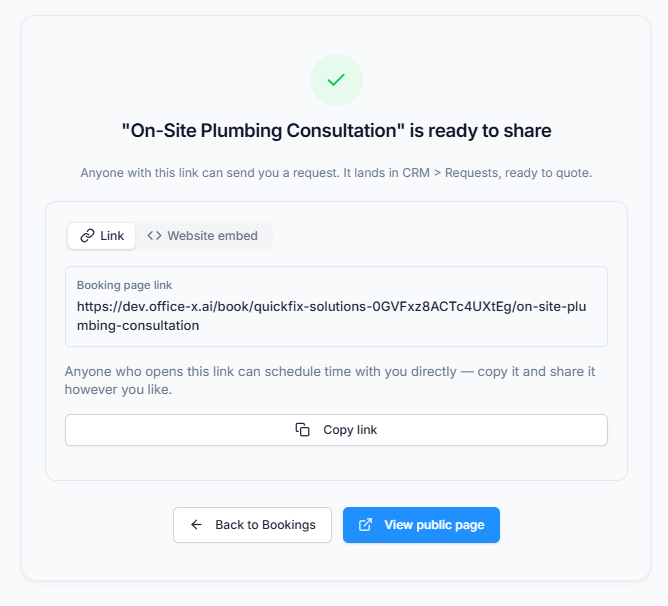
When you save a new service, you see ““30-Minute Consultation” is ready to share“. For In-House it adds: “Anyone with this link can book a time with you. It works right away, no extra setup needed.” For On-Site: “Anyone with this link can send you a request. It lands in CRM > Requests, ready to quote.” From there, click View public page to open the page in a new tab, or Back to Bookings.
Office-X builds the link from your company name and the service name, for example /book/your-company/30-minute-consultation. It uses lowercase letters, numbers and hyphens only. The link is set when you first save and doesn’t change if you rename the service later. No two services in your company can share a link. If the name would make the same link as another service, you’ll see “A booking service with this public link already exists“. Give the new service a slightly different name.
The same sharing options appear after saving and under Share in the Action menu (Share your booking page). There are two tabs:
- Link: the Booking page link, with a Copy link button. Paste it into an email, a message, or your Google business profile.
- Website embed, with two choices. Button with popup gives you a code snippet for your website. Set the Button text (it starts as “Book an appointment”) and its Color, check the Button preview, then click Copy code. Visitors click the button and the booking page opens over your site. Inline booking page gives you a snippet that places the booking page right inside one of your own pages.
A copy button flips to Copied! for a moment to show it worked.
Good to know: you also have one booking page for your whole company. It lists all your Active services, each marked Book → (In-House) or Request → (On-Site), so visitors can choose what they need. It works well in an email signature or on your Contact page. To get its address, take any service link and remove the last part (the service’s name). The address is built from your company name, and it keeps working even if you rename the company later.
AI Calling #
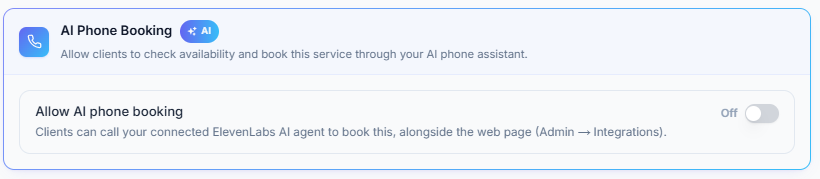
Turn on Allow AI phone booking in the AI Phone Booking section to let clients use this service by phone, through your AI voice agent. The agent books In-House appointments and sends On-Site requests. Leave it Off if the service should stay online only. After the service is created, you control this with the AI Calling switch on its row in the list, because the edit form doesn’t show this section.
For phone booking to work, all three must be true:
- ElevenLabs is connected under Admin → Integrations.
- AI Calling is on for this service.
- The service is Active.
Once it is on, callers can ask what you offer and hear the real open times. When a day has no times, the agent can say why (closed, fully booked, too soon, or too far ahead) instead of guessing. The caller can then book, or, for On-Site, leave a request. The agent can also look up a caller’s upcoming bookings and open requests by their email, and cancel an In-House booking within your cancellation policy. It follows the same rules as the web page: it knows which details this service asks for and which are required, so it asks for the same things your form would.
Good to know: the AI agent can’t reschedule an In-House booking. The client can cancel and book again, or an authorized employee can reschedule it. In-House phone bookings appear in Client Responses, and On-Site phone requests appear in Requests. AI Call History keeps the call itself. Turning AI Calling off doesn’t remove anything that came in earlier.
Good to know: a phone caller never sees your consent checkboxes, so a booking taken by the AI agent records no marketing or text agreement. That client gets their email but no text, until they agree to texts somewhere they can actually read the wording.
Editing a Service Later #
While a service has no bookings or requests, Edit opens the same form, titled Edit Booking Service. Three things are different:
- The type is fixed, so there is no Change button.
- The AI Phone Booking and Notifications sections are not in the form. Use the AI Calling switch on the list, and Notification Settings, instead.
- Renaming the service doesn’t change its link, so links you already shared keep working.
Viewing a Booking Service #
Click View in the row’s Action menu to open the service’s setup and results. The top of the page shows the service name, its type and status badges, and, while it has no results, an Edit button. An On-Site service also has View Requests. The content changes with the type:
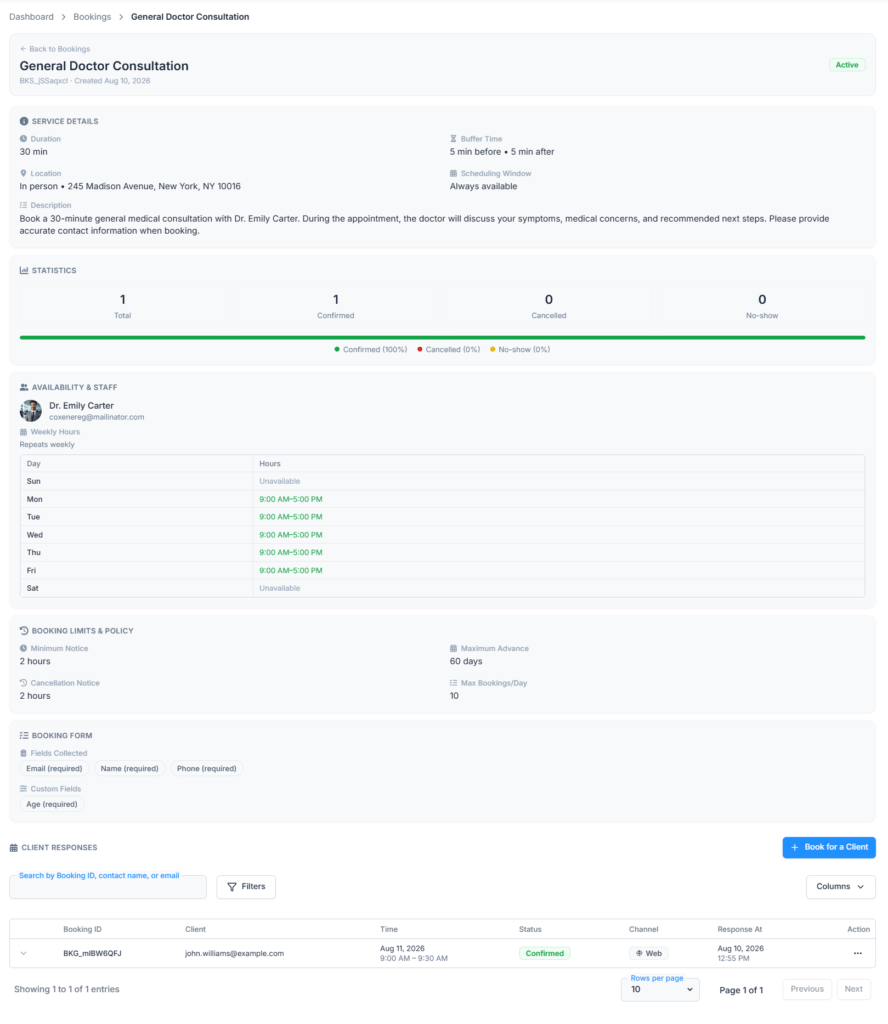
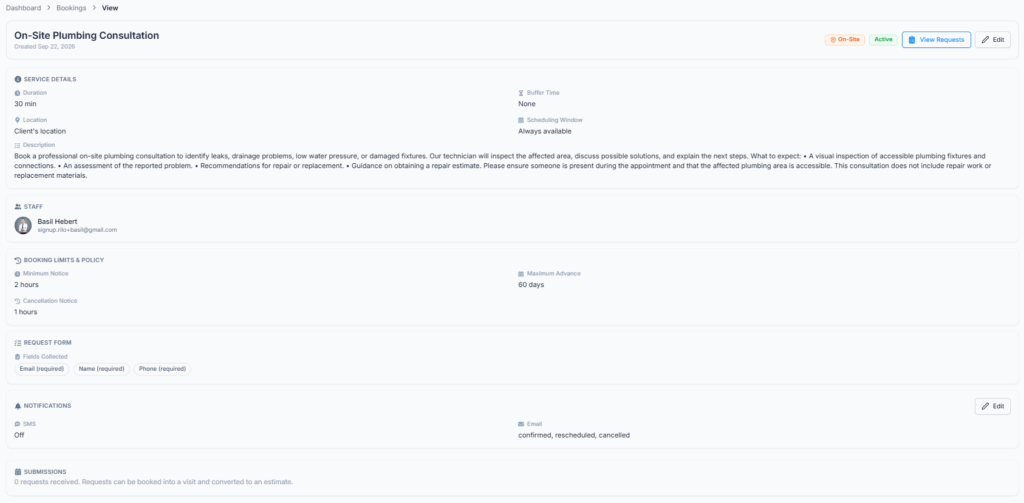
- Service Details: Duration, Buffer Time, Location (and Meeting Link, for a video call), Scheduling Window, and Description.
- Statistics (In-House only): Total, plus how many are Confirmed, Cancelled and No-show.
- Availability & Staff (In-House) or Staff (On-Site): the assigned person and their hours, or the named crew or team.
- Booking Limits & Policy: Minimum Notice, Maximum Advance, Cancellation Notice and Max Bookings/Day, as a quick read-only summary.
- Booking Form or Request Form: the Fields Collected and your Custom Fields.
- Notifications: one line for SMS and one for Email, listing the messages that are on, with an Edit button. Use it once the service has results and Edit is gone.
- Client Responses (In-House) or Submissions (On-Site). On-Site shows a count, for example “12 requests received. Requests can be booked into a visit and converted to an estimate.” You handle those requests in CRM Requests.
Good to know: an Active In-House service also has Book for a Client, for phone and walk-in clients. On-Site services don’t, because their submissions follow the Request flow.
Client Responses
For an In-House service, this is the list of bookings made for that one service.
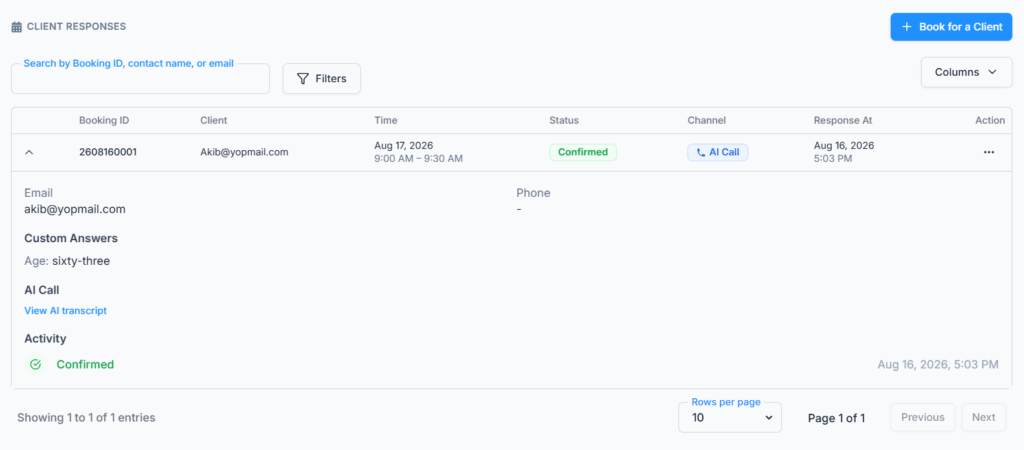
Columns: Booking ID, Client, Time, Status, Channel (Web or AI Call) and Response At (when the booking was made). Use Search by Booking ID, contact name, or email, or open Filters to filter by Status or a date range. The list shows 10, 20 or 30 rows per page.
Click the arrow on any row to see the whole story of that booking:
- Email and Phone, as the client gave them.
- Custom Answers: every question you asked, with the answer.
- Notes: whatever the client typed in the Notes box.
- Cancellation: on a canceled booking, who canceled it (the client, an admin, or the AI agent) and the reason given.
- AI Call: on a phone booking, a View AI transcript link straight to that call.
- Activity: the booking’s own history (Confirmed, Viewed, Rescheduled, Cancelled, Marked no-show), each with its date and time. A reschedule shows the move itself, old time → new time, so a booking moved twice still reads correctly.
Good to know: Booking IDs are short, plain numbers, so they are easy to read out on the phone. The first six digits are the date the booking was made, and the last four count that day’s bookings. So 2609280042 is the 42nd booking taken on September 28, 2026.
A Word About Timezones #
Bookings works in one timezone: your company’s, set under Business → Company. That one setting drives everything:
- When you type 9:00 AM into someone’s hours, that means 9:00 AM your time.
- The times your client sees on the public page are in your company’s timezone too. They are not converted to wherever the client happens to be.
- The times on their confirmation screen, email and calendar invite follow the same rule.
Good to know: if you have clients in other timezones, mention your timezone in the service description or the location details, so they read the times correctly. If your company timezone is wrong, fix it first, then check each staff member’s hours again.
How Available Time Slots Are Calculated #
When a client opens the service page, Office-X starts with the staff member’s hours and narrows them down:
- Start with the hours for that day: the weekly grid, the right week of the cycle (Custom), or the listed dates (Does not repeat).
- Apply Adjusted Availability: take away blocked time, add extra hours.
- Remove times that overlap the person’s confirmed bookings, including the buffers before and after.
- Split what’s left into back-to-back times that fit the service’s Duration.
- Drop anything outside the Minimum notice and Maximum advance, or outside the Scheduling Window.
- If the daily limit is on and already reached for this service that day, remove the rest of that day.
Office-X checks again when the client submits. An In-House time is checked against the calendar once more, then confirmed and reserved. If someone else took it a moment earlier, the client is asked to pick another time (“This slot is no longer available“). An On-Site time is checked against the notice rules and the date window, then saved as the request’s preferred time. The crew’s calendar is checked when you approve the request.
Three details explain most “why can’t I see that time?” questions:
- Start times are spaced by the Duration plus both buffers. A 30-minute service with a 10-minute buffer after offers 3:00, 3:40, 4:20, and so on. The day keeps to those steps, even after somebody books a time in the middle.
- Only confirmed bookings block a time, but all of them do. Office-X looks at the person’s confirmed bookings across every service, not just this one, so someone who runs three services can’t be booked twice at the same hour. Canceled and No-show bookings free their time right away. Tasks, leave, holidays and work shifts are not checked here. Bookings only knows the hours you set in this module.
- For On-Site, every crew member must be free. A preferred time is only offered when all the named staff (or all the team’s current members) are free at that moment, because the visit belongs to the crew, not one person. In-House has one staff member, so this doesn’t come up.
Good to know: Office-X checks each person’s license and employment status every time the page loads, not just when you assigned them. If someone’s status changes, they stop being offered. A service left with nobody eligible shows a page with no open times.
What the Client Sees and Does #
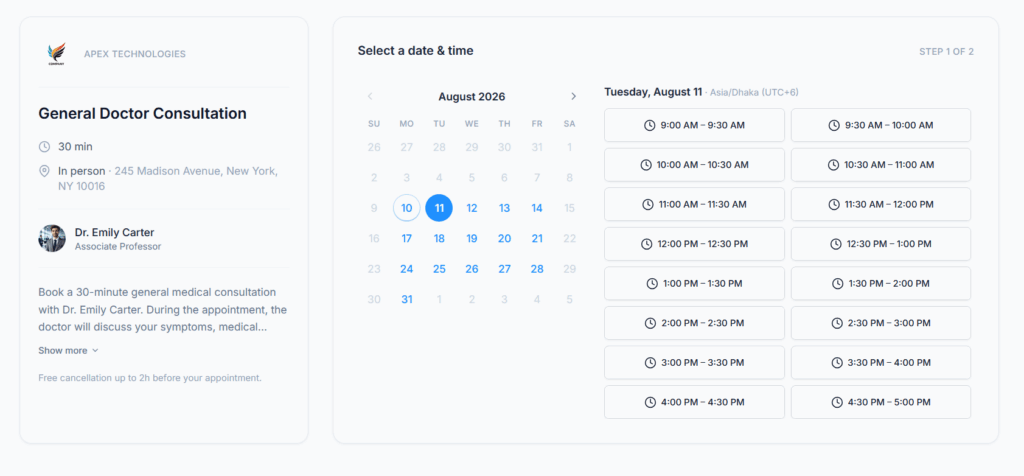
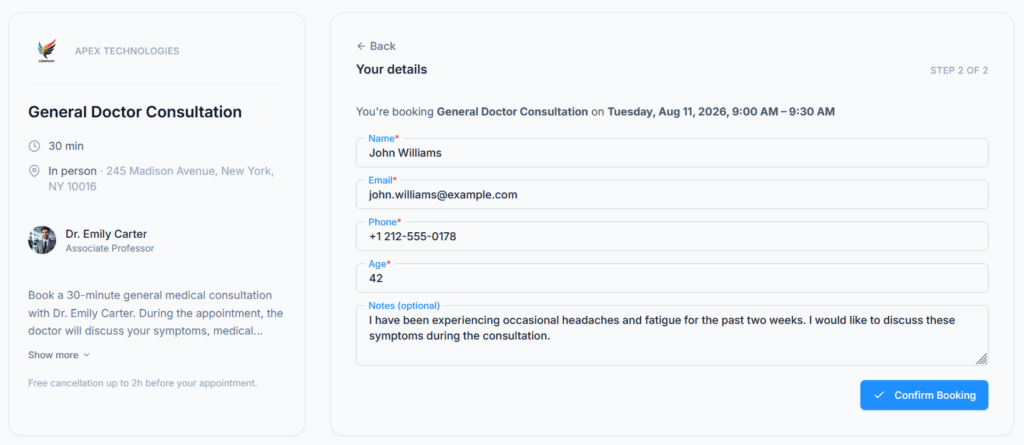
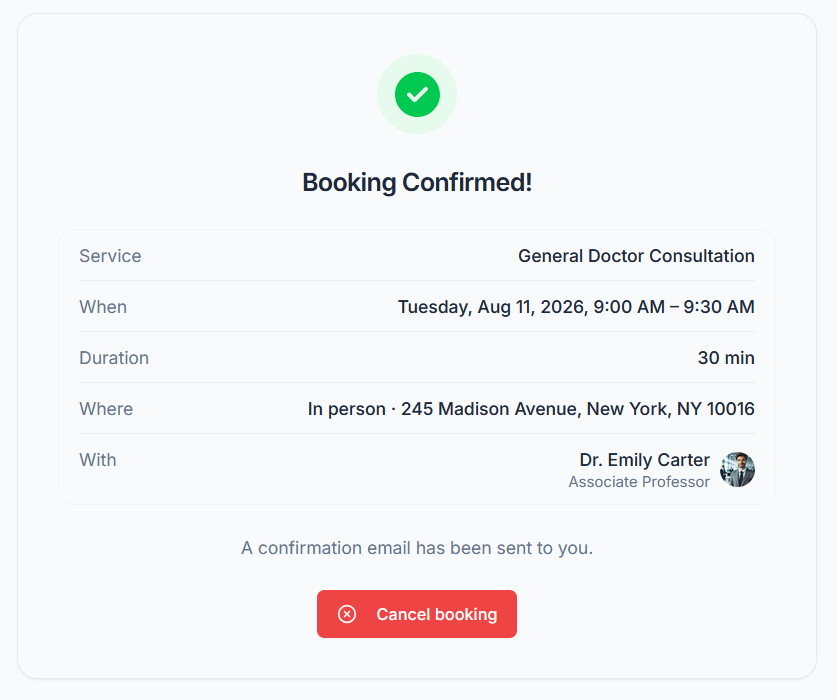
Down one side of the page, the client sees your company logo and name, the service name, how long it takes, and where it happens. For On-Site, that line says “We come to your address”. They also see the meeting link for a video call, your description, and, for In-House, the staff member’s photo and job title and your cancellation policy. Then it is two short steps:
- Select a date & time: a calendar of open times. A date with nothing left shows “No available times on this date.”
- Your details (In-House) or Tell us what you need (On-Site): the client’s contact details and your questions.
On an In-House form, the client fills in Email (and Name and Phone, if you ask for them), your questions and Notes (optional). Then they click Confirm Booking. A missing detail shows a message such as “Please fill in your Name, Phone.” or “Please answer: Company“. Next they land on Booking Confirmed!, which shows the service, date and time, duration, where it happens, the meeting link and the staff member. The screen says “A confirmation email has been sent to you.” and has a Cancel booking button.
On an On-Site form, the client fills in four parts:
- Your details: Name, Email and Phone, all required.
- What you need: the Tell us what you need box (“Describe the work you’d like done”). It is required: “Please tell us what you need.“
- Where should we come?: Street address, Unit, apartment, suite, etc. (optional), Country, State / Province, City and Postal code. The street and the city are required: “Please enter the street address and city we should visit.“
- A few more questions: your own questions, if you added any.
Then they click Send Request and land on Request sent. It thanks them, repeats the service name and the time they picked, and says “Someone will be in touch to confirm a time to visit.” The screen also shows the request’s reference.
Both forms also carry the agreements that keep your messaging above board. None of them is required to book or send a request:
- Marketing emails: an opt-in box under the Email field (“I agree to receive marketing and promotional emails from…”).
- Booking and account texts: when Phone is required, this is a box the client ticks. When Phone is optional, giving the number is itself the agreement, and the page says so in plain text under the field.
- Marketing texts: always a separate box, because agreeing to appointment texts is not agreeing to promotions.
- Terms of Service and Privacy Policy: “I accept…” with real links, shown when your company has published them. If a document has a version number, the box names it, for example “Terms of Service (Version 2)”.
Each agreement is saved on the client’s record with the exact wording that was on screen, the date, and the device it came from. If a phone carrier or a client ever asks, you can show what was agreed and when. The agreements belong to the client, not to one booking, so they cover the other ways you message that person too. The first time a client agrees to texts, they get one “you’re subscribed” text right away.
Good to know: Office-X adds the client to your Clients list the first time they book. It matches returning clients by email, ignoring capital letters, so their next booking links to the same record instead of creating a duplicate. An existing client’s name and phone stay exactly as they are. A booking never overwrites the record you keep. If you don’t ask for a name, the new client record uses their email address as the name until you edit it.
For In-House, the link in the client’s email opens the same booking page. They can come back to it to see the details or cancel. Clicking Cancel booking opens Cancel this booking?, where they must give a Reason (“A cancellation reason is required.“) before clicking Cancel Booking. Inside your cancellation policy window the button is gone, and the page says “This booking is too close to its start time to be cancelled.” Then they have to call you. A canceled or no-show booking says “This booking can no longer be modified.” To change the time, the client cancels and books again, or an authorized employee reschedules it. If you reschedule, the old link stops working and the new email carries a fresh one. An old link shows “This link is invalid or no longer available.“
For On-Site, there is no link to manage the request, because nothing is booked yet. The office handles the request and confirms the visit. Once the visit is booked, the client can see it on the Appointments page of your Client Portal, if you use one.
Booking for a Client Yourself #
This section applies to In-House services. When a client phones, walks in, or would rather talk to a person, an authorized employee can make the booking for them.
Open the service (Dashboard → CRM → Bookings → View) and click Book for a Client, at the top of the Client Responses section. A short two-step window opens.
First, Pick the Time #
The window shows the service name and length at the top (for example, “30-Minute Consultation · 30 min”) and a month calendar. Click a date and the open times for that day appear beside it: 3:00 PM – 3:30 PM, 3:40 PM – 4:10 PM, and so on. The heading above the times spells out the date and the timezone, like Thursday, August 20 · America/Chicago (UTC-6 / UTC-5), so you always know which clock you’re reading.
These are exactly the times a client would see on the public page, worked out the same way. Click one to move to step 2, or Cancel to close. If a date shows “No available times on this date.”, that day is full or outside the staff member’s hours.
Then, Fill In the Client’s Details #
The time you picked is shown at the top, with a Change link. You type the details in yourself. There is no client list to pick from, so you don’t have to look anyone up first:
- Email: always required. Office-X also uses it to recognize the client (see below), so it’s worth getting right.
- Name and Phone: asked for only if this service collects them, just like the public form.
- Your own questions: the same questions the public form asks. Required ones still need an answer.
- Notes (optional): anything useful, such as “called about a follow-up” or “prefers the afternoon”.
Click Back to choose a different time, or Confirm Booking to book. Nothing is saved until you confirm.
What Happens Next #
- The booking is Confirmed straight away and appears in Client Responses with the rest.
- The client still gets their email. It has the same calendar invite and the same link to see or cancel the appointment, so booking for them doesn’t leave them in the dark.
- A client record is created for them, or their existing one is used, matched on the email address. You don’t end up with duplicates.
- The time is blocked for everyone else right away. The booking’s history records you as the person who made it, not the client.
Good to know: this is a shortcut for the client, not a way around your own rules. When you confirm, Office-X checks everything again: that the time is still free, that it’s inside the notice rules, and that the day hasn’t hit its daily limit. If someone booked that time online while you were typing, you’ll see “This slot is no longer available” and can pick another. Nothing is double-booked.
Good to know: the client never saw a consent checkbox here, because there was no page for them to read. So they get the email, and they only get a text if they had already agreed to texts with you some other time.
Who can do this: the Subscriber Admin always, and any employee with Manage Bookings (For Own / Assigned) or Manage Bookings (For All). The first one only works on services assigned to them. The second one covers every service. Being the service’s staff member isn’t enough on its own. Without the permission they’ll see “You are not allowed to create a booking for this service“.
Good to know: the button only appears on Active services. An Inactive service takes no bookings from the dashboard, just as it takes none from its link. If you can’t see the button, check the service’s status first, then your permission.
Good to know: there is no Book for a Client on On-Site services, by design. If you try, Office-X answers “This is an on-site service. Create a request for it instead.” Create the request in CRM → Requests, where you can assign a crew and a date.
Managing an Existing Booking #
In a service’s Client Responses list, open the Action menu (the three dots) on a Confirmed booking. You’ll see:

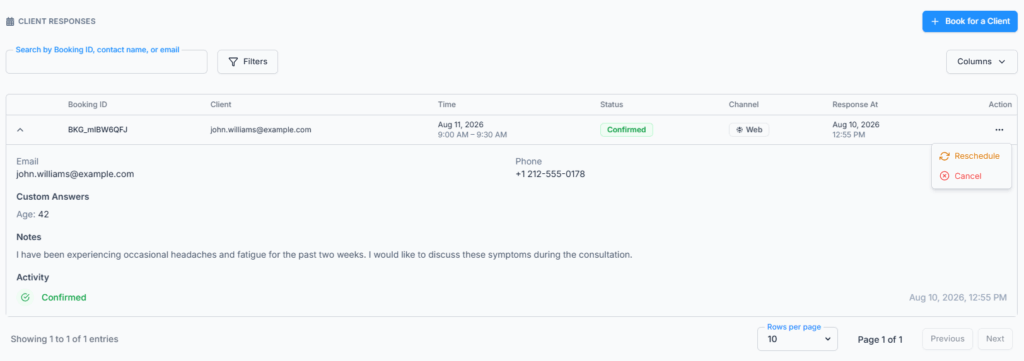
- Reschedule: opens Reschedule Booking. Pick a new open time from the same calendar the client would see, then click Confirm New Time. The booking stays with the same staff member. The client gets an updated email and calendar invite, and their old link stops working in favor of a fresh one.
- Cancel: add an optional Reason (“Let the client know why this booking is being cancelled”), then click Cancel Booking. The client gets a cancellation email, and the reason stays on the booking so the next person can see why.
- Mark No-show: appears only once the appointment’s start time has passed.
The menu only shows the actions your permission allows. Canceled and No-show bookings have no actions left.
Good to know: when a client cancels their own booking from their link, they get no email. They already know, because they just did it. They must give a reason, and the assigned staff member gets an in-app notification that the time is free again. When you cancel, Office-X emails the client instead. When the client cancels through the AI phone agent, they get the cancellation email and the staff member is notified too.
Good to know: rescheduling still respects the Minimum notice, the Maximum advance and the Scheduling Window, and it won’t put two appointments on top of each other. If the staff member is busy at the new time, you’ll see “This staff member is not available at the new time“. It does not check the daily limit, so you can move a booking onto a day that is already full. That is useful when you’re doing a client a favor, and worth knowing if you rely on that limit.
Booking Status #
A booking is always exactly one of Confirmed, Cancelled or No-show. Rescheduling doesn’t change the status or create a new booking. It stays Confirmed, with the new time and a note in its history of what changed and when.
Cancelled and No-show both free the time, so it is offered right away to the next client who opens the page.
AI Call History #
Go to Dashboard → CRM → Bookings and click AI Call History at the top right. You can also get there from the View AI transcript link on any phone booking.
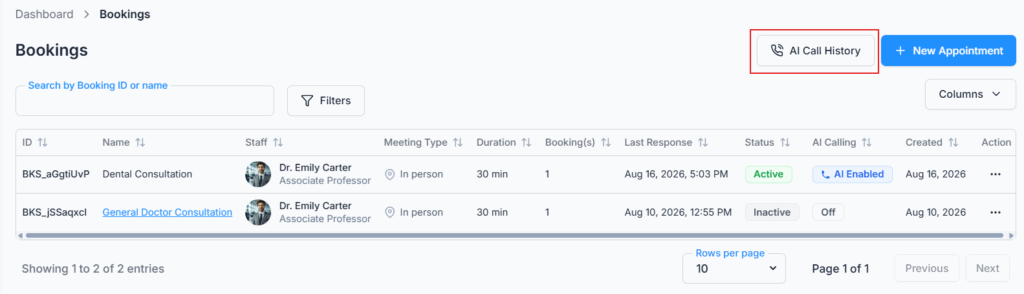
This page only matters if you use AI Calling. It records every AI phone call, whether or not it ended in an In-House booking or an On-Site request. It also keeps calls where the caller heard the open times and hung up, or the call ended early, so you can review finished and unfinished enquiries alike.
What Each Row Shows #
Columns: Call Start – End, Caller (their phone number), Provider, Duration, Model, Cost and Linked Booking.
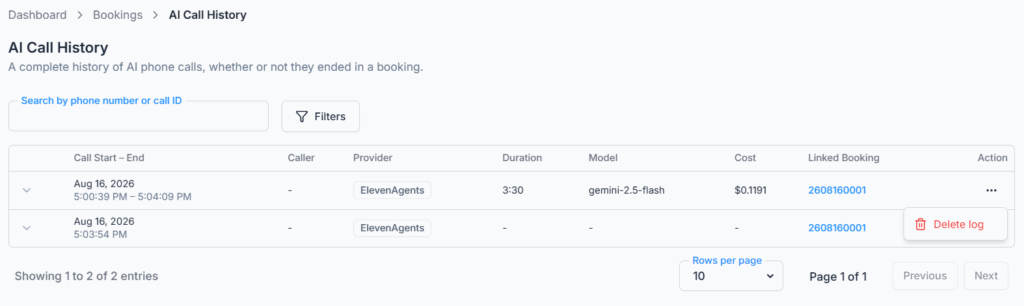
Linked Booking connects the call to what came of it. For In-House, it opens the booking in Client Responses. For On-Site, it opens the request the call created. If the column is empty, the call ended without either.
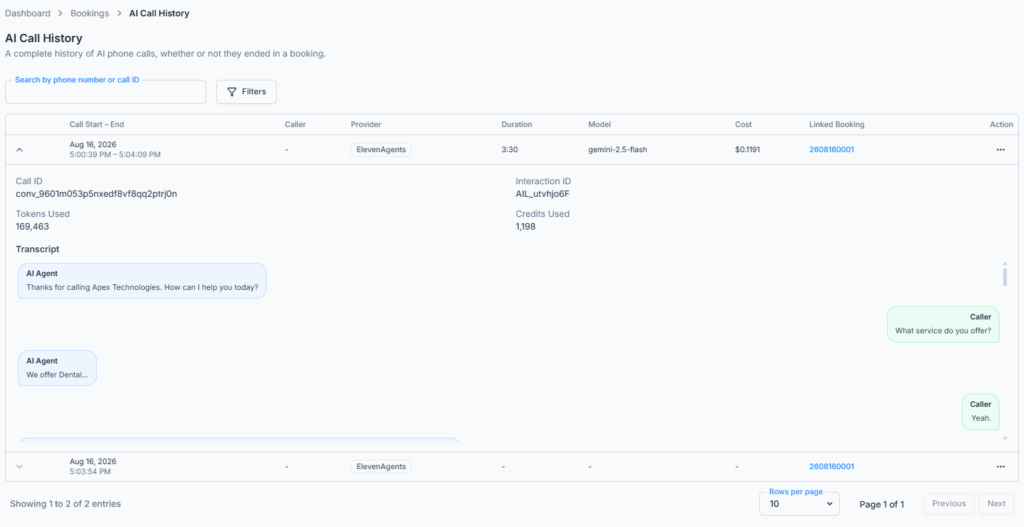
Click the arrow on a row to see its details: the Call ID, the usage, the Recording (when there is one) and the full Transcript, with each turn labeled Caller or AI Agent. A call with no transcript says “No transcript available”. This helps your team see what the client asked and whether the call ended in a booking or a request.
To find a call, type in Search by phone number or call ID, or set a Date Range (From / To). Each row’s Action menu has Delete log. It asks “Delete this log?” and explains that the log and its transcript are removed for good. Anyone who can open this page can delete a log.
Two Things Worth Knowing #
Call details need the full call-history setup. Phone booking can work while that setup is unfinished, but the transcript, duration or recording may be missing. Follow the call-history step in the Integrations guide, and repeat it if you disconnect and reconnect the calling service.
Call records are kept for 90 days. They can hold callers’ phone numbers, recordings and transcripts, so Office-X deletes them automatically 90 days after the call. The booking or request that came from the call is not deleted. If a call matters long-term, save what your business needs before then.
Good to know: who can open this page isn’t controlled by the Integrations permissions. It follows your Bookings permissions, View Bookings (For All) or Manage Bookings (For All), so anyone you trust with the full booking list can also see the calls behind it. The Subscriber Admin always can.
What Office-X Sends, and to Whom #
Two separate streams run side by side. What the client receives is controlled per service under Notifications. What your staff receive is sent automatically.
| What happens | The client gets | Your staff get |
|---|---|---|
| A client books an In-House time online or by phone | The confirmation email with a calendar invite and a link to their booking, plus a text if you turned it on and they agreed to texts | An in-app notification to the assigned staff member: “[2609280042] New booking: 30-Minute Consultation“ |
| You use Book for a Client | The same confirmation email. A text only if it’s on and they agreed to texts before. | Nothing, because you made the booking |
| You reschedule a booking | An updated email and calendar invite, with a fresh link. A text if it’s on. | Nothing |
| You cancel a booking | A cancellation email, with your reason if you gave one. A text if it’s on. | Nothing |
| The client cancels from their own link | Nothing, because they just did it | An in-app notification to the assigned staff member: “… The slot is available again.“, with the reason they gave |
| The client cancels through the AI phone agent | A cancellation email | The same in-app notification, marked as by phone |
| You mark a No-show | Nothing | Nothing |
| An On-Site request arrives | A “Request received” text, if it’s on (see Notifications). No email yet, because nothing is confirmed. | An in-app notification to the Subscriber Admin and everyone with View All Requests. They are also emailed, together with your company address, if New request (to your team) is on under Admin → Notifications (it is on out of the box). The email includes the service address. |
| You approve the On-Site request and book the visit | The “Request approved” email, with the visit time and who to expect. No text. | The crew are told about their new visit, like any other task |
| You move an approved visit | The “Visit rescheduled” email, and a text if it’s on | The crew are told about the change |
| You turn down an On-Site request | The “Request cancelled” email, and a text if it’s on | – |
| Someone is added to a Booking Service | – | An in-app notification: “Booking service assigned: …“ |
| A client agrees to texts for the first time | One “you’re subscribed” text, right away | – |
Good to know: In-House staff notifications are in-app only (the bell), not email. They are only sent for things staff would not otherwise see: a client booking, or a client canceling. Office-X doesn’t notify you about your own clicks.
How Bookings Connect to the Rest of CRM #
- Clients: every booking and every On-Site request creates a client record for the person, or uses their existing one. You don’t need to add them in Clients first. A booking never stops you from deleting a client later, because the booking keeps its own copy of the contact name and email and still reads correctly. The client’s messaging agreements are stored on their record too.
- Requests: every On-Site submission becomes a CRM Request with the source Booking Link. It carries the client’s preferred time, address and job details. From there it follows the normal Request flow: approve and book the visit, complete it, and convert it to an Estimate.
- Admin → Integrations: connect ElevenLabs here, then turn on AI Calling for an Active service. In-House calls create bookings in Client Responses, and On-Site calls create CRM Requests. Both follow the service’s rules, and AI Call History records each call.
- SMS: texts are sent through the provider you connect under Admin → Integrations → SMS (Twilio or Telzio). With nothing connected, the SMS boxes simply never send. Email carries on as normal.
Activity Log #
Each booking has its own history (in its expanded row). Your company’s central log also records the bigger changes, each with who did it and when:
- Booking Services created, edited, activated, deactivated and deleted.
- Bookings rescheduled, canceled, marked No-show, or made for a client.
- Availability adjustments added or removed for a staff member.
- A client canceling their own booking, recorded as “Client cancelled booking”.
Changes to a service are saved field by field. You can see, for example, that a duration went from 30 to 45 minutes, or that the SMS notifications went from “off” to “confirmed, cancelled”. Go to Dashboard → Activity Log and filter by Booking or Booking Service. See the Activity Logs guide for how to search it.
What Happens After an On-Site Submission? #
- The client picks a preferred time and enters the service address and the job details.
- A CRM Request is created with the source Booking Link and the status Needs Approval. Its title is the service name. The first named staff member on the service becomes its salesperson. A team-only service leaves the salesperson empty, because there is no single person to name.
- Your team is notified (see the table above).
- On the request, the On-site assessment card says Waiting on your decision and shows Client requested: with the preferred time. The request also saves which crew members were free at that time, so the reviewer doesn’t have to work it out again. There are two buttons: Approve and Cancel.
- Approve opens the visit form. Keep the client’s time or choose another, pick who is going, and click Approve & schedule visit. Office-X checks each employee’s calendar at that moment. The visit is booked on your Task schedule, and the request moves out of Needs Approval.
- The client gets the Request approved email straight away, if that box is on. There is no “please confirm your appointment” step for these requests, because the client picked the time themselves. The request’s Client confirmation panel says so: “Not needed. The client picked this time themselves through your booking link.“
- Cancel turns the client down. Office-X asks you to confirm with Cancel request. This is final: the request becomes Cancelled and can’t be restored (unlike Archive, which you use for requests you already accepted). The client gets the Request cancelled email, and a text if that box is on.
- After the visit, mark the assessment complete and convert the request to an Estimate.
Good to know: approving needs the Task Management add-on, because the visit lives on the Task schedule. Without it, the Approve button shows a lock. You can still read the request, and you can still turn it down.
Example: Mr. Sullivan asks for an air-conditioning inspection at his house in Riverside on Tuesday morning. The request appears as Needs Approval. Your coordinator sees that Maria Lopez and Danny Ruiz are both busy that morning, clicks Approve, moves the visit to Tuesday afternoon, and saves. Mr. Sullivan gets an email with the new time and the names of who is coming. After the visit, the salesperson prepares an Estimate from the same request. See the Requests guide for everything you can do with a request.
Summary #
Bookings turns your staff’s hours into a public service page. In-House confirms a time with one staff member and keeps the result in Client Responses. On-Site collects a preferred time, the service address and the job details, then sends the submission to CRM Requests for you to approve. Each service has its own notice rules, limits, questions, notifications and link.
Set a service up once and share its link, or your company booking page. If you connect AI Calling and turn it on, clients can use the same service by phone, and AI Call History records each call. For In-House, Book for a Client lets an authorized employee make the booking for a phone or walk-in client.
Two habits keep the module tidy: get the hours and the timezone right before you share a link, and once a service has results, use Deactivate and Notification Settings rather than trying to rewrite the service its bookings were made against.
