The Agreements module turns your Docs templates into documents that people sign online. You pick a template, add the people who need to sign, choose how they prove who they are, and send it. Office-X emails each signer when it’s their turn, tracks every view and signature, and marks the Agreement Active once everyone has signed. Everyone then gets the signed PDF by email.
Good to know: Agreements is part of the CRM feature set. CRM is a paid add-on for the Advance plan. If your company doesn’t have it yet, you can add the CRM add-on from Business → Billing & Payment. Once added, Agreements and the other CRM features become available. Agreements does not need the Task Management add-on.
Two Sides to Every Agreement #
Every Agreement has two very different people looking at it:
- You (the Subscriber Admin, or an employee with the right Agreements permissions). You pick a Docs template, decide who signs and in what order, choose how each signer proves who they are, and send it.
- Signers, the people you send it to. They never log in to Office-X. They open the link in their email, prove who they are if you asked for that, fill in their part, and sign.
Example, start to finish: Sarah Mitchell is buying a home theater installation from your company. Maria Lopez, your office manager, signs for your company after Sarah. Here’s exactly what happens on each side:
| Step | You (Admin) | Signer |
|---|---|---|
| 1 | Maria clicks New Agreement, names it “Home Theater Installation – Sarah Mitchell”, picks the “Installation & Purchase Agreement” Docs template, and picks Sarah as the Client. She fills in your company’s fields (for example, the installation date). The template has two signer roles: “Client” (signs 1st) and “Company” (signs #2). Maria clicks Use client info on the first row and Use my info on the second, chooses Email OTP, and clicks Save Draft. | — |
| 2 | Maria opens the Action menu and clicks Send Agreement. The status changes to Pending Signature. | — |
| 3 | — | Sarah gets the email right away, because she signs first. Maria gets nothing yet. |
| 4 | — | Sarah opens her link, types the 6-digit code emailed to her, agrees to sign electronically, fills in her fields, and signs. |
| 5 | The moment Sarah finishes, Office-X emails Maria her own signing link, and the status changes to Partially Signed. Nobody has to press anything. | — |
| 6 | — | Maria goes through the same steps: code, consent, fields, signature. |
| 7 | The Agreement becomes Active. Sarah and Maria both receive the final signed PDF by email. | — |
Keep this example in mind as you read the rest of this guide. Most of what follows is a closer look at one row of that table.
Who Can Use This Feature #
Subscriber Admin can always create, view, edit, delete, send, resend, and terminate any Agreement, and change its access code. No permission is needed.
Employees need permissions. You give each one separately under Admin → Permissions → CRM – Agreements:
- Create Agreement
Required action: Create
They see the New Agreement button and can save new Drafts. - View All Agreements
Required action: View
They see the Agreement list, can open any Agreement’s View page (including its access code), and can download the PDF. Without it, the list stays empty. - Edit Agreement (For All)
Required action: Update
They can edit a Draft, and use Change code on the View page. - Delete Agreement (For All)
Required action: Delete
They can delete a Draft. - Send / Resend Agreement (For All)
Required action: Update
They can send a Draft and resend the invitation while signing is under way. - Terminate Agreement (For All)
Required action: Update
They can call off an Agreement that is still waiting for signatures.
Good to know: an employee with none of these sees a “no access” page instead of the list. Most people need View All Agreements plus the actions they’ll actually do. To add a brand-new client from the Client picker, they also need Create Client.
These permissions can be assigned directly to an employee, or to an entire team at once. See the Permissions Management guide for how to assign permissions.
The Agreement List #
Go to Dashboard → CRM → Agreements. This is what you see first when you open the module.
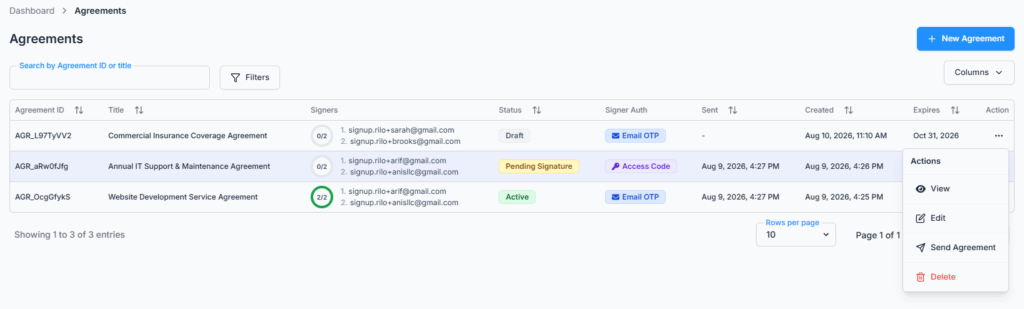
The table has these columns, from left to right:
- Agreement ID: created for you, for example AGR_a1B2c3D4.
- Title: long titles are cut to one line. Hover over one to see it in full.
- Signers: a small ring shows how many people have signed out of the total (for example 1/2). It turns green when everyone has signed. Next to it you see each signer’s order number and email.
- Status: see “Agreement Lifecycle” below.
- Signer Auth: None, Email OTP, or Access Code.
- Sent (date and time), Created (date and time), and Expires (date).
- Action: the menu where you manage the Agreement.
Ways to find an Agreement:
- Search: type in Search by Agreement ID, title or client. It also finds the linked client by name, company, or email. Type two words (for example “sarah theater”) to narrow the results.
- Filters: click Filters, choose a Status, and click Apply Filters. The list only offers statuses your company actually has. Click Clear All to see everything again.
- Sort: click a column header with arrows (Agreement ID, Title, Status, Sent, Created, Expires) to sort the rows on the page you’re viewing. The list starts with the newest Agreement first.
Show 10, 20, or 30 rows per page. Use Columns to hide any column you don’t need (every column except Action). Click a row to open that Agreement’s View page. If nothing matches, you see “No agreements found.”
The Action menu changes with the status:
| Status | Options in the Action menu |
|---|---|
| Draft | View, Edit, Send Agreement, Delete |
| Pending Signature or Partially Signed | View, Resend Agreement, Terminate Agreement |
| Active, Declined, Expired, or Terminated | View only |
An employee only sees the options their permissions allow.
Creating an Agreement #
Before you start: you need at least one Active Doc template with at least one signer role. See the Docs guide for how to build one.
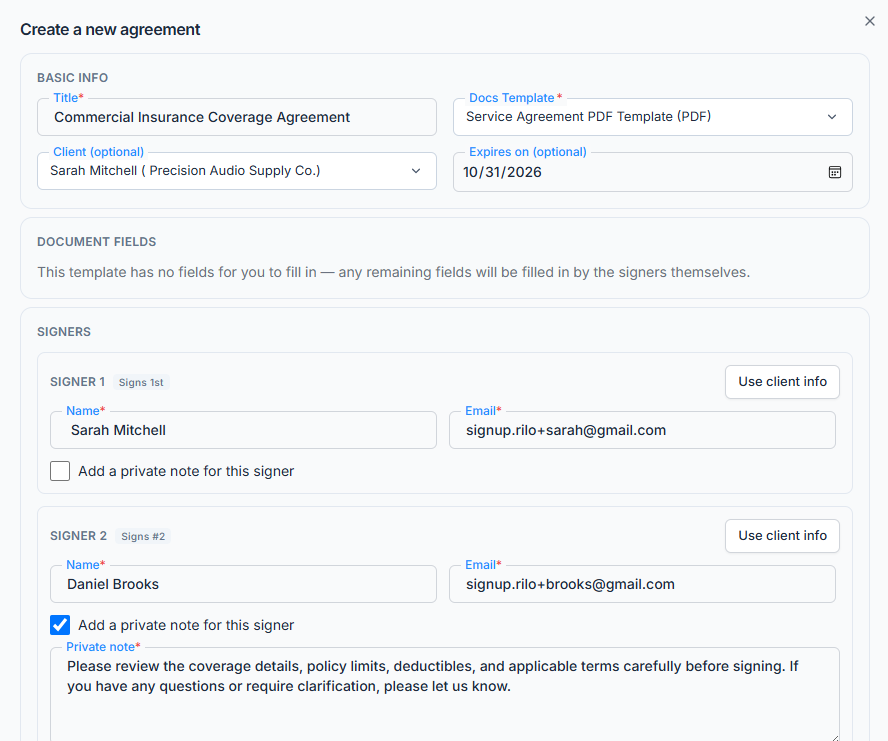
- Go to Dashboard → CRM → Agreements and click New Agreement. The Create a new agreement window opens.
- Under Basic Info, type a Title. It’s required, up to 100 characters. Signers see it as the document name.
- Pick the Docs Template. The Document Fields and Signers sections appear.
- Optional: pick a Client, and check the Expires on date.
- Fill in your Document Fields and the Signers.
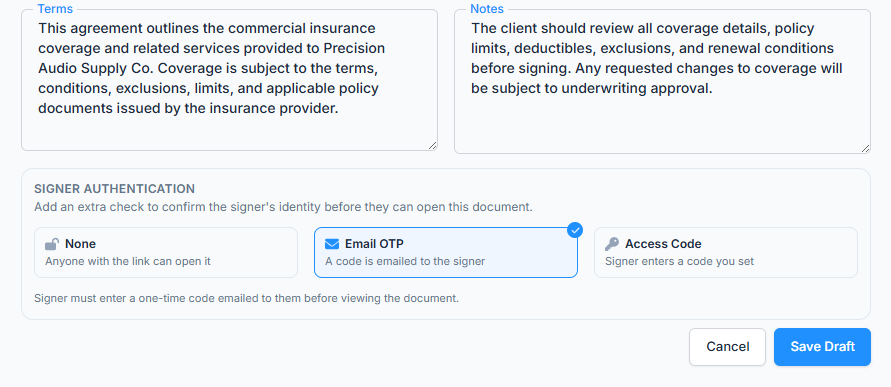
- Optional: add Terms and Notes.
- Choose the Signer Authentication method.
- Click Save Draft. You see “Agreement created successfully” and the new Agreement appears in the list as Draft.
Good to know: saving a Draft sends nothing to anyone. You can come back and edit it as often as you like. It goes out only when you choose Send Agreement (see “Sending an Agreement” below).
Choosing the template #
In Docs Template, start typing a template’s name or Doc ID. Results appear only after you type, and only Active templates are listed. Each one shows (Form) or (PDF) after its name, so you can tell a form template from a PDF template.
If the template has no signer roles yet, you see “This template has no signer roles yet, so an agreement can’t be created from it — nobody would be assigned to sign.” Click Open this template in the builder and add a signer role (Signers tab) → to fix it in a new tab, then pick the template again.
Office-X copies the template’s fields and signer roles into the Agreement when you save. Later changes to the template don’t change this Agreement, and you can’t swap the template on a saved Draft.
Linking a client (or adding a new one) #
Client (optional) links the Agreement to one of your clients. Search by name, company, email, or Client ID. Only Active clients are listed.
- If the client isn’t found, click Add new client “…” at the bottom of the list.
- The Add a new client window opens with the name you typed already filled in.
- Complete the form. A Customer needs a name plus at least one of email, mobile, or phone.
- Save. The new client is picked for this Agreement straight away.
Linking a client is for your own records. It also lets you fill a signer row with Use client info, and it shows this Agreement’s emails on the client’s page. The people who actually sign are the signers you enter below. They don’t have to be the client.
The expiry date #
When you pick a template, Expires on (optional) fills in with a date 30 days from today. You can change it to today or any later date, or clear it.
- Signers can sign until the end of that day, in your company’s time zone.
- If you clear the date, Office-X sets it to 30 days after the day you send.
- A date in the past is refused with “Expires on must be today or a future date”.
Document Fields #
Fields on the template that aren’t assigned to a signer role are yours to fill in here, for example the price or the installation date. Fields assigned to a signer stay blank for that person to fill in when it’s their turn. If the template has nothing for you, you see “This template has no fields for you to fill in — any remaining fields will be filled in by the signers themselves.”
Each field keeps the character limit set on the template. You can save a Draft with required fields still empty, but you can’t send it until they’re filled in.
Signers #
You get one row for each signer role on the template, up to 10. The role name and its place in line (Signs 1st, Signs #2, and so on) come from the template and can’t be changed here. The template decides which rows are for your client and which are for your own company, for example “Client” and “Company”.
For each row, fill in:
- Name (required).
- Email (required). The signing link always goes to this address. A typo shows “Enter a valid email address” under the field.
- Phone (optional). Used only for text messages, if you’ve switched them on (see “Emails, Texts, and Notifications” below).
- Add a private note for this signer: tick it to show a Private note box (up to 500 characters). Once ticked, the note is required. Only your team and that signer see it. It appears in their invitation email and on their verification screen.
Two shortcuts save typing:
- Use client info appears after you pick a Client. It fills the row with the client’s name, email, and phone.
- Use my info fills the row with your own name and email. It’s handy when you sign for your company.
Terms and Notes #
Both are optional, up to 2,000 characters each. Signers see them below the document, as Terms & Conditions and Notes.
Sending an Agreement #
- In the list, open the Draft’s Action menu and click Send Agreement.
- You see “Agreement sent successfully”. The status changes to Pending Signature.
- Office-X emails the signers who sign first. Everyone else waits for their turn.
If one of your required Document Fields is still empty, sending stops with a message such as “Installation date” is required before sending. Edit the Draft, fill it in, and send again.
Good to know: once sent, an Agreement can no longer be edited or deleted. If a Draft has been waiting a while, check its Expires on date before you send. A date that has already passed leaves signers no time to sign, so edit it to a later date first.
Signer Authentication #

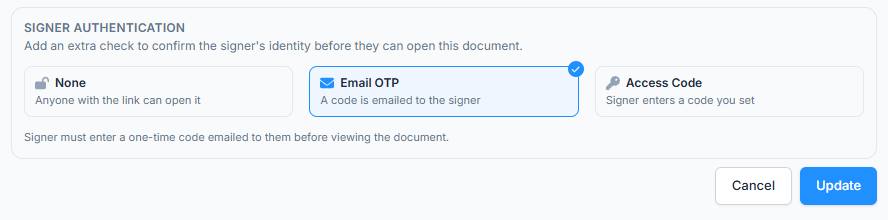
This setting adds an extra check that the person opening a signing link is really the right signer, before they can see or sign the document. You pick one of three cards when you create or edit the Draft:
- None: “Anyone with the link can open it.”
- Email OTP: “A code is emailed to the signer.”
- Access Code: “Signer enters a code you set.”
Option 1: None #
The signer’s link opens the document directly, with no code and no extra step. Use this when the email address itself is enough proof, or for low-stakes paperwork.
Example: a simple service acknowledgment for Mr. Sullivan, a long-time client. An extra verification step adds little for something this low-risk.
Option 2: Access Code #
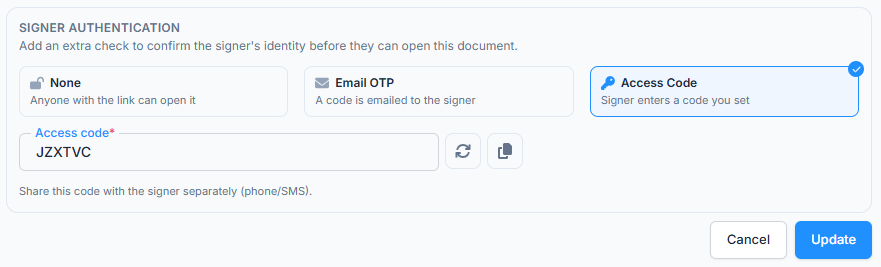
You set one code for the whole Agreement. Every signer types that same code before they can view or sign.
- The code is exactly 6 characters, letters or numbers. Letters are made capital for you.
- Click the circular-arrows button to make a random code, and the copy button to copy it.
- Office-X does not send the code. You decide how signers get it: a phone call, a text, or in person. The form reminds you: “Share this code with the signer separately (phone/SMS).”
The signer sees an Enter access code screen with the document details, types the code, and clicks Verify.
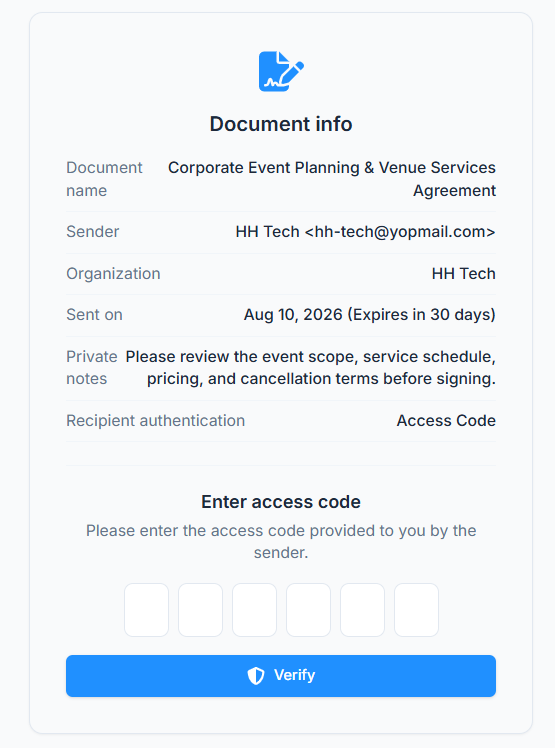
A wrong code shows how many tries are left. After a few wrong tries, the screen tells the signer to contact you. To let them in again, change the code or resend the invitation.
You can see the code and copy it at any time on the Agreement’s View page. While the Agreement is still Draft, Pending Signature, or Partially Signed, you can also change it there:
- Open the Agreement’s View page and click Change code next to the code.
- In the Change access code window, type or generate a New access code. It must be different from the current one.
- Click Save code. You see “Access code updated. Share the new code with your signers.”
Everyone who hasn’t signed yet must now use the new code. That includes anyone who was locked out after too many wrong tries. In a Draft you can also change it from Edit, where the box reads “Access code (leave blank to keep current)”.
Example: you’re sending an equipment agreement and you’d like to confirm the signer’s identity over the phone first. You call them at 555-0142, then read them the access code, instead of relying on their email alone.
Option 3: Email OTP #
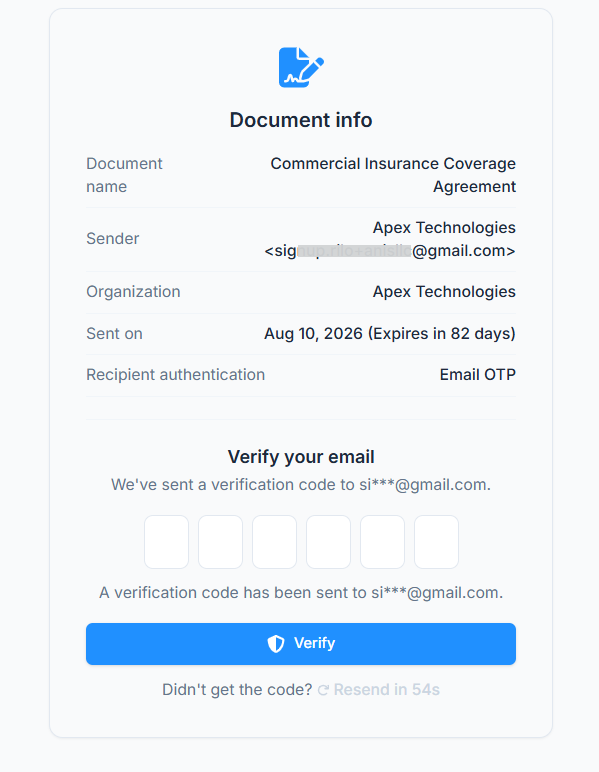
OTP means “one-time passcode”. When a signer opens their link, Office-X emails a 6-digit code to their own address straight away. The email’s subject is “Authentication code for” followed by the Agreement’s title, and the code works for 10 minutes.
- The screen reads Verify your email and shows part of their address (for example sa***@example.com), so they know which inbox to check.
- They type the code and click Verify.
- No email? They click Resend code after a short countdown.
- Once verified, they aren’t asked again on that link.
Good to know: for safety, a signer can only ask for a few codes and make a few wrong tries. If they reach the limit, the screen asks them to contact you. Use Resend Agreement: the fresh link gives them a fresh start.
Example: our Sarah-and-Maria agreement used Email OTP. Sarah received a code by email before she could see anything, and so did Maria once it was her turn.
Agreement Lifecycle #
- Draft: saved, but not sent to anyone yet.
- Pending Signature: sent, and nobody has signed yet.
- Partially Signed: at least one signer has signed, but not everyone.
- Active: every signer has signed.
- Declined: a signer declined.
- Expired: the Expires date passed before everyone signed.
- Terminated: you called it off while it was still waiting for signatures.
Good to know: an Agreement becomes Active only after all signers have signed. Declined, Expired, and Terminated are final and can’t be reopened. To try again, create a new Agreement.
Each signer also has their own status, shown on the View page:
| Signer status | What it means |
|---|---|
| Not sent yet | The Agreement is still a Draft. |
| Waiting for their turn | Someone earlier in the order still has to sign. |
| Awaiting signature | Their link has been sent. |
| Viewing | They’ve opened their link but haven’t finished. |
| Signed | They’ve signed. |
| Declined | They declined. Their reason is shown under their name. |
| Cancelled | The Agreement was declined by someone else or terminated before they acted. |
| Expired | The Agreement expired before they acted. |
How Multi-Signer Order Works #
Signers go in groups, based on each role’s Signing Order number on the template. You see it on each signer row as Signs 1st, Signs #2, and so on.
- When you send, only the signers with the lowest number get their email and link. Everyone else is marked “Waiting for their turn” and gets no link yet.
- As soon as everyone in the current group has signed, Office-X emails the next group automatically.
- Signers who share the same number are one group. They can sign in any order, whoever gets to it first.
This is exactly what happened in our example: Sarah (signs 1st) got her link right away, while Maria (signs #2) got nothing until Sarah had finished.
What a Signer Sees #
Here is the signer’s journey, step by step:
- The email. The subject reads “Your agreement with” your company name, followed by “is Awaiting Your Signature” (later signers see “is Partially Signed”). It shows your company, the Expires on date, and their private note if you left one. They click Review & Sign. If you switched on texts and they have a phone number, they also get a text with the link.
- Opening the link. With None, they see a Document info card (document name, sender, organization, sent date) and click Proceed to Document. With Email OTP or Access Code, the same details appear on the verification screen, together with the code boxes and their private note.
- Consent. They tick “I have read the Electronic Signature Disclosure and agree to use electronic records and signatures for this document.” The disclosure is a link they can open. Then they click Agree & Continue. Office-X records the consent with their name, the time, their IP address, and their device.
- Filling in and signing. A guide highlights each of their fields in turn (“Fill in … below”, or “Click the field to add your signature” with a Sign now button, plus Previous and Next). They can close the guide and bring it back with Guide me. A bar at the top counts their progress, for example “2 / 3 fields complete”.
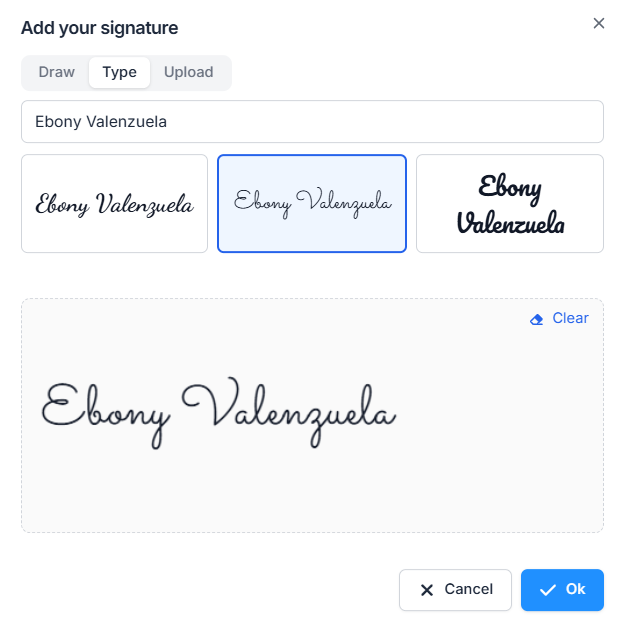
- The signature window. It opens as Add your signature or Add your initials, with three tabs: Draw, Type (their name in a signature font), and Upload (PNG or JPG, up to 2MB). Clear starts over, and Ok places it on the document.
- Finish. The Finish button turns on once every required field is done. Required checkboxes must be ticked. After they click it, they see a thank-you message and, when a copy is ready, a Download button. The fully signed copy is emailed to them once everyone has signed.

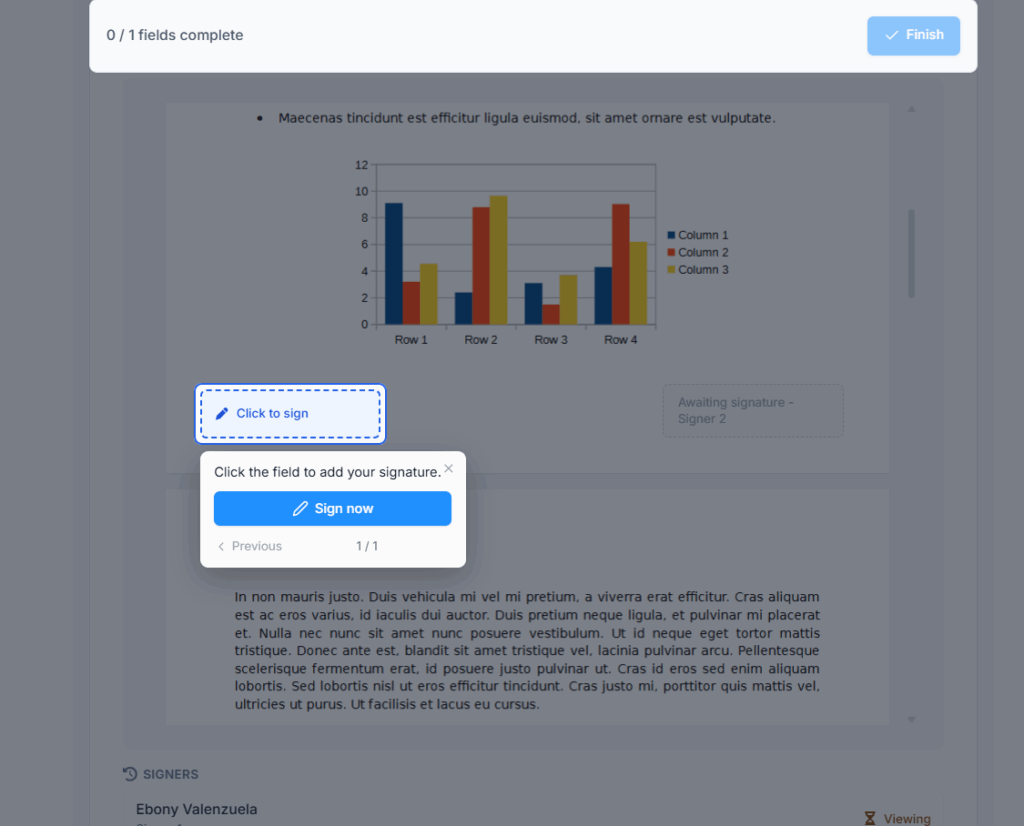
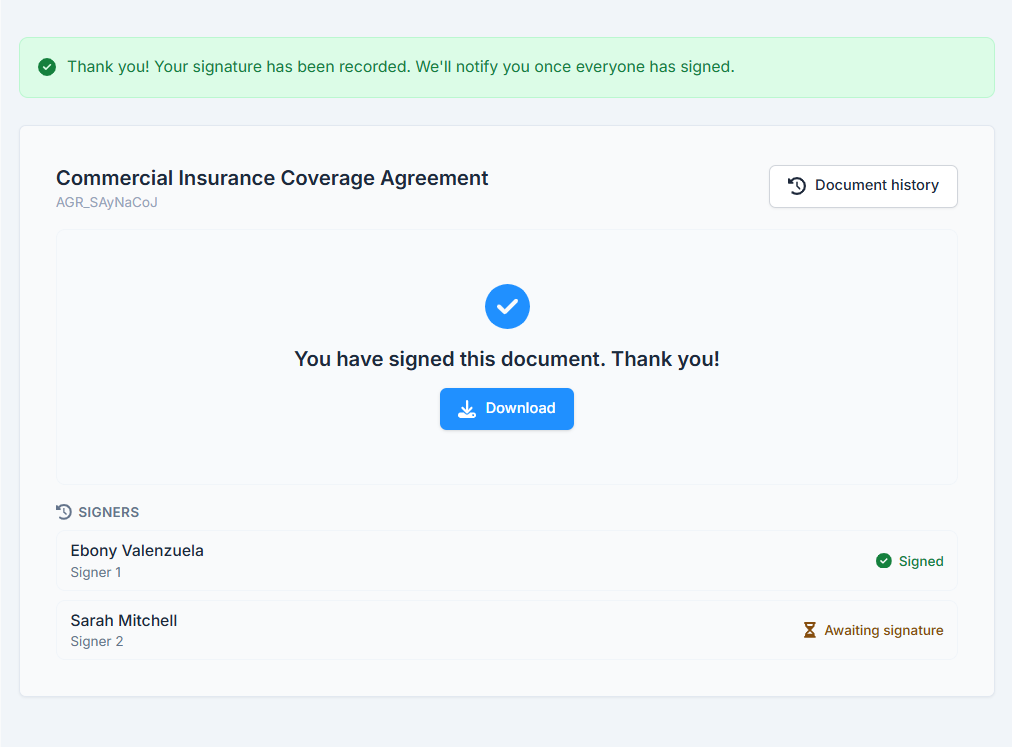
At any time, the signer can click Document history to see when the Agreement was sent, viewed, agreed to, and signed. Their own actions show as “You”. This history never shows IP addresses or devices.
Good to know: a signer draws, types, or uploads their signature and initials only once per Agreement. If the document has an initials box on every page, the same initials are placed on each one automatically.
Good to know: Agreements are not part of the Client Portal. Signers always reach them through the link in their email. If they open a link that can no longer be used, they see one of these messages:
- “This link is invalid or no longer available.”: an older link, after you resent the invitation. They should use the newest email.
- “This link has expired.”: the Expires date has passed.
- “This agreement was terminated by the sender.” or “This agreement was declined by a signer and is no longer active.”: the document is shown, but can’t be signed.
Viewing an Agreement (Your Side) #
Click a row in the list, or choose View from the Action menu. This is your team’s own view of the Agreement, separate from what signers see. From top to bottom, it shows:
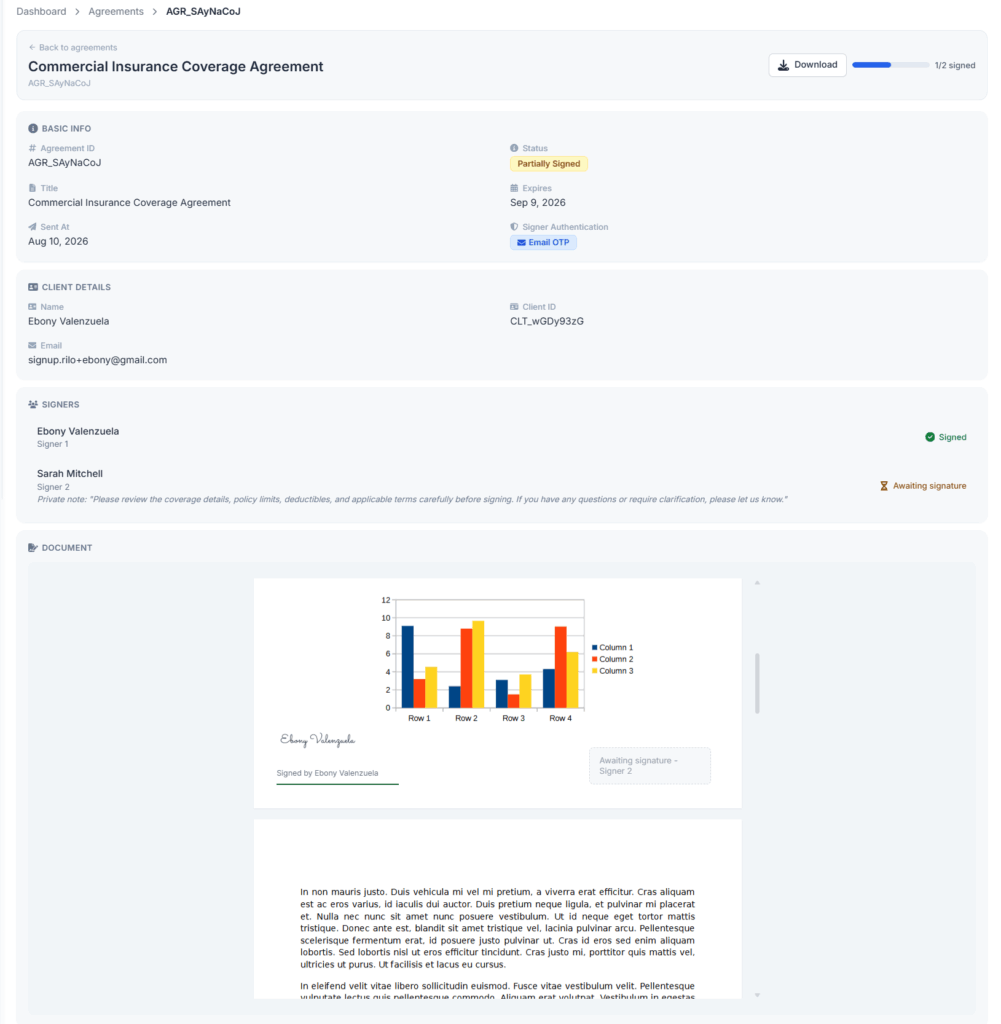
- The header: the title, a Download button once there is a signed copy, and, while signing is under way, a progress bar such as “1/2 signed”.
- Basic Info: Agreement ID, Status, Title, Expires, Sent At, and Signer Authentication. For Access Code, the code sits next to it (click it to copy) with a Change code button. A terminated Agreement also shows its Termination Reason.
- Client Details: the linked client’s name, Client ID, company, and email, or a dash if no client is linked.
- Signers: each signer’s name, role, and status (see the table above), their private note if you left one, and their reason if they declined.
- Document: the Agreement itself, with every field’s current value and every signature collected so far.
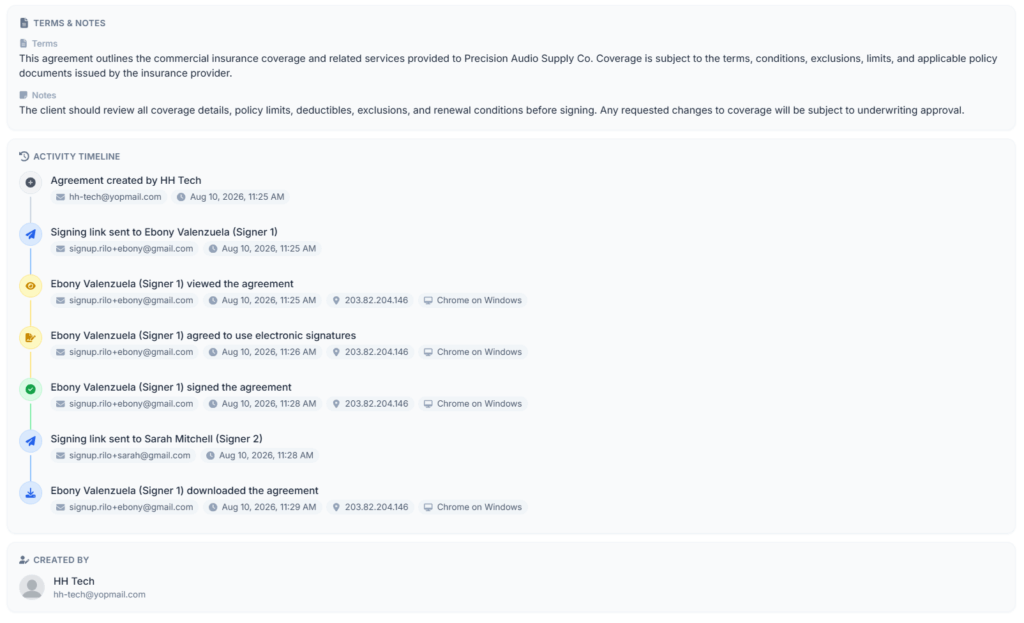
- Terms & Notes, if either was filled in.
- Activity Timeline: every step, in order. It starts with “Agreement created by …”, then shows each link sent or resent, each view, each consent, each signature, a decline, a termination (with its reason), each download, and an expiry. Each entry shows the email, the date and time, and, for signer actions, the IP address and device. This is more detail than the signer’s own history.
- Created By: who created the Agreement, with their photo and email.
What you can do on this page:
- Download the latest PDF. It appears after the first signature, because Office-X makes a new copy after every signature (see “The Signed Document” below). Your download is added to the Activity Timeline as a separate entry from any signer’s download.
- Copy the access code to share it again, or Change code (needs Edit Agreement (For All)). Both are covered under “Option 2: Access Code” above.
Good to know: Edit, Send, Resend, Terminate, and Delete live in the Agreement list’s Action menu, not on this page.
Resending the Invitation #
If a signer says the email never arrived, or they lost it, open the Action menu and click Resend Agreement. It works while the Agreement is Pending Signature or Partially Signed. You see “Agreement resent successfully”.
- It goes only to whoever’s turn it is right now. People who already signed aren’t emailed again, and people still waiting get their own email when their turn comes.
- Each signer gets a new link, and their old link stops working. Ask them to use the newest email.
- The new link gives them a fresh start with verification codes, which helps if they were locked out.
- The Activity Timeline shows “Signing link resent to …”.
Good to know: to avoid flooding a signer’s inbox, you can’t resend to the same person twice in a row within a short time, and there’s an overall limit per Agreement. If you click too soon, you’ll see “Please wait before resending again — these signers were just resent an invitation, or have reached the resend limit.” Wait a minute and try again.
If nobody is currently waiting to sign, you’ll see “No signer is currently awaiting a signature to resend to.” That’s normal. Nothing is stuck.
Good to know: Office-X doesn’t send automatic reminders for Agreements. If a signer is slow to respond, use Resend Agreement as your reminder.
Declining #
A signer can click Decline instead of signing. The button sits next to Agree & Continue, and next to Document history once they’ve agreed.
- A window asks “Decline this agreement?” and warns “This action cannot be undone. The sender will be notified.”
- They type a Reason (required).
- They click Decline, and see “Your response has been recorded.”
Important: a decline ends the whole Agreement, not just that one signer’s part. The status moves to Declined and nobody else can sign.
- Every other signer who hadn’t finished is emailed. The email names who declined and why.
- The person who created the Agreement gets an email and an in-app notification.
- You can read the reason under that signer’s name on the View page.
Terminating an Agreement #
To call off an Agreement before everyone has signed, use Terminate Agreement in the Action menu. It’s available while the Agreement is Pending Signature or Partially Signed.
- Open the Action menu and click Terminate Agreement.
- The window reads “Terminate AGR_a1B2c3D4? All pending signing links will stop working and every remaining signer will be notified.”
- Optional: type a Reason. Signers see it in their email.
- Click Terminate. You see “Agreement terminated successfully” and the status changes to Terminated.
What happens next:
- Every signer who hadn’t signed yet gets an email, plus a text if you switched on the Terminated text message.
- Their link now only shows “This agreement was terminated by the sender.” They can’t sign.
- If someone else created the Agreement, that person gets an in-app notification.
- The reason appears on the View page as the Termination Reason and in the Activity Timeline.
A termination can’t be undone. If you still need the document signed, create a new Agreement.
Expiry #
An Agreement that is still Pending Signature or Partially Signed moves to Expired once its Expires date is over (at the end of that day, in your company’s time zone).
- Office-X checks once a day, and also the moment anyone opens a link after the date. So it shows as Expired even if nobody opens a link again.
- Signing links stop working and show “This link has expired.”
- No email goes out when an Agreement expires. The expiry is added to the Activity Timeline.
Good to know: once an Agreement is Active, its expiry date no longer matters. Active Agreements never expire.
Editing and Deleting an Agreement #
You can edit or delete an Agreement only while it’s a Draft. Once it’s sent, you can’t edit or delete it. Your options are Resend, Terminate, or letting it run its course. Sent Agreements are kept for your records.
To edit a Draft:
- Open the Action menu and click Edit. The Edit Agreement window opens.
- Change the Title, Client, Expires on, your Document Fields, the signers’ details, Terms, Notes, or Signer Authentication. The template can’t be changed. To use a different template, delete the Draft and create a new one.
- Click Update. You see “Agreement updated successfully”.
Good to know: at the moment, a change to a signer’s Phone in the Edit window isn’t saved. If a phone number is wrong and you plan to send texts, delete the Draft and create it again with the right number.
To delete a Draft: open the Action menu and click Delete. The window asks “Are you sure you want to delete AGR_a1B2c3D4? This action cannot be undone.” Click Delete to confirm. You see “Agreement deleted successfully”.
Emails, Texts, and Notifications #
Office-X sends these messages for you:
| When | Who gets it | What they get |
|---|---|---|
| It becomes a signer’s turn (when you send, and when the previous group finishes) | That signer | The invitation email with Review & Sign, plus an optional text |
| A signer opens a link that uses Email OTP | That signer | The “Authentication code for …” email |
| Someone signs, and others still need to | The person who created the Agreement | An in-app notification, for example “Signed by Sarah Mitchell”, saying how many signatures remain |
| The last signer signs | Every signer, and the creator | A “Completed: …” email with the signed PDF attached and a Download Signed Document button. Signers can also get an optional text. The creator also gets an in-app notification. |
| A signer declines | Other signers who hadn’t finished, and the creator | An email naming who declined and why. The creator also gets an in-app notification. |
| You terminate it | Signers who hadn’t signed, and the creator (if someone else terminated it) | Signers get an email and an optional text. The creator gets an in-app notification. |
| It expires | Nobody | No message is sent |
Switching on texts: go to Admin → Notifications and open the Agreements tab. You’ll find three rows: Sent for signature, Fully signed, and Terminated.
- Each row is marked Email active. The email always goes out and can’t be switched off, because the email carries the signing link or the signed copy.
- Turn on SMS on any row to also send a text. The switch works once an SMS account is connected under Admin → Integrations.
- Texts go to the Phone number on each signer row. Signers without a number get the email only.
- Employees need the Manage Client Notifications permission to change these settings.
To change the wording of the emails, go to Templates and edit the Agreement template (every status email) or the Agreement Authentication template (the code email).
The Signed Document #

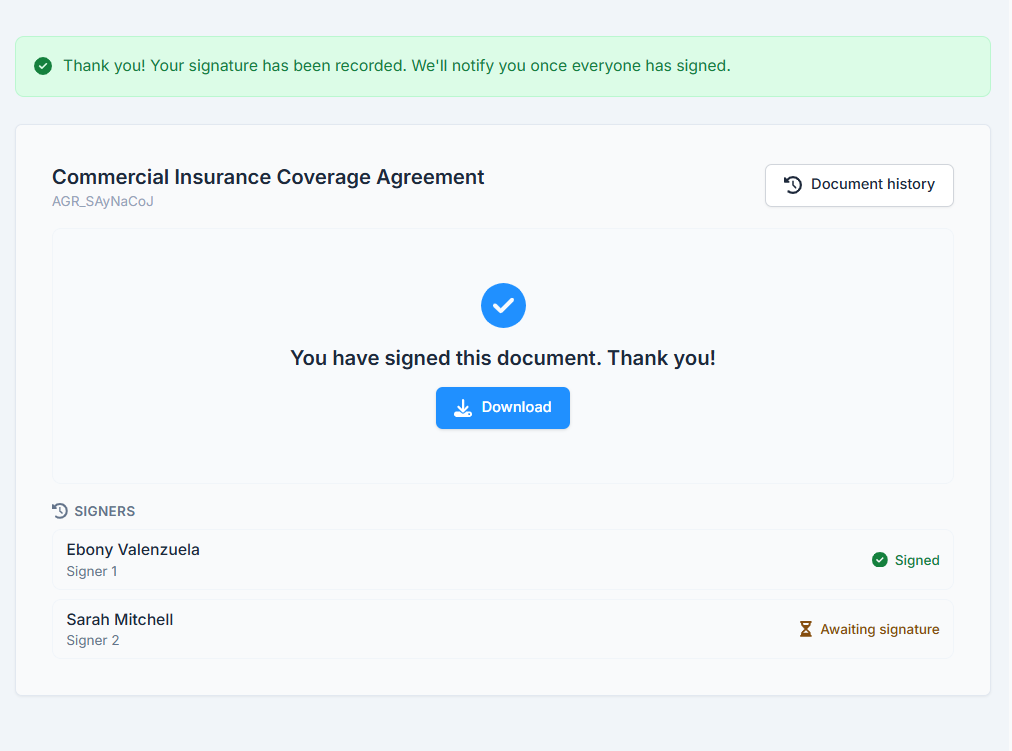
Office-X makes a new PDF after every signature, not only at the end. So there’s always an up-to-date copy showing who has signed so far. Your team downloads it from the View page, and a signer can download it after they’ve signed.
- The PDF shows every field value, each signature or set of initials with “Signed by:” and the signer’s name under it, and each signer’s signing date where the template has a date-signed field.
- When the Agreement becomes Active, the final PDF is emailed as an attachment to every signer and to whoever created the Agreement.
Good to know: the PDF doesn’t include a separate audit certificate page. The full signing record, with times, IP addresses, and devices, stays in the Activity Timeline on the View page.
How Agreements Connect to the Rest of CRM #
- Docs: every Agreement is created from a Doc template, and keeps its own copy of that template’s fields, signer roles, and settings from the moment you save it. See the Docs guide for what that means. Only Active templates with at least one signer role can be used, and a template that has been used at least once can no longer be deleted.
- Clients: linking a Client is optional. The people who sign are the signers you add by name and email, and they don’t have to match a Client record. When a Client is linked, the Agreement’s emails and texts appear in that client’s communications on their page. A Client with Agreements can no longer be deleted.
- Client Portal: Agreements don’t appear in the Client Portal. Signers always use the link in their email.
Activity Log #
Alongside each Agreement’s own Activity Timeline, your company’s central log records Agreement activity with who did it and when. You’ll find it under Dashboard → Activity Log, filtered to Agreement. See the Activity Logs guide for how to search it.
- Your team’s actions: an Agreement created, edited (showing what changed, old and new), sent, resent, its access code changed (never the code itself), terminated, deleted, or downloaded from the dashboard.
- Signers’ actions, recorded by Office-X on their behalf: a verification code sent, identity verified, consent to sign electronically, a signature or a decline, and a download from the signing page. Each daily expiry is logged too.
Views of a signing link are recorded only in the Agreement’s own Activity Timeline, together with the IP address and device used.
Summary #
Agreements turns a Docs template into a real signature request. You handle the setup: the template, the signers, the verification method, and sending. Each signer simply opens their link, proves who they are if asked, and signs. Office-X emails each group in the right order, keeps an up-to-date PDF after every signature, and marks the Agreement Active once the last signer has signed. A decline, an expiry date, or a termination ends it for good. So use Drafts freely to get everything right, and check the details before you send.
