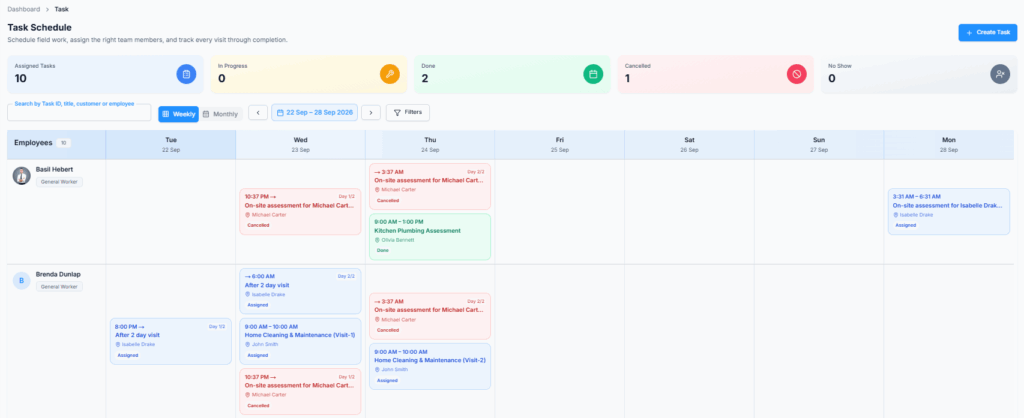
Task Schedule is the day-to-day planning area for client visits. It shows which employees are assigned, when each visit will happen, its current status, and where the team still has room for more work.
Route: Dashboard → Task → Schedule
Availability: Task Management is a paid add-on. It is not included in any plan by default. Your company must be on the Advance plan and must buy the Task add-on. Task works on top of CRM, so the CRM add-on must be active too. If any of these is missing, the Task pages show a “not included in your plan” screen with a See add-ons button. The Subscriber Admin manages add-ons from Business → Billing & Payment.
Good to know: if your company has CRM but not the Task add-on, the task options inside CRM (for example Convert to Task on an estimate) are still shown, with a small lock badge. Hover over it to read “Needs the Task Management add-on. Click to see how to turn it on.” Clicking it opens the Task page, which explains how to add it.
Three People, Three Different Views #
One visit is seen by three different people, and each of them sees a different amount of it on purpose. This guide has three parts, so you can read the one that is yours:
| Who | What they work with | Read |
|---|---|---|
| The office – Subscriber Admin, coordinator, dispatcher | The whole company’s grid. Creates the work, assigns people, moves visits, prices them, records client confirmations, closes the Task and bills it. | Part 1 |
| The employee assigned to the Task – the assigned staff member or crew | Their own visits. Starts and finishes the work, records time, ticks the checklist, adds photos and expenses. | Part 2 |
| The client | Their own appointments only – by email or text, and in the Client Portal, where they can confirm a visit. Never the internal schedule. | Part 3 |
Some things appear in more than one part on purpose. For example, starting a visit is described in full for the employee doing it, and in short for the coordinator watching it happen.
Who Can See the Schedule? #
The Subscriber Admin can see and manage the whole company schedule without any permission.
Employees always see visits assigned to themselves and to their whole reporting chain. They can always open a visit they are assigned to or created. What they can change depends on the status owner rule and on the permissions below. You grant these under Admin → Permissions → Task Management:
| Permission | Action | What it lets them do |
|---|---|---|
| View Task Schedule (For All) | View | See the whole company’s grid, not just their own row and their reporting chain. |
| View Task Details (For Others) | View | Open a visit they did not create and are not assigned to. This is also the permission that shows Task and visit prices. Without it, they can do the work without seeing what the client pays. |
| Create Task (For All) | Create | Create work and assign it to anybody in the company. It also allows Add visit on an As-needed Task. |
| Create Task (For Subordinate) | Create | Create work for themselves and the people in their whole reporting chain. It also allows Add visit, for the same people. |
| Edit Task (For All) | Update | Change Task and visit details while they are still open, and record that a client confirmed over the phone. |
| Reassign Task | Update | Move a visit to different people or another team, and choose the status owner. |
| Schedule / Reschedule Task Visits (For All) | Update | Move a booked visit, give a date to a visit that is waiting to be scheduled, and record that a client confirmed over the phone. |
| Update Task Status (For All) | Update | Start, complete, cancel or mark No Show on somebody else’s visit. It does not close the whole Task. |
| Close Task (For All) | Update | New. Close the whole Task once every visit is done or cancelled. Nobody has it until you grant it. |
| Manage Task Checklist (For All) | Update | Fill in or correct the checklist on somebody else’s visit. |
| View Task History (For All) | View | See the whole company’s visit history. It does not show prices on its own. |
| View Scheduled Tasks (For All) | View | See every Task in the Scheduled tasks list. It used to be called “View Scheduled Tasks & Pricing (For All)”. It no longer shows prices; that now comes from View Task Details (For Others). |
| Log Time Entries (For All) | Update | Log or correct hours that are not yet approved, for any assignee. |
| Approve/Reject Time Entries (For All) | Update | Approve, reject or reopen submitted hours. |
| Delete Time Entries (For All) | Delete | Delete a pending or rejected time entry. An approved entry must be reopened first. |
| View Time Entries (For All) | View | See everybody’s time entries, not only their own. |
You can give these permissions to one employee, or to a whole team at once. See the Permissions Management guide for how to assign them. Expense permissions are not in this group any more. They have their own Expenses group.
Good to know: an assigned employee can always open the visit and see their own time entries. When a visit has a status owner, only that owner can change its status and fill in its checklist without a wider permission. An ordinary co-assignee cannot start, complete, cancel, mark No Show or fill the checklist. On an older visit with no status owner, any assignee may do these things.
Clients never see the internal Schedule. When Client Portal appointments are turned on, they see only their own visits. See Part 3.
Before You Start #
- Your clients live in CRM. A Task is always for an active client from CRM → Clients. The Task form searches clients by name, company, email or phone. If the client does not exist yet, you can add them right from the search (see below).
- Decide who your status owners are. When two or more people are on a visit, one of them is named the status owner and reports the outcome for everybody. It is required on every visit with a crew, so agree on the habit before you build the schedule.
- Check what the client will be told. When you book a new Task, the client is asked to confirm the first visit. The main visit emails (confirmed, details updated, rescheduled, completed, cancelled and missed visit) are always on. The visit reminder and “crew on the way” messages are optional and off by default. Their settings are under Admin → Notifications. See Part 3.
- Turn on the Client Portal if you want clients to confirm online. The “please confirm” email needs the Client Portal and its Appointments page to be on, and the client needs an email address.
- Check reporting lines and licenses. You can only assign active, licensed employees. The (For Subordinate) permissions follow the whole reporting chain.
Part 1 – For the Office: Planning and Running the Work #
How the Schedule Works #
The Task Schedule page lists employees down the side and dates across the top. Each assigned visit is a block in that person’s row. Switch between Weekly and Monthly, and use the arrows beside the date range to move to the previous or next week or month.
Five summary cards above the grid count what is in view, for the period and filters you chose: Assigned Tasks, In Progress, Done, Cancelled and No Show.
- Search – “Search by Task ID, title, customer or employee”.
- Filters – opens a panel with Status, Team, From Date and To Date. Select Apply Filters to use them, or Clear All to reset. A custom date range needs both dates. While it is on, the week and month arrows are switched off.
- Select a visit to open its page, when you have access to it.
Only booked visits appear on the grid. A visit that is still waiting for a date has no place on the calendar and does not hold anybody’s time.
The employee rows let a coordinator see who is busy and where there is room for another visit. Filters change what you see, so clear them before you make a company-wide workload decision.
Good to know: the grid is built from assignees. A Task you created but are not assigned to does not appear in a row of your own. Open Task → History → Scheduled tasks instead. Tasks you created are always in your Scheduled tasks list.
Create from the Schedule #
Employees with Create Task (For All) can assign anyone in the company. Employees with Create Task (For Subordinate) can create work for themselves and their reporting team – the whole chain below them, not only their direct reports.
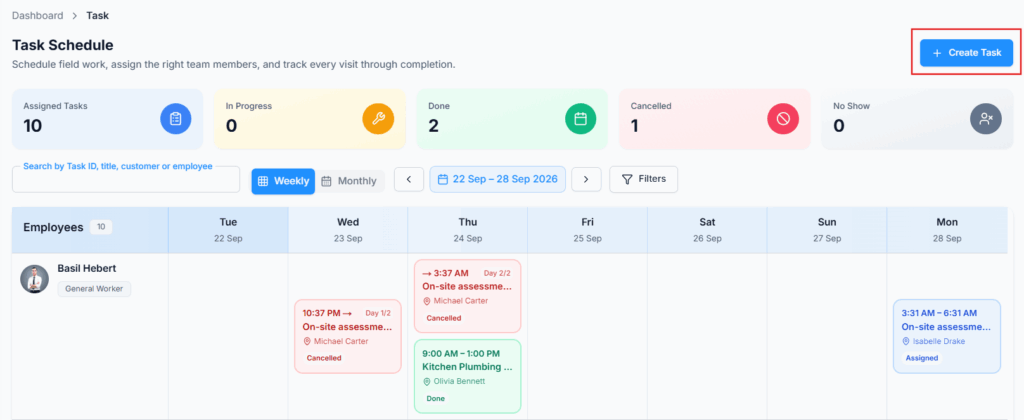
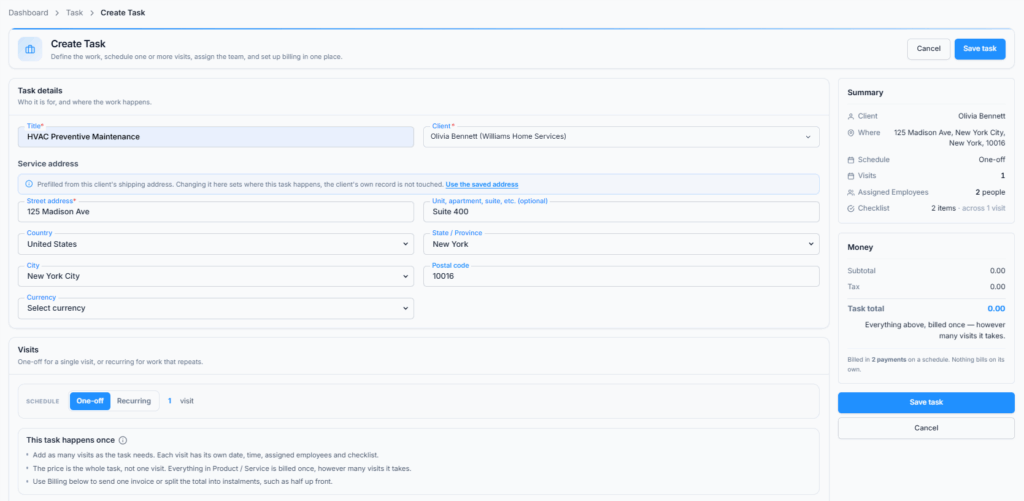
- On the Task Schedule page, select Create Task (top right). The Create Task page opens.
- Under Task details, pick the Client. Type in “Search client by name, company, email or phone”. If nobody matches, select Add new client. The new-client form opens with what you typed, and the client is picked for you when you save it.
- Check the service address. It fills in from the client’s shipping address. You can change it for this Task only; the client’s own record is not touched. Street address and City are required.
- Enter a Title (required, up to 200 characters), for example “Weekly office cleaning”, and choose the Currency.
- Under Visits, choose One-off or Recurring and plan the visits. Both are explained below.
- Add items under Product / Service. Pricing is optional: you can schedule now and add prices later.
- Set up Billing (One-off) or Billing & automatic payments (Recurring). See Pricing and Billing below.
- Add Notes if you need to (up to 5,000 characters). Notes are internal and never shown to the client.
- Select Save task. The button reads Scheduling… while Office-X checks everyone’s availability and books the visits. When it finishes, the Task page opens.
If some visits clash. Office-X books every visit it can and skips the ones where an assigned employee is already busy. You stay on the form and see “The task was created, but 2 visits could not be scheduled”, with each skipped date and who was busy. Select Open the task to fix them. If every visit clashes, nothing is saved. You see “Not saved — there is a scheduling conflict. See the details beside Save.”, and the clashes are listed next to the Save button.
Work does not only start here. A Task can reach your schedule three ways. They all end up as the same thing: a Task with one or more visits.
- You create it, as described above.
- From an accepted estimate – Convert to Task copies the estimate’s client, service address, items, totals and currency into the Create Task page, with the note “Prefilled from the accepted estimate. Review the visits, team, and pricing before saving.” You still choose One-off or Recurring, dates, crew, status owner, checklist and billing. The employee needs either Convert Estimate to Task or a Create Task permission. The estimate itself does not change. If it already has a Task, you see “This estimate already has a task” with an Open the existing task button. Saving anyway makes a second Task, which is fine when one estimate covers several phases of work.
- From a CRM Request – a Request can be saved without an assessment, or someone can book its optional On-site assessment. This uses the CRM permission Book / Reschedule On-site Assessment Visit (For All), or its subordinate version, not a Task Create permission. A booked assessment is a real Task visit with a date and time, service address, crew, status owner, instructions and optional checklist. It uses the same clash check and statuses as other visits, and appears under Source: Request in Visit history. Its client confirmation is handled on the Request, not on the visit. See the Requests guide.
One-Off #
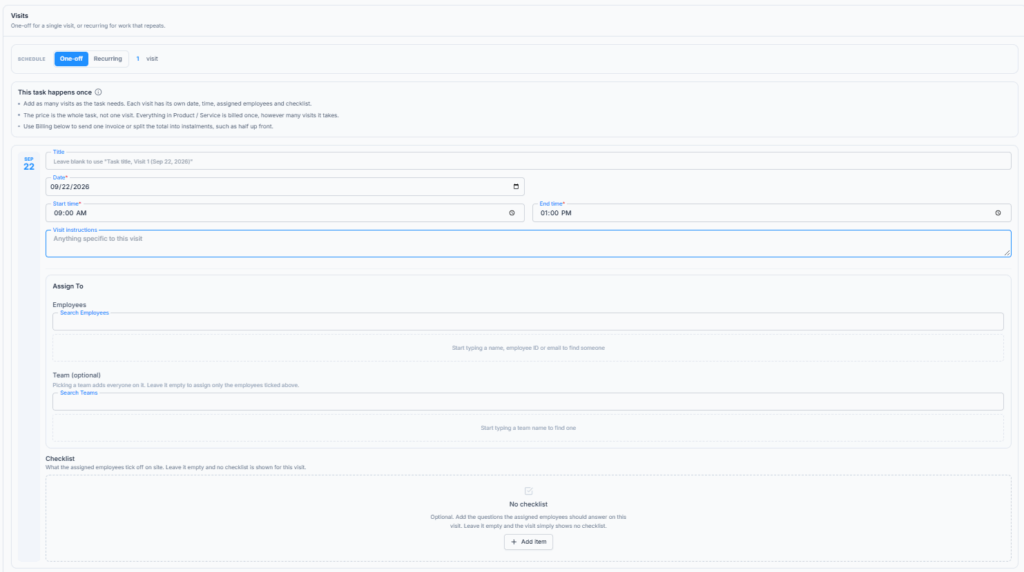
Use One-off for work with a clear end, such as a repair, an installation or a one-time clean. It can still have several visits – up to 50 on one Task. Each visit row has its own:
- Title – optional. Leave it blank and Office-X names the visit after the Task and its date, for example “Kitchen remodel, Visit 2 (Sep 14, 2026)”.
- Date, Start time and End time – all required.
- Buffer (minutes) – travel or clean-up time after this visit. See Buffers below.
- Visit instructions – up to 2,000 characters.
- Assigned employees – pick people or a team. Every visit needs at least one person. If you pick two or more, answer Who owns this visit’s status?
- Checklist – the questions the crew answers on site. Leave it empty and the visit shows no checklist.
Select Add a visit to add another row. The new row copies the one above it (times, crew, status owner, instructions and checklist), so usually you only change the date. At 50 visits you see “That is the most one task can hold (50). For anything longer, use a recurring schedule.”
A One-off Task has one price for the whole job. Everything under Product / Service is billed once, however many visits it takes.
Recurring #
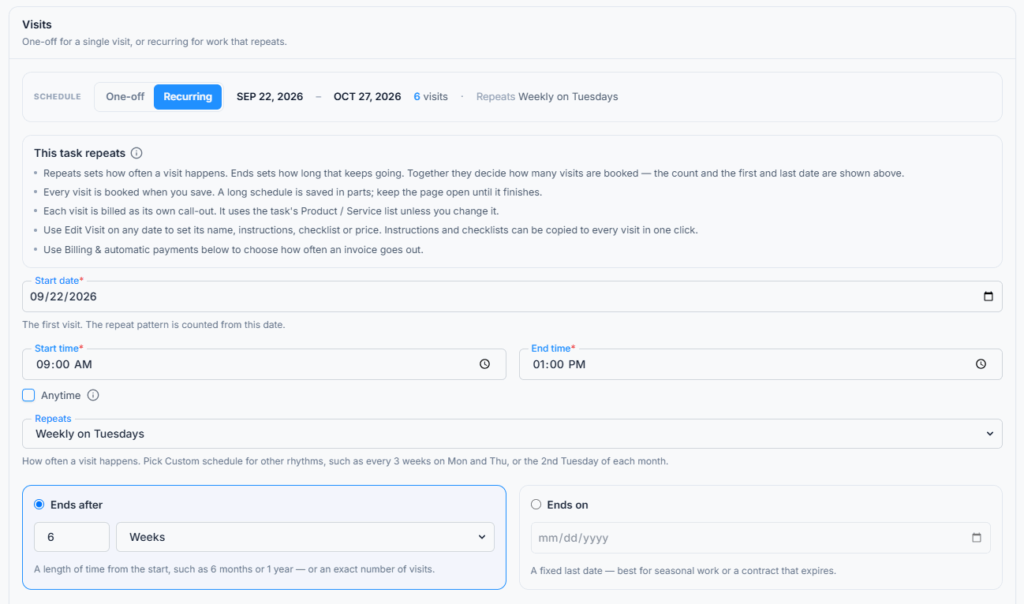
Use Recurring for ongoing work, such as a weekly clean or a monthly service. You set the schedule once, and Office-X books every visit it produces.
- Set the Start date (the first visit) and, if you need one, the Buffer (minutes) for every visit.
- Set the Start time and End time that every visit gets. Every recurring visit has a real time window; there is no “Anytime” choice.
- Choose how it Repeats. The quick choices use your start date: Daily, Weekly on Fridays, Every 2 weeks on Fridays, Monthly on the 14th, and As needed – we won’t prompt you. For anything else, choose Custom schedule…
- Choose how it ends: Ends after a number (1 to 999) of Visits, Days, Weeks, Months or Years, or Ends on a fixed last date.
- Under Assign, pick who attends every visit – employees or a team. At least one is required. With two or more people, answer Who owns each visit’s status?
Custom schedule… opens Set up recurring schedule. Choose Every (1 to 365) and a Unit (days, weeks, months or years). For weeks, tick one or more weekdays. For months, choose one of two ways:
- Day of month – pick one or more dates from 1 to 31, or Last day. A date a month does not have (the 31st in April) moves to that month’s last day.
- Day of week – pick a week and a weekday, such as the 2nd Tuesday or the Last Friday. Pick more than one for several visits a month.
A yearly rule keeps the same month and day. The dialog shows the rule in words and how many visits it makes. Select Save to use it.
The bar at the top of Visits shows the first and last date, the number of visits and the rule in words. One recurring Task can hold up to 1,000 visits. If your rule makes more, you see “That makes more than 1000 visits. End it sooner, or repeat less often.”
Change one date before you save. The Visits being scheduled list shows every date (the first 30, then Show all). Select Edit Visit on a date to give that one visit its own title, buffer, instructions, checklist or price. You can also copy its instructions or checklist to every visit in one click.
Every visit is booked when you save. There is no rolling limit: the whole schedule goes onto the calendar at once. A long schedule is booked in parts. A Booking visits… window shows “120 of 260 visits done. Keep this page open until it finishes.” Keep the page open until it closes by itself. Dates that clash with the assigned employees are skipped and listed; the other dates stay booked. If every date clashes, nothing is saved.
If saving is interrupted (you closed the tab, or the connection dropped), the Task is still saved with the visits booked so far. The Task page shows “Not every visit of this schedule has been booked yet… The save was interrupted before it finished.” and a Book remaining visits button. Only the person who created the Task, or the Subscriber Admin, can finish it. Anyone else sees “Only the person who created this task can book its remaining visits.”
Good to know: visits booked with Book remaining visits use the Task’s normal title, instructions, checklist and price. Changes you made with Edit Visit for those later dates on the create form are not carried over, so check them afterward.
As needed: choose this when the client calls you whenever they need service. It creates a Recurring Task that books no visits by itself. The time fields and the Assign section are switched off, and the header reads “0 visits · Repeats As needed”. When the client calls, open the Task and select Add visit:
- Enter the Date, Start time and End time (the end must be after the start).
- Pick the employees, or leave it empty and assign someone later with Reassign. With two or more people, choose who owns the visit’s status.
- Check the title, instructions and checklist. They start as the Task’s own. Leave the title blank to name it after the Task and date.
- Check the products. They start as the Task’s list. Leave them as they are and the visit bills the Task’s list; change anything and this visit gets its own price.
- Select Add visit. If someone is already busy at that time, the window names the clash so you can change the time or the crew.
Add visit needs Create Task (For All) or Create Task (For Subordinate) (the Subscriber Admin always has it). It is only on As-needed Tasks, and not once the Task is Closed or Cancelled.
Example: For cleaning at Riverside Dental every second Friday for six months, set the Start date to the first Friday, choose Every 2 weeks on Fridays, and choose Ends after 6 Months.
Every Booked Visit Needs a Date and Time #
Office-X no longer offers Schedule later or Anytime that day anywhere – not on One-off or Recurring Tasks, not in Add visit, and not when you schedule a waiting visit. A visit is added only when it has a date, a start time and an end time. If the client has not agreed on a time yet, keep the work as a CRM Request or Estimate, or create an As needed Task and add the visit when the date is known.
Visits waiting for a date. Older Tasks, created when Schedule later still existed, may have a card called Waiting to be scheduled on the Task page: “Added without a date. Nothing is booked and nobody is held for these until you give one a date and time.” These visits hold no employee time and cannot be billed. To book one:
- Select Schedule beside the visit. The Schedule this visit window opens.
- Enter the Date, Start time and End time.
- Select Schedule visit. It becomes a real visit on the Task, with the title, instructions, checklist, crew and price it was saved with. The usual clash check runs first.
Scheduling a waiting visit needs Schedule / Reschedule Task Visits (For All). A Task with waiting visits cannot be closed.
Good to know: there is no button to delete a waiting visit. If the work is no longer needed, schedule it and then cancel it (the client is emailed about the cancellation). In the Client Portal, a waiting visit shows under Not yet scheduled as “Booked in, but we haven’t fixed a time with you yet.”
The Status Owner #
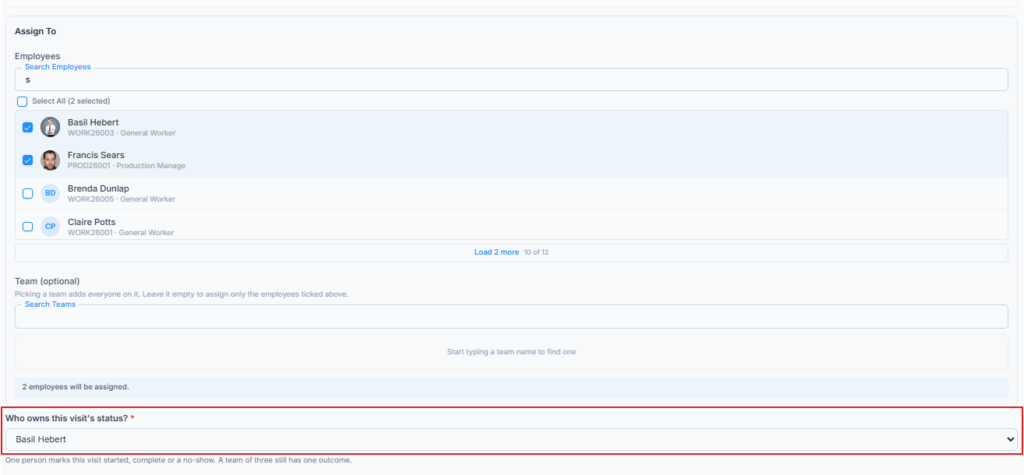
The status owner is one assigned employee who reports the visit’s single shared outcome. The form asks “Who owns this visit’s status?” and the hint says it well: “One person marks this visit started, complete or a no-show. A team of three still has one outcome.”
Without any company-wide permission, the status owner can start, complete, cancel or mark the visit No Show, fill in its checklist, manage the whole crew’s Task time, and add their own expenses on that visit.
For time, the status owner may log or correct hours for any assignee, approve or reject other assignees’ entries, reopen approved entries, and delete pending or rejected entries. They cannot approve their own hours. An ordinary co-assignee can read their own time rows, but needs Log Time Entries (For All) to create or correct a row.
One action, one visit outcome. A visit does not keep a separate status for each person. When the owner records an outcome, the visit changes for the whole crew, and the co-assignees are told in the app.
Example: Danny Ruiz and Maria Lopez are assigned, and Danny is the status owner. Danny controls the visit status and can record time for both of them. Danny can approve Maria’s hours but not his own. Maria can read her own hours; without the wider logging permission, she gives her hours to Danny to record.
Responsibility can move. With Reassign Task you can hand the status owner role to another assigned person, even while the visit is in progress – which is exactly when somebody’s phone dies or a shift ends.
Buffers and Double Booking #
Office-X never lets the same employee have two Task visits at the same time. A buffer adds travel or clean-up time after a visit. The assigned people stay booked until the buffer ends, so nothing else can be scheduled for them then.
- When you create a Task: each One-off visit has its own Buffer (minutes). A Recurring Task has one buffer for every visit, next to the Start date, and Edit Visit can give one date its own (“Leave empty to use the task’s buffer”).
- When you edit a Task: changing the Task’s buffer updates its upcoming visits. A visit where the longer buffer would overlap other work keeps its old buffer, and the save message tells you how many did.
- On one visit: the visit’s own Edit has Buffer after the visit (minutes).
- Limits: whole minutes, from 0 up to 24 hours (1,440 minutes). A bigger number shows “Buffer cannot exceed 24 hours”.
On the visit page, a buffer shows under the time, for example “+30m buffer — occupied until 1:30 PM”.
When you book, move or reassign a visit, Office-X checks each person’s other visits and refuses a real clash. It names the clash so you know what you are up against:
Scheduling conflict — Maria Lopez already has TSK_a1B2c3D4 (Aug 25, 2026, 9:00 AM – 1:30 PM).
- A visit finished early only blocks the time it actually used, so the rest of the slot is free again.
- A cancelled or No Show visit frees its time completely.
- The check looks at other Task visits only. It does not read work schedules, approved leave, holidays or shifts, so the coordinator must still check who is available. Task visits and Task time do not change Attendance, payroll or overtime.
Visit Statuses #
- Assigned: booked and on the crew’s schedule. Nobody has started it, and it still holds their time.
- In Progress: someone has started it on site.
- Done: finished on site. A visit has to be Done before it is billed automatically.
- Cancelled: called off. It is not billable, the crew’s time is freed, the checklist is closed, and it disappears from the client’s appointments.
- No Show: the crew went, but the client was not there. It stays on the record and in the client’s appointments so it can be booked again.
Overdue is a warning badge, not a status. It appears when a visit is past its time and nobody has recorded the outcome. Record the real outcome as soon as you can.
The normal path is Assigned → In Progress → Done. Start is only offered on an Assigned visit, and Complete only after Start. Cancel and No Show can be recorded from Assigned or In Progress. Done and Cancelled visits are closed: their details, schedule, crew and status can no longer change. A No Show cannot be started directly. Use Reschedule visit to send it back to Assigned; the No Show stays in the timeline.
Open a Visit #
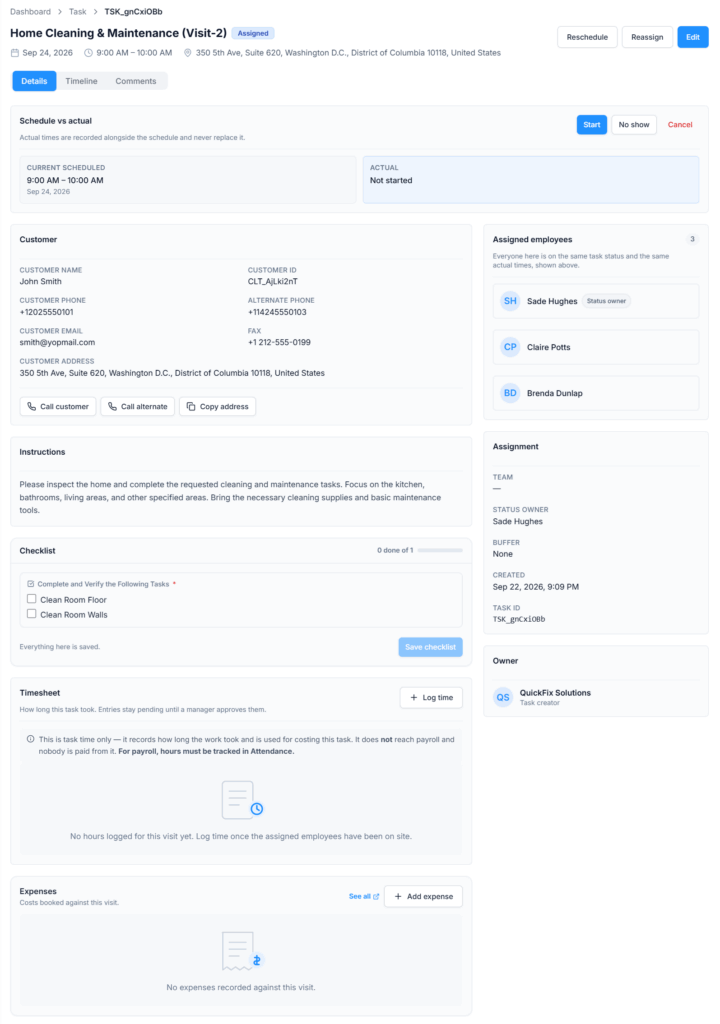
Each visit has its own page with a TSK_ ID. The header shows the title, status, date, time and address, with Reschedule, Reassign and Edit buttons (if you have those permissions). The page has three tabs: Details, Timeline and Comments. The Details tab brings everything together:
- Schedule vs actual – the Current Scheduled time, the Actual time, and the Initial Scheduled time once a visit has been moved. The Start, Complete, No show and Cancel buttons sit here.
- Customer – name, client ID, phone numbers, email and the service address, with call buttons and Copy address. It also shows whether the client has confirmed the visit (see Client Confirmation below).
- Attachments and Instructions.
- Checklist – the questions and their answers.
- The products the client asked about, when the visit came from a Request.
- Task time – hours and their review status.
- Expenses – costs booked against this visit.
- Assigned employees, Assignment (team, status owner, buffer, created date, Task ID) and Owner (the Task creator).
Client Confirmation #
When you book a new Task, Office-X does not tell the client “you’re confirmed” straight away. It first asks them to agree to the time:
- The client gets an email, “Please confirm your service visit“, with the time, the address, who is coming, and a Confirm my appointment button. The button opens the Appointments page of their Client Portal.
- On the visit page, the Customer card shows Customer has not confirmed yet and “Asked to confirm by email on…”.
- When the client presses Confirm appointment in the portal, the card changes to Customer confirmed this visit with the date, and the client gets “Your service visit is confirmed“.
If the client confirms by phone:
- Open the visit and select Confirmed over the phone in the Customer card.
- Office-X asks “Did they confirm over the phone?”. Select Yes, confirmed.
- You see “Marked as confirmed. The confirmation has been sent to the customer.” The client gets the same “confirmed” email as if they had pressed the button, and the timeline records “Confirmed over the phone”.
The button needs Edit Task (For All) or Schedule / Reschedule Task Visits (For All) (the Subscriber Admin always has it). It is shown only on Assigned or In Progress visits that are not yet confirmed. It is not shown on an on-site assessment visit; confirm those on the Request instead.
When the client can’t be asked. If the client has no email address, the Client Portal is off, or its Appointments page is hidden, nobody could answer the question. In that case Office-X skips the ask and sends “Your service visit is confirmed” straight away.
Good to know:
- The ask goes out by email only. If you text clients, the “Visit confirmed” text goes out with the confirmed email, after they say yes.
- Office-X asks about the first visit of a new Task. Later visits (other visits on the Task, visits made with Add visit, and waiting visits you schedule) are not emailed to the client. They appear in the client’s portal, where the client can confirm each one. Call or email the client yourself when a new visit needs their attention.
- Moving a visit sends the “rescheduled” email but does not ask again. A visit the client already confirmed stays confirmed at its new time.
- If you use a visit’s Edit to point it at a different client, that client is asked to confirm.
Reschedule a Visit #
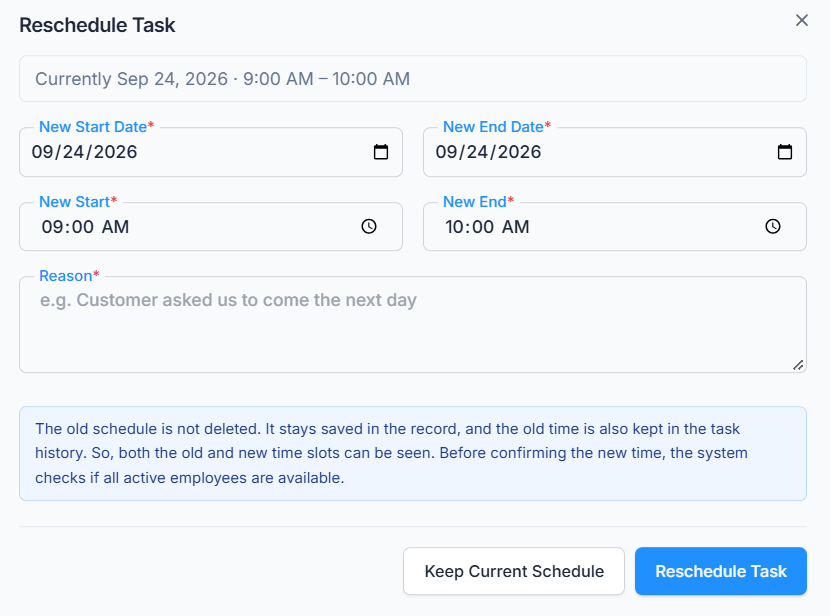
- Open the visit and select Reschedule (on a No Show visit the button reads Reschedule visit).
- In Reschedule Task, choose the New Start Date, New End Date, New Start and New End.
- Enter a Reason. It is required (up to 1,000 characters), for example “Customer asked us to come the next day”.
- Select Reschedule Task. Office-X checks the crew’s availability at the new time and refuses a clash.
Use Reschedule for any change of date or time. Edit does not change the schedule.
Good to know: rescheduling reaches the client. They are always emailed “Your service visit has been rescheduled” with the old and new time and your reason, and the appointment in their Client Portal moves with it. Move a visit only when you mean the client to know.
Reassign a Visit #
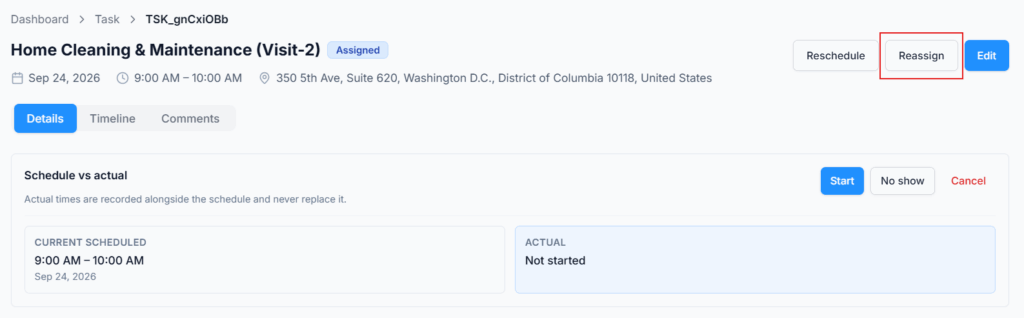
Use Reassign when the work moves to different employees or another team. In Reassign Task, add or remove people (or pick a team), choose the Status Owner, enter a Reason (required), and select Reassign Task. The change is recorded in the timeline, and the new crew is told. A person you remove is told too.
The same availability check applies to the people you move it to, so a reassignment can be refused for a clash just like a new booking. If you change nothing, you see “Nothing changed. Add or remove an assignee, or hand the status to somebody else.”
Edit a Task or a Visit #
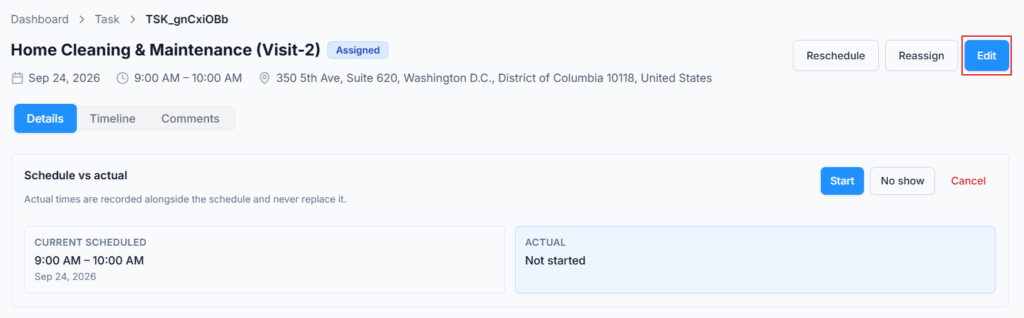
There are two Edit buttons, and they change different things. Both need Edit Task (For All).
Edit the Whole Task #
Open the Task page (from a visit, or from Task → History → Scheduled tasks) and select Edit. The Edit Task page looks like the create form. You can change the title, service address, currency, buffer, Product / Service, billing and notes. The client cannot change: the field says “This task is booked and cannot change its client.”
Dates, times and crews are locked here, because moving a visit needs the availability check. A note at the top of Visits says “These visits are already booked — changes here go straight to them”, with a link: Open the task to reschedule or reassign a visit →. What you can change on booked visits depends on the kind of Task:
- One-off Task: each visit row’s Title, Visit instructions and Checklist can be changed right there. Saving updates the real visit, so the crew sees the new wording. A finished or cancelled visit is left alone as the record of what happened, and its row says so.
- Recurring Task: there are no visit rows to edit, because the rule makes the dates. Instead you change the Task’s own Instructions and Checklist, which every future visit uses. When you save, you can also push them onto the visits already booked.
When a save will change booked visits, Office-X asks first in a Save these changes? window:
- On a One-off Task it says how many booked visits will change. Checklist answers already recorded are kept, but an item you removed takes its answer with it.
- On a Recurring Task, Also update the visits already booked is ticked. It tells you how many visits get the new wording. Visits somebody gave their own wording in Edit Visit are left alone, unless you also tick Replace the wording on those too — what somebody wrote for them is lost. Finished and cancelled visits never change. Untick the first box and only visits created from now on use the new wording.
Select Save changes to go ahead, or Go back. Editing the whole Task does not email the client. The Edit button is hidden on a Cancelled Task. People without View Task Details (For Others) do not see the pricing sections, and their save leaves the prices as they were.
Edit One Visit #
On a visit’s own page, select Edit. The Edit Task window changes this visit only:
- Task Title (up to 200 characters) and Description / Instructions (up to 2,000 characters).
- Attachments – JPG, PNG or PDF, up to 5 files, 5 MB each.
- Customer – search to point the visit at a different client. Their phone and email are shown but not edited here; use Edit this customer for that.
- Customer Address (up to 500 characters) and Buffer after the visit (minutes).
- Reason – optional on an Assigned visit, and required once the visit has started: “This task has already started. Add a reason before saving your changes.”
Select Save Changes. Done and Cancelled visits cannot be edited.
Good to know: two of these edits reach the client – the title and the address. Change either and the client gets “Your service visit details have been updated“, which says clearly that the time has not moved, so nobody goes looking for a new date. Pointing the visit at a different client asks that client to confirm it.
The pencil on the Task page. On a Task billed per visit, the pencil beside a visit opens Edit Visit for that visit’s Product / Service lines only. Its instructions and checklist are shown but cannot be changed there. A visit already on an invoice is locked (“This visit has already been invoiced. Edit or void the invoice instead.”), and so is a cancelled one.
Recording Work on Somebody’s Behalf #
Sometimes the office has to record what happened because the crew cannot: a phone with no signal, a van that already left the site, somebody who forgot to press Complete before going home.
Update Task Status (For All) allows that – starting, completing, cancelling or marking No Show on a visit that is not yours. Manage Task Checklist (For All) does the same for the checklist, and Log Time Entries (For All) for hours. The windows are the same ones the employee sees, described in Part 2.
Good to know: the timeline records who actually pressed the button, not who was on site. That is the point – the record should say the office closed the visit, because the office did.
Cancel or Mark No Show #
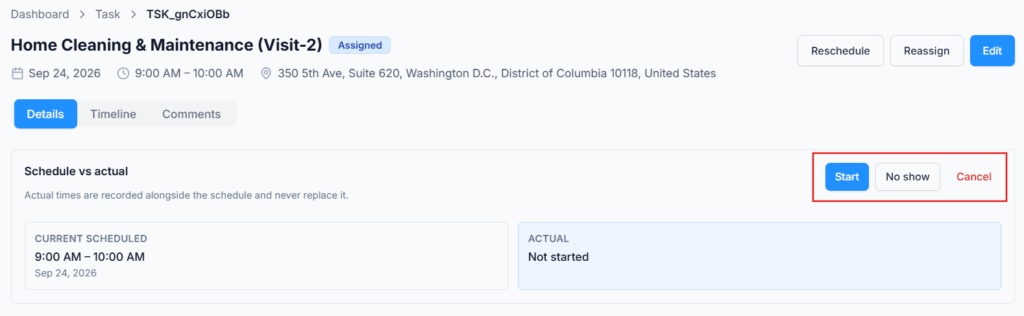
Use Cancel when the visit will not happen. The Cancel this task? window explains that the crew and the client will both be told. Enter the Cancel Assignment Reason (required) and select Cancel Task, or Keep Task to back out.
Use No show when the crew went but the client was not there, or turned the visit away. In Mark as no show?, enter the No Show Reason (required) and select Mark No Show. The visit stays open so you can reschedule it.
Choose carefully, because the two outcomes affect the client, the schedule and billing differently:
| Cancelled | No Show | |
|---|---|---|
| Can be picked for a per-visit Invoice | No | Yes – you may charge for the call-out |
| Employee’s time slot | Freed | Freed |
| Client’s appointments | Removed | Still listed, as “Could not be completed” |
| The client is emailed | “Your service visit has been cancelled” | “We were unable to complete your service visit” |
| Can be arranged again | No. Create a new Task, or use Add visit on an As-needed Task | Yes. Use Reschedule visit; it returns to Assigned and keeps the No Show in the timeline |
Good to know: a No Show has no effect anywhere else in Office-X – nothing in payroll, attendance or performance. It is simply a record of what happened on that visit.
Checklist, Time, and Expenses #
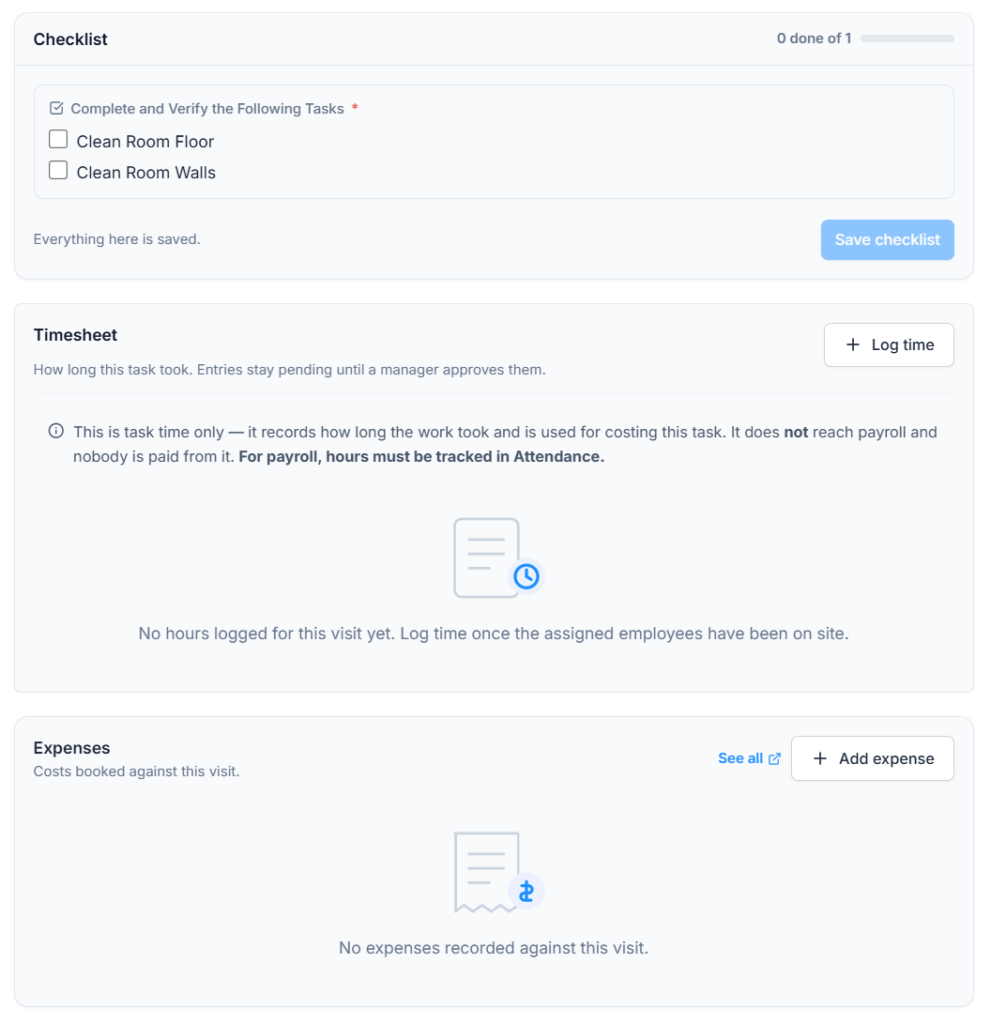
- Checklist: the status owner records the answers for their visit. Filling in somebody else’s checklist needs Manage Task Checklist (For All). Answers can still be corrected after the visit is Done; only a cancelled visit closes the checklist.
- Time: each entry records one assigned employee’s start and end. It may cross midnight, cannot be longer than 16 hours, and cannot overlap that employee’s other Task time. New and corrected entries are Pending; editing a Rejected entry sends it back to Pending. Approved entries are locked until an allowed reviewer reopens them. Task time is for costing the job only; it does not change Attendance or payroll.
- Expenses: Expenses now has its own menu, Dashboard → Expense, for every cost the business has. A visit still has an Expenses card for “Costs booked against this visit”, with Add expense and a See all link. The status owner can add their own cost there without any Expense permission. Anyone else needs Create Expense (For All) or Create Expense (For Own); without it the card reads “Read only. The visit’s status owner can add an expense here; anyone else needs a “Create Expense” permission.” Seeing colleagues’ costs needs View All Expenses. After that, the normal Expense approval and reimbursement rules apply.
The Task page also has an Expenses card and a time card that add up every visit. Both are read only there; costs and hours are added on a visit.
Good to know: an employee never approves their own hours, not even a status owner. The Subscriber Admin is not bound by that rule. On a one-person visit, someone else with approval rights (or the Subscriber Admin) has to review the hours.
Pricing and Billing #
Seeing prices is separate from seeing the schedule. An employee needs View Task Details (For Others) to see Task and visit prices, even on their own work. View Scheduled Tasks (For All) only widens the Scheduled tasks list. So a crew member can carry out a Task without seeing what the client pays.
Two settings decide the money on a Task: what gets billed, and when the office is reminded to bill it.
Billing type – what a bill is made of. A new One-off Task always has one fixed price. A Recurring Task lets you choose under Billing & automatic payments:
- Visit based: “Each completed visit is billable and they are grouped onto one invoice.” Each visit bills the Task’s Product / Service list, unless you gave it its own price (a visit can even be free).
- Fixed price: “One agreed amount for the whole task, however many visits it takes.” The fixed price is the total of the Task’s products and services; to change it, change the items.
On the Task page, Create invoice on a Visit based Task opens Select visits to invoice. Completed, unbilled visits are ticked for you. You can also tick an upcoming or No Show visit to bill ahead or charge for a call-out. Cancelled visits are not offered. Visits already on an invoice are shown but locked, with “Already invoiced” or “Already paid” and the invoice number. If you untick everything, you see “No visits selected. The task’s own items will be billed.” – useful for a deposit.
Invoice Frequency Reminder – when to bill (Recurring). This tells your team how often to raise an invoice. Office-X never creates or sends an invoice by itself; a person always does. The choices are:
- Monthly on the last day of the month – the usual choice for contract work.
- After each visit is completed – bill as you go.
- As needed, no reminders – the office decides when.
- Once when the task is closed – one bill at the end.
- Custom schedule… – select Edit to set your own rhythm (Every, Unit, weekdays, and an optional Until date).
The “Ready to invoice” reminder. Every choice except As needed sends your team a reminder when it is time to bill:
- After each visit is completed – each time a visit is marked complete.
- Once when the task is closed – when the Task is closed.
- Monthly on the last day of the month – on the last day of each month that has a visit, from 9:00 AM in your company’s time zone.
- Custom schedule – on each date of the schedule you set.
- One-off Task – when the Task is closed, if Remind me to invoice this task when I close it is ticked.
You set it up under Admin → Notifications → Invoices, in Invoice frequency reminders. It is on by default and sends both in the app and by email; you can turn either off. Under Send to, choose Company admin (the Subscriber Admin) or one employee. If that employee leaves or loses their license, the reminder goes to the Subscriber Admin instead. The email wording can be changed under Templates. The Notifications page needs the Manage Client Notifications permission.
Billing a One-off Task. The Billing section has two options:
- Remind me to invoice this task when I close it – closing the Task sends the reminder above. Closing never sends anything to the client.
- Split into multiple invoices with a payment schedule – bill in parts, for example “50% up front, 50% on completion”, a fixed deposit, or up to 20 rows of your own. Under Split payments by, choose % (a share of the total, which moves when the price changes – right for “50%”) or your currency (a fixed amount that stays put – right for an agreed deposit). Each row has its own description (up to 200 characters) and due date.
The Task page then shows the Payment schedule as a bar and a table. Each row is Upcoming, Draft, Awaiting Payment or Paid; Remaining is part of the summary, not a row status. Select Create invoice on an Upcoming row to start an invoice for that part. A row already linked to an invoice is locked and links to it. Voiding that invoice sets the row back to Upcoming. Once an invoice exists, its real due date replaces the planned one. To change the amounts or add a payment, use Edit on the Task.
Creating invoices needs the CRM add-on and the Create Invoice permission. From the Scheduled tasks list, a One-off Task with a payment schedule opens a payment picker, a Visit based Task opens its Task page so you can choose visits, and a fixed-price Task opens the invoice builder straight away. On a split-payment Task, the main Create invoice button in the Billing card bills everything still owed at once; use a Payment schedule row to bill one part at a time. See the Invoices guide.
The Task Page – Everything About One Arrangement #
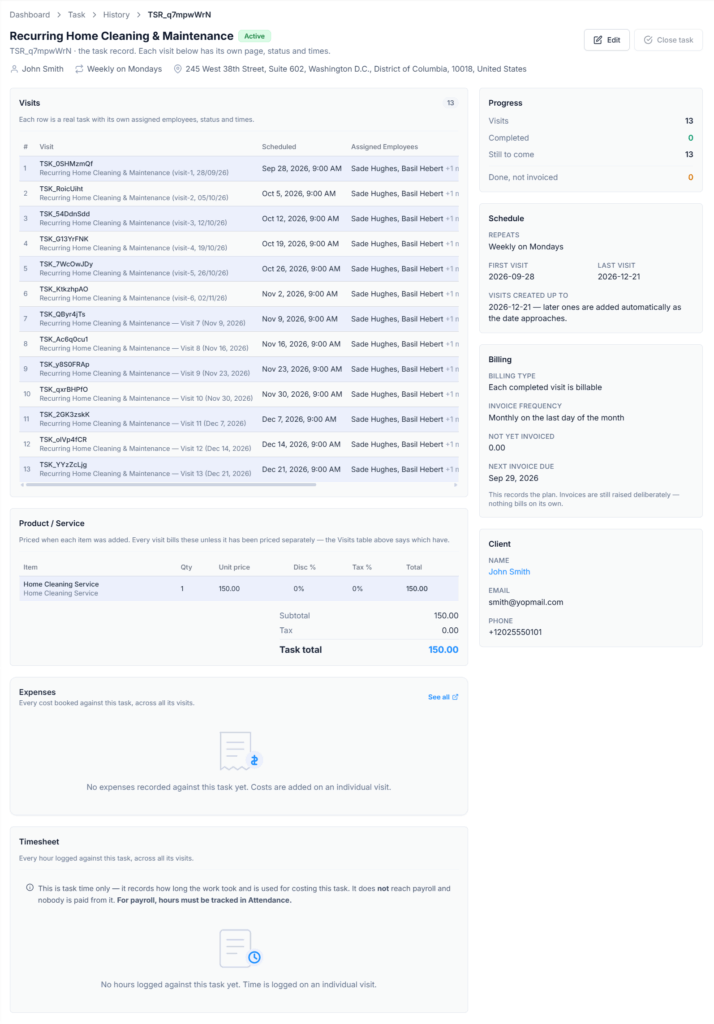
The grid shows visits. The Task page shows the Task they belong to, with its own TSR_ ID. Open it from the Scheduled tasks tab in Task History. This is the page a coordinator uses to manage ongoing work for a client. The header shows the title, the status (Active or Closed), the client, the schedule in words and the address, with Edit and Close task buttons.
- Visits – every visit in one table: number, Visit ID, Scheduled time, Assigned Employees, Status, Checklist progress (select it to read the answers) and Amount, if you can see prices. Select a row to open that visit. An As-needed Task has Add visit here, and an interrupted recurring save shows Book remaining visits.
- Waiting to be scheduled – only on older Tasks with undated visits, each with a Schedule button.
- Product / Service – the items every visit bills unless it has its own price.
- Payment schedule – the parts of a split One-off Task, with a Create invoice button for each Upcoming row.
- Expenses and time – read-only totals across every visit.
- Instructions & notes – the Task’s instructions and internal notes.
- Progress – Visits, Completed, Still to come, and Done, not invoiced.
- Schedule – the repeat rule in words, the first visit, and when it ends.
- Billing – the billing type, the invoice frequency (or how a One-off Task is invoiced), what is not yet invoiced, and the next invoice date. It reminds you: “The settings above are only a plan. No invoice is created or sent automatically — someone has to press Create invoice.”
- Client – who it is for, with their email and phone.
Close the Task #
Each visit has its own outcome. The Task around them lasts longer and has two states:
- Active: the Task is live. Even when every visit is finished, it stays Active until somebody closes it. That is on purpose, because the office usually still has reviewing and billing to do.
- Closed: the office has formally finished with the Task.
To close a Task:
- Make sure every visit is Done or Cancelled, and no visit is waiting for a date. A No Show is not final enough: reschedule it or cancel it first.
- On the Task page, select Close task. Until everything is settled, the button is grayed out. Hover over it to see why: “Every visit has to be completed or cancelled first.” or “Schedule the visits still waiting for a date first.”
- In Close this task?, read the note: the visits keep their statuses, and anything not yet invoiced stays billable – closing does not settle money. Select Close task.
If something changed while the page was open, Office-X refuses and tells you exactly what is still open, for example “Every visit has to be completed or cancelled before this task can be closed. Still open: TSK_a1B2c3D4.” or “This task still has 1 visit waiting to be scheduled.”
Good to know: finishing the last visit does not close the Task by itself. Closing needs the new Close Task (For All) permission (the Subscriber Admin always has it); Update Task Status (For All) no longer covers it. Closing changes no visit and no money, and closed work can still be invoiced. If the Task is set to remind on close, Office-X sends the “Ready to invoice” reminder. It never creates or sends an invoice.
To stop work that will not continue, cancel the remaining visits first – that frees the crew’s time and tells the client. Then close the Task.
What the Office Gets Told #
Task updates create an in-app bell notification for the staff involved. Many of them also get an email; some co-assignee updates are in the app only, to avoid extra mail.
- Assigning and changing a visit notifies the people on it. A person removed during a reassignment is told too.
- When an employee starts or completes a visit, or records Cancelled or No Show, the Task creator and that employee’s reporting manager can be notified. Co-assignees see the shared outcome in the app.
- The “Ready to invoice” reminder goes to the person chosen under Admin → Notifications → Invoices.
- Nobody is notified about their own click.
Everything else – who edited what, when a status moved, when the checklist was filled in, when a client confirmed over the phone – is on the visit’s Timeline tab. The bigger changes are also in Dashboard → Activity Log, filtered to Task.
Your Routine – Running the Schedule #
- Open Schedule on the Weekly view with no filters and read the five cards. Anything still Assigned late in the day needs a phone call.
- Deal with the overdue visits first: chase the crew, then record the real outcome.
- Check the next few days for clients who have not confirmed. Call them, and record Confirmed over the phone when they say yes.
- Schedule any waiting visits whose dates are now known, and add visits to As-needed Tasks when clients call.
- Reschedule what has to move, while the client can still be told in good time.
- Check yesterday’s Done visits for their checklists, hours and expenses, approve the time, and bill what is billable. Your “Ready to invoice” reminders tell you when.
- Close the Tasks that are really finished.
Part 2 – For the Employee Assigned to the Task #
If work is assigned to you, you need no permission to open the visit or see your own Task time. Recording the visit outcome and the checklist belongs to the status owner. The table below shows exactly where an ordinary co-assignee stops.
What You See #
Open Dashboard → Task → Schedule. You see your own row, plus the rows of anybody who reports to you. The blocks in your row are your visits, colored by status. Use Filters to show just today.
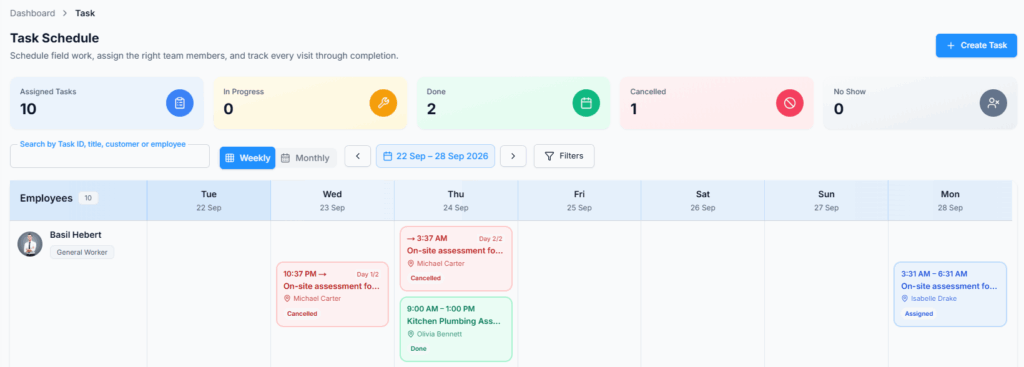
Open a visit and you get everything you need on site:
- Who the client is, their phone numbers (with call buttons), and the exact service address (with Copy address).
- When you are due, and who else is coming with you.
- Whether the client has confirmed the visit.
- The instructions the office wrote, the attachments they added, and the products the job needs.
- The checklist, the Task time you are allowed to see, the expenses you are allowed to see, comments, and the visit’s timeline.
You are also notified in the app when you are assigned to a visit, and when a visit of yours is rescheduled, reassigned or cancelled. So a change made at the office while you are out does not go unnoticed.
Are You the Status Owner? #
Check this before you start, because it decides what your buttons do. On a visit with a crew, one person is the status owner (look for the Status owner tag under Assigned employees) and reports the outcome for everybody.
| You can… | As the status owner | As a co-assignee |
|---|---|---|
| See the visit and its instructions | Yes | Yes |
| Start / Complete the visit | Yes – it changes the one shared visit status | No, unless they have Update Task Status (For All) |
| Cancel it or mark it No Show | Yes | No, unless they have Update Task Status (For All) |
| Fill in the checklist | Yes | No, unless they have Manage Task Checklist (For All) |
| See Task time | Every row on this visit | Their own rows only, unless a wider time permission applies |
| Log or correct Task time | For any assignee; approved rows must be reopened first | Only with Log Time Entries (For All), which lets them record for any assignee |
| Approve / reject Task time | Other assignees’ rows, never their own | Only with Approve/Reject Time Entries (For All), and never their own |
| Delete Task time | Pending or rejected rows; never approved rows | Only with Delete Time Entries (For All) |
| Add an expense from the visit | Yes, for their own cost | Only with Create Expense (For All) or Create Expense (For Own) |
| Leave a comment with attachments | Yes, while the visit is open | Yes, while the visit is open |
If you are on a visit alone, you are its status owner. If you are a co-assignee and the owner cannot record the outcome, ask the office. They can record it for you, and the timeline will show that they did.
Start and Complete #
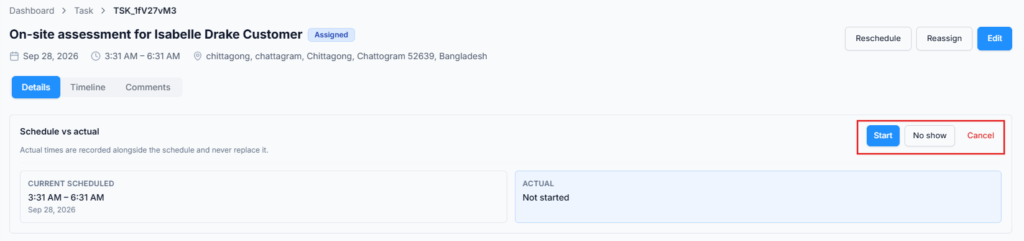
- Open the visit and read the instructions.
- Select Start when the visit begins. The Start Task window lets you correct the start time if you began earlier than you pressed the button.
- If you are the status owner, record the crew’s Task time and fill in the checklist. Any assignee may add a comment with attachments; expenses follow the table above.
- Select Complete only when the work is fully recorded, and confirm the finish time in the Complete Task window.
A Done visit becomes billable once it meets the invoice rules and has not been billed already.
What Start and Complete do beyond your screen. Pressing Start can send the client “Your service crew is on the way“, if the office has turned that on – so press it when you are really on your way, not the night before. Pressing Complete emails the client “Your service visit is complete” and puts the visit in front of the office for billing. If the Task is set to invoice after each visit, the office also gets a “Ready to invoice” reminder.
Good to know: finishing early gives the time back. A completed visit only takes up the time it actually used, so the rest of the slot is free for another visit.
Your Checklist, Time, Photos and Expenses #
- Checklist – the points the office wants done, answered as you go. A question may use short text, long text, a dropdown, checkbox choices, a number, an image upload, a date or a signature.
- Task time – the status owner records or corrects hours for the assigned employees. An employee with Log Time Entries (For All) can do the same. Every new row waits for approval. These hours are not an Attendance entry, a pay claim or a payroll input.
- Comment attachments – up to 5 files per comment, 2 MB each. JPEG, JPG, PNG and PDF are accepted. Checklist image questions have their own upload.
- Comments – for anything the next person needs to know. Assignees, the creator and people allowed to open other visits may comment while the visit is open. Done and Cancelled visits take no new comments. The client never sees the comments.
- Expenses – the Advance plan includes Expenses, which now has its own menu (Dashboard → Expense). You can still add a cost from the visit itself: as the status owner, select Add expense in the visit’s Expenses card to record your own parking, materials or fuel and attach a receipt. Other assignees need a Create Expense permission. The expense then follows the normal approval and reimbursement rules. See the Expenses guide.
If the Visit Cannot Go Ahead #
- The client is not there. Select No show and give the reason, for example “Customer was not at the site and could not be reached”. That is the honest record, it tells the client, and the office can arrange it again. It has no effect on your pay, your attendance or your review.
- The work is called off. Cancel the visit and give the reason. It stops being billable, drops off the client’s appointments, and frees your time.
- You are running late, or it needs another day. That is the office’s call, not yours. Call them, and they will reschedule it so the client is told the new time properly.
Your Routine – Out in the Field #
- In the morning, filter the Schedule to today and read your own row.
- Open the first visit and check the address and instructions before you set off.
- Press Start when you are on your way or on site.
- If you are the status owner, work through the checklist and record the crew’s Task time. If you are a co-assignee, give the owner your hours unless you have the wider logging permission.
- Add any expense you paid for, with the receipt, while you still have it.
- Press Complete before you leave – or No show if nobody was there.
Daily employee example: Danny Ruiz opens Schedule, filters to today, and opens Mr. Sullivan’s service visit in Oak Park. Danny is the status owner, so he checks the address and instructions, starts the visit, records the crew’s Task time, fills in the checklist, and adds his parking expense with a receipt. When the work is finished, he marks the visit Done. Someone else with approval rights approves Danny’s own hours, and the office later reviews the records and creates an invoice.
Part 3 – For the Client: What They See and Get Told #
Clients never open the employee Schedule or your dashboard. If the Client Portal and its Appointments page are on, they sign in to their own private portal. Otherwise they only get emails, and texts if you turned those on.
The Client’s Side of a New Booking #
- You book a new Task. Mr. Sullivan gets an email, “Please confirm your service visit from Riverside Cleaning Co.“, with the time, the address and who is coming.
- He selects Confirm my appointment in the email. His Client Portal opens on Your appointments, already signed in.
- He selects Confirm appointment on the visit. The card now reads “You confirmed this on…”, and his status reads Confirmed by you.
- He gets “Your service visit is confirmed“. Your visit page shows Customer confirmed this visit.
If he calls you instead, you record Confirmed over the phone and he gets the same confirmed email. If he has no email address, or your Client Portal or its Appointments page is off, he skips steps 1 to 3 and gets the confirmed email straight away. See Client Confirmation in Part 1.
What the Client Is Told, and When #
These settings are under Admin → Notifications, on the Task tab. The page needs the Manage Client Notifications permission. The emails marked Always on cannot be switched off. Visit reminder and Crew on the way are optional and off by default. Texts (SMS) are off by default for every message. They work only when your company has set up an SMS provider and you turn on SMS for that message.
| Setting | Sent when | The client reads | |
|---|---|---|---|
| Visit confirmed (the ask) | A new Task’s first visit is booked and the client can use the portal | “Please confirm your service visit” with a Confirm my appointment button. Email only, never a text. | Always on |
| Visit confirmed | The client confirms in the portal or by phone, or right away when they can’t be asked | “Your service visit is confirmed” | Always on |
| Visit reminder | Before the visit – 1 day before by default | “Reminder: your service visit is coming up” | Off by default |
| Crew on the way | The crew presses Start | “Your service crew is on the way” | Off by default |
| Visit details updated | The visit’s title or address is changed with the visit’s Edit | “Your service visit details have been updated” – and it says the time has not moved | Always on |
| Visit rescheduled | The visit moves | “Your service visit has been rescheduled”, with the old and new time | Always on |
| Visit completed | The visit is marked Done | “Your service visit is complete” | Always on |
| Visit cancelled | The visit is cancelled | “Your service visit has been cancelled” | Always on |
| Missed visit (no-show) | The client was not there when the crew arrived | “We were unable to complete your service visit”, asking them to arrange a new time | Always on |
That is eight settings on the Task tab; the ask and the confirmed email share the Visit confirmed setting. Email subjects end with your company name, for example “Your service visit is confirmed from Riverside Cleaning Co.” The wording of each email can be changed under Templates.
Good to know: the two optional messages depend on your team’s habits. A reminder is only welcome if your dates are reliable, and “crew on the way” is only true if people press Start when they really set off. Turn them on once those habits are in place, and they can cut down on “where are you?” calls.
A text also needs a usable phone number for the client. A client who replied STOP gets no texts until they reply START. An email needs an address. If a message cannot be sent, the visit change you made is still saved.
Their Appointments in the Client Portal #
With the Client Portal’s Appointments page turned on, the client has a Your appointments page: “All your booked visits appear here. You can confirm them, or contact us if you need to make changes.” It lists only visits for their own client record, in four groups: Today, Upcoming, Not yet scheduled (older visits still waiting for a date) and Past. They can search by title, place or who’s coming.
Each appointment shows the day, the service title, the time, the address, the status, and who is coming with their job title. Your company can turn off Show visit time; then the client sees the date but not the time. A visit waiting for a date reads “Booked in, but we haven’t fixed a time with you yet.” and “Time to be confirmed”. On-site assessment visits are clearly marked. The crew’s instructions are never shown.
Statuses are written the way a client would say them:
| Your visit status | The client sees |
|---|---|
| Assigned | Booked, or Confirmed by you once they have confirmed it |
| In Progress | In progress |
| Done | Completed |
| No Show | Could not be completed |
| Cancelled | Not listed at all |
There is one thing the client can do here: Confirm appointment. It appears on a Today or Upcoming visit that has a time, is Assigned or In Progress, and is not confirmed yet. Beside it they read “Let us know this time works for you, or get in touch to change it”, with a link to the portal’s Contact page. They can confirm once and cannot undo it. Confirming does not move anything on your schedule – it is the client saying “yes, that time works”, and your visit page shows it.
What the Client Never Sees #
- The internal schedule, or anybody else’s visits.
- Your instructions to the crew, internal notes, comments, or the visit timeline.
- Time entries, hours, or what the work costs your company.
- Expenses recorded against the visit.
- Employee contact details – they see a name and a job title, not a phone number.
Money reaches the client separately, as an Invoice. The office can bill visits according to the Task’s billing setup, but no price appears on the client’s appointment.
Client and Team Updates #
Booking, rescheduling, reassigning and status changes can change what employees and clients see. Before you save, check the client, service address, date, time, assigned people and status owner. Clients see only their own appointments in the Client Portal; your instructions, prices and employee contact details stay inside the company.
Summary #
The office builds the work and owns the calendar: create the Task directly, book a Request assessment, or convert an accepted Estimate; assign the crew; name one status owner per visit; make sure the client confirms; review the records; and close the Task when it is really finished. The status owner owns the visit outcome: start it, record the checklist and crew time, and press Complete, Cancel or No show. The client never sees internal controls. They confirm their visits and get only their own appointment updates.
Two habits carry most of the value. Record the outcome on the day, because everything that follows – billing, history, the client’s own page – reads from it. And remember that a reschedule or a cancellation is a message to a client, not just a change on a grid.
