Plan, track, and deliver your team’s work in one place.
Projects in Office-X brings planning, day-to-day delivery, and progress reporting together. You can use Scrum for work delivered in fixed sprints or Kanban for a continuous flow of work.
This guide explains who can use Projects, how to find your work, how Scrum and Kanban differ, and how to create a project.
Who Can Use This Feature #
Projects is a separate Office-X add-on. Your company needs an active Advance plan and an active or trialing Projects add-on. It is not included automatically with either Basic or Advance.
Tenant Admins can open and manage every project. They can create projects without being given a separate Projects permission.
Employees see projects through their company-wide Projects access, project membership, and project role. An Employee may be a Project Manager in one project, a Member in another, and a Viewer in a third.
The company-wide permissions are:
- Create Project: shows New project and lets an Employee create a Scrum or Kanban project.
- Manage All Projects: lets an Employee open and manage every project, even when they are not a member.
- Delete Any Project: provides company-wide deletion authority. An Employee using Manage All Projects needs both permissions to delete projects outside their normal project access.
Good to know: Project Manager is a project role, not an Office-X account type. Making an Employee a Project Manager does not make them a Tenant Admin or give them access to other projects.
Before You Start: Add the Projects Add-on #
If Projects is not active yet, a Tenant Admin can manage it from Dashboard → Business → Billing & Payment → Add-ons.
- Confirm that the company has an active Advance plan. Projects cannot be purchased on Basic.
- Find the Projects add-on.
- Review the available monthly or yearly price, billing date, and any trial shown on the card.
- Click Start free trial when a trial is offered, or Add to plan when it is not.
- Complete the payment step if Office-X asks for it.
The add-on has its own subscription and billing cycle, so its renewal date may be different from the main plan’s renewal date. The current price, trial length, first charge, and renewal date are shown before confirmation; they are not fixed values in this guide.
What Happens After Activation #
Once the add-on becomes active or trialing, Projects appears as an available feature. Tenant Admins can use it immediately. Employees still need the appropriate company-wide Projects permission or access to an individual project.
Signing in with an employee account also requires an active employee licence. Project membership does not replace that licence.
If Projects Is Locked #
- On Basic, upgrade to Advance before attempting to add Projects.
- On Advance without the add-on, open Billing & Payment and add Projects.
- If the main subscription is inactive or outside its allowed billing/grace state, the add-on does not keep Projects available by itself.
- A Tenant Admin does not bypass the add-on requirement.
- If the add-on is active but one Employee cannot use a particular project, check their company-wide permission, membership, role, and work-item scope.
Cancel or Resume the Add-on #
A Tenant Admin can manage cancellation from the same Add-ons area.
- Cancelling a free trial ends access immediately because there is no paid period to keep.
- Cancelling a paid add-on schedules it to end at the current add-on period’s end. Access continues until the displayed cancellation date.
- A pending cancellation can be resumed before it takes effect.
- Ending the company’s main plan also removes add-on entitlement; add-ons must be purchased again after a later resubscription.
Careful: Before ending Projects access, export anything the company needs and confirm how the team will retain operational records. The add-on being unavailable is different from moving one project to its 60-day Trash.
Where to Find It #
Go to Dashboard → Projects.
The page has two tabs:
- My Work: work assigned to you, reported by you, watched by you, or recently viewed across accessible projects.
- Projects: the directory of projects you can open.
An Employee without Create Project lands on My Work by default. A Tenant Admin or Employee who can create projects normally lands on the Projects directory.
Find and Open a Project #
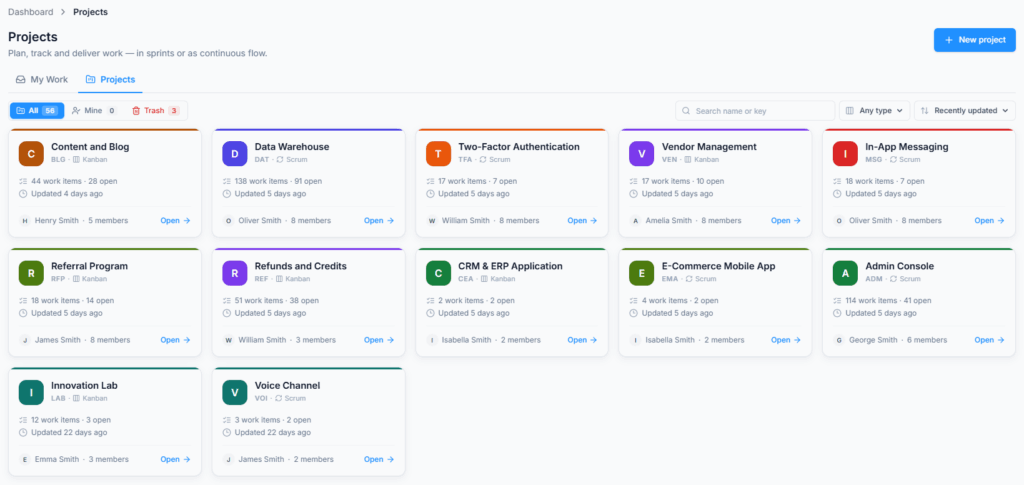
Open the Projects tab. Search by project name or key, filter the directory, choose Scrum or Kanban, and change the sort order. Large directories are divided into pages.
Select a project to open it. Office-X takes you to the Board, which is the team’s daily workspace.
The directory can show active and trashed projects separately. A trashed project is unavailable for normal work. Someone with the required authority can restore it during the 60-day recovery period.
A trashed project card focuses on the recovery deadline instead of showing active-project statistics. It shows whether the project deletes today, in a stated number of days, or soon. Use this countdown to decide whether the project should be restored before scheduled permanent cleanup.
The toolbar contains:
- All: Every project within your access scope.
- Mine: Projects where you are a member, separate from projects you can manage through broader access.
- Trash: Projects waiting in the 60-day recovery period.
- Search name or key: Finds projects by full name or short key.
- Filter by type: Any type, Scrum, or Kanban.
- Sort: Recently updated, Name A to Z, Key A to Z, or Most open work.
- Items per page: 12, 24, or 48 projects.
Changing the search, filter, type, sort, or items-per-page value returns the directory to its first page. Search and filter choices remain in the URL when switching between My Work and Projects.
Use My Work #
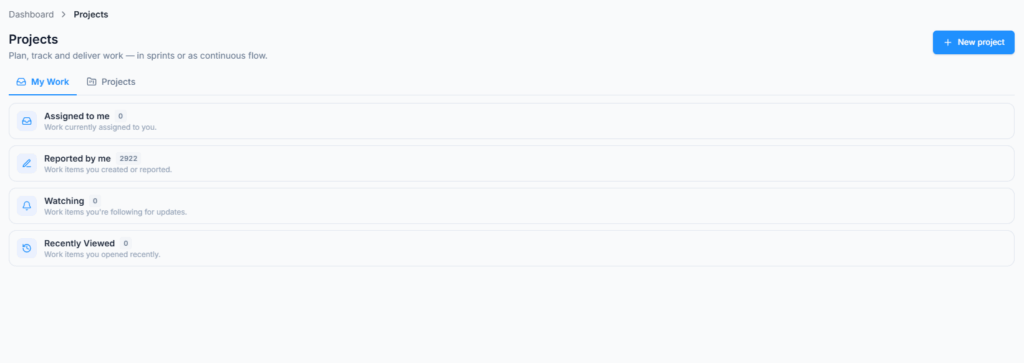
My Work provides a focused view of work connected to the signed-in employee across accessible projects. It contains four expandable groups:
- Assigned to me: Open work currently assigned to you.
- Reported by me: Work items you created or reported.
- Watching: Work items you follow for updates.
- Recently Viewed: Work items you opened recently and can still access.
Each row shows the priority, item key, title, status, relevant due date, and project key. Select a row to open the item inside its project.
Due-date labels use the tenant’s configured timezone, not the device timezone. Open work can appear as due today, due soon, or overdue. Completed work does not keep an overdue warning.
Each group shows a focused number of items. When more matching work exists, Office-X shows how many items are currently displayed. Open the project for the complete result. On a longer My Work page, use the return-to-top control to move back to the beginning.
If My Work is empty, there is no matching work in these groups or the employee does not currently have access to a project containing matching work.
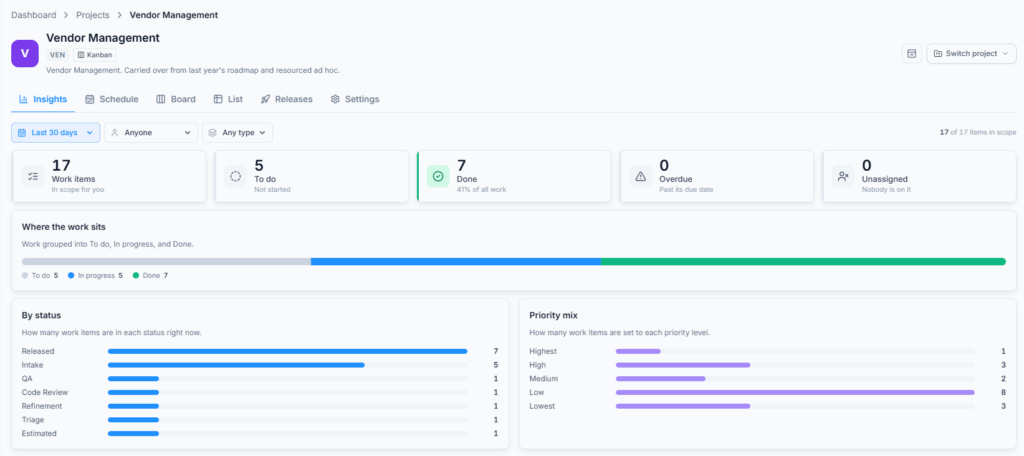
The project navigation can contain:
- Insights: project health, workload, flow, and delivery charts.
- Schedule: work arranged on a timeline or calendar.
- Backlog: upcoming work and sprint planning. Scrum only.
- Board: work currently moving through the workflow.
- List: a searchable and editable table of work items.
- Releases: delivery versions and progress.
- Settings: project configuration, limited to sections you can manage.
Choose Scrum or Kanban #
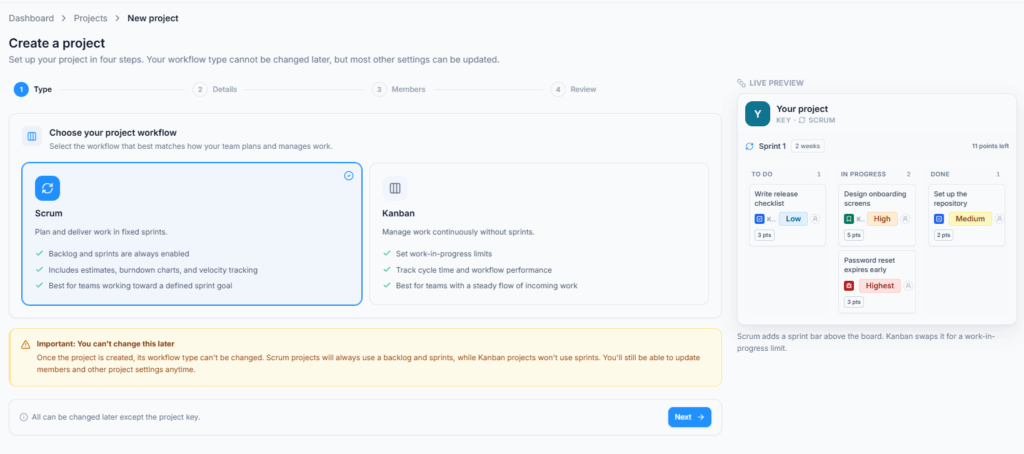
Choose Scrum when the team plans work into fixed sprints and wants a backlog, sprint goals, capacity, burndown, burnup, and velocity reporting.
Choose Kanban when work arrives continuously. Kanban sends work directly to the Board, supports work-in-progress limits, and does not use a Backlog or sprints.
Both types support work-item hierarchy, Board, List, Schedule, Releases, Insights, roles, notifications, and a working calendar.
Important: You cannot change the project type after creation. Choose the way the team actually plans its work.
Create a Project #
Go to Dashboard → Projects and click New project.
Choose the Type #
Select Scrum or Kanban.
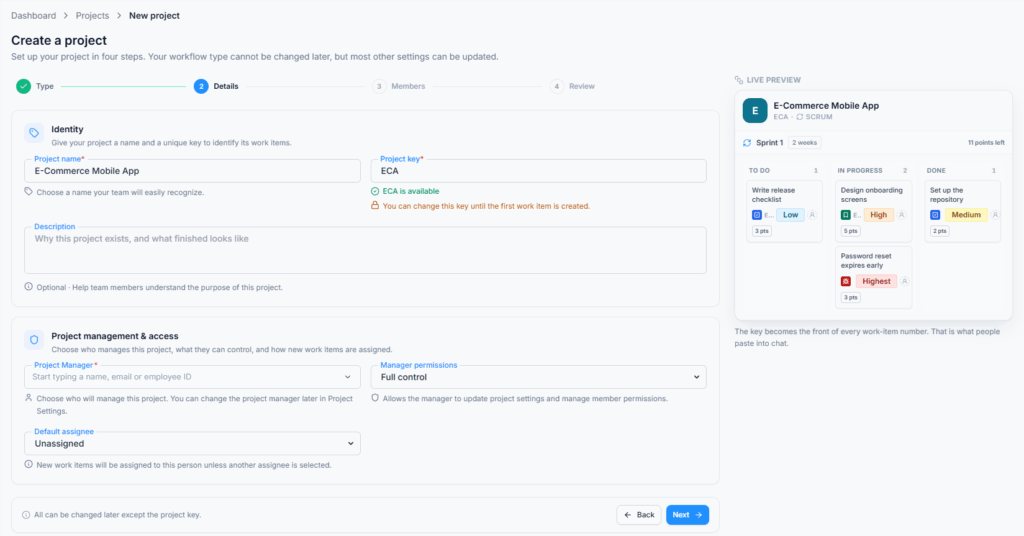
Add the Details #
- Project name: the full name shown throughout Office-X, up to 120 characters.
- Project key: the 2–10 character uppercase code used in work-item keys, such as
WEB-42. - Description: an optional explanation of the project’s purpose.
- Project Manager: the employee responsible for the project.
- Manager permissions: Full control gives the manager the Project Manager role; View only gives read-only access.
- Default assignee: leave new work Unassigned or assign it to the Project Manager.
Office-X suggests a project key from the name and checks whether it is available.
Good to know: The key becomes locked after the first work item is created. Confirm it before the team begins filing work.
Add Members #
Add individual employees or entire teams and choose a role for each entry. New entries start as Viewer unless you choose another role.
- Project Manager: full project control.
- Team Lead: runs delivery, workflow, sprints, releases, and team work without receiving every administrative setting.
- Member: collaborates and works on their own relevant items.
- Viewer: reads project work and may comment.
Review and Create #
Check the type, name, key, manager, default assignee, and member roles, then click Create project.
Office-X creates protected To Do, In Progress, and Done statuses; Done, Won’t Do, Duplicate, and Cannot Reproduce resolutions; Epic, Story, Task, Bug, and Subtask work types; four default project roles; notification rules; and the inherited company working calendar. Scrum projects also receive Backlog and sprint planning.
Done is the initial default resolution. Ships in is enabled on the seeded work types, and Bug also starts with Found in. These defaults can be refined later from Project Settings without changing the project type.
What Each Person Sees After Creation #
- The selected Project Manager is always part of the project. With Full control, they receive the Project Manager role.
- Employees and teams added on the Members step receive the role chosen for their row.
- An employee added through a team receives project access through that team membership.
- A person with no project membership may still reach the project through Tenant Admin or Manage All Projects access.
- My Work includes only work the signed-in person can still open; losing project access removes inaccessible project detail from their workspace.
If a Tab or Button Is Missing #
- Backlog is available only in Scrum projects.
- Schedule, Releases, and Insights may be switched off under Settings → General.
- New project requires Tenant Admin access or Create Project.
- Settings shows only the sections your permissions allow.
- A project role applies only inside that project.
Summary #
Use My Work across projects and the Projects directory to open one project. Choose Scrum for fixed sprints or Kanban for continuous delivery, confirm the project key, and give every person the least role they need.
