Create, update, discuss, and complete project work from the Board or List.
A work item is a piece of project work. It can be an Epic, Story, Task, Bug, Subtask, or another type configured for the project. Each item receives a key such as WEB-42.
The work-item panel is the main place for managing one item. Board helps the team move work through the workflow, while List provides a structured table for searching, comparing, editing, and updating several items together. All three views use the same underlying work-item data, so a saved change appears throughout the project.
Who Can Use This Feature #
Tenant Admins can work across every entitled project. Employees need project access, and their project role determines which items and actions are available.
Scoped permissions can use:
- None: No access to that action.
- Own: The user’s own relevant work or contribution. The exact meaning depends on the permission.
- Team: Own reach plus relevant work, contributions, or time entries connected to members of the user’s configured Office-X Team.
- All: All relevant work in the project.
Team means the user’s configured Office-X Team membership. It does not mean employees below the user in the reporting hierarchy.
Being able to see an item does not automatically allow every action on it. Creating, editing, assigning, changing priority, changing status, moving work into a sprint, estimating, scheduling, commenting, attaching files, linking work, logging time, exporting, and deleting are controlled separately.
Create a Work Item #
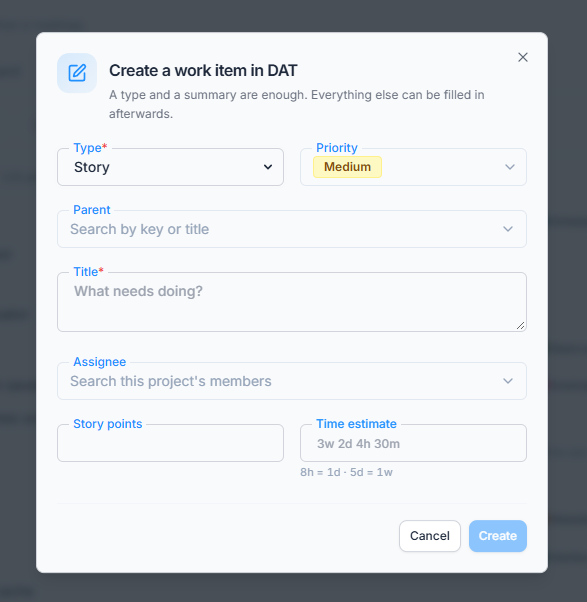
Open a project and click Create work item. Select a type, enter a title, and click Create. A type and title are enough.
The title is required and can contain up to 255 characters. Office-X creates the item key on the server using the project key and the next sequence number. Users cannot choose or reuse that number manually.
Depending on the selected type and your permissions, you can also choose a parent, priority, assignee, story points, time estimate, and sprint.
The initial status comes from the project workflow. The assignee follows the project default unless you choose someone else. Only active work types appear. A Subtask must have a valid parent, and a parent must sit above the child in the configured hierarchy.
The person who creates the item becomes its Reporter and is added as a watcher automatically. This lets the creator receive watcher-based updates without having to follow the item separately.
Optional Information During Creation #
Depending on the work type, enabled project features, and the user’s permissions, the Create dialog may also include:
- Description: Context, requirements, or acceptance information, up to 10,000 characters.
- Parent: A valid higher-level item under which this work belongs.
- Priority: The urgency level configured by the project.
- Assignee: An eligible project member with Can be assigned work.
- Labels: Short lowercase tags used for searching and filtering. Each label can contain up to 40 characters, with no more than 30 labels on one item.
- Sprint: The Scrum sprint or Backlog where the item should be planned.
- Story points: A non-negative relative estimate, up to 1,000.
- Original estimate: The planned time required for the work.
- Start date and Due date: Calendar dates used by Schedule.
- Fix versions: Up to 20 versions intended to contain the completed work.
- Affects versions: Up to 20 versions where the problem or behaviour exists.
Leaving optional information empty does not prevent creation. Add only the information the team can maintain reliably.
Understand the Hierarchy #
- Initiative: a high-level container that can group Epics when the project uses this level.
- Epic: a large outcome containing standard work.
- Story, Task, or Bug: normal work that can sit under an Epic.
- Subtask: a smaller step under another item.
The project’s Work types & fields settings determine the available types, hierarchy, and fields.
Hierarchy is enforced by level, not by the type’s name. A custom type named Feature can behave like an Epic, Standard item, or another level depending on its configuration. A parent must always be above its child. Office-X refuses a change that would create an invalid nesting relationship or leave children beneath a type that can no longer contain them.
Subtasks contribute to the parent progress shown in the work-item panel. When configured, their estimates can also be included in the parent’s estimate presentation.
Update a Work Item #
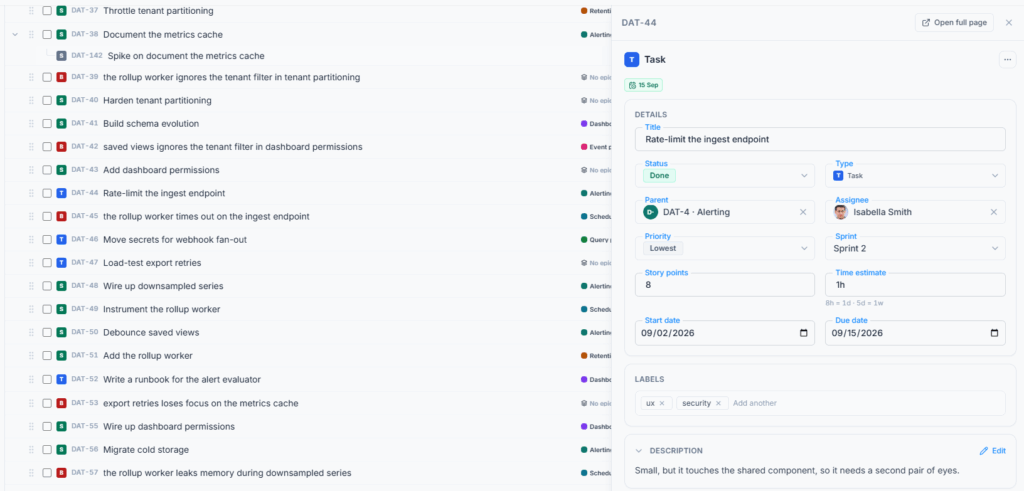
Open an item from Board, Backlog, List, Schedule, or a direct link. The Details panel can contain title, status, type, parent, assignee, reporter, priority, sprint, estimates, start date, due date, labels, affected version, and fix version.
Changes save in place when you have permission.
The panel shows a save state so you can see when an edit is being saved, has saved successfully, or needs attention. Office-X sends the item version with an update. If another user changed the same item first, the older edit is not allowed to silently overwrite the newer data. Reload the current value, review both changes, and try again.
Status changes follow the configured workflow. A valid destination may depend on the item’s current status. With a custom transition map, only explicitly allowed moves are available.
What the Main Fields Mean #
- Status: The current workflow step.
- Resolution: Why completed work was closed, such as Done, Won’t Do, Duplicate, or Cannot Reproduce. Resolution appears when the item is in a Done-category status.
- Type: The kind of work and the fields available on it.
- Parent: The higher-level item containing this work.
- Assignee: The person currently responsible for the work.
- Reporter: The person who filed the item.
- Priority: Urgency using the project’s configured priority names.
- Sprint: The Scrum sprint containing the work.
- Story points: Relative size used by Scrum planning and velocity when enabled for the work type.
- Time estimate: Planned effort used by time tracking and capacity-related views.
- Start date and Due date: The planned calendar range used by Schedule.
- Found in: The version where a problem or behaviour was observed, when enabled for the work type.
- Ships in: The version intended to contain the completed work. This field drives Release scope and progress.
When an item moves into a Done-category status, Office-X applies the project’s default resolution automatically. Moving it back to an unfinished status clears the resolution. An authorised user can select another active resolution while the item remains completed.
Custom Fields #
A project manager can add custom fields to individual work types. A custom field appears only on items using that type.
Collaborate #
Work-item collaboration is organised into separate blocks so each kind of information stays easy to find.
Description and Subtasks #
Use the Description for durable context such as requirements, acceptance criteria, decisions, and supporting links. Use Subtasks when a piece of work needs smaller trackable steps. Subtask progress is shown as a completed percentage on the parent.
Comments and Mentions #
Use comments for discussion and progress notes. Mention an accessible project member when their attention is required. A mention can send its own notification according to the project’s notification settings.
Comment allows a user to add comments. Editing or deleting an existing comment is controlled separately by Edit and delete comments and files. With Own scope, a user can manage only their own contribution; All scope allows moderation of other people’s contributions. Deleted comments are retained as deleted records rather than treated as ordinary visible discussion.
Watchers #
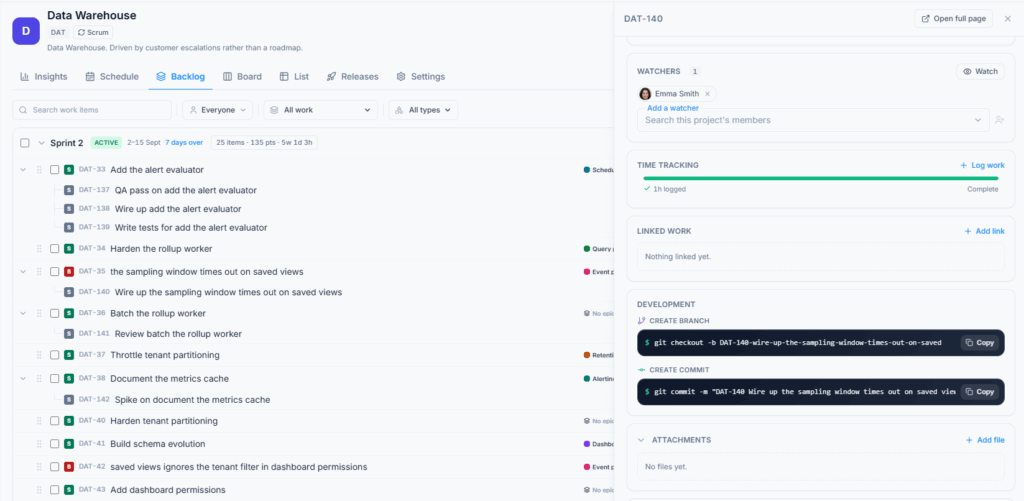
Select Watch to follow an item and Stop watching to leave it. A user can always manage their own watcher state when they can open the item. Changing the watcher list for another member requires sufficient Edit work items access.
Watchers can receive comment, status, resolved-work, and other item notifications when the corresponding audience and channel are enabled in Project Settings. Adding someone as a watcher does not assign the item to them.
Work-item Links #
Use Add link and search by item key or summary. Available relationships are:
- Relates to: The items are connected without a delivery dependency.
- Blocks / Is blocked by: One item prevents progress on the other.
- Duplicates / Is duplicated by: The items describe the same underlying work.
- Clones / Is cloned by: One item was copied from the other.
The wording is shown from the direction of the item being viewed. An item cannot link to itself, and Office-X prevents the same relationship from being added twice. Both the source and target must be visible to the user, including when they belong to different projects in the same company.
An open blocking relationship appears in Schedule and other planning context. Closing or removing the blocker changes that indicator but does not automatically change the blocked item’s status.
Use Attachments to keep designs, documents, screenshots, and other supporting files with the work item they belong to. The number beside the section title shows how many files are already attached. #
To add a file:
- Open a work item that you are allowed to view.
- Expand Attachments and select Add file.
- Choose one file from your device.
- Keep the panel open while the file name, progress bar, and upload percentage are shown. The new file appears in the list after the upload is confirmed.
UPDATED FOR THE CURRENT CODEBASE: A work item can contain up to 10 attachments, and each file can be up to 5 MB. The file name must be between 1 and 255 characters. Empty files are not accepted.
For safety, Office-X blocks executable, installer, script, shortcut, disk-image, and similar application file types. Examples include EXE, DLL, BAT, CMD, MSI, JS, JAR, SH, PowerShell, APK, DMG, ISO, and BIN files. If Office-X reports that a file type cannot be attached, use a safe document or archive format instead, according to your organisation’s security policy.
Each attachment shows its file name, size, and upload date. Images, PDF files, and text-based files have a View action that opens a browser preview in a new tab. Every attachment has a Download action, including files that can also be previewed.
Uploading is controlled by Attach files. It does not require Edit work items, but the user must be able to open the work item. The Add file button is hidden when this permission is not available.
Deleting an attachment is controlled separately by Edit and delete comments and files:
- None: The user cannot delete attachments.
- Own: The user can delete files they uploaded.
- Team: The user can also delete files uploaded by a member of their configured Office-X Team.
- All: The user can delete any attachment in the project scope.
Deleting a file requires confirmation. Attachment names cannot be edited after upload. If the wrong file or name was used, delete the attachment and upload the correct file again.
Development and Activity #
Development provides a branch-name command based on the work-item key and title. Copy it when starting code work so the item remains recognisable in the branch name.
Activity shows meaningful changes to the item, including field updates, status moves, comments, links, files, and worklogs. It is a history, not an Undo screen.
Descriptions and comments can contain up to 10,000 characters. A work item can have up to 30 labels, and one attachment can be up to 25 MB. Office-X validates the same limits on the server, so changing the browser form cannot bypass them.
Log Time #
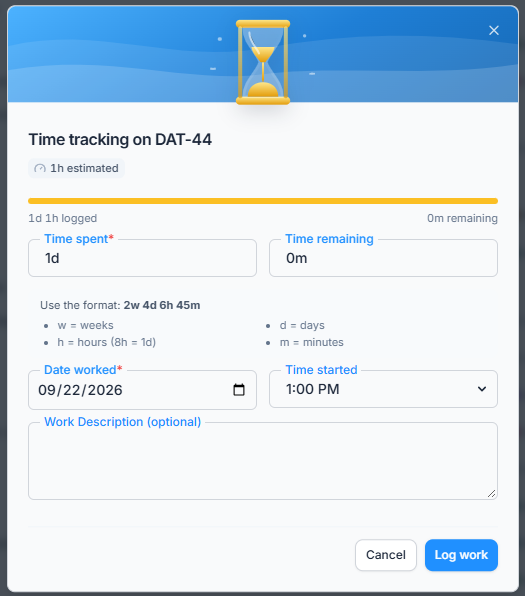
Open Time tracking and log the time spent. You can optionally update time remaining, select the date and start time, and add a work description.
Complete a Worklog #
- Time spent: Required. Each entry must be at least one minute and cannot exceed 31 days of time.
- Person: Normally the signed-in user. A user with All scope for Log time can log on behalf of another eligible project member.
- Date worked: Required calendar date on which the effort occurred.
- Start time: Optional 24-hour time for more precise context.
- Work description: Optional note of up to 1,000 characters.
- Time remaining: Optional revised forecast for the unfinished work.
If Time remaining is not entered manually, Office-X subtracts the new worklog from the current remaining estimate. The result never drops below zero. If you enter a value, Office-X treats it as the team’s new forecast rather than calculating it automatically.
Log time controls creation of new entries. Edit / Delete Log Time separately controls existing entries. Own allows only your own time or entries; All allows acting for anyone in the project.
When an existing worklog is edited or deleted, Office-X recalculates total time spent and adjusts remaining time consistently. Deleting a worklog permanently removes that time entry; it is not moved to the work-item Trash.
Logging time is project effort tracking; it does not create or change an Attendance record or payroll hours. Office-X checks the selected person’s calendar and warns when the date is approved leave, a holiday, or a non-working day, but the two datasets remain separate. Time remaining reduces from the value you enter and never drops below zero. Working past the original estimate is allowed, the estimate was a plan, not a hard limit.
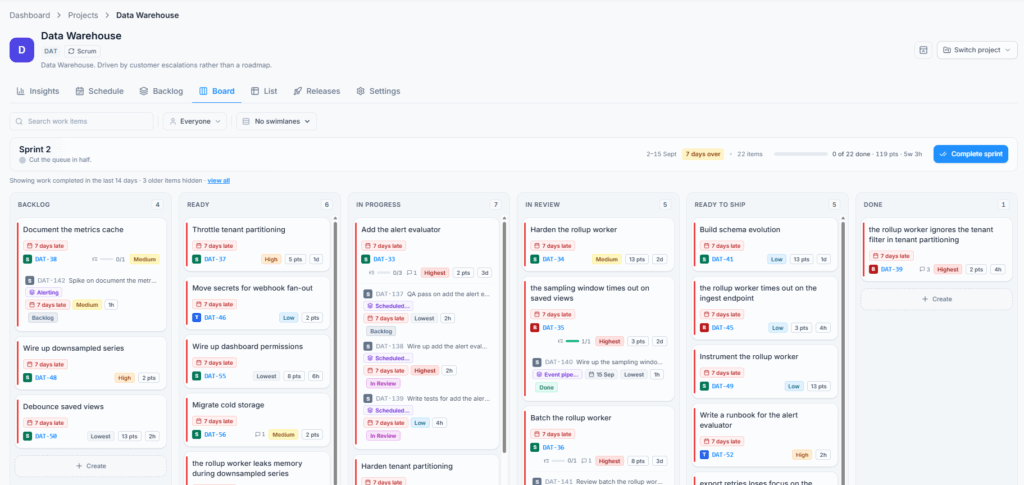
Use the Board #
Open Project > Board. Each column represents a workflow status. Dragging a card to another column changes its status only when the saved workflow permits that transition.
Board search finds work by title or key. The Assignee filter supports multiple people and Unassigned. Due-state labels use the tenant’s configured timezone.
A Board card identifies work through its type, key, and title. Depending on Board settings, it can also show Assignee, Priority, Labels, Estimate, Due date, and Parent. Select a card to open the full item.
Use swimlanes to group work by Parent, Assignee, Work type, or Priority. The project defines a default swimlane, but a member’s saved choice can override it for their view.
In a Scrum project with parallel sprints, choose one active sprint or All active. All active groups the Board by sprint and temporarily fixes the swimlane to that grouping. Choose a single sprint again to use the other swimlane options.
When subtasks are displayed independently, each subtask card shows a link to its immediate parent. This keeps the relationship visible even when the subtask is no longer nested inside the parent’s card.
Moving a card between statuses needs Change status and sufficient Edit work items scope. A WIP limit warns when too much work is sitting in a column, but it does not grant or remove permission to move cards.
Read a Board Card #
A card always identifies the work through its type, key, and title. Depending on Board display settings, it may also show Assignee, Priority, Labels, Estimate, Due date, and Parent. Subtasks, links, and comment indicators provide additional context without opening the item.
Due-date styling distinguishes upcoming, due, and overdue work. Board colours for workflow state are based on the project’s status configuration. Select a card to open the full item without leaving the Board.
Filter and Group the Board #
Use the assignee filter to focus on one person or unassigned work. Swimlanes can group the Board by Parent, Assignee, Work type, or Priority, or show no grouping. The project has a default swimlane setting, but a member’s own choice can override it for their view.
Completed work remains on the Board for the number of days configured in Board settings. A value of zero hides completed work immediately. Hiding completed cards does not delete them.
WIP Limits #
A column may have a work-in-progress limit. Reaching or exceeding it warns that too much work is sitting in that stage. The limit helps the team manage flow; it does not delete cards or grant permission to move them.
For active-sprint behaviour, see Scrum Projects: Backlog and Sprints. For continuous flow and WIP limits, see Kanban Projects: Continuous Work.
Use List View #
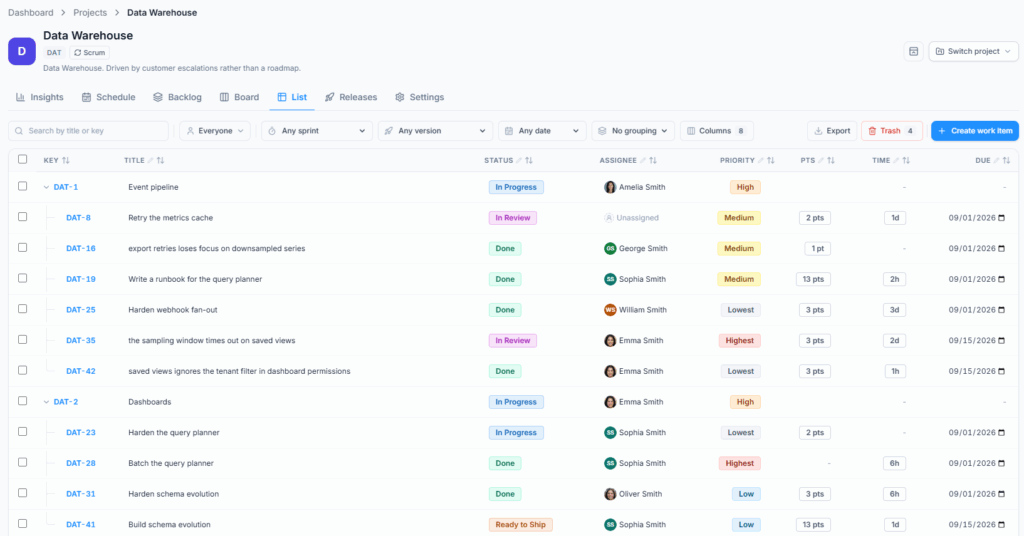
Open Project → List to search, filter, group, compare, and edit many items.
List is the best view when exact fields matter or when the same change must be applied to several items. The current search, filter, grouping, and page state are represented in the view so the team can return to a useful working set.
Filters include status, category, type, assignee, reporter, priority, label, sprint, fix version, points, due date, start date, created date, and updated date. A filter can match all conditions or any condition.
Use Match all when every condition must be true, such as High-priority Bugs assigned to one person. Use Match any when an item may satisfy any selected condition, such as work that is Overdue or Unassigned.
Grouping organises the visible rows without changing the work itself. Search finds matching item keys and titles within the user’s accessible project scope.
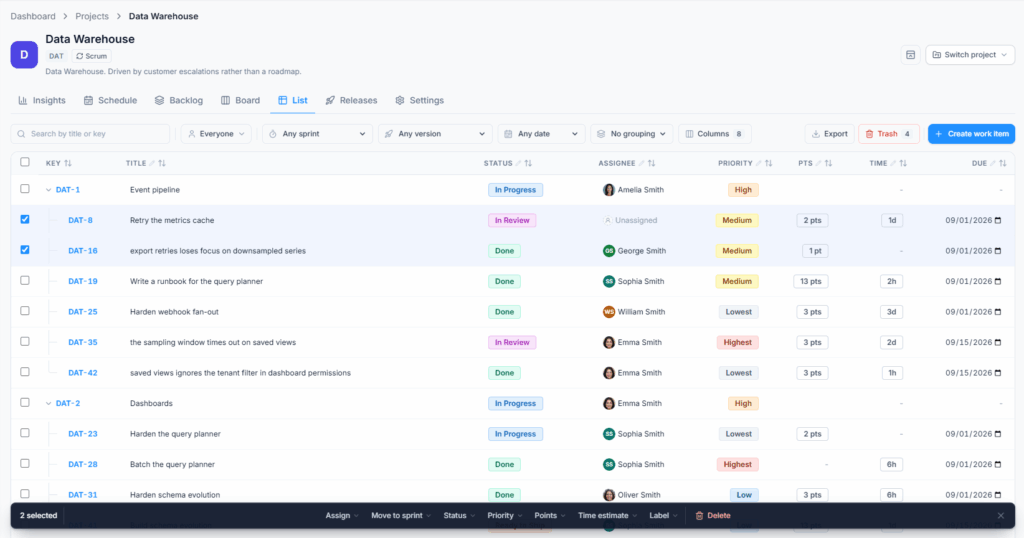
Editable columns can be changed directly. Select rows to assign, move to a sprint, change status or priority, set estimates, add a label, or move work to trash in bulk.
Editable cells depend on permission and project features. Clicking a read-only value opens or identifies the item but does not grant edit access. For an inline edit, press Esc before saving to cancel the draft. After a successful write, the saved state confirms that the server accepted the change.
Press Esc to cancel a cell edit before it saves. A saved indicator confirms the update. If selected rows have different permission scopes, Office-X applies an action only where it is allowed and reports protected items instead of silently granting broader access.
A single bulk request can cover up to 200 work items. List pages offer 10, 20, or 30 rows. Key and Title stay visible because a row cannot be identified safely without them; other columns can be adjusted through the column control.
Bulk-action Behaviour #
Bulk actions apply one requested change to the selected rows. Office-X checks every item against the user’s permission scope and reports how many changed or were protected. It never upgrades access simply because the items were selected together.
Reversible field changes such as Assignee, Sprint, Priority, Labels, and Estimates can offer a short Undo action. Status transitions use workflow rules and do not use the generic field Undo. Moving items to Trash requires confirmation and restoration from Trash.
Adding labels in bulk is limited to 10 labels in one request, and no resulting item may exceed the 30-label limit.
Export, Delete, and Restore #
Export data downloads List data as a spreadsheet without expanding the rows you are allowed to see.
The export reflects the visible, accessible List context and selected columns. Export data is a separate permission. Having access to List does not by itself authorise downloading project data.
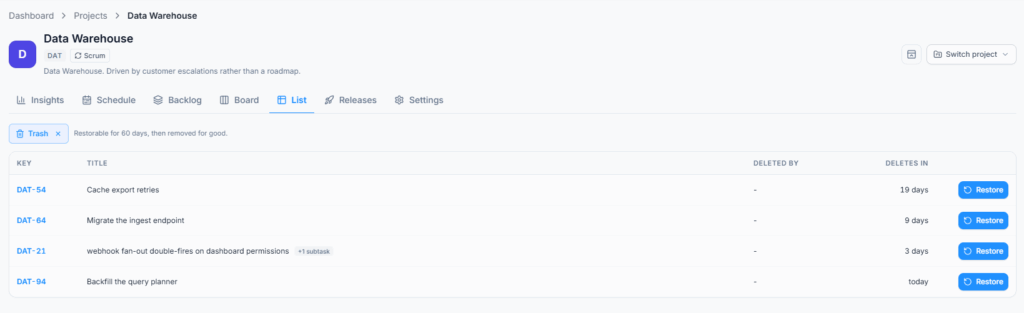
Deleted work items move to Trash for 60 days. Open Trash from List view to restore an item before it is permanently purged.
Deleting a parent also moves the active descendants deleted as part of that action to Trash with it. When the parent is restored, Office-X restores the descendants that were deleted in the same operation. A child deleted separately at another time remains in Trash.
Restore permission follows the delete scope. With Own scope, a user can restore items they deleted; All scope can restore any permitted trashed item in the project. After the 60-day retention period, scheduled cleanup permanently removes the work-item data.
Most non-destructive bulk edits show a short Undo action after completion. Moving items to Trash is different: Office-X asks for confirmation and does not show instant Undo because the work must be restored from Trash instead.
Clone and Convert #
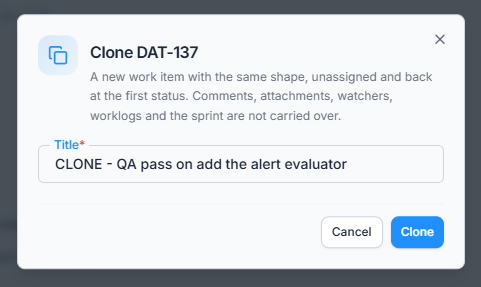
Clone creates a separate item with the same basic shape, returns it to the first status, and leaves it unassigned. You can choose whether to clone its subtasks. Comments, attachments, watchers, worklogs, and sprint membership are not copied.
The Clone dialog pre-fills the title with CLONE - and lets you edit it before creation. The cloned item receives a new key, the person performing the action becomes its Reporter, and Office-X creates a Clones relationship between the source and copy. When subtasks are included, they also receive new keys.
Convert changes a compatible work item to another type while keeping its identity and supported content. Office-X asks for a valid status and priority for the destination type and explains any parent/hierarchy change before confirmation.
Conversion keeps the item’s key, title, assignee, dates, comments, attachments, and time tracking. If the destination type cannot legally keep the current parent, the parent link is cleared. A conversion that would leave existing children under an invalid hierarchy is refused.
Permission Dependencies #
- Change status also needs Edit work items.
- Set estimates also needs Edit work items.
- Schedule work items also needs Edit work items.
- Assign work: Own means assigning only to yourself.
- Assign work: All can assign to a member who has Can be assigned work.
- Attach files also needs Edit work items.
- Comment does not grant permission to edit or delete other people’s comments.
Additional rules to remember:
- Create work items controls new items and permitted subtasks. The chosen type and parent must still follow hierarchy rules.
- Link work items controls adding and removing relationships, but both items must remain inside the user’s view scope.
- Edit and delete comments and files: Own covers only content the user added. All is a moderation permission.
- Log time: Own records the user’s own time. All can also record time for another eligible project member.
- Edit / Delete Log Time: Own applies to worklogs belonging to the user. All applies to every worklog in scope.
- Delete work items: Own applies to items assigned to or reported by the user. Deleted work still follows the 60-day Trash lifecycle.
- Export data controls spreadsheet download and is independent from normal viewing.
Common Questions #
Why can I see an item but not edit it? #
See work items and Edit work items are separate scoped permissions. You may have Team or All view access while Edit is None or Own. With Own edit scope, only items assigned to you or reported by you can be changed.
Why is a person missing from the Assignee list? #
They must be an eligible project member and their role must include Can be assigned work. The person making the change also needs enough Assign work and Edit work items access.
Why is a status missing when I move an item? #
The saved workflow may not allow that transition from the current status. The user must also have Change status and sufficient Edit work items scope.
Why is a field missing? #
The selected work type, project type, enabled features, permissions, or current hierarchy may make the field unavailable. For example, Sprint is not relevant to a Kanban project, and version fields depend on Releases being available.
Why did a bulk action update only some items? #
Office-X checks permissions, workflow rules, hierarchy, and field limits for each selected item. Protected or invalid rows are reported instead of being changed silently.
Summary #
Create work with a type and title, then add the detail the team needs. Use Board for flow, List for precision and bulk changes, and the work-item panel for collaboration, relationships, files, and time.
