Skip to content
Office-X
Partners Pricing Add-ons FAQ Help Center
Sign in Start free trial →
Features & Solutions

Everything You Need to
Make Your Workplace Smarter

Office-X brings your people, payroll, clients, and daily operations together in one secure workspace.

Employee Management
Onboarding & Performance Manage and track growth
Attendance & OT IP-locked check in + overtime
Time off / Leave Requests, balances & approvals
Internal Support Tickets & helpdesk
Payroll Paystubs & Tax statements
Work Shifts Schedule Create and manage rosters
Business Management
CRM Manage leads, clients & sales
Estimate & Agreements Quotation + e-sign docs.
Web & AI Phone Bookings Automated scheduling
Project Management Plan sprints, capacity & delivery
Activity Log Who did what, when & where
Permissions & Approvals Multi-level approval flows
Business Management
Task Management Schedule crews & service visits
Expenses Track costs & reimbursements
Asset & Incident Tracking Track assets & report incidents
Bill, Travel & Purchase Approve & manage expenses
Holiday Calendar Company-wide holidays
Email Templates & SMTP Branded emails & delivery
Employee Management
Onboarding & Performance Attendance & OT Time off / Leave Internal Support Payroll Work Shifts Schedule
Business Management
CRM Estimate & Agreements Web & AI Phone Bookings Project Management Activity Log Permissions & Approval Flow Task Management Expenses Asset & Incident Tracking Bill, Travel & Purchase Holiday Calendar Email Templates & SMTP
Partners Pricing Add-ons FAQ Help Center
Sign in Start free trial

Getting Started

1
  • Getting Started with Office-X

Subscription & Billing

1
  • How Seats Work in Office-X

Features & Modules

96
  • Overview
  • Admin Module
    • Department
    • Designation
    • Pay Type
    • Employment Status
    • Leave Types
    • Benefits
    • Expense Category
    • Teams
    • Forms
    • Events & Announcements
    • Incident Configuration
    • IP Configuration
    • Currency
    • Support Categories
    • Integrations
    • Client Portal
    • Notifications
  • SMTP & Email Templates
    • SMTP Config
    • Email Templates
  • Business Management
    • Company
    • Billing & Payment
    • Payroll Configuration
    • Business Support
  • Privacy & Security
    • Security
  • Employees Module
    • Employee List
    • Adding a New Employee
    • View Employee Details
    • Edit an Employee
    • Reset Password
    • Work Hours/Shift Hours
    • Change Status
    • Assign/Unassign Seat
    • Opening Balance
    • Assign Work Days
    • Visual Guide
  • Activity Logs
    • Activity Logs
  • Performance Management
    • Performance Management
  • Work Shifts
    • Work Shifts
  • Permissions & Approval Flows
    • Permissions Management
    • Approval Flows
  • Holidays Calendar
    • Calendar
  • Expenses
    • Expenses
  • Attendance Management
    • Attendance Records
    • Individual Attendance Summary
    • Overall Attendance Summary
    • Visual Guide
  • Leave Management
    • Create Leave
    • Approve & Reject Leave
    • Cancel Approved Leave
    • View All Leaves
    • Visual Guide
  • Travel Requests
    • Create Travel Request
    • Approve & Reject Travel Request
    • View All Travel Requests
    • Visual Guide
  • Purchase Requests
    • Create Purchase Request
    • Approve & Reject Purchase Requests
    • View All Purchase Requests
    • Visual Guide
  • Payroll (Bangladesh)
    • Business → Payroll Configuration
    • Payroll Management
    • Income and Tax Statement
    • Visual Guide
  • Asset Tracking
    • Asset Tracking
  • Projects
    • Projects Overview and Setup
    • Manage Project Work
    • Scrum Projects: Backlog and Sprints
    • Kanban Projects: Continuous Work
    • Schedule, Releases, and Insights
    • Project Settings
  • CRM
    • Overview
    • Clients
    • Items
    • Docs
    • Requests
    • Estimates
    • Invoices
    • Agreements
    • Bookings
  • Client Portal
    • Requests
    • Estimates
    • Appointments
    • Invoices
    • Contact Us
  • Tasks
    • Schedule
    • History
  • Incident Report
    • Incident Report
  • Support
    • Create Support Request
    • Resolve Support Requests
    • View All Support
    • Visual Guide
  • Bill Management
    • Create Bill
    • Approve & Reject Bill
    • View All Bills
    • Visual Guide
View Categories
  • Home
  • Docs
  • Features & Modules
  • Projects
  • Scrum Projects: Backlog and Sprints

Scrum Projects: Backlog and Sprints

Plan work into fixed iterations, run the active sprint, and review what the team delivered.

This guide applies only to Scrum projects.

Who Can Use This Feature #

Tenant Admins can manage the Backlog and run sprints. Employees need access to the Scrum project and the relevant project permissions.

  • Reorder the backlog changes planning order.
  • Move work into a sprint places work in a sprint, moves it to another sprint, or returns it to Backlog.
  • Create and edit sprints controls sprint name, goal, and dates.
  • Start and complete sprints controls the actions that change the team’s committed plan.
  • See workload & capacity reveals the Backlog capacity panel and Start Sprint capacity preview, in addition to named workload in Insights.

Reordering work and committing it to a sprint are separate permissions. A user may be able to rank Backlog items without being able to move them into a sprint.

Work-item creation, editing, assignment, priority, estimates, and status changes retain their own permissions.

Where to Find It #

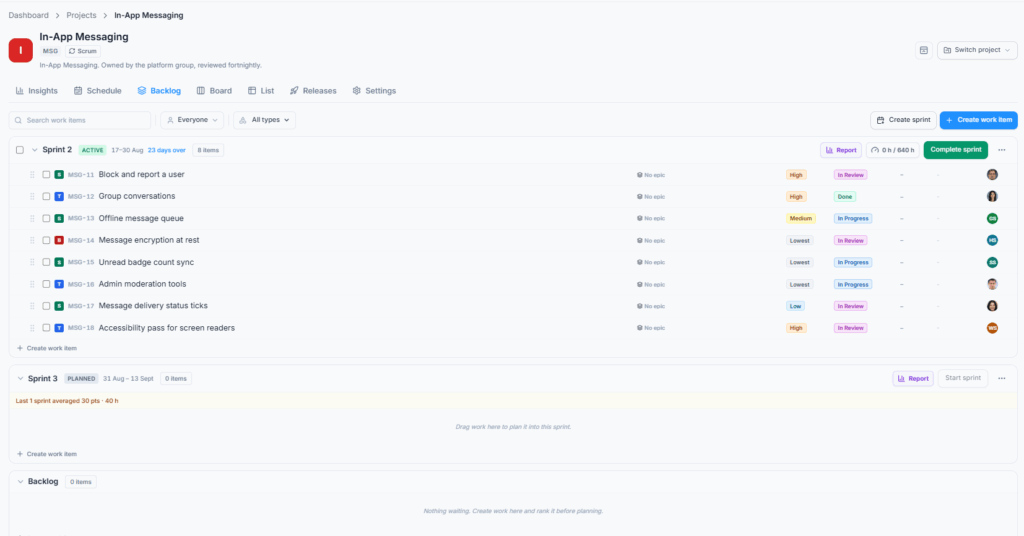
Open Dashboard → Projects → [Scrum Project] → Backlog.

Backlog contains unscheduled work and planned sprint containers. The Board shows the active sprint. Completed sprint details open from the sprint report route.
Prepare the Backlog #

Create or refine work, rank the most important items first, filter by parent or work type, and add estimates where the team uses them. Select several items for bulk assignment, priority, status, estimate, label, deletion, or movement into a sprint.

Create and Plan a Sprint #

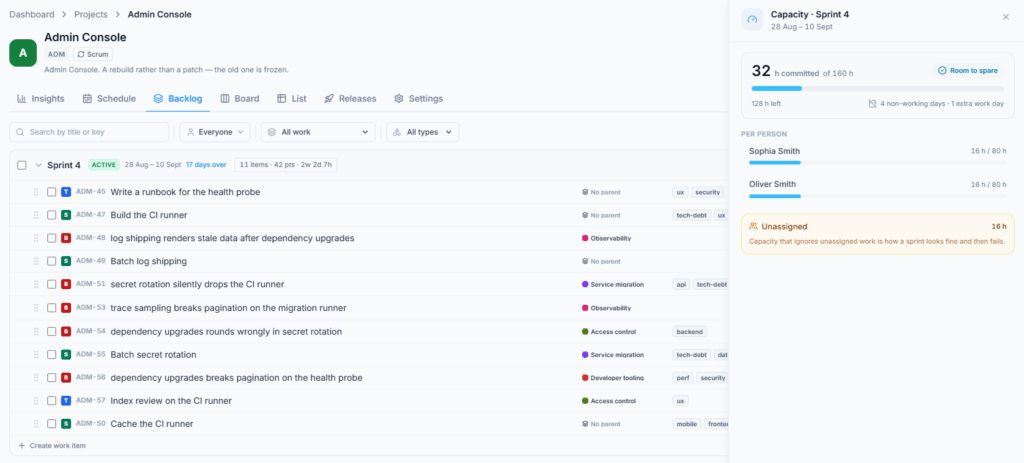
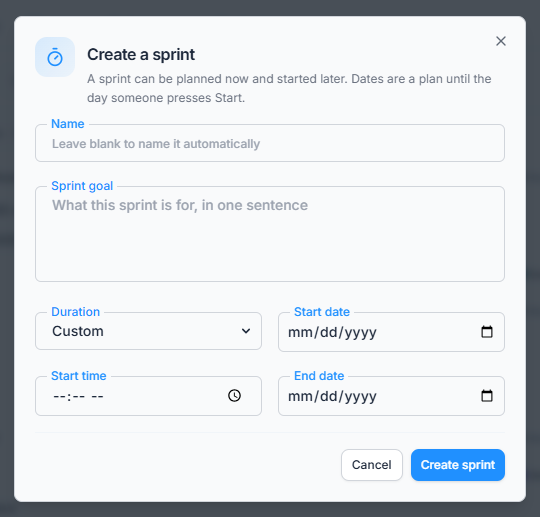
Click Create sprint. Add a name, optional goal, duration, start date and time, and end date. Move the work the team intends to deliver into the sprint.

Capacity compares planned work with team availability over the sprint dates using the project working calendar. An over-committed warning does not remove work; it tells the team to review the plan.

Capacity is most useful when work has estimates and sprint dates are accurate. Project closures, extra working days, and the length of a working day come from Settings → Working calendar.

By default, a Scrum project runs one active sprint at a time. If Parallel sprints is enabled in General settings, more than one sprint can be active and the Board can switch between them or group active work by sprint.
Start the Sprint #

Open the sprint actions and click Start sprint. Confirm its name, goal, duration, dates, and start time. Once active, its work appears on the Scrum Board.

If the Board says no sprint is running, return to Backlog and start a planned sprint.

Starting a sprint establishes the committed set used by reporting. Work added or removed later is recorded separately so the sprint report can distinguish planned delivery from scope change.
Complete the Sprint #

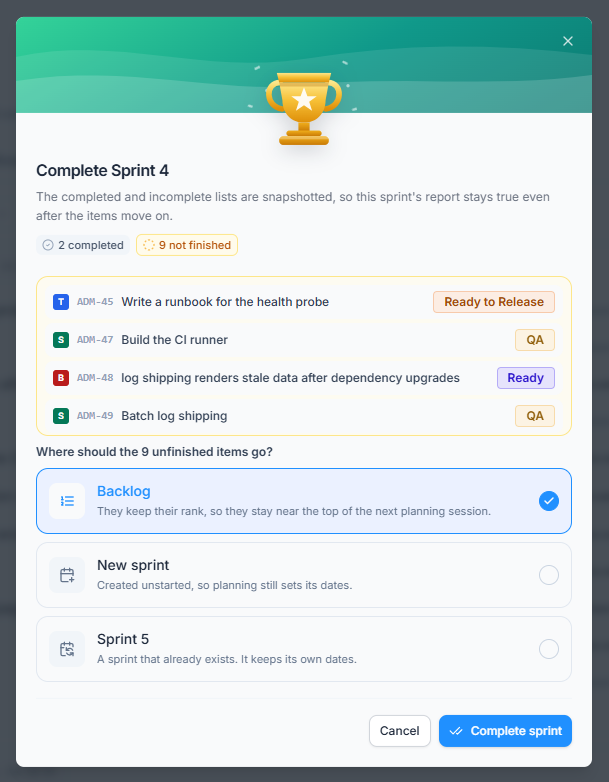
Click Complete sprint from the active sprint. The dialog shows completed work, unfinished parents, and open subtasks.

A sprint cannot be completed while any subtask in it remains open. Finish those subtasks first. A Done parent with an open subtask is shown for context, but the open subtask is what blocks completion.

When all subtasks are Done, choose where unfinished parent items should go:

  • Backlog: Keeps their rank and returns them to future planning.
  • New sprint: Creates an unstarted sprint without dates. This option appears only when the user has Create and edit sprints.
  • An existing sprint: Moves the work into the selected open sprint, which keeps its own dates.

Completion does not mark unfinished work Done. Office-X snapshots the completed and incomplete lists before moving unfinished work, so the sprint report remains historically accurate.

After completion, use View report from the success message to open the preserved sprint report directly.
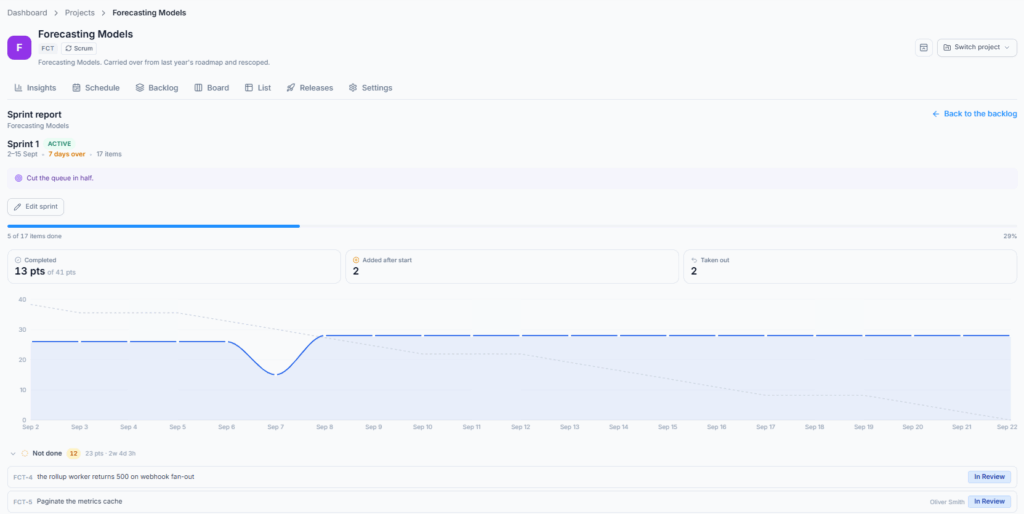
Read the Sprint Report #

The report separates:

  • Done and not-done work
  • Items added after the sprint began
  • Items removed during the sprint
  • Sprint dates and goal

Burndown shows remaining work, burnup compares completed work with total scope, and velocity compares delivery across completed sprints.
Common Questions #

Why can I edit a sprint but not start it? Create/edit and run permissions are separate because starting and completing change the team’s committed plan.

Why is Backlog missing? The project is Kanban, or you are not inside a Scrum project.

Why is capacity low? Check sprint dates, estimates, project working days, holidays, exceptions, and member availability.

Summary #

Keep the Backlog ordered, plan a realistic sprint, check capacity, then start it. At the end, decide where unfinished work goes and use the report to improve the next plan.

Updated on September 27, 2026
Manage Project WorkKanban Projects: Continuous Work
Table of Contents
  • Who Can Use This Feature
  • Where to Find It
  • Prepare the Backlog
  • Create and Plan a Sprint
  • Start the Sprint
  • Complete the Sprint
  • Read the Sprint Report
  • Common Questions
  • Summary

Office-X brings your people, payroll, clients, and daily operations together in one secure workspace.

Facebook Linkedin Youtube

Company

  • Partner Programme
  • Pricing
  • Add-ons
  • Trust & Security
  • Free Migration

EMPLOYEE MANAGEMENT

  • Onboarding & Performance
  • Attendance & OT
  • Time off / Leave
  • Work Shifts Schedule
  • Payroll
  • Bills, Travel & Purchases
  • Internal Support

BUSINESS MANAGEMENT

  • CRM, Estimate & Agreement
  • Tasks Management
  • Projects (Scrum & Kanban)
  • Web & AI Phone Bookings
  • Activity log
  • Permissions & Approval Flow
  • Asset & Incident Tracking

Resources

  • Help Center
  • See how it works
  • FAQs
© Office-X. All rights reserved.
  • Terms of Service
  • Cookie Policy
  • Privacy Policy