The Expenses feature helps your company keep a clear record of money that has already been spent. Use it for costs such as materials, parking, fuel, office supplies, meals, or a part bought for a customer visit.
An expense can be connected to a task, but it does not have to be. This means the same page can track both task-related costs and general business costs.
Important: An expense is a record of money already spent. It is not a purchase request or a bill approval request, so there is no approval process in this feature.
Common Business Uses #
- An employee buys parking for a customer visit and needs the company to pay them back.
- A manager records materials bought with the company card.
- An office administrator records a general office cost that is not connected to any task.
- A finance team member checks which employee expenses are still waiting to be reimbursed.
- A business owner reviews total spending by category, date, or task.
Where to Find Expenses #
Go to Dashboard → Expense.
Expenses is a main menu item. It is available when your company’s plan includes the Expenses feature. If the feature is not included in the current plan, the page is not available.
If your company also uses Tasks, you can view and add task-related costs from the Expenses section of an individual visit. The main Expenses page remains the complete place for reviewing expense records.
Before You Start #
- Expense Categories
Route: Dashboard → Admin → Expense Category
Create useful categories such as Travel, Fuel, Office Supplies, Meals, or Client Costs. Categories are shared with Bills, helping your company use consistent labels. - Currency
Route: Dashboard → Admin → Currency
New expenses use your company’s default currency. Saved amounts are shown with that currency. If no default currency is set, the amount is shown without a currency code. - Permissions
Route: Dashboard → Admin → Permission → Employee Permission / Team Permission
Use the Expenses permission group to decide who can create, edit, delete, view company-wide expenses, open other employees’ full expense details, or mark claims as reimbursed. - Tasks (optional)
If your company uses the Tasks feature, an expense can be connected to a visit. The cost then appears with that visit and contributes to the task’s cost and margin information.
What Employees Can Do #
Every employee can open the Expenses page and see the expense records that belong to them. This includes:
- Expenses they recorded themselves.
- Expenses another authorized person recorded to reimburse them.
An employee does not need a viewing permission to see these own records. However, creating, editing, deleting, viewing everyone else’s expenses, and settling reimbursements are controlled separately.
When an employee has Create Expense (For Own), the reimbursement choice starts with that employee selected. They can:
- Keep their own name selected when they paid personally and need reimbursement.
- Clear their name when the business paid directly and nobody needs reimbursement.
Employees with own-level access cannot choose another employee as the person to reimburse.
What the Subscriber Admin Can Do #
The Subscriber Admin has full access to the company’s Expenses feature without needing individual expense permissions.
- View the full company expense list and all summary totals.
- Record an expense for the business or for an employee.
- Choose an active, licensed employee as the person who should be reimbursed.
- Open full expense details, including receipts and record information.
- Edit any expense.
- Delete any expense that has not already been reimbursed.
- Mark an employee claim as reimbursed.
Business tip: The Subscriber Admin can give finance staff only the permissions needed for their role. For example, a bookkeeper can be allowed to view all expenses and mark reimbursements without being allowed to edit or delete expense records.
Permission Behavior
Permissions can be assigned directly to an employee or through a team. They are found under the Expenses permission group.
- Create Expense (For All)
Required action: Create
Allows the user to record an expense and choose another employee as the person to reimburse. - Create Expense (For Own)
Required action: Create
Allows the user to record their own expense or record a company-paid cost. It does not allow them to create a reimbursement for a colleague. - View All Expenses
Required action: View
Shows the company’s full expense list and company-wide totals instead of only the employee’s own records. - View Expense Details (For Others)
Required action: View
Allows the user to open another employee’s complete expense record, including the receipt, who recorded it, and the recorded and updated times. Employees can always open their own complete records. - Edit Expense (For All)
Required action: Update
Allows the user to edit any expense in the company. - Edit Expense (For Own)
Required action: Update
Allows the user to edit an expense they recorded or an expense that is meant to reimburse them. - Delete Expense (For All)
Required action: Delete
Allows the user to delete any expense that has not already been reimbursed. - Delete Expense (For Own)
Required action: Delete
Allows the user to delete an expense they recorded or an expense meant to reimburse them, as long as it has not already been reimbursed. - Mark Expenses Reimbursed
Required action: Update
Allows the user to confirm that the company has paid an employee back. A regular employee cannot mark their own expense claim as reimbursed, even if they have the required permission. However, they can mark other employees’ claims as reimbursed if they have the permission.
Good to know: View All Expenses and View Expense Details (For Others) have different purposes. View All Expenses shows the company-wide list and totals. View Expense Details (For Others) opens the full record behind another employee’s row. Give both permissions when someone needs both levels of access.
Understanding the Expenses Page #
Summary Cards #
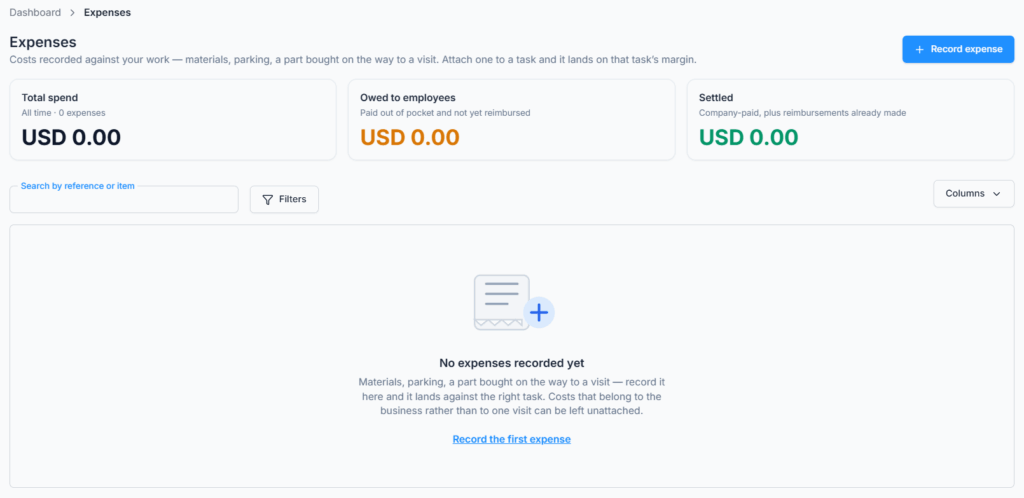
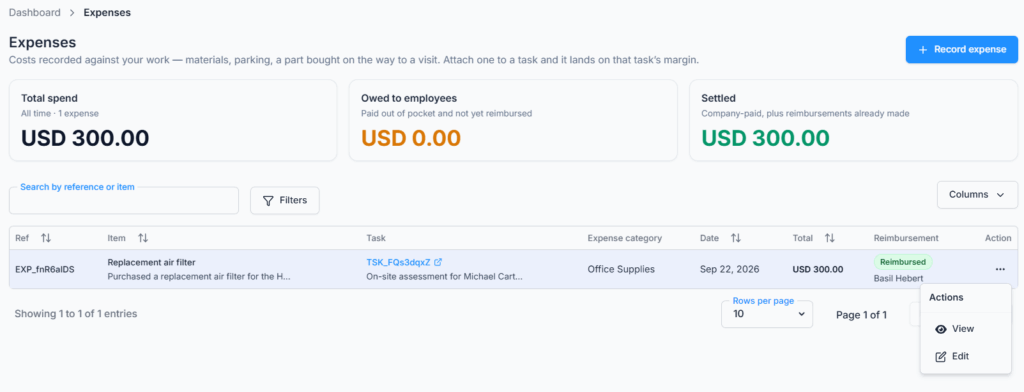
The top of the page shows three business summaries:
- Total Spend — the combined value and number of expense records.
- Owed to Employees — money employees paid personally that has not yet been reimbursed.
- Settled — company-paid expenses plus employee reimbursements already completed.
These cards follow the current search and filters. When the list is filtered, the cards show totals only for the matching expense records.

Expense List #
Each row can show:
- Ref — the expense reference created automatically by Office-X.
- Item — what was purchased, with notes shown underneath when available.
- Task — the connected visit, or Business cost when the expense is not connected to a task.
- Expense Category — the selected business category, or Uncategorised when none was selected.
- Date — when the money was spent.
- Total — the amount and currency.
- Reimbursement — whether the expense is Awaiting, Reimbursed, or Company paid.
- Action — View, Edit, Mark reimbursed, or Delete, depending on the record and the user’s permissions.

How to Record an Expense #
- Go to Dashboard → Expense.
- Click Record expense.
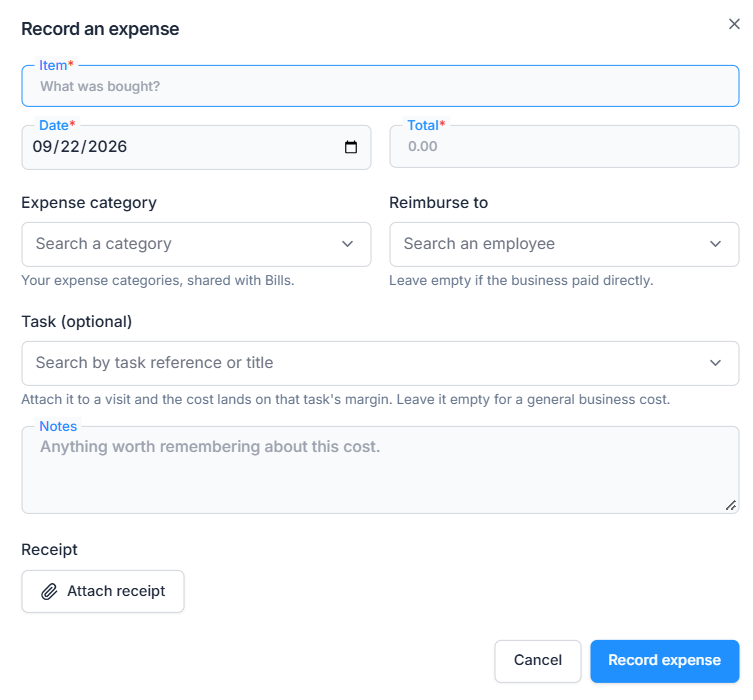
- Complete the expense details.
- Check who should be reimbursed. Leave this empty when the company paid directly.
- Attach a receipt if one is available.
- Click Record expense to save it.
Expense Form Fields
- Item (required)
Enter a short, clear name for what was bought, such as Parking for client visit or Printer paper. The item name can contain up to 200 characters. - Date (required)
Select the date the money was spent. Today’s date is selected automatically for a new expense. - Total (required)
Enter the full expense amount. The amount cannot be negative and should not be more than 99,999,999. - Expense Category (optional)
Search and select one of your company’s expense categories. Leaving it empty saves the record as Uncategorised. If a category used only by Expenses is later deleted, those Expenses also appear as Uncategorised. - Reimburse to (optional)
Select the active, licensed employee who paid personally and should receive the money back. Leave it empty when the business paid directly. Employees with own-level access can choose only themselves or nobody. - Task (optional)
Search by task reference or title to connect the cost to a visit. Leave it empty for a general business cost. This field appears only when your company has access to Tasks. - Notes (optional)
Add useful context about the cost. Notes can contain up to 1,000 characters. - Receipt (optional)
Attach an image or PDF receipt. One receipt can be attached to an expense, and the file must be 10 MB or smaller. You can replace or remove it before saving.
Good to know: When the form is opened from a visit, that visit is already selected and cannot be changed in the form. This keeps the cost connected to the correct work.
What Happens After an Expense Is Recorded #
- Office-X creates a unique expense reference beginning with EXP.
- The expense appears in the correct employee and company expense views.
- If a task was selected, the cost also appears in that visit’s Expenses section and contributes to the task’s cost information.
- If another person recorded the expense for an employee, that employee receives an in-app notification and, when company email is available, an email explaining the claim.
- No approval request is created. If an employee is owed money, the expense stays in Awaiting status until an authorized person marks it reimbursed.
Reimbursement Statuses #
- Awaiting
An employee paid personally and the company still owes them the money. - Reimbursed
The company has paid the employee back. The date and time of reimbursement are recorded automatically. - Company paid
The business paid the expense directly, so no employee is owed money.
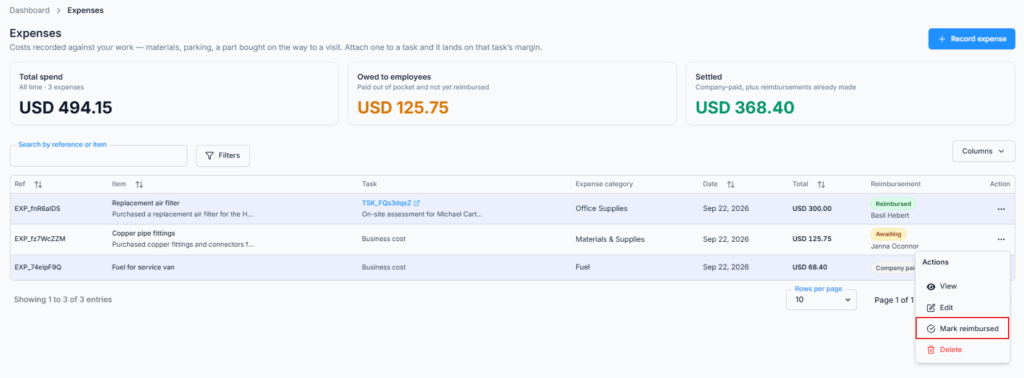
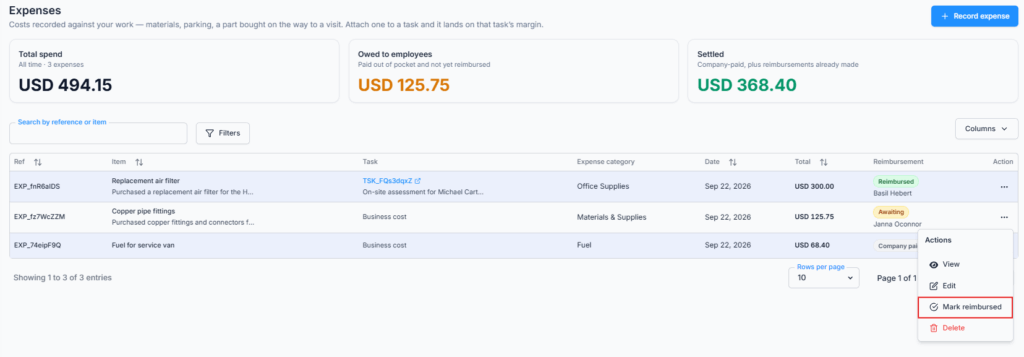
How to Mark an Expense as Reimbursed
- Find an expense showing Awaiting.
- Open its Action menu, or open the expense details.
- Click Mark reimbursed.
The employee is notified that the expense was marked as reimbursed. If the employee has not received the money, they should contact the company’s finance team.
Important: Mark an expense as reimbursed only after the payment has actually been made. Once reimbursed, the expense cannot be deleted because it is part of the company’s payment record.
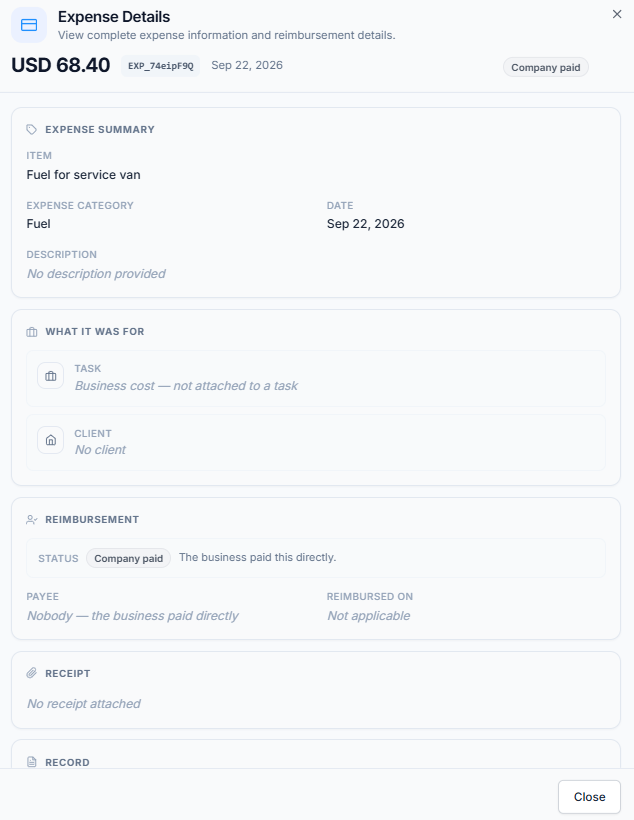
View Full Expense Details #
Click a row or choose View from the Action menu when you have access to the full record. The details window shows:
- The expense reference, amount, currency, and spending date.
- The item, category, and notes.
- The connected task and client, when applicable.
- The reimbursement status, payee, and reimbursement date.
- The attached receipt, when available.
- Who recorded the expense and when it was created or last updated.
Employees can always open their own expense details. A user who can view the company-wide list but does not have View Expense Details (For Others) can still see the business information in the table, but cannot open another employee’s receipt and full record.
Edit an Expense #
- Open the expense’s Action menu.
- Click Edit.
- Update the necessary information.
- Click Save changes.
The available Edit action depends on whether the user has own-level or all-company edit permission. The Subscriber Admin can edit any expense.
A visit’s status owner can correct an expense they recorded from that visit without a separate expense permission. They cannot use this special access to move the expense to another visit.
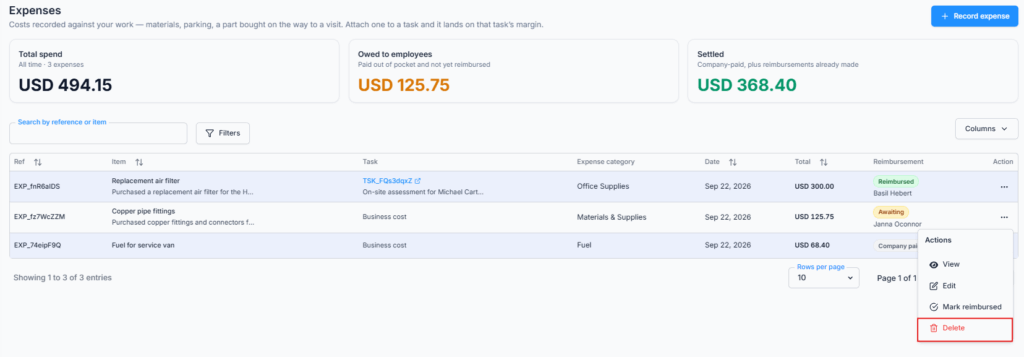
Delete an Expense #
- Open the expense’s Action menu.
- Click Delete.
- Review the item and amount in the confirmation message.
- Confirm the deletion.
The available Delete action depends on whether the user has own-level or all-company delete permission. The Subscriber Admin can delete any expense that has not been reimbursed.
Important: A reimbursed expense cannot be deleted. If information is incorrect, edit the expense instead so the payment history is not lost.
Search, Filter, Sort, and Adjust the List
- Search
Search by expense reference, item name, or words in the notes. - Expense Category
Show all categories or choose one category. - Reimbursement Status
Choose All statuses, Awaiting, Reimbursed, or Company paid. - Spent Between
Select a From and To date to review expenses from a particular period. - Sorting
Use the sortable headings for Ref, Item, Date, or Total. Sorting applies to the complete matching list, not only the current page. - Columns
Use the Columns button to show or hide optional table columns. - Pages
The list shows 10 rows per page by default. You can change this to 20 or 30.
Click Apply after choosing filters. Click Clear to remove the category, reimbursement, and date filters.
Expenses Connected to Tasks #
When your company uses Tasks, expenses can be connected to individual visits.
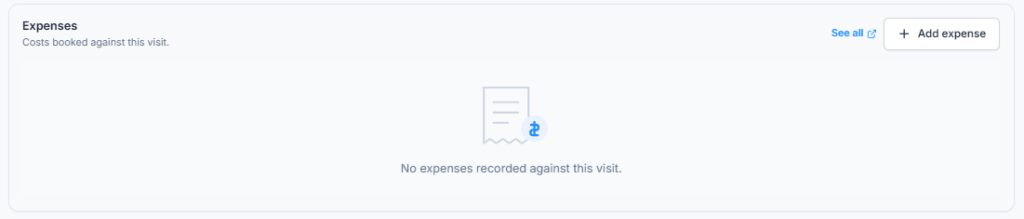
- The visit page shows costs recorded against that visit.
- The main task view can show costs from all of its visits together.
- The See all link opens the Expenses page already narrowed to that visit or task.
- Expenses can be added from an individual visit. The task-wide total is a review view; costs are added against a particular visit.
- The visit’s Status Owner can add, correct, or remove their own expense records on that visit without a separate expense permission.
- Other people assigned to the visit still need the appropriate Expense permission to create, edit, or delete expense records.
How to Record an Expense from a Task
- Go to Dashboard → Tasks.
- Open the task and select the individual visit where the cost was spent.
- Find the Expenses section on the visit.
- Click Add expense.
- Enter the item, date, amount, category, reimbursement information, notes, and receipt as needed.
- Click Record expense.
The visit is selected automatically and stays fixed in the form. After saving, the expense appears in the visit’s Expenses section and on the main Expenses page. It is also included in the task’s combined expense total.
Examples #
Example 1: Employee Paid Personally
Sam buys parking while visiting a customer. Sam records Customer visit parking, keeps their own name under Reimburse to, connects the expense to the visit, and attaches the receipt. The expense shows as Awaiting. After finance pays Sam, an authorized user clicks Mark reimbursed.
Example 2: Company Paid Directly
A manager buys printer paper with the company card. They record the expense and leave Reimburse to empty. The expense shows as Company paid, because no employee needs money back.
Example 3: Admin Records an Employee’s Cost
The Subscriber Admin receives a fuel receipt from an employee. The admin records the expense and selects that employee under Reimburse to. The employee is notified and can see the expense in their own list, even though the admin created it.
Summary #
The Expenses feature gives your company one clear place to record costs that have already happened, keep receipts, connect costs to work, and track employee reimbursements. Employees can always see expenses they recorded or are owed for, while permissions control wider company access and financial actions. The Subscriber Admin can manage the complete expense process, from recording a company cost to confirming that an employee has been paid back.
