Requests is where new client work starts. Use a Request when a client has told you what they need, but you still need to check the scope, visit the site, set a price, or decide the next step.
Route: Dashboard → CRM → Requests
When to Use a Request #
- The client has described a need, but the scope or price is not clear yet.
- Someone on your team needs to look at photos, check the service address, or ask follow-up questions.
- You need to visit the site (an on-site assessment) before you can write an Estimate.
- A client picked a time on your public booking link for an On-site service, and you need to approve it.
If the work and the price are already agreed, you can skip the Request and create an Estimate straight away. A Request is most useful when there is still a decision to make.
Example: Sarah Mitchell reports water damage in her Riverside home and adds photos. You cannot price the repair from the photos alone, so you book an assessment visit. After the visit, you convert the Request to an Estimate.
Who Can Use Requests? #
Subscriber Admin: can use every Request feature that comes with the CRM add-on. Booking an on-site assessment visit also needs the Task Management add-on, because every assessment visit is a real task on your schedule.
Employees: need permissions under Admin → Permissions → CRM – Requests. Each permission covers one separate decision. In this list, “you” is the Subscriber Admin giving access and “they” is the employee who receives it.
- Create Request: they can add a new Request for a client.
- View All Requests: they can see every Request in the company list.
- View Requests (For Own / Assigned): they see only the Requests they created or where they are the Salesperson. On its own, this lets them look, not change anything.
- View Request Details (For All): they can open the full Request page. They also need one of the two list permissions above, and it is needed even for their own Requests.
- Edit Request (For All): they can open the edit page and change a Request’s details. All assessment visit controls live on the edit page, so staff who book, move, complete or cancel visits need this too.
- Archive / Restore Request (For All): they can file a Request away and bring it back. Requests are never permanently deleted.
- Cancel / Turn Down Request (For All): they can turn down a booking-link Request that is waiting for approval. This is final, and the client is told.
- Book / Reschedule On-site Assessment Visit (For All): they can book, approve or move an assessment visit and send any active employee or team. They can also edit the visit instructions and checklist.
- Book / Reschedule On-site Assessment Visit (For Subordinate): the same work, but they can only send themselves and the people who report to them (directly or further down the chain). If they hold both, the (For All) version wins.
- Cancel On-site Assessment Visit (For All): they can cancel a booked visit and free up the assigned employees’ time.
- Complete On-site Assessment (For All): they can mark an assessment complete, or reopen a completed one.
- Resend Assessment Booking Confirmation to Client: they can send or resend the “please confirm your appointment” request to the client, by email and, when SMS is connected, by text.
- Convert Request to Estimate: they can start an Estimate from a Request. Saving that Estimate also needs Create / Duplicate Estimate.
Recording a phone confirmation (the client said yes on a call) works for anyone who holds either Book / Reschedule permission or Resend Assessment Booking Confirmation to Client. The button is on the edit page, so they also need Edit Request (For All).
Good to know: the list and the full record are separate. Someone can see a Request in the list but still get an access message when they try to open it, until you give them View Request Details (For All). Without it, rows in the list are not clickable and the View option is not shown.
Without the Task Management add-on: every visit button still shows in its usual place, with a small lock badge. Hover over it to see “Needs the Task Management add-on. Click to see how to turn it on.” A click takes you to the Task page, which explains that Task isn’t included in your plan and offers See add-ons. The rest of the Request (details, photos, items, Convert to estimate, Archive) works as normal.
Without the booking permission: the On-site assessment card is blurred with the note “You do not have permission”. Everything else on the Request still works.
Clients: can send and follow their own Requests in the Client Portal when the portal is on. They see simple progress labels and what they sent, never your internal notes or office controls.
The Request List #
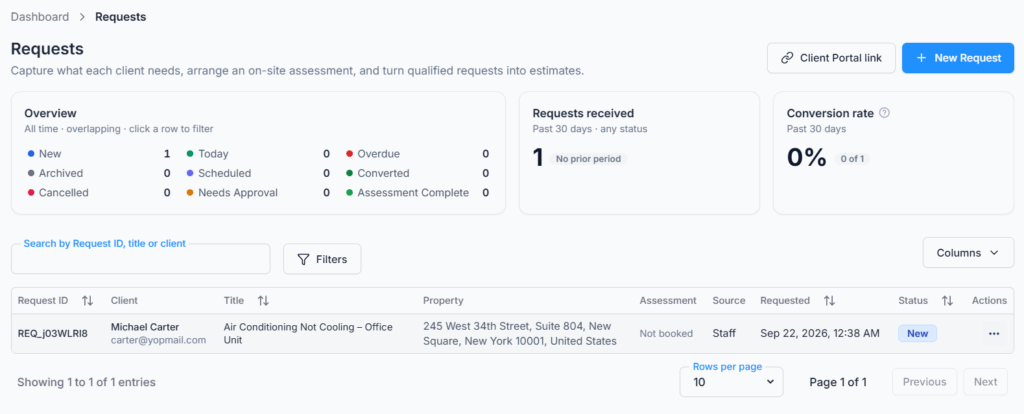
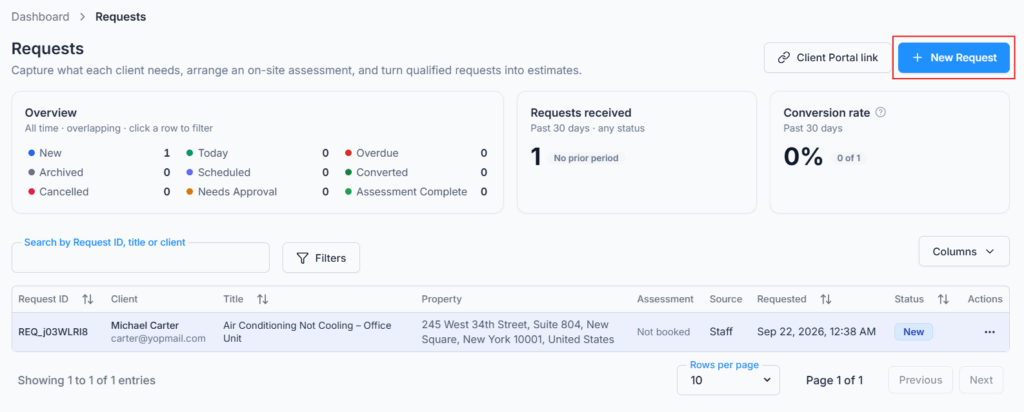
The Request list is your team’s work queue. At the top right you will find two buttons:
- Client Portal link: copies your company’s Client Portal address, so you can paste it into an email or text to a client. The button briefly shows Copied.
- New Request: opens the staff Request form. It shows only if you can create Requests.
The table shows these columns: Request ID (for example REQ_a1B2c3D4), Client (with email or phone underneath), Title, Property (the service address), Assessment (the visit date and time and its visit ID, or “Not booked”), Source, Requested (date and time) and Status. Use Columns to hide any you do not need.
- Search: type in Search by Request ID, title or client. Client search also matches the client’s name and contact details.
- Filters: select Filters to choose a Status, a Source (Staff, Client Portal or Booking Link) and a Requested between date range. Select Apply to run them, or clear them to start again. The button shows how many filters are active.
- Sorting: select the Request ID, Title, Requested or Status header. The newest Request is shown first by default.
- Open a Request: select any row (if you can view Request details).
- Row actions (the ⋯ menu): View, Edit, Convert to estimate, and Archive or Restore. A booking-link Request that is waiting for approval shows only Book assessment visit and Cancel. You only see the options your permissions allow, and a row with nothing you can do has no menu at all.
If a filter finds nothing, the table says “No requests match these filters.” Clear or widen the filters to see more.
The Overview Cards #
- Overview (all time): a count for New, Today, Overdue, Archived, Scheduled, Converted, Cancelled, Needs Approval and Assessment Complete. Hover over a row to see what it counts. Select a row to filter the list to it, and select it again to remove the filter.
- Requests received (past 30 days, any status): how many Requests came in, compared with the 30 days before. If nothing came in during the earlier period, it says “No prior period”.
- Conversion rate (past 30 days): of the Requests raised in the last 30 days, how many have become an Estimate, for example “3 of 12”.
How to read the visit groups: each booked Request is counted in only one visit group. Today means the visit is today and its time has not passed yet. Overdue means the visit time has passed and nobody completed or canceled it. Scheduled means every other booked visit, usually one on another day. So if you book a visit for this afternoon, the Scheduled count does not change, because that visit is counted under Today.
The Three Ways a Request Enters Office-X #
Every Request has one of three sources. The source tells you who filled it in, where, and what you should do next. On the Request page, hover over the (i) next to Source for a short reminder.
1. Staff #
- Someone on your team selects New Request, for example after a phone call.
- They pick the client (or add a new one on the spot), confirm the service address, and fill in what they already know.
- The source is Staff. The status starts as New, or Scheduled if a visit was booked while saving.
- Office-X does not send your team a “new request” alert, because a team member created it. If a visit is booked, the visit messages described later in this guide apply.
Example: Mr. Sullivan calls about a damaged ceiling in his Oak Park apartment. Maria Lopez finds his client record, types what he said, adds the address and photos, and saves without booking a visit. The Request appears as Staff and New.
2. Client Portal #
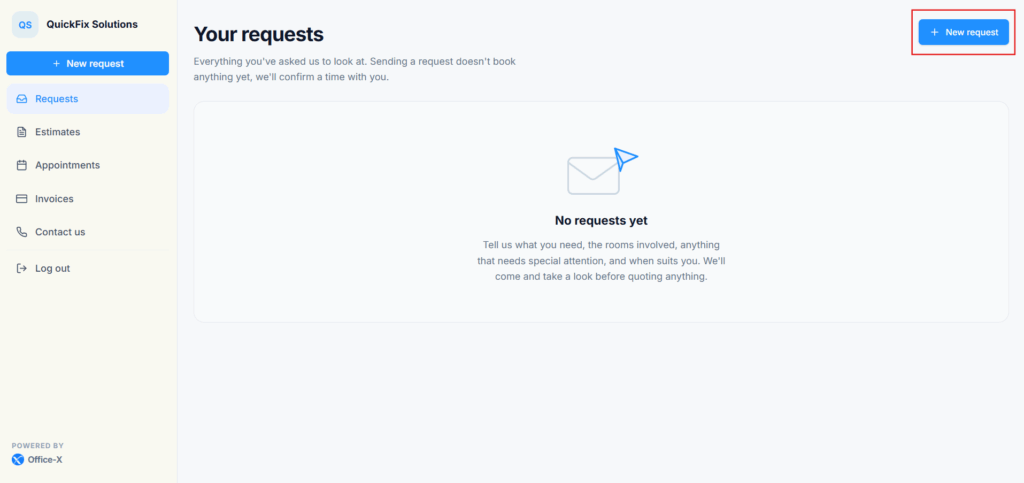
- An Active client signs in to your Client Portal with the email saved on their client record.
- Under Admin → Client Portal, both Client Portal is on and Let clients raise requests must be switched on. When requests are switched off, clients can still see the Requests they already sent, but they cannot send new ones.
- The client chooses their saved address or types a different one, explains what they need, and can add a title, how they heard about you, and up to 10 photos.
- If the client leaves the title empty, the Request is named “Request from” plus the client’s name.
- The source is Client Portal and the status is New. No salesperson, prices or visit are added.
- You review it and decide what happens next: contact the client, add items, pick a salesperson, book an assessment, prepare an Estimate, or archive it.
Good to know: sending a Request from the Client Portal does not hold a date or assign anyone. The client’s own view of this is covered in the Client Portal New Request guide.
Example: Sarah Mitchell signs in, picks her home address in Riverside, describes an air-conditioning problem, and adds two photos. The Request arrives as Client Portal and New. Your team reviews it before offering a visit.
3. Booking Link #
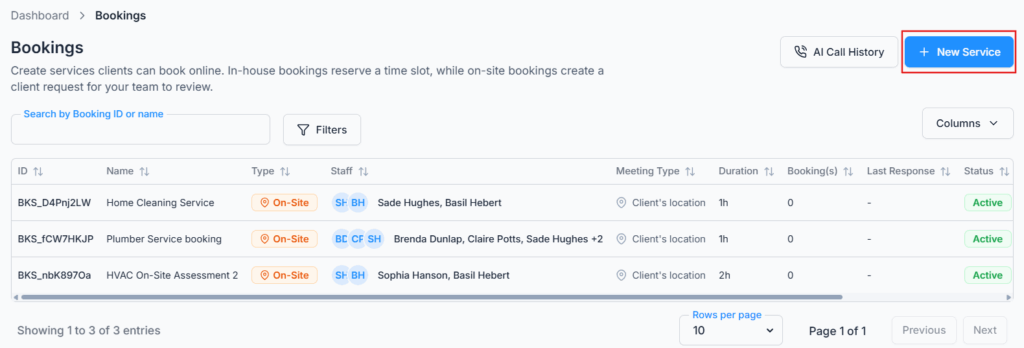
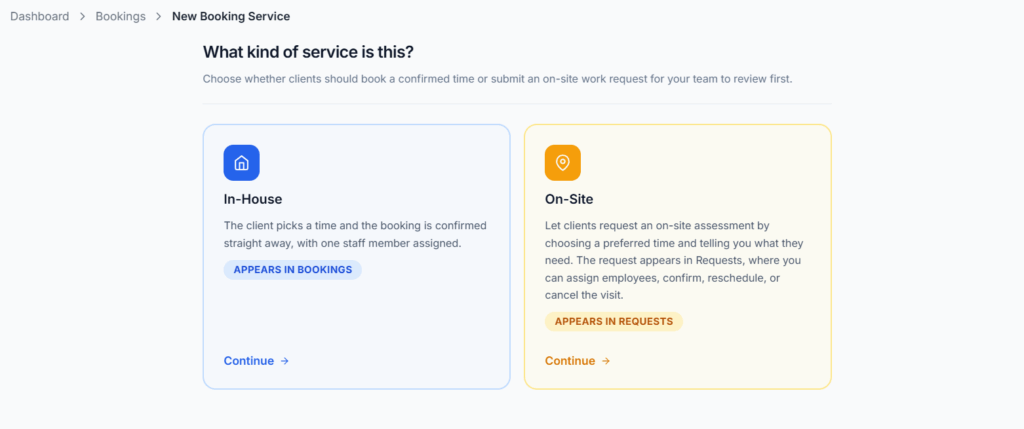
- A visitor books an On-site service through its public booking link or the booking page embedded on your website. Your AI phone booking assistant can create the same kind of Request over the phone.
- The visitor does not need a Client Portal account. Office-X finds the client by email, or creates a new client record from the details they typed.
- The visitor gives their contact details, the service address, what they need, and a preferred time.
- The source is Booking Link and the status is Needs Approval. The title is the one they typed, or the booking service’s name. If the service has named employees, the first one becomes the Salesperson.
- The preferred time is only a wish. Nothing is held on anyone’s calendar until you approve the Request by booking the visit.
- On the Request’s edit page you can Approve the visit (at the client’s time or a different one, with the employees you choose), or Cancel to turn the client down. Turning a Request down is final and cannot be undone.
Example: Mr. Sullivan picks Friday morning on your public On-site booking page. The Request appears as Booking Link and Needs Approval. Maria Lopez checks the schedule, moves the visit to Friday afternoon, assigns Danny Ruiz, and approves it. Only then is the visit booked. Setting up booking services is covered in the Bookings guide.
Create a Staff Request #
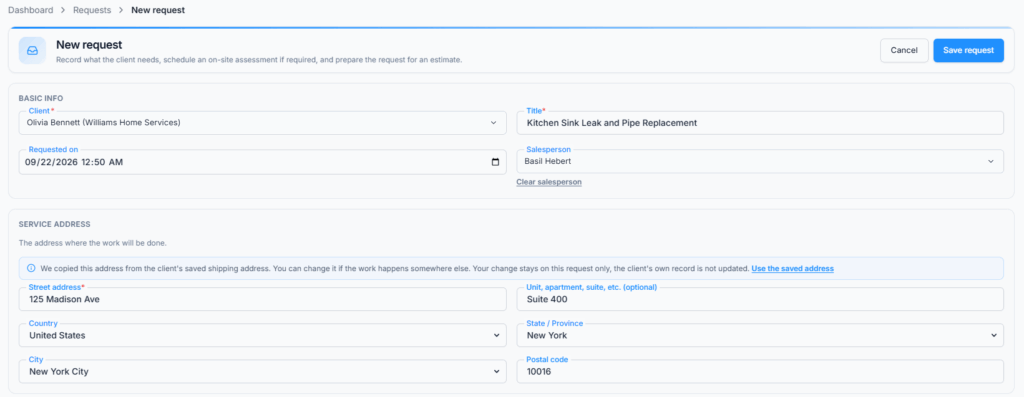
- Go to Dashboard → CRM → Requests and select New Request. The New request page opens.
- Under Basic Info, search for the Client by name, company, email or phone. If nobody matches, the list offers Add new client “…” with what you typed. Select it, complete the client form (the name is already filled in), and save. The new client is picked for you. Saving a new client needs the Create Client permission.
- Enter a Title (required) and check Requested on. It starts at the current date and time in your company’s time zone, and you can change it.
- Pick a Salesperson if one person should own the follow-up. Use Clear salesperson to remove them.
- Check the Service address, the place where the work will be done. When the client has a saved shipping address, Office-X copies it in for you. You can change it for this Request only; the client’s own record is not updated. Select Use the saved address to bring the saved one back. The street address and city are required.
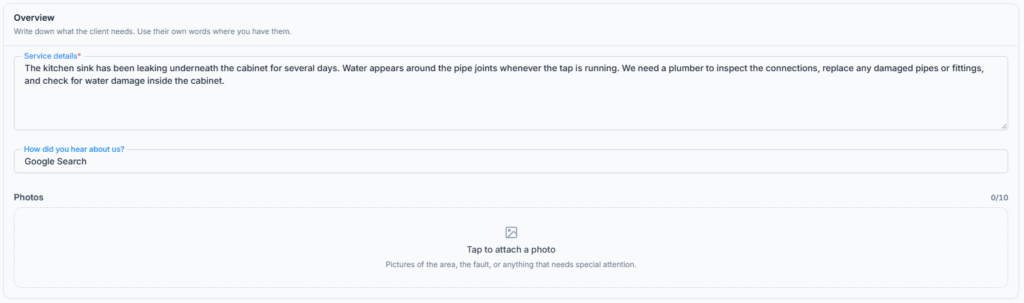
- Under Overview, write the Service details (required) in the client’s own words when you have them. Add How did you hear about us? and photos if they help.
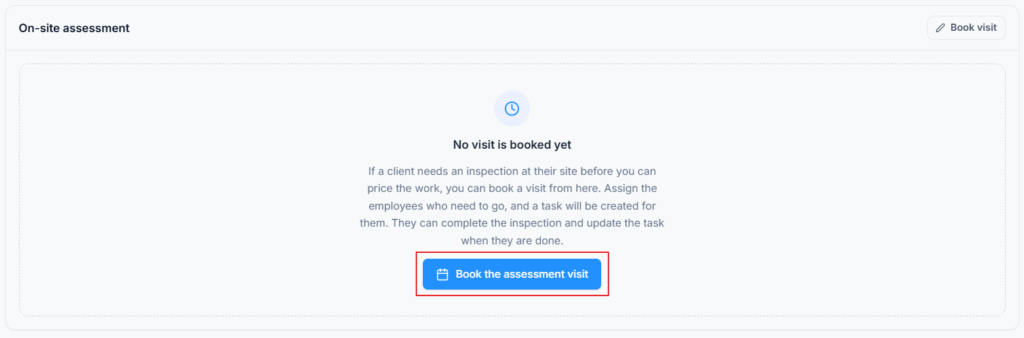
- If a site visit is needed now, select Book visit (or Book the assessment visit) in the On-site assessment card and fill in the visit. See Assessment Visit Flow below. If you change your mind, select Remove. If you do not know the date yet, leave the card empty and book the visit later.
- Under Product / Service, add any known items, quantities, prices, discounts and tax. This is optional, and it all carries across to the Estimate later. If an item is missing, type its name and choose Add new item “…”. The new item is filled into the line when you save it. Saving a new item needs the Create Item permission.
- Select Save request. You see “Request created successfully” and the new Request page opens.
Limits you may run into:
- Title: up to 100 characters. Service details: up to 5,000 characters. How did you hear about us?: up to 200 characters.
- Photos: up to 10 per Request, each up to 2 MB, in PNG, JPG or WebP format. Photos upload only when you save.
- Products and services: up to 100 lines.
- Visit title: up to 200 characters. Visit instructions: up to 2,000 characters.
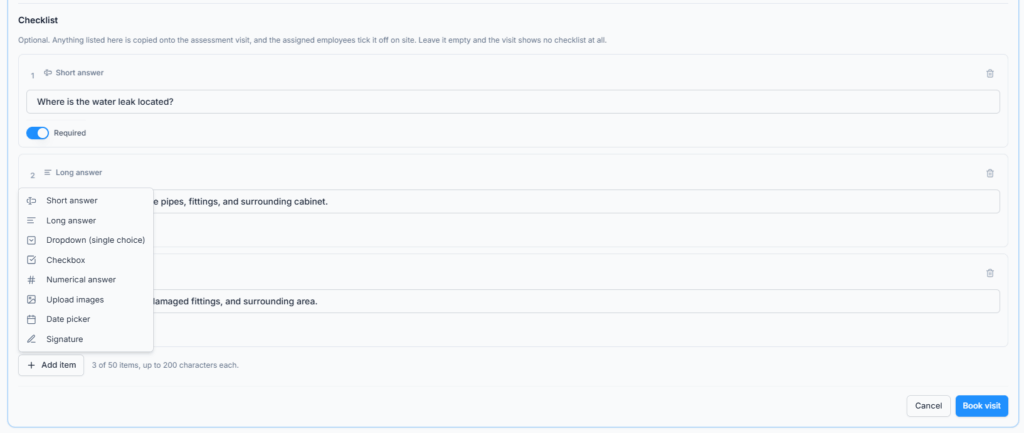
- Checklist: up to 50 items, each up to 200 characters. A choice list can have up to 20 options.
Good to know: when you book a visit on the New request page, Office-X checks the assigned employees’ calendars before anything is saved. If someone is busy, you see “Not saved — there is a scheduling conflict. See the details in On-site assessment.” Nothing is saved until you change the time or the employees.
Good to know: once a visit is booked, you cannot change the Request’s client. The edit page shows “A visit has already been booked against this request, so its client can no longer be changed.” Cancel the visit first if you really need a different client.
Request Status Flow #
- Needs Approval: a booking-link Request is waiting for you to approve the visit or turn it down.
- New: the Request has arrived and nobody has planned a visit yet.
- Unscheduled: a visit is wanted, but none is booked right now. You usually see this after a booked visit is canceled and its instructions are kept for rebooking.
- Scheduled: an assessment visit is booked.
- Today: the booked visit is today and its time has not passed yet.
- Overdue: the visit’s time has passed, but nobody completed or canceled it.
- Assessment Complete: the visit is done and the Request is ready for an Estimate.
- Converted: an Estimate was created from the Request. Carry on from the Estimate.
- Archived: the Request was filed away but is kept for your records and reports. You can restore it.
- Cancelled: a booking-link Request was turned down. This is final and cannot be restored.
You never set a status by hand. Each one follows from what you do: booking, completing or canceling a visit, converting, archiving or turning down. Today and Overdue are worked out from the visit time in your company’s time zone each time the page opens. A date passing does not complete or cancel anything, so always record what really happened.
Assessment Visit Flow #
An on-site assessment is a real visit. Booking one creates a task on your schedule for the employees you assign, it stops them being booked twice at the same time, and their hours count toward attendance. You book a visit on the New request page, or later from the Request’s edit page (select Edit request).
Book a Visit #
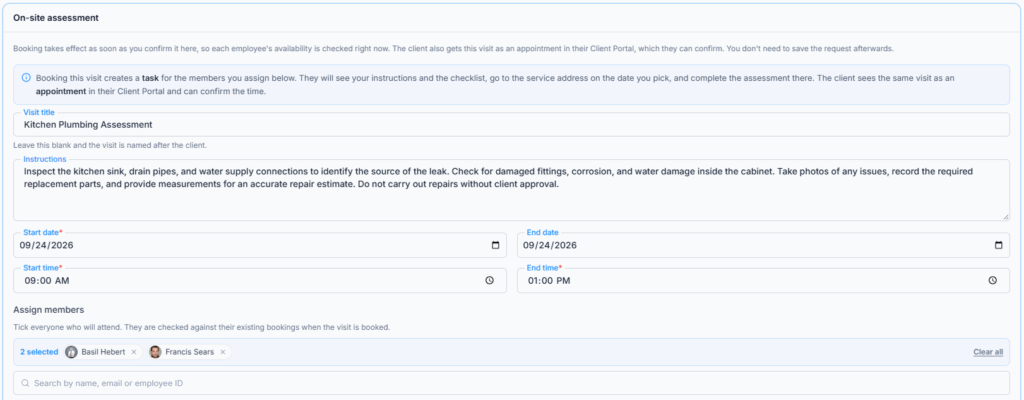
- Open the Request and select Edit request. In the On-site assessment card, select Book visit or Book the assessment visit. (For a booking-link Request, select Approve. The client’s chosen time is already filled in.)
- Enter a Visit title if you like. Leave it empty and the visit is called “On-site assessment for” plus the client’s name.
- Write the Instructions the employees will read on site, for example “Measure the basement, photograph the water heater, gate code 4821.” The client never sees these.
- Pick the Start date, Start time and End time. Add an End date only for a visit that runs over more than one day.
- Enter a Buffer after the visit (minutes) for travel or clean-up time. The assigned employees stay booked for that long after the visit ends. Leave it at 0 if you do not need one.
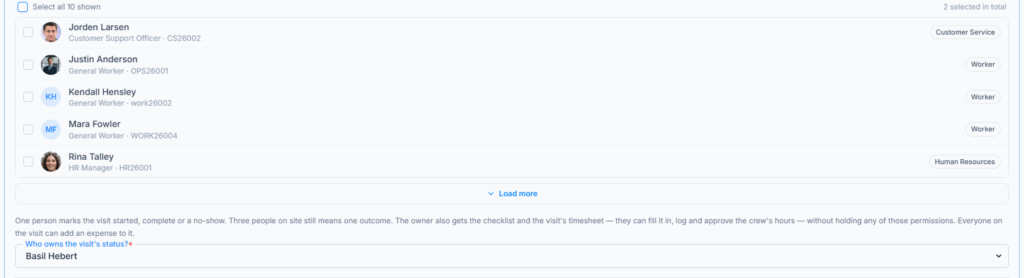
- Under Assign To, search and tick Employees, pick a Team (optional), or both. Picking a team adds everyone on it. Only active, licensed employees are listed. The line underneath tells you how many people will be assigned.
- If more than one person is going, choose Who owns the visit’s status?. This lead marks the visit started, complete or a no-show, and also handles the checklist and the visit’s timesheet. With one person, they are the owner automatically.
- Add Checklist items if you want the employees to tick things off on site. The checklist is optional and is copied onto the visit.
- Select Update request. Office-X checks every assigned employee’s calendar, books the visit, and saves the rest of your changes. The visit now appears on the task schedule and in the Request’s Request Journey.
Scheduling conflicts: if anyone you assigned is already booked at that time (including their buffer), nothing is saved. A panel in the On-site assessment card names each busy employee and the work that already holds that time. Change the date or time, or take the busy employees off the visit, and save again.
(For Subordinate) booking: the Assign To list shows only you and the people who report to you. A team shows as “4 of 9 members assignable” when only some of its members report to you, and only those members are added.
What happens right after booking: the assigned employees get an alert, and the client is emailed “Please confirm your appointment”. Their answer is what sends the final booking confirmation. See Client Confirmation below and Email, SMS, and In-App Notifications for the full story.
Client Confirmation #
Once a visit is booked, the On-site assessment card shows a Client confirmation tracker with three steps. The label at the top says Waiting for the client until they confirm, then Confirmed.
- Confirmation request: shows when the “please confirm” email went out. For a booking-link Request it says “Not needed”, because the client picked the time themselves.
- Client confirmed (or Client has not confirmed yet): the client confirms from the Appointments page of their Client Portal by selecting Confirm appointment.
- Booking confirmation: shows when the booking confirmation was sent. It goes out automatically as soon as the client confirms.
The client confirmed over the phone? Under step 2, select Yes, mark as confirmed, then Yes, the client confirmed. This counts exactly like the client pressing Confirm in their Client Portal. The visit shows as confirmed on both sides, the booking confirmation is emailed to the client (unless one was already sent for this time), and the Request’s Activity notes that the confirmation was taken over the phone and by whom.
Need to ask again? Use Send confirmation request or Resend confirmation request. See Sending the Confirmation Request by Hand, below. These buttons disappear once the client has confirmed.
Reschedule, Cancel, Complete, or Reopen #
All of these are in the On-site assessment card on the Request’s edit page. Every action except rescheduling asks you to confirm first and lists exactly what will happen.
- Reschedule (needs a Book / Reschedule permission): select Reschedule, change the time, employees, title, buffer or instructions, and select Update request. Everyone’s availability is checked again. Moving the visit clears the client’s earlier confirmation, and the client is emailed to confirm the new time. The assigned employees are told the visit moved. A completed visit cannot be rescheduled.
- Cancel visit (needs Cancel On-site Assessment Visit (For All)): enter a Reason (optional) and choose whether to Email the client that this appointment is cancelled. It is ticked by default, and your reason goes in the email. Select Cancel visit. The visit is canceled on the schedule, everyone’s time is freed, and the assigned employees are told. The Request goes back to waiting for a visit, and your instructions and checklist are kept for rebooking. A completed visit cannot be cancelled.
- Complete assessment (needs Complete On-site Assessment (For All)): select Complete assessment, then Mark complete. The visit is marked Done on the schedule and the Request moves to Assessment Complete. The client is not emailed. The card then shows “Assessment completed”, with the date and who did it.
- Reopen (same permission): select Reopen, then Reopen assessment. The visit goes back to Assigned on the schedule and the Request goes back to Scheduled. Checklist answers already recorded are kept.
Good to know: if the status owner marks the visit complete from the task side, the Request moves to Assessment Complete on its own. You do not need to complete it twice.
Good to know: if you edit the checklist on a Request whose visit is already booked, your changes are copied onto the visit when you save. Items already ticked off keep their answers. A visit that is done or canceled keeps its checklist exactly as it was.
Inside the Request Details Page #
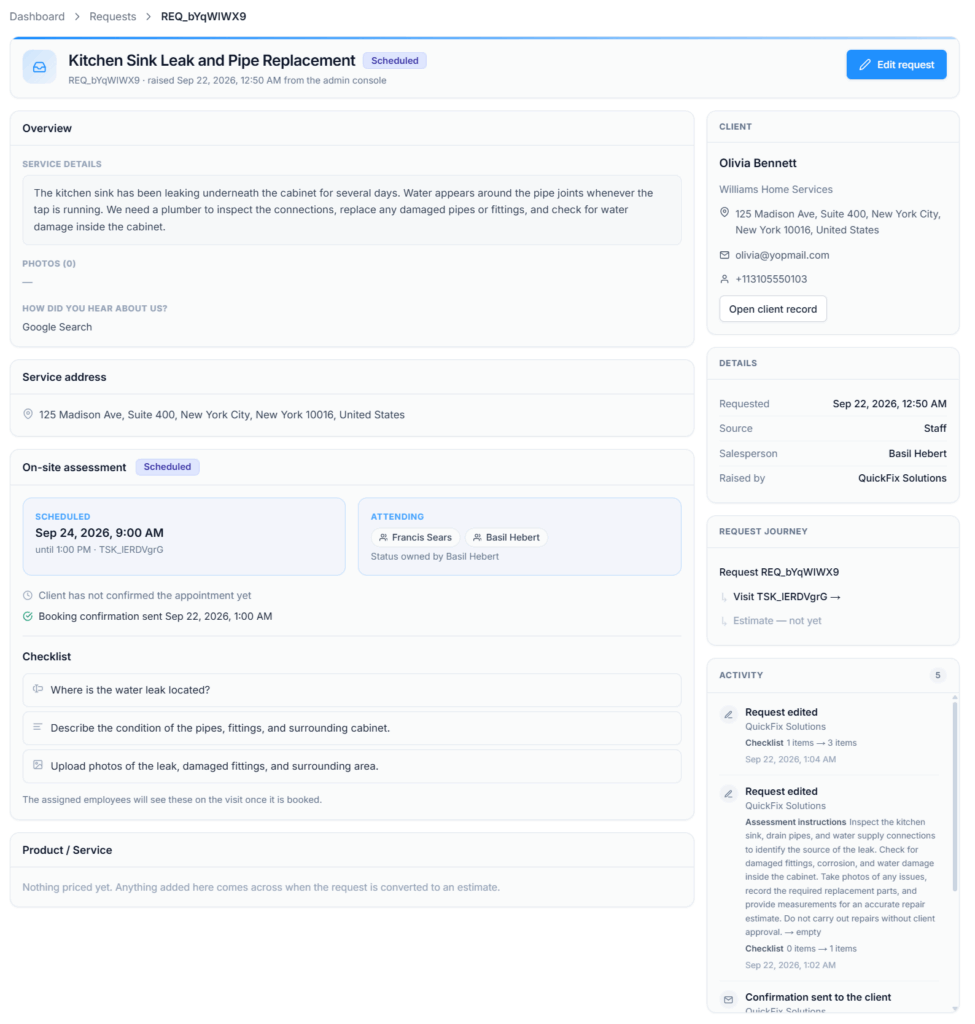
The Request details page is for reading. Nothing on it can be typed into, so you can look safely. To change anything, including booking or managing the visit, select Edit request.
- Header: the title and status, then a line such as “REQ_a1B2c3D4 · raised Sep 28, 2026, 9:30 AM from the Client Portal” (or “from the admin console” for a Staff Request).
- Header buttons: Convert to estimate, More and Edit request, depending on your permissions. After conversion you see View estimate instead.
- More menu: Send confirmation request / Resend confirmation request (until the client confirms), Open the visit (the visit’s task page), and Archive request / Restore request.
- Overview: the service details, photos, and how the client heard about you.
- Service address: where the work happens.
- On-site assessment: “No visit is booked yet”, or the booked time window and date with its visit ID, who is Attending, who owns the status, the instructions, the Client confirmation tracker, and the Checklist with any answers recorded on site. For a booking-link Request waiting for approval, it shows “Waiting on your decision” and the time the client asked for.
- Product / Service: items, descriptions, quantities, unit prices, discounts, tax, and the estimated total.
- Client card: name, company, service address, email, mobile number, and Open client record.
- Details card: Requested, Source, Salesperson and Raised by.
- Request Journey: Request, then Visit (or “Visit — not booked”), then Estimate (or “Estimate — not yet”), with links where they exist.
- Activity: a timeline of what happened and who did it, for example “Visit booked”, “Client asked to confirm the appointment”, “Client confirmed the appointment”, “Confirmation sent to the client”, “Visit moved to a new time” and “Converted to an estimate”.
A note appears at the top when a Request cannot be changed. A Converted Request says to edit the Estimate instead. A Cancelled Request says it cannot be changed. An Archived Request has no Edit button; restore it first from More → Restore request (or Restore in the list).
Email, SMS, and In-App Notifications #
Who hears what depends on how the Request arrived and what happens next. A message that fails to send never undoes a Request or a visit that was already saved.
When a Client Portal Request Is Sent #
- In-app alert for your team: always goes to the Subscriber Admin and every employee who can View All Requests.
- Email to your team: goes to your company email address and the same employees when New request (to your team) is on under Admin → Notifications. Each address gets one copy.
- Email to the client: confirms you received it, when Request received is on and the client has an email address.
- Text to the client: can also confirm receipt when SMS is on for Request received, an SMS service is connected, and the client has a phone number and has agreed to texts.
When a Booking Link Request Is Sent #
- Your team gets the same in-app alert as for a Client Portal Request, and the same team email when New request (to your team) is on.
- The client does not get a “request received” email yet, because nothing is approved or turned down.
- A “request received” text can go out only when it is switched on both for the On-site booking service and for Request received in Admin → Notifications, and all the usual SMS conditions are met.
When an Assessment Visit Is Booked or Rescheduled #
Office-X first asks the client to confirm the time. The final booking confirmation waits until the client says yes.
- Assigned employees: get an in-app alert and an email when a visit is booked, and a “moved from … to …” message when it is rescheduled. The person who did the booking is not told about their own action.
- Client (Staff and Client Portal Requests): gets an email titled “Please confirm your appointment with” plus your company name. It shows the reference, what the visit is about, when, where and who is coming, and a Confirm my appointment button that signs them in to the Appointments page of their Client Portal. It explains that the booking may be canceled if they do not confirm. For a rescheduled visit, the email says the time has changed.
- Text to the client: when SMS is on for Assessment booking confirmation and an SMS service is connected, a short text with a link to confirm goes out alongside the email.
- When the client cannot use the portal: if the Client Portal is off, the Show appointments section is hidden, or the client has no email address, there is nowhere to confirm online. Office-X then sends the normal booking confirmation straight away (email, plus a text if SMS is on for that message), as it did before.
- Booking-link Requests: the client already chose the time, so there is no “please confirm” step. Approving sends the appointment email, as long as the booking service’s own confirmation email is on. Approval sends no text. A later reschedule follows the booking service’s email and SMS settings for rescheduled bookings.
When the Client Confirms #
- The client selects Confirm appointment on their Appointments page and sees “Thank you — your visit is confirmed.” Their card now says Confirmed by you.
- Or a team member records a phone yes with Yes, mark as confirmed.
- Either way, the booking confirmation email goes out automatically, with a text as well if SMS is on for Assessment booking confirmation. Your screen says what happened, for example “Marked as confirmed. The booking confirmation has been sent to the client.”
- No second copy is sent if a booking confirmation already went out for this time. For a booking-link Request, the approval email already did this job, so nothing more is sent.
Sending the Confirmation Request by Hand #
Use this when the client says they never got the email, or you want to remind them. You need Resend Assessment Booking Confirmation to Client, and a visit must be booked.
- On the Request page, select More → Send confirmation request (or Resend confirmation request). You can also start it from the On-site assessment card on the edit page.
- The window opens with the client’s email in To. Add or remove addresses (up to 10). Type an address and press Enter to add it.
- Edit the Subject (up to 200 characters) and the Message (up to 5,000 characters). The message is only the paragraph under “Dear …”. The email template adds the greeting, the appointment details, the Confirm my appointment button and the sign-off for you. The preview on the right shows where your words go.
- Tick Send me a copy if you want one.
- Under Channels, SMS is ticked for you when an SMS service is connected and the client’s number can be texted. You can edit the Text message (up to 1,000 characters), see a live preview with a character and segment count, and select Reset to go back to the original text. The link is shortened when it is sent, and opt-out wording is added automatically.
- Select Send email (or Send email & text). You see “Confirmation request sent.” The Request’s Activity records who it went to.
If SMS cannot be used, the SMS option is grayed out and tells you why: the client has no phone number, the number cannot be texted (fix it on the client record), or no SMS service is connected (select Set up SMS). If the client cannot use the Appointments page, the email goes without a confirm button and asks them to call or message you instead.
Good to know: this manual send does not depend on your automatic notification switches, because you chose to send it. Once the client has confirmed, the button disappears. If the client confirms while the window is open, sending is refused with a note that their booking confirmation already went out.
[Screenshot: the Send confirmation request window, with To, Subject, Message, the email preview and the Email and SMS channels]
When a Visit or Booking Link Request Is Cancelled #
- Booked assessment visit: the assigned employees get an in-app alert and an email. If you kept Email the client that this appointment is cancelled ticked, the client gets a cancellation email with your reason when Appointment cancelled is on in Admin → Notifications, plus a text if SMS is on for it.
- Booking-link Request waiting for approval: selecting Cancel turns the client down for good. The booking service’s own cancellation email and SMS settings decide what the client receives.
- Archive: filing a Request away sends nothing to the client.
When an Assessment Is Completed or Reopened #
The assigned employees get an in-app alert and an email when Assessment closed (to assigned employees) is on. The client is not emailed or texted when you complete or reopen an assessment.
Notification Setup and Dependencies #
Defaults for a new account: the team email for a new Request, the client’s assessment booking email, the cancellation email, and the “assessment closed” employee alert are on. The client’s “request received” message is off. Texts are off until you switch them on and connect an SMS service. Anything you have saved always wins over these defaults.
- Admin → Notifications (Request): controls Request received, Assessment booking confirmation, New request (to your team), Assessment closed (to assigned employees) and Appointment cancelled. The Assessment booking confirmation switch covers both the “please confirm” email and the booking confirmation that follows it. If you turn it off, neither goes out automatically, but you can still send a confirmation request by hand. Managing this page needs Manage Client Notifications. See the Notifications guide for details.
- Admin → Client Portal: the confirm button needs Client Portal is on and Show appointments. If Show the time of an appointment is off, clients see only the date.
- Booking service settings: for booking-link Requests, the approval, reschedule, “request received” text and turn-down messages follow that booking service’s own notification settings.
- Email addresses: a client email needs a valid address on the client record. Team emails also go to the company email saved for your account.
- SMS service: connect one under Admin → Integrations → SMS Integrations, with a sending number, and make sure the client’s phone number includes a country code.
- Text permission: the “request received” text needs the client’s agreement to texts on their client record. A number that replied STOP cannot be texted again until it opts back in.
- Employees: Request messages to employees are in-app and email only, never SMS.
- Task Management add-on: booking visits, confirmation requests, phone confirmations and visit alerts all need it.
- Permissions: notification settings never replace permissions. The employee still needs the right permission to book, cancel, complete or send.
Convert a Request to an Estimate #
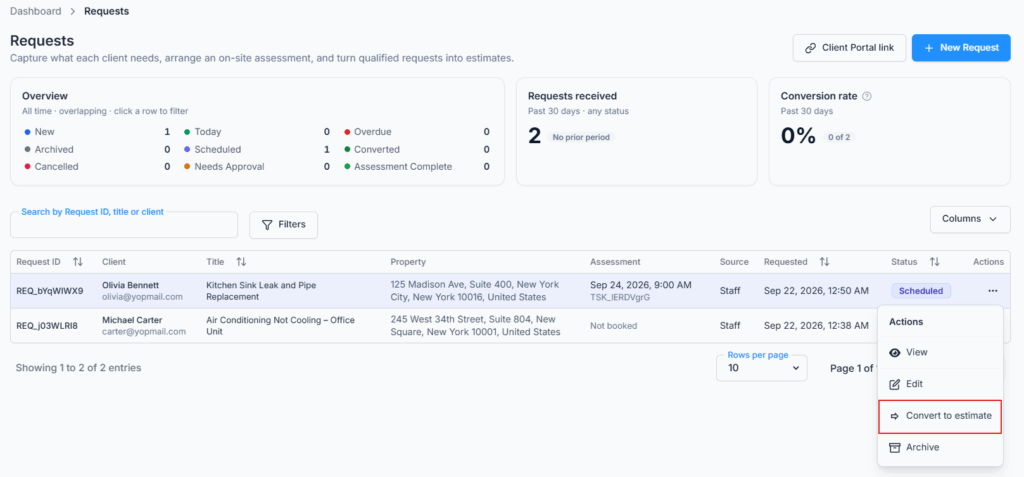
When you understand the job, select Convert to estimate. Office-X opens a new Estimate already filled in with the client, address, title, description and products or services from the Request, so you do not type them twice.
- Open the Request and review the client’s need, the address, the assessment result, the checklist answers, the photos and the items.
- Select Convert to estimate (on the Request page, on the edit page, or in the list’s row menu).
- Review the Estimate’s scope, prices, tax, validity, terms and attachments.
- Save the Estimate, finish your internal review, and send it to the client. The Estimates guide covers these steps.
The Request becomes Converted and links to its Estimate through View estimate. From now on, change prices and the offer on the Estimate, not on the Request.
- You can convert any active Request. You do not have to complete an assessment first, but it is wise when the price depends on the visit.
- A Request can become only one Estimate. An Archived Request must be restored first. A Cancelled Request, or a booking-link Request still waiting for approval, cannot be converted.
- If the Estimate is later deleted, the Request is reopened, and its Activity shows “Estimate deleted, request reopened”.
Archive, Restore, Cancel, or Turn Down #
- Archive: takes a Request off your working list and keeps its history for reports. Use Archive in the list’s row menu or More → Archive request. You see “Request archived”. An Archived Request is hidden from the client’s portal.
- Restore: brings an Archived Request back with the right status for its visit (for example New, Scheduled or Assessment Complete). Use Restore in the row menu or More → Restore request.
- Cancel (turn down): only for a booking-link Request in Needs Approval. Office-X asks “Cancel this request?” and reminds you it cannot be restored. Select Cancel request. The status becomes Cancelled and the client is told their booking was not accepted, by email and by text where the booking service allows it. A booking-link Request waiting for approval cannot be archived; cancel it instead.
- Cancel visit: cancels only the booked assessment. The Request stays open so you can book another visit later.
Requests are never permanently deleted. Use Archive for filing that you can undo, Cancel only to turn down a booking-link Request for good, and Cancel visit when only the appointment is off.
What the Client Sees #
In the Client Portal, the Requests page lists the client’s own Requests (not archived ones) with the title, when they sent it, the service address, the description, photos, the visit date or time when there is one, and a simple progress label. The client never sees the salesperson, visit instructions, prices, permissions, your Activity timeline or office-only buttons.
- Sent: the Request reached you, and nothing more has happened that the client needs to know about yet.
- Visit booked: an assessment visit is booked for another day.
- Visit today: the assessment visit is today.
- Visit complete: the assessment is done. This label stays once the visit is complete.
- Estimate on the way: a Request with no completed visit was converted, and the Estimate was actually sent. A draft Estimate does not show this label.
On the Appointments page, each assessment visit is marked On-site assessment and shows the day, time, place and who’s coming, with names and job titles only. A visit that is today or upcoming and not yet confirmed has a Confirm appointment button and a get in touch link to ask for a change. After confirming, the card says “You confirmed this on” plus the date. Canceled visits are not shown. The Client Portal Appointments guide explains this page from the client’s side.
Employee Good Practice #
- Search for the client before you add a new one, so you do not create a duplicate.
- Read the source and the status together. A booking-link Request in Needs Approval has a client waiting for your answer, so deal with it quickly.
- Write a title that helps colleagues understand the job at a glance.
- Keep client-facing details in Service details and crew-only notes in the visit Instructions.
- Pick a clear status owner whenever more than one person goes to a visit.
- Watch the Client confirmation tracker. If a client has not confirmed a day or two before the visit, give them a call and record their yes with Yes, mark as confirmed.
- Check your notification settings before you rely on email or text, especially for booking-link approvals and cancellations.
- Give a clear reason when you cancel a visit. The client sees it in the email.
- Complete the assessment before converting when the final price depends on what you find on site.
Complete Example #
Sarah Mitchell sends “Home AC not cooling” from the Client Portal with two photos. The Request arrives as Client Portal and New. The Subscriber Admin and everyone who can View All Requests get an in-app alert, and emails go out if the matching notification settings are on.
Maria Lopez decides a visit is needed. On the edit page she books Danny Ruiz for Tuesday from 10:00 to 11:00 AM with a 30-minute buffer, and Danny becomes the status owner automatically. Danny gets the assignment alert. Sarah gets “Please confirm your appointment” with a Confirm my appointment button.
Sarah does not open the email, so on Monday Maria calls her at 555-0142. Sarah says Tuesday works, and Maria selects Yes, mark as confirmed. Sarah receives the booking confirmation, and her Appointments page shows the visit as confirmed.
On Tuesday, Danny works through the checklist and completes the visit. The Request becomes Assessment Complete. Maria converts it to an Estimate, reviews the price and tax, and sends it to Sarah. In her Client Portal, the Request still shows “Visit complete”, and the Estimate appears under Estimates.
