Client Portal: Send and Follow Requests
The Requests area gives your clients one place to tell you what work they need and to follow what happens next. A client can send a new Request when you allow it. They can always see the Requests they already sent, even when new requests are turned off.
Client route: Client Portal → Requests
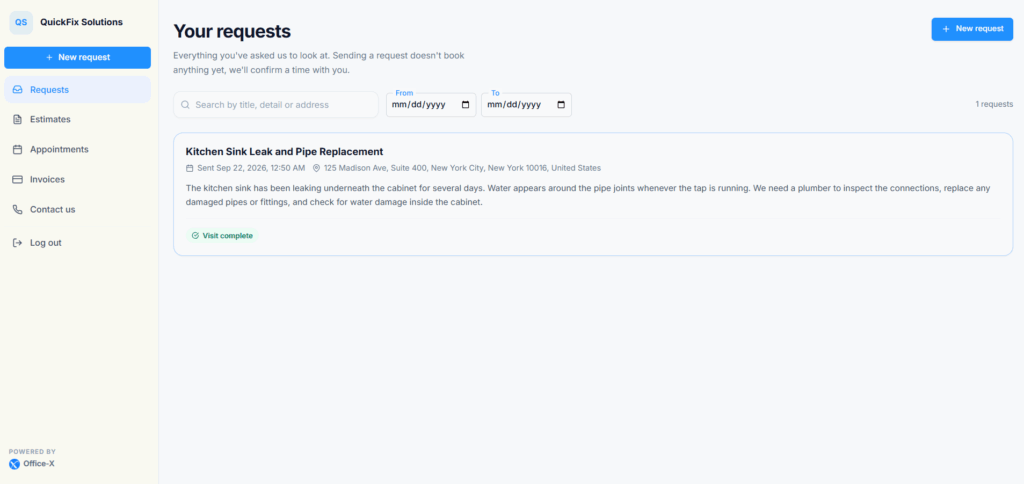
What Appears in the Sidebar? #
- Requests: always there while the Client Portal is on. It is the portal’s home page, where the client lands after signing in.
- New request: a button at the top of the menu. It appears only when Let clients raise requests is on.
When new requests are allowed, the client also finds a New request button at the top of the Requests page, and a Make a request button on the Contact us page.
Turning off new requests removes these buttons but does not hide the Requests a client already sent. Turning off the whole Client Portal stops all client access until you turn it back on. For how a client signs in and moves around, see the Client Portal Access and Navigation guide.
Before a Client Starts #
- The Subscriber Admin must turn on the Client Portal under Dashboard → Admin → Client Portal.
- Let clients raise requests must be on for a client to send a new Request.
- The client needs an Active client record and must sign in with the email saved on that record.
- If the client record has a shipping (service) address, the form offers it as a one-tap choice. If it does not, the client types the address.
Part 1: Send a New Request #
The Three Steps #
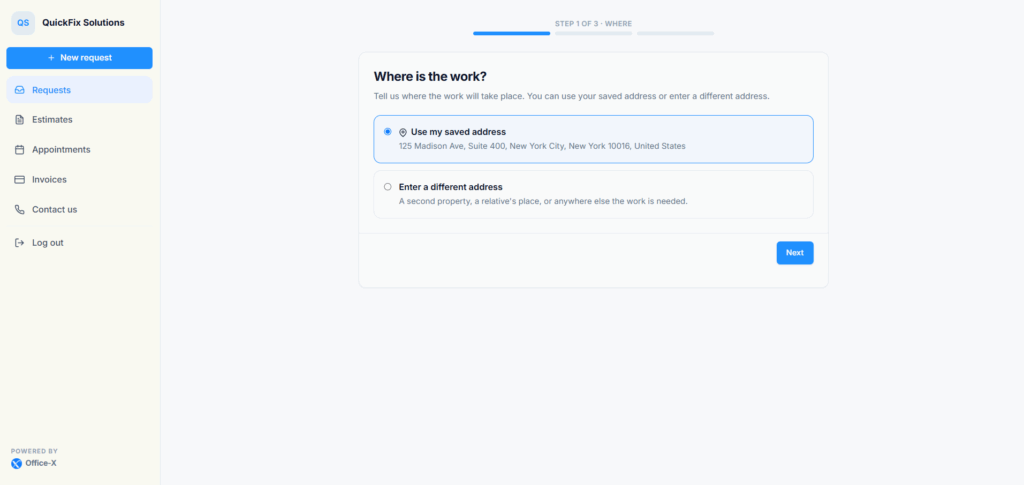
The form has three steps. A bar at the top shows where the client is, for example “Step 1 of 3 · Where”.
- Where: the saved address, or a different address for this job.
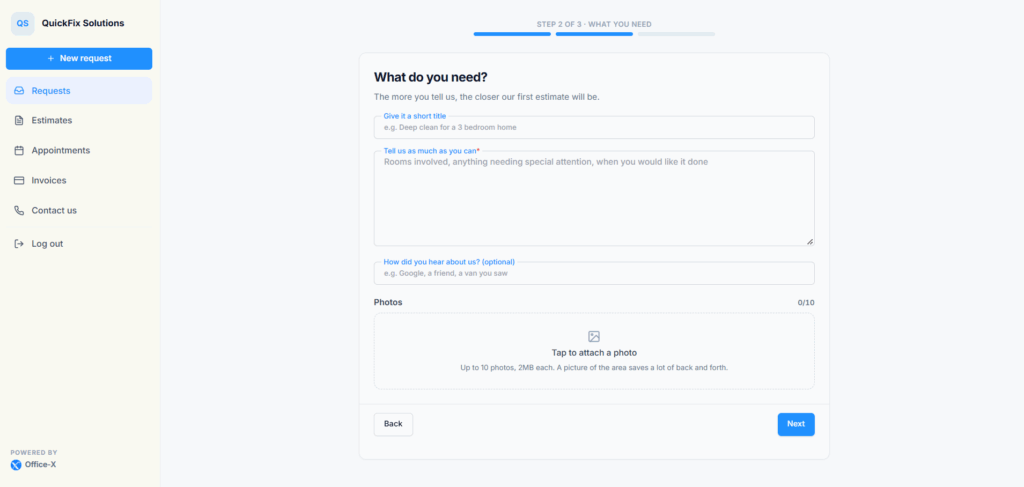
- What you need: a short title (optional), a description of the work, how they heard about you (optional), and photos (optional).
- Review: a summary of the address, title, details and number of photos, before sending.
Client Steps #
- Select New request in the menu or on the Requests page. The form opens on Where is the work?
- Choose Use my saved address (it shows the address), or choose Enter a different address for a second property, a relative’s place, or anywhere else. Then select Next.
- For a different address, fill in Street address and pick the City. To pick a city, choose the Country first, then the State / Province. Unit, apartment, suite, etc. (optional) and Postal code are optional. If something is missing, the client sees “Street address is required” or “City is required”.
- On What do you need?, add an optional title in Give it a short title, for example “Deep clean for a 3 bedroom home”.
- Describe the work in Tell us as much as you can: the rooms involved, anything that needs special attention, and when they would like it done. This field is required. If it is empty, the client sees “Please tell us what you need”.
- Optionally, answer How did you hear about us? (optional), for example “Google” or “a friend”.
- Add photos under Photos: tap Tap to attach a photo, or drag photos onto the box on a computer. A counter shows how many are attached, for example 2/10. Select the X on a photo to remove it. Then select Next.
- On Check it over, review the summary. Select Back to change anything.
- Select Send request. The button reads Sending… while the photos upload. The client sees “Request sent” and returns to their Requests page, where the new Request is at the top.
Limits and Messages #
- Title: optional, up to 100 characters. If the client leaves it blank, Office-X names the Request “Request from” followed by the client’s name.
- Description: required, up to 5,000 characters. A character counter appears once the box is a quarter full, and turns amber near the limit.
- How did you hear about us?: optional, up to 200 characters.
- Photos: up to 10 photos, each up to 2 MB, in JPG, PNG or WebP format. The client sees “You can attach up to 10 photos.” when they pick too many, a message that the file “is larger than 2MB” when a photo is too big, and a message that the file “is not an image we can accept” for other file types.
Good to know: photos are uploaded only when the client selects Send request, so leaving the form halfway leaves nothing behind. On an iPhone, photos from the camera are turned into JPG automatically, so your team can open them on any computer.
Good to know: a different address typed in the form is saved on this Request only. It does not change the address on the client record.
If sending fails, the client stays on the form with what they typed. They may see “We couldn’t submit your request. Please try again.”, “Your session has expired. Please sign in again.” after a long pause, or “This portal is not accepting new requests at the moment.” if you turned off new requests while they were filling in the form.
Important: sending a Request does not book a visit, reserve a time, assign an employee, or confirm a price. The form tells the client this before they send. Your team reviews the Request and decides the next step.
Write a Useful Request #
- Explain the result needed, not only the problem.
- Mention urgency, how to get in (gate code, parking, pets), and anything the crew should know.
- Add one wide photo for context and a few close-ups of the important details.
- Do not include payment details or unrelated private information.
What Happens After Send? #
- The Request appears at once on the client’s Requests page with the status Sent.
- It appears in Dashboard → CRM → Requests with Client Portal as its source and New as its status.
- The Subscriber Admin and every employee with View All Requests (given directly or through a team) get an in-app alert, for example “[REQ_a1B2c3D4] New request from Sarah Mitchell”.
- The same people, plus your company email, get an email when New request (to your team) is on under Dashboard → Admin → Notifications. It is on by default.
- The client gets a “request received” email with a View Request button when Request received is on under Notifications and the client has an email address. It is off by default.
- The client can also get a text message when SMS is on for Request received, the client record has a phone or mobile number, the client has agreed to receive texts, and your company has an SMS service connected.
A message that fails to send never removes a Request. The client can always check the Requests page to see that it was saved.
Part 2: Find and Follow Requests #
The Your requests page shows only the signed-in client’s own Requests, newest first. Your welcome message, if you wrote one, shows at the top. Archived Requests are not shown. If the client has not sent anything yet, they see “No requests yet”.
Find a Request #
- Type in Search by title, detail or address. The search also finds the Request ID, with or without a leading #.
- Use From and To to show Requests sent between two dates.
- The page shows 10 Requests at a time. Use Previous, Next or a page number to see more.
Good to know: the page lists the client’s 100 most recent Requests.
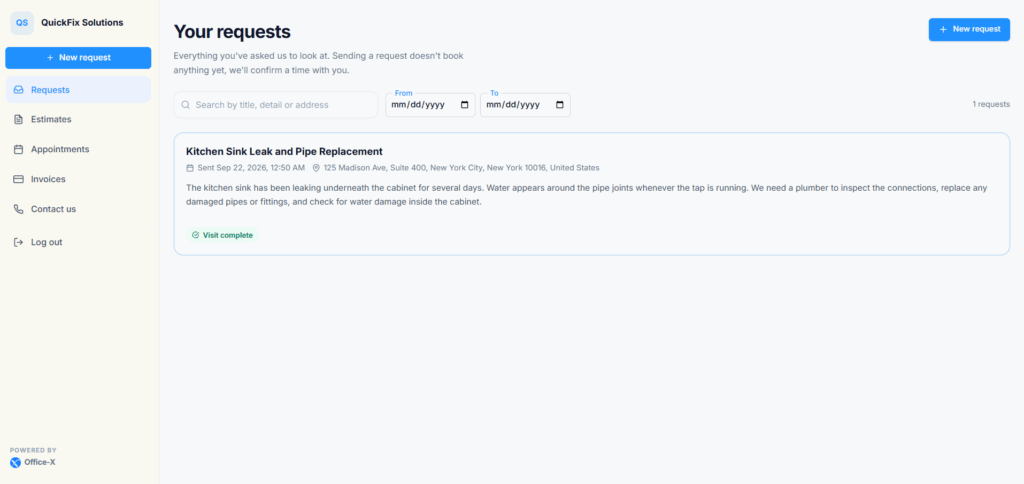
What Each Request Card Shows #
- The Request title.
- The Request ID in the top corner, for example REQ_a1B2c3D4. Pointing at it shows “Request ID — quote this if you contact us”.
- When it was sent, for example “Sent Sep 14, 2026, 9:30 AM”.
- The service address.
- The description the client wrote.
- The client’s photos. Selecting a photo opens it in a new tab.
- A simple progress label (see below).
- The date of the booked assessment visit, plus the time when your settings allow it. The date shows until the visit is complete.
Client-Facing Progress #
The client sees one short label per Request. It answers the only questions they have: did it get through, is somebody coming, and have they been yet.
- Sent: you have the Request, but no visit is booked and no Estimate has been sent yet.
- Visit booked: an on-site assessment visit is booked for another day.
- Visit today: the assessment visit is booked for today.
- Visit complete: the assessment is done. The Request keeps this label from then on, even after you send an Estimate.
- Estimate on the way: you turned the Request into an Estimate without an assessment visit, and you have sent that Estimate. A Draft Estimate does not change the label.
If you cancel a booked assessment visit, its date disappears from the card and the label goes back to Sent.
The client never sees your internal statuses, such as Needs Approval, Unscheduled, Overdue or Archived. They also do not see the salesperson, the crew’s instructions, item prices, internal activity or any office-only controls.
Appointment Information #
When your team books an on-site assessment for the Request, the card shows the visit date. It also shows the time when Show the time of an appointment is on. When that setting is off, the client sees only the date.
Booking the visit also asks the client to confirm the time:
- The client gets an email, “Please confirm your appointment with” followed by your company name. It shows when and where the visit is and who is coming. If SMS is set up for appointment messages, they may also get a text with the link.
- The Confirm my appointment button in the email signs the client in and opens their Appointments page.
- The client selects Confirm appointment on the visit. They see “Thank you — your visit is confirmed.” and the card changes to Confirmed by you.
- Office-X then sends the booking confirmation email, and the Request in your dashboard shows that the client confirmed.
The client confirms from the Appointments page, not from the Request card. If they call you instead, your team can record it on the Request with Did the client confirm over the phone?, and the booking confirmation goes out the same way. See the Appointments guide for the client’s side, and the Requests guide for your team’s side.
- No way to confirm online: when the portal is off, Show appointments is off, or the client has no email address, Office-X skips the question and sends the “confirmed” email right away.
- Visit moved: if your team moves the visit to a new time, the client is asked to confirm the new time.
- Booked from a booking link: the client picked the time themselves, so they are not asked again.
- These appointment emails follow the Assessment booking confirmation switch under Dashboard → Admin → Notifications.
What a Client Cannot Change #
The Requests page is for sending and following Requests. After a Request is sent, the client cannot edit the description, add or replace photos, change the address, pick an employee, move the visit, change a status, add prices, archive or cancel it, or turn it into an Estimate. If something needs to change, the client uses Contact us and quotes the Request ID.
Subscriber Admin Responsibilities #
- Turn the whole Client Portal on or off under Dashboard → Admin → Client Portal.
- Use Let clients raise requests to allow or stop new Requests without hiding earlier ones.
- Decide whether Appointments and appointment times show in the portal. Remember that confirming online needs Show appointments on.
- Set up Request and appointment messages under Dashboard → Admin → Notifications.
- Connect an SMS service before you turn on text messages.
- Give employees the right Request permissions, such as View All Requests, and decide who reviews new client Requests.
- After you change portal or notification settings, test the whole journey: sign in, send a Request, check the messages, book a visit and confirm it.
Complete Example #
Sarah Mitchell signs in and selects New request. She keeps her saved address in Riverside, types the title “AC not cooling”, explains that the problem started yesterday and the side gate is unlocked, and adds two photos. On Check it over she sees “2 attached” and selects Send request. The Request appears in her list as Sent, and it reaches your team as a new Client Portal Request. Maria Lopez books an assessment for Tuesday, so Sarah’s card changes to Visit booked and shows the date (and the time, if you allow it). Sarah gets the “Please confirm your appointment” email, selects Confirm my appointment, and confirms the visit on her Appointments page. After Danny Ruiz completes the assessment, the card shows Visit complete. Your team then sends the Estimate, and Sarah reviews it under Estimates when that section is on.
