Invoices is where you ask a client for money and keep track of what actually arrives. You can start an invoice from scratch, from an estimate the client has accepted, or from work your staff has done on a task. Then you send it, let the client pay online or by hand, record the payment, and refund it if you need to.
Route: Dashboard → CRM → Invoices
Good to know: Invoices is part of CRM, which is a paid add-on on the Advance plan. The From a task option also needs the Task Management add-on. Without it, that option still shows, but with a lock. See “Invoices from Tasks” below.
Two Sides to Every Invoice #
Two very different people look at every invoice:
- You (the Subscriber Admin, or an employee with the right Invoice permissions). You prepare the invoice as a draft, check it, send it, and keep the payment record straight afterward.
- The client. Clients never log in to your Office-X dashboard. They open the link in your email (or the Invoices page of your Client Portal), read the invoice, download a PDF copy, and pay online if you offer it.
Example, start to finish: Sarah Mitchell owes USD 1,200.00 for a finished installation at her home in Riverside. Here is what happens on each side:
| Step | You (Admin) | Client |
|---|---|---|
| 1 | Maria Lopez, your accounts manager, creates the invoice from the accepted estimate, from the finished visit, or from scratch. It is saved as a Draft with no invoice number yet. | – |
| 2 | Maria checks the client, the items, the tax, the due date and the payment instructions. Then she chooses Send via Email. | – |
| 3 | Office-X gives the invoice the next number (for example INV-2026-0042), creates the PDF, and emails Sarah a link. Maria does nothing for this step. | – |
| 4 | – | Sarah opens the link. The invoice moves to Viewed by itself, and you can see when she opened it. |
| 5 | – | She pays USD 500.00 online by card. She says she will send the rest by bank transfer. |
| 6 | The card payment records itself as soon as the payment provider confirms it. The invoice becomes Partially Paid with USD 700.00 due. When the transfer lands, Maria uses Record Payment for the USD 700.00, and the invoice becomes Paid. | – |
Keep this example in mind. Most of this guide is a closer look at one row of that table.
Who Can Use This Feature #
The Subscriber Admin can always do everything below without any permission: create, view, edit, delete, send, void, record a payment, refund one, and delete one.
Employees need the permissions below. You give each one separately under Admin → Permissions → CRM – Invoices. They are split on purpose, so you can keep “preparing a bill” apart from “handling money”:
- Create Invoice
Required action: Create. They can open New Invoice, start a blank invoice, bill a task, and use Duplicate. - View All Invoices
Required action: View. They can see the list, the summary cards, and every invoice in it. - Edit Invoice (For All)
Required action: Update. They can edit a Draft. A sent invoice can never be edited. See “Editing, Deleting and Voiding”. - Delete Draft Invoice (For All)
Required action: Delete. They can delete a Draft. - Send / Resend / Void Invoice (For All)
Required action: Update. One permission covers all three, because each one changes what the client is holding. It covers sending by email and by text message. - Record Invoice Payment (For All)
Required action: Update. Money in, and nothing else. - Refund Invoice Payment (For All)
Required action: Update. Money out. For a payment your team added by hand, it records a refund line. For a payment the client made online, it really sends the money back through Stripe or PayPal. - Delete Recorded Payment (For All)
Required action: Delete. It erases a payment entry, which says the money never arrived at all. Keep this one for a very small group.
Some invoice work also needs a permission from another group:
- Convert Estimate to Invoice (under CRM – Estimates)
Required action: Create. Needed to bill an accepted estimate. To pick the estimate from the From an estimate list, they also need View All Estimates. - Create Client (under CRM – Clients)
Required action: Create. Needed to save a new client with Add new client from inside the invoice form. - Create Item (under CRM – Items)
Required action: Create. Needed to save a new item with Add new item from inside the invoice form.
You can give these permissions to one employee, or to a whole team at once. See the Permissions Management guide for how to assign them.
Good to know: there is no “only my own invoices” version of these permissions. Each one applies to every invoice in your company. So give View All Invoices only to people who should see your company’s billing, and keep the money permissions (record, refund, delete payment) with your accounts staff. An employee who has another invoice permission but not View All Invoices can open the Invoices page, but the list stays empty.
Clients need nothing at all. They read a sent invoice from the link you email them, or from the Invoices page of the Client Portal when you have it switched on.
Before You Start #
Six things to settle first. Each one is easier to fix now than after your first invoice is with a client:
- Check the client’s contact details. A customer can be saved with a name and just one of email, mobile or phone. To send an invoice by email, the client needs an email address. To send it by text, they need a mobile or phone number. See the Clients guide.
- Set up your sales tax. The tax ID name and number (for example “Sales Tax ID”), the rates you charge, and which rate is the default all live under Admin → Client Portal → Invoice tax. Do this before you bill anyone. Each invoice keeps a copy of the tax it was created with, so changing the settings later never rewrites an invoice you already raised.
- Decide your usual payment terms. A new invoice starts at Net 15. If you always work to Net 30 or “due upon receipt”, change it on each invoice. The due date decides when an invoice becomes Overdue and when reminders go out.
- Connect Stripe or PayPal if clients should pay online. Go to Admin → Integrations and open the Payments card. Without a connection, invoices still work. The client simply pays you the way your payment instructions describe.
- Invoice in the same currency as your payment account. A USD Stripe account cannot take payment on an invoice in another currency. In that case the client sees a short note pointing to your payment instructions instead of a Pay button, so nobody is charged the wrong amount.
- Switch on the reminders you want. Payment due soon, Overdue reminder and Payment receipt all start off under Admin → Notifications → Invoices. Until you turn them on, Office-X emails the invoice when you send it and nothing after that. See “Automatic Reminders” below.
Find and Review Invoices #
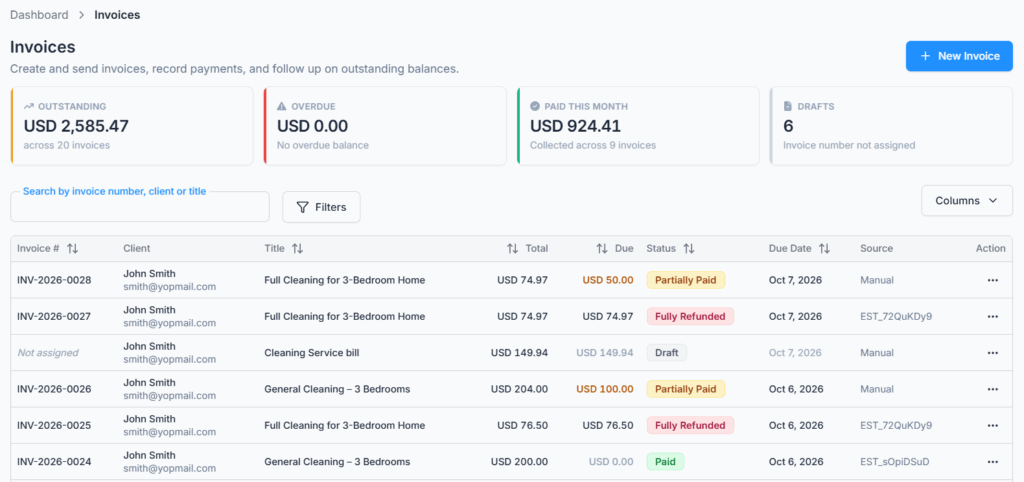
Route: Dashboard → CRM → Invoices. This is the first page you see. It is built to answer “who owes us what” before you open anything. The New Invoice button sits at the top right.
Four cards sit above the table:
- Outstanding: everything still owed to you, across every sent and unpaid invoice. The line below says how many invoices that covers.
- Overdue: the part of that total which is already past its due date. This is your chase list. It reads “No overdue balance” when nothing is late.
- Paid this month: money that actually arrived this month, part payments included, minus anything refunded this month. It counts payments by the date they were made. So a June invoice paid in August shows up in August. The line below reads “Collected across 3 invoices”, or “Nothing collected yet”.
- Drafts: how many invoices are still unsent. The line below reads “Invoice number not assigned”, or “Nothing waiting”.
The table shows these columns:
- Invoice #: the invoice number. A draft shows “Not assigned“, because the number is only given when you send it.
- Client: the client’s name, with their email underneath.
- Title: what the invoice is for. If you entered the client’s PO number, it shows underneath as “PO: 4471”. Hover to read a long title.
- Total and Due: the invoice total, and what is still owed. A voided invoice shows a dash in Due.
- Status: where the invoice is. See “Invoice Status Flow”.
- Due Date: shown in red with the days late (for example “· 5d”) when a balance is past due.
- Source: Manual, the estimate it came from (for example EST_a1B2c3D4), or the task it came from (for example TSR_a1B2c3D4). Click an estimate or task to open it.
Click any row to open that invoice. To narrow the list:
- Search: the box says “Search by invoice number, client or title”. It finds the invoice number, the invoice ID, the title, and the client’s name, company name or email. Type two words, such as “sarah roof”, to narrow the results.
- Filters: filter by Status. The list only offers statuses your company actually has, including Fully Refunded once you have one. Choose a status, then apply. Use clear to go back to all invoices.
- Sorting: click the Invoice #, Total, Due, Status or Due Date heading to sort the whole list, not just the page you are on.
- Columns lets you hide or show columns. At the bottom, choose 10, 20 or 30 rows per page.
The Action menu (the three dots) on each row changes with the invoice’s status and your permissions:
| Action | When it appears |
|---|---|
| View | Always. |
| Edit | Drafts only. |
| Duplicate | Any invoice, if you can create invoices. Opens a new draft filled in from this one. |
| Send via Email / Resend via Email | Send on a Draft. Resend once it is Sent, Viewed, Partially Paid or Overdue. |
| Send via SMS / Resend via SMS | The same, but only when the client has a mobile or phone number. It is a separate choice because a text costs money, and you check the message before it goes. |
| Record Payment | Sent and not voided, with something still owed. |
| Refund | When the invoice has a payment with something left to give back. This includes a fully paid invoice. |
| Void | A sent invoice with no payment entries on it at all. |
| Delete | Drafts only. |
Good to know: when every payment on an invoice has been refunded, the Status column shows Fully Refunded instead of the usual status. Office-X works this out from the payment history. Behind that label, the invoice is still treated as unpaid, because a refund puts the money back on the balance. The Due column shows how much that is.
Where an Invoice Can Come From #
Select New Invoice. The first screen asks “How do you want to start?” and shows three cards. Each one fills in different parts of the invoice for you:
- Blank invoice: “Start from scratch and add items from your catalog.” You pick the client and add the lines yourself.
- From an estimate: “Bill an estimate the client has already accepted.” The client, currency and line items come across. You can bill all of it, a deposit, or only some lines. See “Invoices from Estimates”.
- From a task: “Bill for visits your staff has already completed.” You tick the visits to bill, and their items and prices come across. See “Invoices from Tasks”.
There are three more ways in:
- Duplicate, from the Action menu of an existing invoice. A new draft opens with the same client, title, items and wording. Handy for a client you bill the same amount every month.
- Create invoice on a task’s own page, or in the row menu of the Task lists. This opens the invoice form already filled in from that task.
- Create invoice on one payment in a task’s Payment schedule, when a one-off job is paid in parts (for example 50% up front). The invoice bills just that part.
Example: Sarah accepts an estimate for USD 2,000.00 with a 25% deposit. Maria bills the estimate with Deposit at 25%. That makes a USD 500.00 invoice and leaves USD 1,500.00 still to bill. After the work is done, Maria bills the same estimate again for the rest. Only then does the estimate show Converted.
Creating an Invoice #
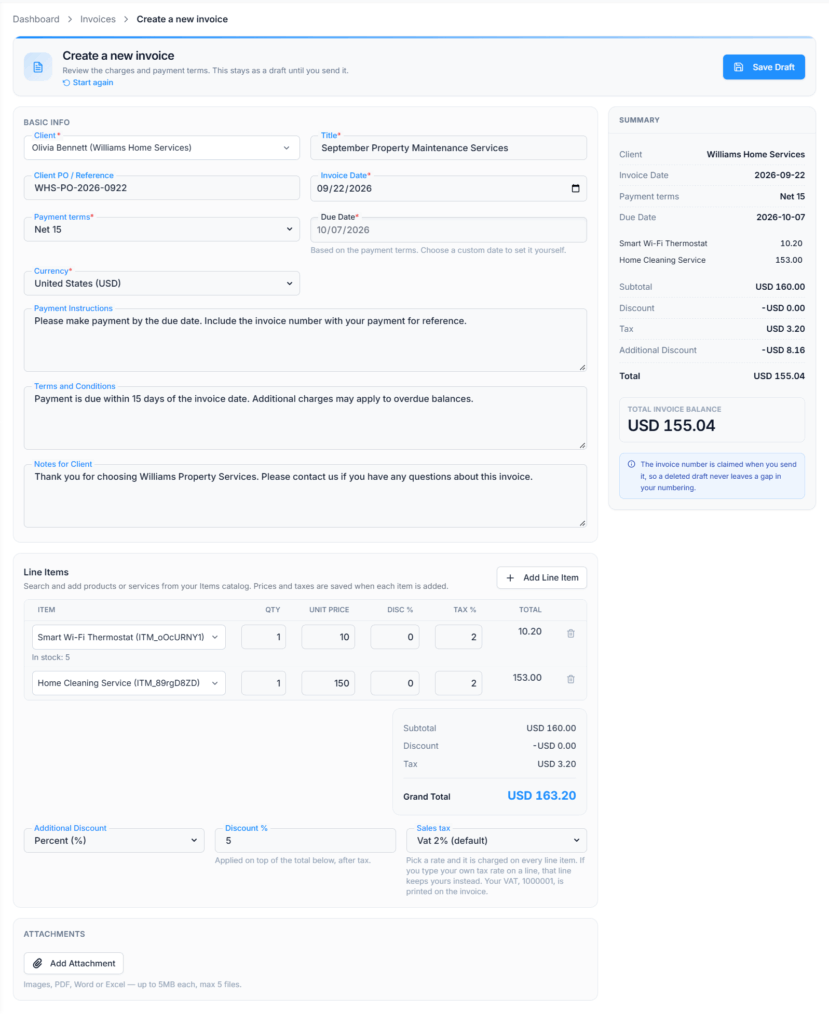
- Select New Invoice and choose how to start. For this walk-through, choose Blank invoice. The Create a new invoice form opens.
- In Client, search by name, company or email, and pick the client. If they are not there yet, type their name and choose Add new client “…” at the bottom of the list. The Add a new client window opens with the name filled in. Save it, and the new client is picked for you. (This needs the Create Client permission.)
- Enter a Title (what the invoice is for), and the client’s own Client PO / Reference if they gave you one.
- Check the Invoice Date (today, or an earlier date), choose the Payment terms, and pick the Currency. The Due Date fills itself in from the payment terms.
- Add Payment Instructions (your bank details, or how to pay by hand), Terms and Conditions, and Notes for Client if you need them.
- Add your line items. Search your Items catalog on each line, then set the quantity, unit price, discount % and tax % if needed. If an item is missing, type its name and choose Add new item “…”. The Add a new item window opens, and the saved item is put on that line. (This needs the Create Item permission.)
- Under the lines, set an Additional Discount for the whole invoice if you want one, and check the Sales tax choice. See “Sales Tax on an Invoice” below.
- Add attachments if you need them.
- Check the summary panel on the right. It shows the subtotal, discounts, tax and grand total as you type.
- Select Save Draft. You see “Invoice created successfully” and go back to the list. The invoice is a Draft: no number yet, and nothing sent.
Chose the wrong starting point? Select Start again under the page title to go back to the three cards.
Payment terms set the due date for you. Pick the one you agreed with the client:
| Payment terms | The due date becomes |
|---|---|
| Due upon receipt | The invoice date itself |
| Net 7 / Net 14 / Net 15 / Net 30 / Net 45 / Net 60 | That many days after the invoice date |
| End of the month | The last day of the invoice date’s month |
| End of next month | The last day of the following month |
| Custom date | Any date you pick. The Due Date field only unlocks for this choice. |
The due date can never be earlier than the invoice date. If it is, you see “Due date cannot be before the invoice date“.
Limits to know while you fill in the form:
- Title: required, up to 100 characters.
- Client PO / Reference: up to 120 characters. This is the client’s own purchase-order number. It prints on the invoice so their records match yours.
- Line items: at least 1 and at most 100. Each line needs an item, a quantity above zero and a price. A line description can be up to 500 characters. Discount % and tax % must be between 0 and 100. A very large quantity or price shows “That quantity looks wrong — check the decimal point” or “That amount looks wrong — check the decimal point“. After 10 lines, the table scrolls so the totals stay in view.
- Additional Discount: one reduction on the whole invoice, as a percent or a fixed amount. It comes on top of any line discounts. A percent cannot go over 100 (“A percent discount cannot exceed 100“).
- Payment Instructions, Terms and Conditions, Notes for Client: up to 2,000 characters each. All three print on the client’s copy.
- Attachments: up to 5 files, 5 MB each. Images (PNG, JPG, WEBP), PDF, Word or Excel. The client can open them from the invoice.
If something is missing when you save, a message names the first problem and where it is, for example “Item is required (Line 1 · Item)“.
Good to know: a duplicate is a fresh bill. It is dated today, and its due date is worked out again from the payment terms. The client PO, the additional discount and the attachments are not copied over.
Sales Tax on an Invoice #
The Sales tax box sits under the line items. It lists your rates, such as “Sales Tax 8.25% (default)”, plus No tax. The rate you pick is charged on every line. A line where you typed your own tax % keeps your number instead.
| What you do | What gets charged |
|---|---|
| Leave the box as it opens | Your default rate. A new invoice starts with it already picked. |
| Pick another rate | That rate, on every line without its own tax %. |
| Pick No tax | No sales tax from this box. Lines stay at 0%, unless you typed a tax % on a line yourself. Reopening the draft later keeps it at No tax. |
| Invoice a tax-exempt client | Nothing at all, not even on lines with their own tax %. |
The tax % on each line changes as you pick, so the totals on screen are always the totals that will be saved. If your company has a tax ID number set up, the box reminds you that it prints on the invoice.
When the client is marked tax exempt on their client record, the box is replaced by a note: “This client is tax exempt, so no sales tax is added to this invoice — including any rate set on an individual line.” If you switch to a client who does pay tax, the line rates come back.
If you have no rates set up yet, the box says so and offers Add a rate, which opens the Client Portal settings. Until then, each line keeps whatever tax % you type on it.
Good to know: the tax name, number and percentage are copied onto the invoice when you save it. If you change your tax settings next year, every invoice you already raised still shows the tax it was really charged. If someone deletes a rate while your form is open, saving stops with “That sales tax rate is no longer available. Pick a rate again.“
Invoice Numbers and the PDF #
An invoice number looks like INV-2026-0042. It is your company’s own sequence, and it starts again at 0001 each year. The number is given when you send the invoice, not when you save the draft. That is why a draft reads “Not assigned”, and why deleting a draft never leaves a gap in your numbers. Until then, a draft is known by its invoice ID, which looks like INV_a1B2c3D4.
Sending also creates the PDF and stores it. Office-X makes a new copy whenever a payment, a refund or a deleted payment changes the balance, so the PDF the client downloads matches the invoice. It carries the same lines, tax, totals and payment history as the screen. The Download PDF button appears on the invoice page once it has been sent.
Invoice Status Flow #
- Draft: still being prepared. It can be edited or deleted. No number, nothing sent, nothing owed yet.
- Sent: delivered to the client and waiting for payment.
- Viewed: the client has opened it. Office-X sets this by itself the first time they open the link.
- Partially Paid: some money has arrived, but a balance is left.
- Paid: the balance is fully paid.
- Overdue: the due date has passed and a balance is left. Office-X sets this from the date, so it appears on its own.
- Voided: canceled and no longer payable. Every link the client was given stops working.
- Fully Refunded (list only): every payment was given back. See the note under “Find and Review Invoices”.
After an invoice is sent, keep its history clean. If it should no longer be collected, void it and raise a corrected one. Don’t treat a sent invoice like a draft.
Good to know: the status follows the money in both directions. A payment that clears the balance makes the invoice Paid. A refund or a deleted payment puts the money back on the balance, so a Paid invoice goes back to Sent, Partially Paid or Overdue, depending on what is still paid and whether the due date has passed.
Send or Resend #
Sending turns a draft into a real bill. It gives the invoice its number, creates the PDF, and sends the client their private link. Check the client, amounts, tax, due date, instructions and attachments first. A sent invoice cannot be edited.
You send from the Action menu on the Invoices list:
- Send via Email: the usual way. You see “Invoice INV-2026-0042 sent successfully”. The email’s button takes the client to the Invoices page of your Client Portal when the portal and its Invoices page are switched on. Otherwise it opens a private page for that one invoice.
- Send via SMS: shown when the client has a mobile or phone number, and your company has connected SMS under Admin → Integrations → SMS. The Send invoice via SMS window opens with a ready-made message. Edit it if you like. The character count shows how long it is. Then select Send SMS. Sending a draft by text also gives it its number and marks it Sent.
- Resend via Email or Resend via SMS: for a client who lost the message or needs a nudge. It sends a fresh link. It does not create a second invoice. You can also select Resend Link in the Client Link box on the invoice page.
Good to know: to send by email, the client needs an email address on their client record. If there is none, Send stops with a message asking you to check the client. Add an email to the client record, then try again. An invoice can only be sent once. A second try says “This invoice has already been sent.” Use Resend instead. A paid or voided invoice cannot be resent.
Automatic Reminders #
Office-X can chase an unpaid invoice for you. These client messages live under Admin → Notifications, on the Invoices tab. All three start switched off:
| Message | What it does | Default timing |
|---|---|---|
| Payment due soon | A heads-up before the due date, plus a note on the due date itself if the invoice is still unpaid. Stops once the invoice is paid. | 3 days before it is due |
| Overdue reminder | Chases an unpaid invoice on a repeat, then stops at the limit you set. | Every 7 days, 2 times |
| Payment receipt | A receipt for the client when a payment is recorded, showing any balance left. | When a payment is recorded |
You choose the numbers: how many days (or hours) before, how often, and how many times. You can also send a text message along with the email. Reminders only go to invoices the client can still pay (Sent, Viewed, Partially Paid or Overdue) and only to clients with an email address. Drafts, paid invoices and voided invoices are left alone.
Good to know: each reminder goes out once per step, so a client never gets the same one twice. After the last overdue reminder, Office-X stops. The invoice stays on your Overdue card, and following up becomes a person’s job. That is on purpose: a third automatic email rarely helps.
Reminders for your own team. The same Invoices tab also has Invoice frequency reminders. This one is not for the client. It is a Ready to invoice reminder that tells your team when a task is due to be billed, based on the task’s invoice frequency (for example “After each visit is completed” or “Monthly on the last day of the month”). It goes to the Company admin or A specific person, in the app, by email, or both. Tasks set to “As needed, no reminders” never send one. The Notifications guide explains the settings.
Inside an Invoice #
Route: Dashboard → CRM → Invoices, then click a row or choose View. The page title is the invoice number, for example “Invoice #INV-2026-0042”. A banner shows who it is for, the issue date, the status and the Remaining balance (or Settled when nothing is owed). Three figures sit underneath. They are the ones to trust:
- Invoice total: what you billed, including tax.
- Net payments: what you have actually kept, meaning payments in minus refunds. The line below says “After USD 120.00 refunded” when there were refunds.
- Amount outstanding: what is still owed. Give this number when a client asks what they owe.
Below that, the page is made of sections:
- Basic Info: invoice number (“Assigned on send” for a draft), status, invoice date, payment terms, due date, the client’s PO if any, Source (Manual, or a link to the estimate or task), and Created by.
- Client: name, client ID, company, email, phone, mobile, website, billing address and shipping address.
- Line Items: Item, Qty, Unit Price, Discount %, Tax % and Total for each line. Then Subtotal, Discount, the tax line (for example “Sales Tax (8.25%)”), any Additional Discount, Grand Total, Paid and Amount Due. A tax-exempt client’s invoice says “Client is tax exempt”.
- Terms & Notes: your Payment Instructions, Terms and Notes, exactly as the client reads them.
- Attachments: anything you attached, ready to open.
- Payment history: one row per entry, with its method, date and reference. A Refund tag marks money going back. An Online tag marks money the client paid themselves. A bank payment still on its way shows Awaiting funds, and one that did not go through shows Failed. Each row has a refund button while something is left to give back, and a trash button on entries your team added. The Record Payment button sits at the bottom while a balance is owed.
- Timeline: the whole history in plain sentences. After five entries it scrolls.
- Client Link: on a sent invoice, a reminder that the client holds a private link from the latest email, with a Resend Link button.
Read the Timeline when a balance surprises you. It says what happened, who did it and when. When the client opens or downloads the invoice, it also shows their browser and device. For example:
- “Invoice created by Maria Lopez” and “Invoice sent to Sarah Mitchell by Maria Lopez“.
- “Sarah Mitchell viewed the invoice” and “Sarah Mitchell downloaded the invoice“. These are the client’s own actions.
- “Maria Lopez updated the invoice“, with each change listed underneath as old value → new value.
- “Maria Lopez recorded a payment of USD 700.00 by Bank transfer“, “…refunded USD 500.00“, “…deleted a payment of USD 700.00“.
- “…started a bank payment of USD 500.00 — the funds have not cleared yet, so the balance is unchanged“. A slow bank payment is not counted until it arrives.
- “A bank payment did not clear — nothing was taken“. And for money going the other way: “A refund could not be paid out — the money never reached the customer, so it is back on this invoice“.
- “…reported a dispute of USD 500.00 — the balance has not been changed“. If the dispute is lost: “…lost a chargeback of USD 500.00 — the money has gone back to the customer and the balance is open again“.
- “This invoice was paid in full“, “The due date passed with a balance outstanding“, and “Maria Lopez voided the invoice — the client’s link was revoked“.
Good to know: a dispute is recorded, but it never changes the balance by itself. When a client disputes a card charge, it is a claim, not a decision. The outcome can take weeks. Office-X tells you it happened and leaves the figure alone until the result is known.
Editing, Deleting and Voiding #
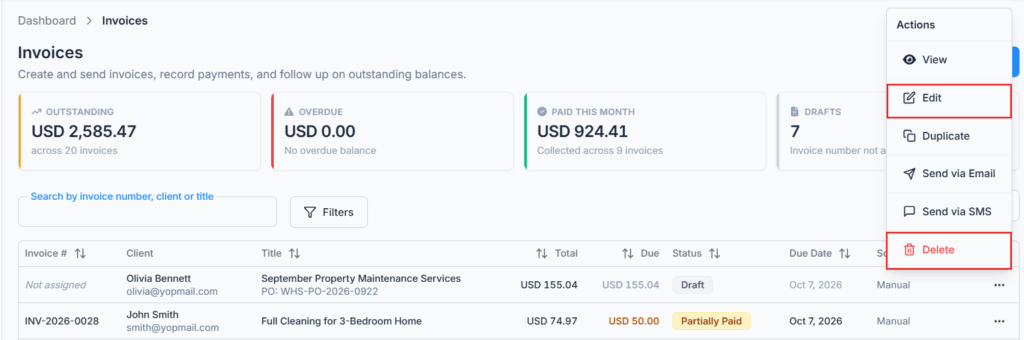
All three start from the row’s Action menu on the Invoices list.
- Edit: drafts only. The Edit Invoice form opens. Make your changes and select Update. Once an invoice is sent, the client is holding it, so it is voided and replaced, not rewritten. Trying to edit a sent invoice says “Only a draft invoice can be edited. Void this invoice and create a new one instead.“
- Delete: drafts only. The Delete draft invoice window asks you to confirm. Select Delete Draft. A sent invoice cannot be deleted: “Only draft invoices can be deleted. A sent invoice is voided instead, so the numbering stays intact.“
- Void: a sent invoice with no payments. The Void invoice window explains that the client’s link will stop working and the number stays used, so your numbering has no gaps. Select Void Invoice. This cannot be undone. Raise a new invoice instead.
Two rules protect your money trail. Office-X enforces both:
- Only a sent, unpaid invoice can be voided: “Only an unpaid, sent invoice can be voided.” A Paid invoice cannot be voided. A draft is deleted instead.
- If the invoice has any payment entry at all, voiding stops: “This invoice has payments recorded against it. Delete those payments first, then void it.” This includes a payment that was later refunded. Payments your team added can be deleted first. A payment the client made online cannot be deleted, so an invoice that took an online payment cannot be voided.
Good to know: deleting a draft or voiding an invoice cleans up after itself. Task visits that were on it become billable again. A payment-schedule part it billed becomes due again. An estimate it billed gets that amount back as “left to bill”. So nothing is stuck because someone abandoned an invoice.
Good to know: an invoice made from a task stays with that task’s client. If you change the client on such a draft, saving stops with “This invoice bills a task belonging to a different client. Create a new invoice for the client you want instead of re-pointing this one.“
Record a Payment #
Use this for money that reached you outside Office-X: cash, a bank transfer, a check, or a card machine at your shop.
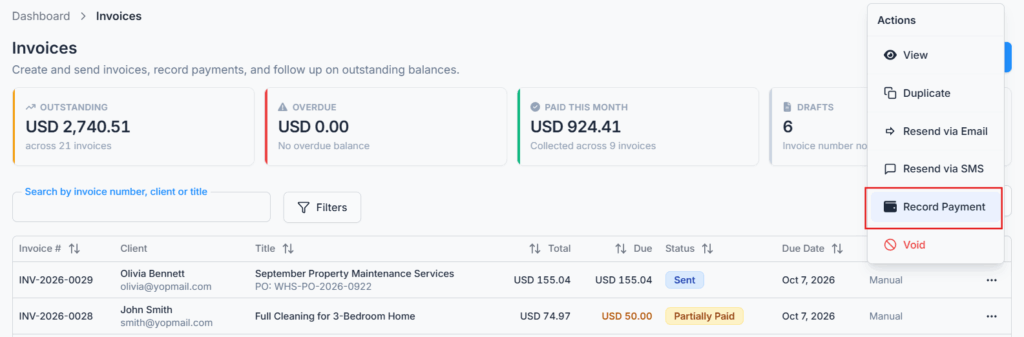
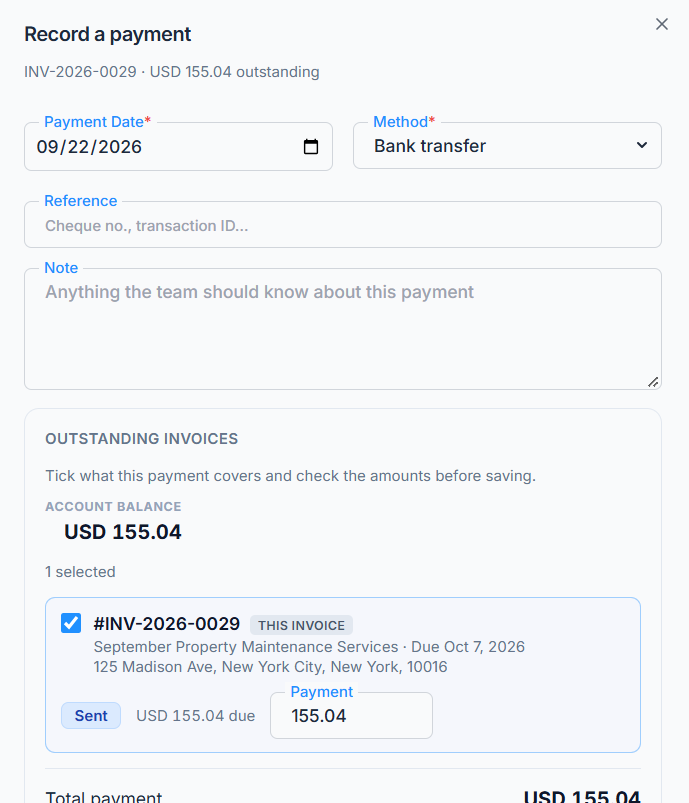
- Choose Record Payment from the row’s Action menu, or from the bottom of Payment history on the invoice page. The Record a payment window opens and shows how much is outstanding.
- Enter the Payment Date. It is today by default. You can pick an earlier date, but not a future one.
- Choose the Method: Cash, Bank transfer (the default), Cheque, Card, Mobile wallet or Other.
- Add a Reference, such as a check number or transaction ID (up to 120 characters). Add a Note for your team if it helps (up to 500 characters).
- Under Outstanding invoices, the invoice you came from is already ticked at its full balance. Change the Payment amount if the client paid less.
- Check the Total payment, then select the button that shows it, for example Record USD 700.00.
- You see a message such as “Payment of 700.00 recorded across 1 invoice.” Check the new Paid and Amount Due figures.
A payment smaller than the balance makes the invoice Partially Paid. A payment that covers the rest makes it Paid.
One payment, several invoices. This is the part people miss. When a client sends one check for three jobs, you don’t need three screens. The same window lists every open invoice for that client, oldest due date first, with each one’s status, due date, service address and balance. The client’s Account balance (everything they owe) is shown at the top. Tick the other invoices, or use Select all, adjust each amount, and save once. Office-X records one entry on each invoice and keeps them grouped as a single payment.
- You cannot put more on an invoice than it owes. That row says “More than this invoice owes“, and saving says “One of the amounts is more than that invoice’s outstanding balance.“
- At least one invoice must be ticked with an amount: “Choose at least one invoice and enter an amount.“
- If a colleague changes one of those balances while your window is open, Office-X does not guess. You see “Those balances changed while this screen was open. Reopen it and try again.” If only some invoices changed, the rest are recorded and the message says how many.
Example: Mr. Sullivan in Oak Park has two open invoices, USD 450.00 and USD 300.00. He mails one check for USD 750.00. Danny Ruiz opens the first invoice, chooses Record Payment, ticks the second invoice too, picks Cheque, types the check number as the reference, and selects Record USD 750.00. Both invoices become Paid.
Good to know: drafts and voided invoices never appear in this window. When a payment is recorded, the person who created the invoice, the Subscriber Admin and everyone with View All Invoices get a bell notification, such as “[INV-2026-0042] Payment received“, with the amount and what is still due. The person who recorded it is left out, since they already know.
Online Payment #
When your company has connected Stripe or PayPal under Admin → Integrations → Payments, a sent invoice with a balance shows a Pay this invoice panel on the client’s page. The client pays by card (Stripe) or through PayPal, and the invoice updates itself.
What the client sees, in order:
- The amount due, and a button showing the exact figure, for example Pay USD 700.00. With PayPal, they see the PayPal buttons instead.
- While it goes through: “Confirming your payment…“
- Then: “Thank you — your payment went through. It is recorded against this invoice and there is nothing further for you to do.“
- For a slower payment method, an honest version instead: “Your payment went through and is still being recorded. Some payment methods take longer to clear. Nothing else is needed from you; this invoice will update as soon as the payment settles.” A Check again button lets them refresh it.
Good to know: the payment is recorded when the payment provider tells Office-X, not when the client’s page reloads. So a client who pays and closes the tab straight away, or loses signal, is still credited. Nobody on your team has to type it in.
If online payment is not possible, the panel says why instead of showing a button that fails. For example: “This invoice is in CAD, but online card payment is set up for USD. See the payment instructions on this invoice.“, “Online payment is currently turned off.“, or a note that card payment “isn’t available on this invoice yet” while your Stripe setup is unfinished. These are the moments your Payment Instructions matter most. When nothing is owed, the panel does not show at all.
Refunds #
Refund is for money really going back to the client. Choose it from the row’s Action menu, or use the refund button on a payment row inside the invoice. The Refund a payment window opens. What it does depends on how the payment arrived:
| The payment was | What Refund does | What you fill in | The button says |
|---|---|---|---|
| Added by your team (cash, transfer, check…) | Records a refund on the invoice. It does not send any money. You pay the client back yourself, the same way they paid you. | Refund amount, Refund date, Note (optional) | Record refund |
| Paid online (Stripe or PayPal) | Sends the money back to the client straight away, then records it. You cannot undo this. The payment fee you already paid is not returned. | Refund amount, Reason (optional) | Refund 500.00 USD |
- If the invoice has more than one payment, pick the one to refund. Each choice shows its method, date, reference, whether it was “Paid online” or “Added by your team”, and how much of it can still be refunded.
- The amount starts at the full refundable figure. Lower it for a part refund. The window tells you “you can refund up to …”.
- Add a note or reason, then select Record refund or Refund … USD.
- You see a confirmation, such as “Refund saved. This invoice now shows the amount as owing again.” Read the new Amount Due.
- You can never refund more than you kept. Earlier refunds come off the limit. A payment whose money has not arrived yet cannot be refunded: “The money for this payment has not arrived yet, so there is nothing to send back. You can refund it once it arrives.“
- Double-clicking cannot refund twice. Neither can two people pressing at the same moment, or a retry after a slow connection. Office-X treats the repeat as the same refund.
- Sometimes the answer is “we’re not sure”. If the connection to the provider times out, you see “We could not tell whether that refund went through. Reload this invoice and check before you try again.” Do exactly that. The refund may well have happened, and this message stops you sending the money twice.
- Refunds made in Stripe or PayPal are picked up too. If you refund a payment directly in your Stripe or PayPal account, Office-X adds that refund to the invoice by itself.
- Refunding still works after things change. If you switched from Stripe to PayPal, turned online payments off, or the invoice is voided, you can still return money you took earlier.
Good to know: a refund always puts the amount back on the invoice as owed. That is right when the client will pay again, for example by another method. If you are giving the money back for good, remember the invoice will now show that amount as due, and the Overdue reminder can chase it if it is switched on.
Refund or Delete? Two Different Statements #
These two look alike on screen but mean opposite things:
- Refund says “the money arrived, and we gave it back.” The original payment stays on record, and a refund line sits beside it. This is what your accounts and your client’s accounts both need to see.
- Delete payment (the trash button) says “this money never arrived at all.” The entry disappears and the balance goes back up as if it was never entered. You see “Payment deleted and the balance recalculated.” Use it only for a real mistake, like a payment entered on the wrong invoice or typed twice. It needs the Delete Recorded Payment (For All) permission, and it only appears on entries added by your team, never on an online payment (“Online payments cannot be deleted here. Refund it through the payment provider instead.“).
Good to know: the trash button works as soon as you click it. There is no “are you sure?” step, so click carefully. It also appears on a refund line your team recorded. Deleting that line removes the refund, and the balance goes down again.
Whichever you use, leave a reference or note. Every one of these actions goes into the invoice’s Timeline and your company’s Activity Log with your name on it.
Invoices from Tasks #
Choose From a task. The Select visits to invoice window opens. It shows your five most recent tasks that have something to bill. Use Search by task ID or title, or Load more, to find an older one.
Each task is a card with its visits listed underneath:
- The task card shows the task ID (for example TSR_a1B2c3D4), the title, the client, a tag (Requires Invoicing when finished visits are waiting, or No visits completed yet), how many visits are completed, and a Subtotal of what you ticked. Click the card to choose that task. One invoice bills one task.
- Each visit shows a checkbox, its status (Upcoming, Completed, and so on), the visit date, the date it was completed, and its own amount. “Priced separately” means that visit has its own items.
- Completed visits are ticked for you. Upcoming and in-progress visits are listed too, but left unticked. Tick them only if you want to bill ahead for booked work. A visit where the client was not home can still be billed.
- A visit already on an invoice is gray and cannot be ticked. It says Already invoiced or Already paid, with that invoice’s ID. Canceled visits are not listed at all, because they are not billable work.
The footer shows what you picked, for example “3 visits selected · USD 450.00”. With nothing ticked it says “No visits selected. The task’s own items will be billed.” Select Continue. The invoice form opens already filled in with the client, the title, the currency and the lines.
How the lines are built depends on how the task is billed:
- Per visit: each ticked visit adds its own items, and each line shows the visit’s date and name. So a weekly job billed for four visits has four dated lines per service, not one line with a quantity of four. The client can check each date.
- Fixed price: one agreed price for the whole task, however many visits it takes. The window says “Billed as one fixed amount for the whole task“, and there are no visits to tick. Once it is invoiced, it is done.
A banner at the top of the form says “Billing TSR_a1B2c3D4“, explains how many visits and lines came across, and adds: “The visits being billed are locked in as of now — anything completed after this is left for the next invoice.” Use View task to open the task in a new tab. Check the lines, the tax and the due date, then select Save Draft.
If nothing can be billed, the window says “Nothing to bill yet” and offers Go to Tasks or Start blank instead. A closed task can still hand over unbilled visits. A task leaves this list once everything on it is invoiced, and comes back when new visits are added or completed.
Good to know: if someone else invoices the same visits while your form is open, saving stops with “Those visits have already been invoiced. Reopen the picker to see what is still billable.” Nothing is billed twice.
Good to know: if your plan has CRM but not the Task Management add-on, the From a task card still shows, with a lock. Hover it to see “Needs the Task Management add-on. Click to see how to turn it on.” Clicking it opens the add-on page instead of the task list. Task links in the Source column and on the invoice page carry the same lock. Blank invoice and From an estimate work as normal.
Invoices from Estimates #
Choose From an estimate. The Choose an accepted estimate window opens. Search by estimate ID or title, and pick one. Only accepted estimates with something left to bill are listed. The Bill this estimate screen opens. Client, currency and line items come from the estimate. Use Change estimate if you picked the wrong one.
The screen does the math for you. It shows the estimate total and anything already invoiced. Then you choose how much to bill under Amount to bill:
- Full remaining: “Bill the remaining balance on this estimate.”
- Deposit: “Bill part of it now, and the remaining balance later.” Enter a percent (up to 100) or a fixed amount.
- Custom lines: “Pick which line items go on this invoice.” The lines you leave out stay available for a later invoice. Lines already billed are tagged Billed.
Set the invoice date, payment terms and notes, and check the two figures at the bottom: Amount on this invoice and Left to bill after this. Then select Create Draft Invoice. The new draft opens so you can check it before sending.
Good to know: pick one way per estimate and stick with it. Once you bill an estimate by amount (Full remaining or Deposit), Custom lines is closed for it, and the other way around. The estimate is marked Converted when the invoiced total reaches the estimate total, or, with Custom lines, when every line has been invoiced.
What the Client Sees #
The client reads the invoice from the link in your email or text, or from the Invoices page of the Client Portal when that page is switched on.
On the invoice they see your logo and company details, the invoice number and dates, the items with quantities and tax, the totals, the payment history (payments and refunds in plain words), the amount due, your payment instructions, terms and notes, and any attachments. They can:
- Download PDF: the stored copy of the invoice.
- Pay: when online payment is available.
- Open Document history: their side of the timeline, in their own words. “You opened this invoice“, “You downloaded this invoice“, “This invoice was paid in full“, “The due date passed“.
In the Client Portal list, statuses are written the way a customer would say them: Awaiting payment (sent or viewed), Partly paid, Past due and Paid, with the amount still owed beside each. Drafts and voided invoices never appear there. The Client Portal Invoices guide shows the client’s side step by step.
Good to know: opening the link is what moves an invoice from Sent to Viewed, and it is recorded with the date. So “we never got it” is a question you can answer. Voiding an invoice stops every link it ever had, including the one in an old email.
How Invoices Connect to the Rest of CRM #
- Clients: every invoice belongs to a client. Their record gives the billing and shipping address, the email the invoice goes to, and any tax exemption. The client’s own page shows their billing, including other open invoices.
- Estimates: an accepted estimate is the tidiest start for an invoice, and the estimate keeps track of how much you have billed so far.
- Tasks: finished visits become billable lines. A visit remembers which invoice billed it, so it can never be billed twice. A task’s invoice frequency drives the “Ready to invoice” reminder for your team.
- Items: your catalog gives each line its name, description and price, so two people billing the same service charge the same amount.
- Integrations: Stripe or PayPal turn on the client’s Pay button and handle real refunds. SMS lets you send invoices and reminders by text.
- Notifications: the client reminder and receipt emails (with optional texts), and the “Ready to invoice” reminder for your team.
Activity Log #
Besides each invoice’s own Timeline, your company’s central log records the money events, with who did them and when: invoices created, edited, sent, resent, voided and deleted; payments recorded and deleted; and refunds. Find it under Dashboard → Activity Log, filtered to Invoice. See the Activity Logs guide for how to search it.
Subscriber Admin Checklist #
- Give Invoice permissions only to the employees who handle billing. Keep Refund Invoice Payment (For All) and Delete Recorded Payment (For All) with the smallest group you can.
- Set your tax ID, rates and default rate under Admin → Client Portal → Invoice tax before the first invoice goes out.
- Connect Stripe or PayPal under Admin → Integrations → Payments if clients should pay online, and check its currency matches the currency you invoice in.
- Switch on Payment due soon, Overdue reminder and Payment receipt under Admin → Notifications → Invoices, and set timings that suit your business. Turn on Invoice frequency reminders there too if your team bills from tasks.
- Make sure clients have an email address (or a mobile number, for texts) before you send.
- Write your standard payment instructions and terms once, so every invoice tells the client how to pay.
- Check the Outstanding and Overdue cards regularly, along with refunds and deleted payments.
- Keep the Client Portal contact details current so clients can ask billing questions.
Complete Example #
Sarah Mitchell’s installation visit is Completed and has not been invoiced. Maria Lopez selects New Invoice → From a task. The finished visit is already ticked, so she selects Continue. She checks the client, the line amounts, the sales tax, the due date and the payment instructions, saves the draft, and chooses Send via Email. Office-X numbers it INV-2026-0042, creates the PDF, and emails Sarah the link.
Sarah opens it, and the invoice moves to Viewed. She pays USD 500.00 online by card. The payment records itself, and the invoice becomes Partially Paid with USD 700.00 due. Three days before the due date, she gets the “Payment due soon” reminder. She pays the rest by bank transfer. Maria records the USD 700.00 with Record Payment, and the invoice becomes Paid.
A week later, Sarah’s company asks to pay the card part by bank transfer instead, to match its purchase order. Danny Ruiz opens the invoice and selects the refund button on the card payment. He refunds USD 500.00, and the money goes straight back to her card. The invoice shows USD 500.00 due again. When her transfer arrives, Danny records it, and the invoice is Paid once more. Every step is in the Timeline.
Summary #
An invoice starts as a Draft you can change freely. It becomes a real document the moment you send it: numbered, turned into a PDF, and readable by the client without logging in. From then on, Office-X follows the money. Payments come in, refunds go out, the status moves in both directions, and every step goes into the invoice’s Timeline.
Three habits keep it reliable. Set up your tax, terms and reminders first. Check a draft before sending, because a sent invoice is voided and replaced, not edited. And use Refund for money you gave back, keeping Delete payment for the rare entry that should never have been typed at all.
