The Estimates page is where your clients review the prices you send them. On this page a client can compare packages, ask for changes, accept with an electronic signature, decline with a reason, and download a PDF copy. They never need to print or post anything.
The page appears in the Client Portal sidebar when Show estimates is on. You find that switch under Dashboard → Admin → Client Portal, on the Portal tab.
Which Estimates Appear? #
Your client sees every Estimate you have sent to them, including the ones they have already answered. They never see a draft (you are still deciding the price) or a voided Estimate.
The portal uses simple status words for the client. Here is how they match what you see on your side:
| The client sees | What it means | Your status |
|---|---|---|
| Awaiting your response | You sent it, and the client has not accepted or declined it yet. | Sent or Viewed |
| Accepted | The client accepted and signed it. | Accepted |
| Declined | The client turned it down and gave a reason. | Declined |
| Expired | The valid-until date passed before the client answered. | Expired |
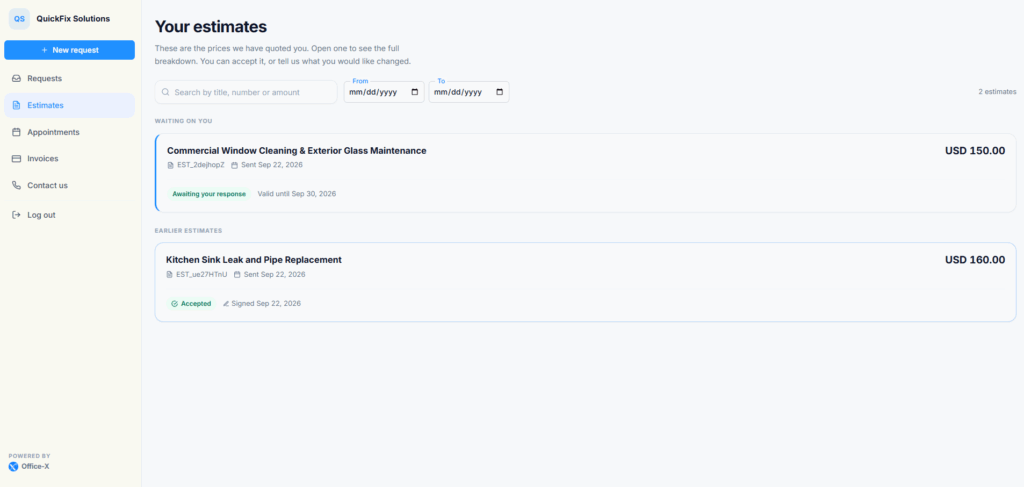
The list has two groups. Waiting on you comes first and holds every Estimate that still needs an answer. Earlier estimates holds the rest.
Each card shows the Estimate title, its number (for example EST_a1B2c3D4), the date you sent it, and the total, such as USD 1450.00. A card that is waiting also shows its Valid until date. An accepted card shows Signed and the date the client signed.
To find one Estimate, your client can type in the search box, Search by title, number or amount. Search also matches the status words, so typing “accepted” works too. The From and To dates narrow the list to Estimates sent in that period. The list shows 10 Estimates per page.
A client with no Estimates yet sees No estimates yet, with a note that the Estimate will appear here once the work has been priced.
Good to know: When an accepted Estimate has been fully invoiced, it no longer appears in the client’s Estimates list. The client still finds the Invoice under Invoices. If they open the Estimate from an old email link, they see “This estimate has already moved forward to the next stage.”
Review an Estimate #
Here is what your client does to read an Estimate:
- Select Estimates in the sidebar.
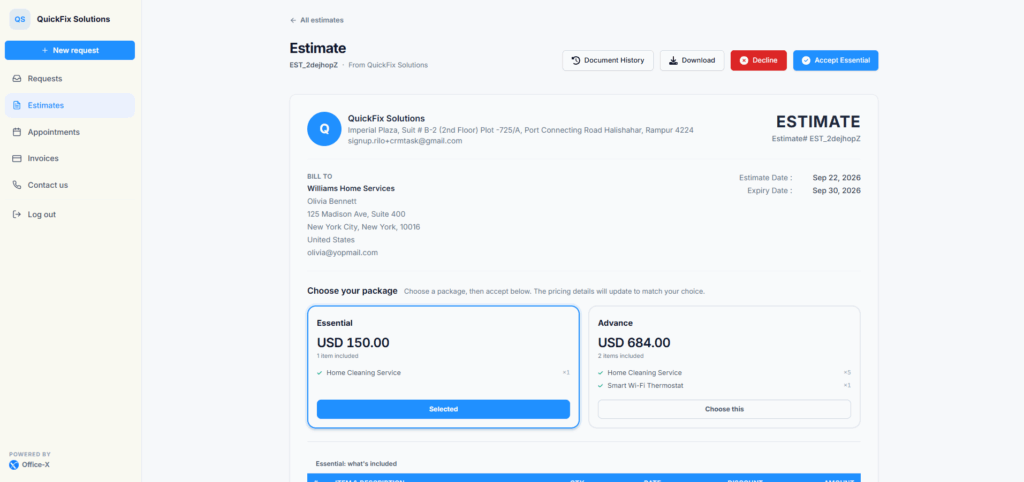
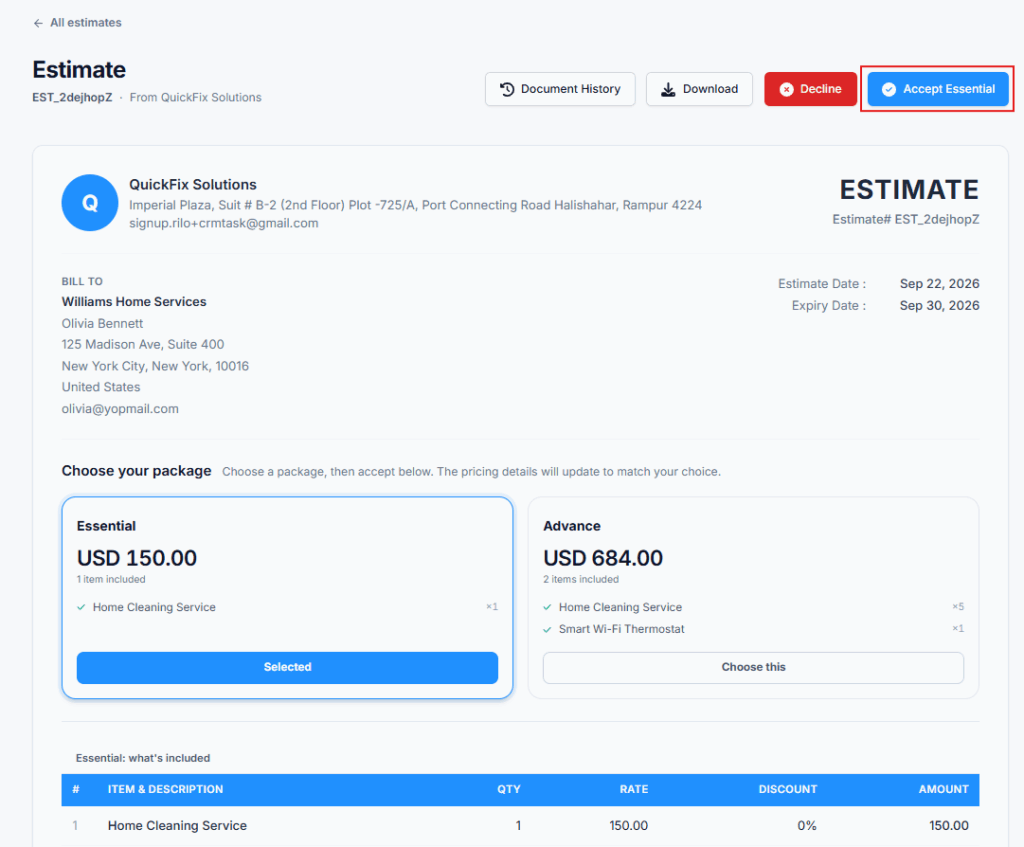
- Select an Estimate card. The Estimate opens with your logo, the Bill To details, the Estimate Date, and the Expiry Date.
- If the Estimate offers packages, choose one under Choose your package. The item table and the totals change to match the chosen package.
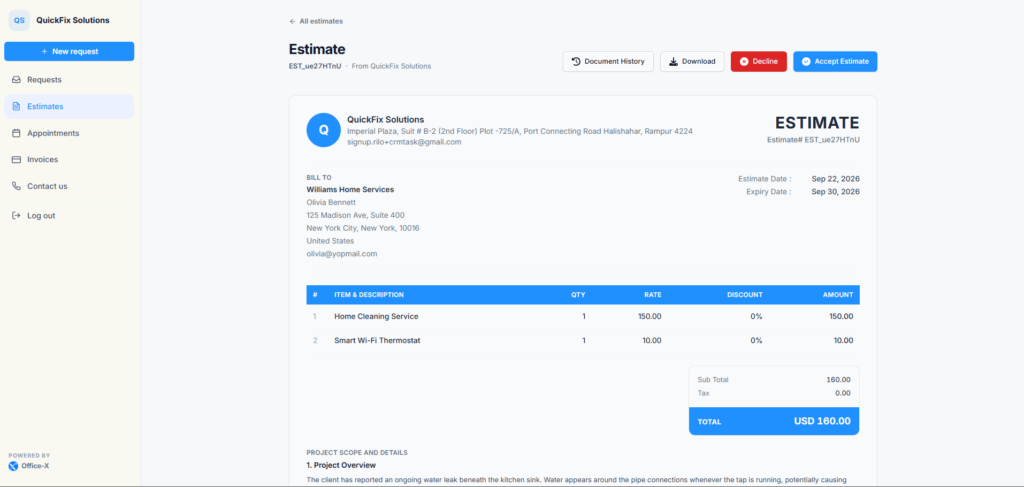
- Read the item table. Each line shows the item and description, Qty, Rate, Discount (a percent), and Amount.
- Check the totals under the table: Sub Total, Discount (only when there is one), Tax, and Total.
- Read Project Scope and Details, Notes, Terms & Conditions, and any Attachments. Each section appears only when you filled it in.
- Answer with Accept Estimate or Decline at the top, or ask a question in Change requests at the bottom.
Good to know: The Amount column is the quantity times the rate, before discount and tax. The discount and the tax are shown once, in the totals, so the Amount column always adds up to the Sub Total.
When your client opens an Estimate for the first time, its status on your side changes from Sent to Viewed. The All estimates link at the top takes the client back to the list.
Single Price and Package Offers #
A single price Estimate shows one list of items and one total.
A package Estimate shows two or more choices side by side, for example Basic, Standard, and Premium. Each package card shows its name, a short description, its total, how many items it includes, and the first few of those items. A package you marked as recommended carries a Recommended ribbon.
- The page opens on the recommended package. If no package is recommended, it opens on the cheapest one.
- When the client selects a card, it shows Selected. The table below it is titled with the package name, for example “Standard: what’s included”.
- The accept button names the package, for example Accept Standard, so the client knows exactly what they are agreeing to.
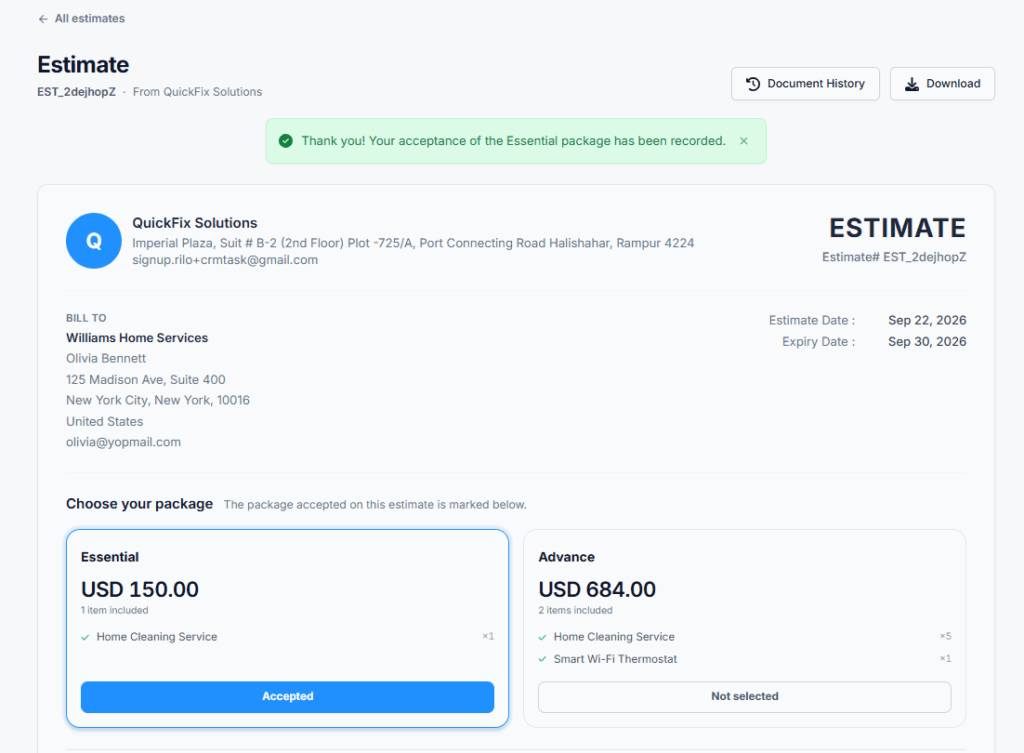
- After acceptance, the chosen card shows Accepted and the others show Not selected. The cards can no longer be changed.
Once a package is accepted, its items and total become the Estimate’s own items and total. The PDF is rebuilt to match.
Ask a Question or Request Changes #
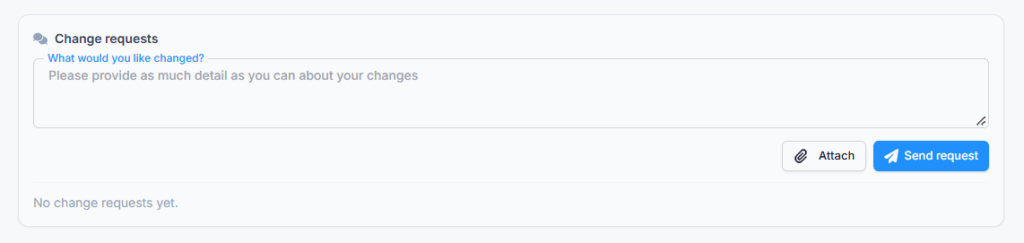
Under the Estimate is a section called Change requests. Your client uses it to ask a question or ask for a change. For example: “Does the price include haul-away?” or “Please send the crew to our Oak Park apartment, not the Riverside house.”
- Scroll down to Change requests.
- Type the message in the box What would you like changed? A message can be up to 2,000 characters. A counter appears as the message gets long.
- To add a photo or document, select Attach. You can add up to 5 files per message. Each file must be a PNG, JPG, WebP, or PDF, and no larger than 2 MB.
- Select Send request.
A message needs some text, a file, or both. If a file is too big, the client sees a message naming the file and the 2 MB limit, and can choose a smaller one.
The employee who created the Estimate gets an in-app notification and an email about the change request. Your reply appears in the same thread. If you then edit the Estimate, the client’s document history shows “The sender updated this estimate”.
Change requests stay open while the Estimate is waiting for an answer, and also after the client declines, so the conversation can continue. They close when the Estimate is accepted or expires. The client then sees “Change requests are closed. You’ve accepted this estimate.” or “Change requests are closed. This estimate has expired.”
Accept or Decline #
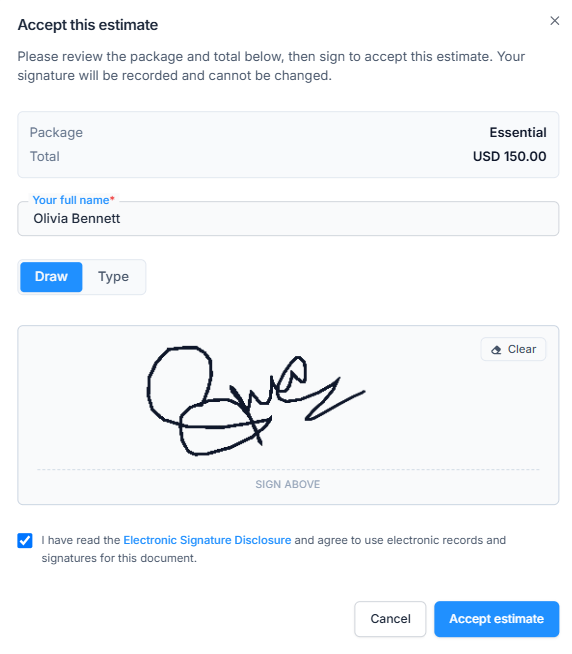
Accepting always needs a signature. Here is what your client does to accept:
- Select Accept Estimate (or Accept plus the package name). The Accept this estimate window opens. It repeats the package, if there is one, and the Total.
- Check Your full name. It is filled in from the client record and can be changed. The name can be up to 120 characters.
- Sign. On the Draw tab, sign in the box with a mouse or a finger. Clear wipes the box to start again. Or open the Type tab and pick one of the handwriting styles for the typed name.
- Tick the box to confirm you have read the Electronic Signature Disclosure and agree to use electronic signatures.
- Select Accept estimate. The button shows Recording… for a moment.
The client then sees “Thank you! Your acceptance has been recorded.” (or the same message with the package name). A green banner says “You accepted this estimate on” the date and time, and the signature and date now appear at the foot of the Estimate. The signature cannot be changed.
If a step is missing, the window says what to fix: “Please enter your name.”, “Please draw your signature in the box.”, or “Please confirm you agree to use electronic signatures for this document.”
Declining always needs a reason. Here is what your client does to decline:
- Select Decline. The Decline this estimate? window opens with the warning “This action cannot be undone. The sender will be notified.”
- Type a reason in Reason (required). It can be up to 500 characters, and a counter shows how many are used.
- Select Decline.
The client sees “Your response has been recorded.” and a banner that says “You declined this estimate on” the date and time.
Good to know: A client answers an Estimate once. After they accept or decline, the Accept and Decline buttons disappear. If a client declines and later changes their mind, they can say so in Change requests. You can then edit the declined Estimate. Saving it sends it to the client again, and it goes back to Awaiting your response.
When an Estimate Expires #
Every Estimate has an Expiry Date. This is the valid-until date you set when you created it. After that date, the client can no longer accept or decline:
- The status changes to Expired. Office-X checks for expired Estimates every day, and again whenever a client opens one.
- The Estimate shows “This estimate has expired and can no longer be responded to.”
- The client can still read and download it.
To give a client more time, edit the Estimate and move the valid-until date before it passes. An expired Estimate cannot be edited or resent. To make a fresh offer, duplicate it, set a new date, and send the copy.
Depending on your settings under Dashboard → Admin → Notifications, your client may get a reminder email before the Estimate expires.
Download and Document History #
Two buttons at the top of every Estimate help the client keep a record:
- Download opens the Estimate as a PDF. While the PDF is still being prepared, the button is grayed out. Pointing at it shows “The document is still being prepared — please check back shortly.” After acceptance, the PDF is rebuilt to match what was accepted.
- Document History opens a side panel with a timeline, for example “You viewed this estimate”, “You downloaded this estimate”, “You left a comment”, “The sender updated this estimate”, and “You accepted this estimate”. Your resends are not listed.
After Acceptance #
When a client accepts or declines, the employee who created the Estimate gets an in-app notification and an email, and the new status shows on your Estimates list. For an accepted Estimate, Office-X keeps the signed name, the signature, and when it was signed.
Accepting does not book a visit or take a payment. Those are your next steps. An employee with the right permission can:
- Convert the Estimate to a Task to book the work. This needs the Convert Estimate to Task permission and the Task Management add-on. The visits then appear on the client’s Appointments page, and the client is asked to confirm the first one.
- Convert the Estimate to an Invoice to bill it. This needs the Convert Estimate to Invoice permission. Once you send the Invoice, it appears on the client’s Invoices page. If you bill part of the Estimate first, such as a deposit, the Invoice shows how much of the Estimate is still to be invoiced.
Example #
Sarah Mitchell asks for a water heater service at her Riverside home. Maria Lopez sends her an Estimate with two packages: Repair for USD 180.00, and Replace for USD 1,450.00, marked Recommended. Sarah opens it in the Client Portal, selects the Repair card, and asks in Change requests whether parts are included. Maria replies that they are.
Sarah selects Accept Repair, signs on the Draw tab, ticks the disclosure box, and selects Accept estimate. Maria gets a notification, converts the Estimate to a Task, and the repair visit appears on Sarah’s Appointments page for her to confirm.
