Contact us gives your clients one clear place to find your phone number, email address and business address. It is always in the portal menu while the portal is on, whatever other sections you hide, so a client can always reach you.
Set the Contact Information #
- Go to Dashboard → Admin → Client Portal.
- Open the Portal tab and find the Welcome and contact card.
- Enter the Phone, Email and Address clients should use. Every field is optional.
- Select Save settings. You see “Client Portal settings saved”.
The limits are 40 characters for the phone number, 200 characters for the email and 400 characters for the address. The email must be a real email address. If it is not, you see “Enter a valid email address, or leave it blank”. For the full settings page, see the Client Portal settings guide.
When You Leave a Field Blank #
A blank field is filled in for you from another place in Office-X:
- Phone: the Phone in your company profile, under Business → Company.
- Email: the Reply To Email (or else the Sender Email) of your active email sending setup, under Settings → SMTP. It is not the email you use to log in to Office-X.
- Address: the Address in your company profile, under Business → Company.
If neither place has the detail, that line is left off the page. A field that holds only spaces counts as blank.
Good to know: anyone with your portal link can see the sign-in page. The sign-in page shows only the Address you typed in the portal settings, never your company address. Enter only an address you are happy to publish.
What the Client Sees #
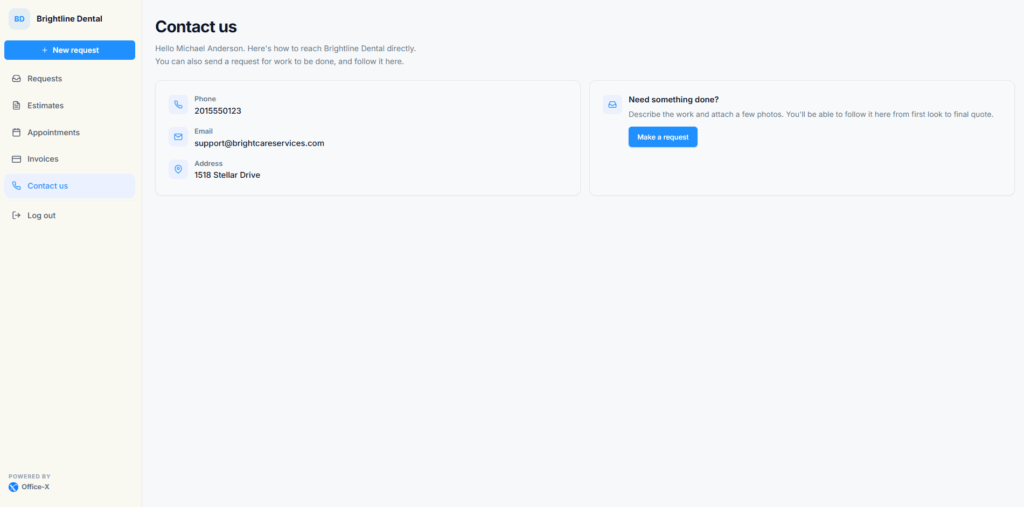
The page greets the client by name, for example “Hello Sarah Mitchell. Here’s how to reach” followed by your company name. Below that are the contact methods you published or that were filled in from your company details:
- Phone: tapping it on a phone starts a call.
- Email: selecting it opens a new email to you.
- Address: shown as text.
If no contact detail is available at all, the page says your company “hasn’t published contact details here yet”.
When Let clients raise requests is on, the page also shows a Need something done? card with a Make a request button that opens the new request form. When new requests are off, this card is hidden.
Contact us shows your details. It is not a chat or message form. The client uses the phone number or email address to reach you.
When Clients Should Use Contact Us #
- They need to change or cancel an appointment. The Appointments page links here with “get in touch”.
- They want to correct or add something to a Request they already sent. It helps if they quote the Request ID shown on the Request.
- They have a question about an Estimate.
- They need help with an Invoice or a payment.
- They cannot find what they need in the portal.
Subscriber Admin Good Practice #
- Use an email address and phone number that someone checks every day.
- Put your business hours and how fast you usually reply in the welcome message. It shows at the top of the client’s Requests page.
- Check the portal contact details whenever your company profile or email setup changes, since blank fields follow those.
- Tell your team who answers client calls and emails.
Example: Sarah Mitchell has confirmed her on-site assessment visit but now needs a different day. On her Appointments page she selects “get in touch”, which opens Contact us, and calls 555-0142. Maria Lopez moves the visit. Sarah gets an email asking her to confirm the new time, and she confirms it on her Appointments page.
