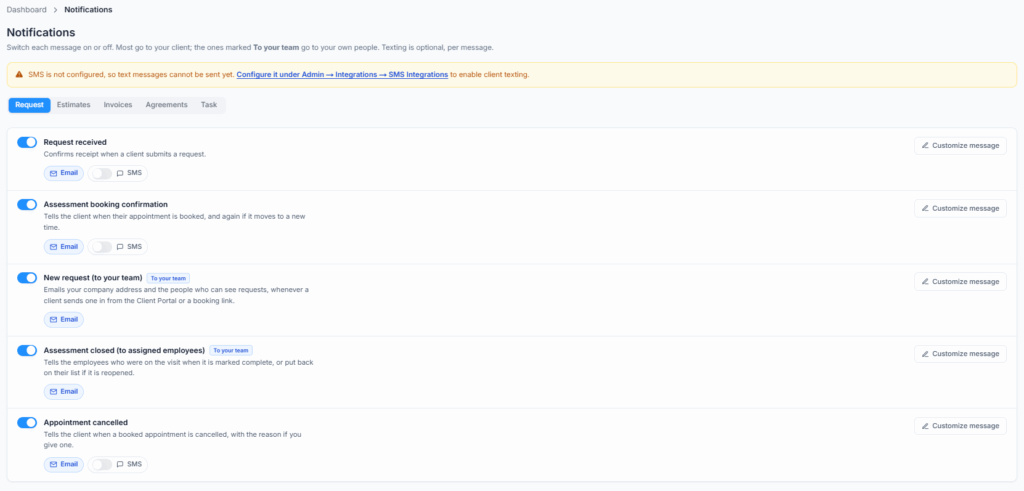
Notifications is where you decide which automatic messages Office-X sends about your Requests, Estimates, Invoices, Agreements and Task visits. Most of these messages go to your clients by email, and you can add a text message (SMS) to each one. A few go to your own team instead, including the Ready to invoice reminder that tells someone when a Task is due to be invoiced.
Route: Dashboard → Admin → Notifications
Plan, Add-on and Permission Requirements #
CRM and Task Management are add-ons for the Advance plan. Task Management needs CRM. The tabs you see depend on the add-ons your company has:
| Add-on | Tabs you see |
|---|---|
| CRM | Request, Estimates, Invoices and Agreements |
| Task Management | Task |
| Neither | No tabs. The page shows “CRM or Task Management required” with a See add-ons button that opens Business → Billing & Payment. |
- Subscriber Admin: can always open and change this page. No permission is needed.
- Employees: can open the page only if you give them the permission below. Without it, they see a no-access screen.
In the permission list below, “you” means the Subscriber Admin who gives the access, and “they” means the employee who receives it.
| Permission | What it lets them do |
|---|---|
| Manage Client Notifications | They can open this page and change every tab, including the team invoice reminder. There is no view-only version. You find it in the Setting group of permissions. |
For how to give a permission, see the Permissions Management guide.
Understand the Message Controls #
Each tab lists its messages as rows. Every row has the same controls:
| Control | What it means |
|---|---|
| Main switch (left of the row) | Turns the message on or off. A message that is on always goes out by email. |
| Email active tag | This email is part of how the feature works, so it always sends. Its switch is locked on. You can still add a text. |
| Shown on every row. Email is always the main channel, and it is your record of what was sent. | |
| SMS switch | Sends a text as well as the email. It is off by default. It is gray until you connect an SMS account. |
| To your team tag | This message goes to your own people, not to the client. These rows have no SMS switch. |
| Timing (minus and plus buttons) | Sets how long before or after the event a timed reminder goes out. Some rows also have a Days / Hours choice. |
| Customize message | Opens a side panel where you edit the text message and find the email template. The button appears only while the message is switched on. |
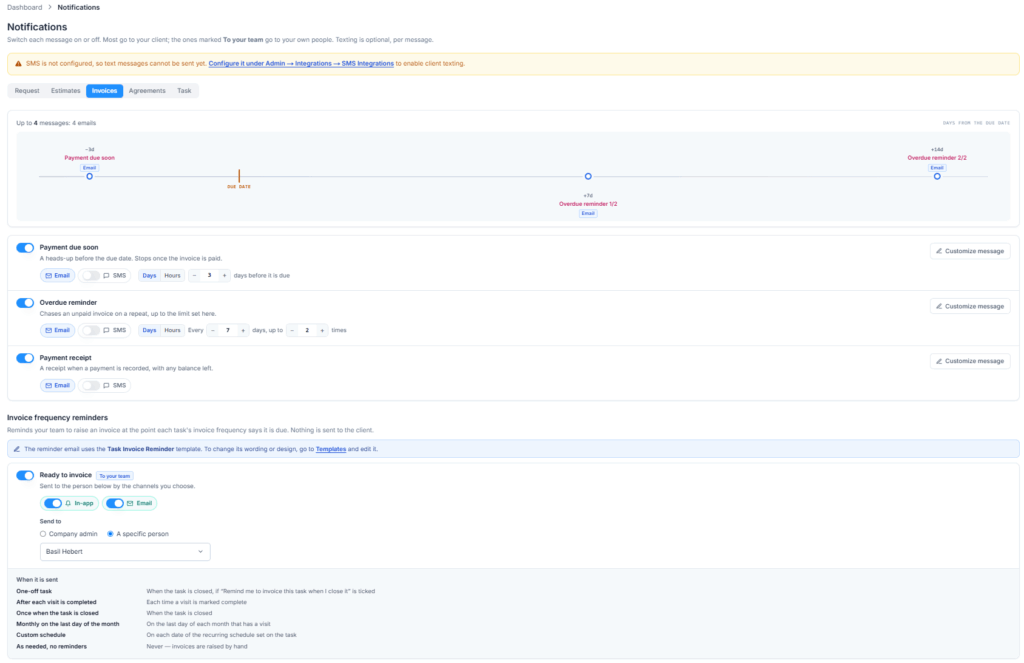
The Estimates, Invoices and Task tabs also show a timeline at the top. It places each timed message on a line of days, so you can see the order in which a client hears from you. Above the line, a summary counts what one client could receive, for example “Up to 4 messages: 3 emails, 1 text”. When everything is off, it says “Nothing goes out right now.” Messages that go out when something happens, such as a payment, are listed under On an event.
Request Notifications #
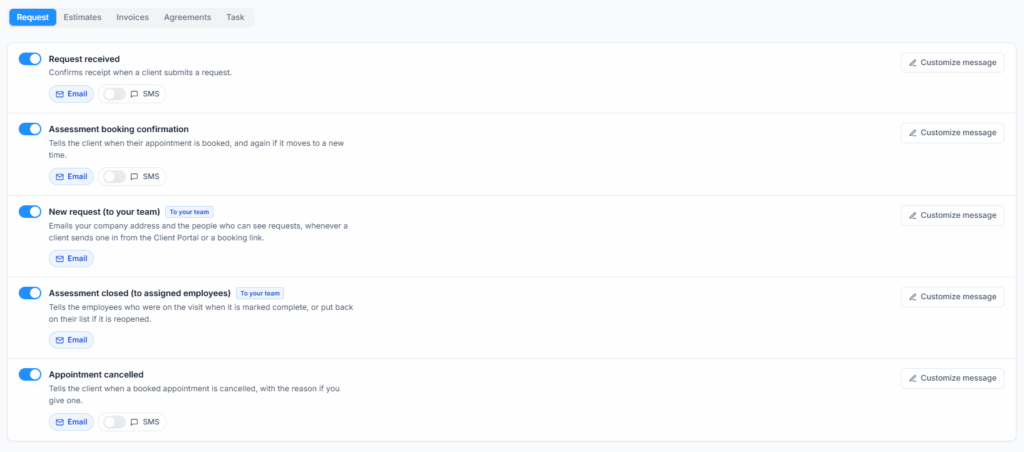
| Message | Default | Who gets it, and when |
|---|---|---|
| Request received | Off | The client, when they send you a request from the Client Portal or a booking link. It thanks them and links to their requests. |
| Assessment booking confirmation | On | The client, when you book an on-site assessment visit and when you move it. It first asks them to confirm the time, then confirms it once they say yes. See below. |
| New request (to your team) | On | Your team, when a client sends a request from the Client Portal or a booking link. It emails your company email address and everyone who has View All Requests. |
| Assessment closed (to assigned employees) | On | The employees on the visit, when the assessment is marked complete, or when it is reopened and back on their list. This switch controls both the email and the in-app notification. |
| Appointment cancelled | On | The client, when you cancel a booked assessment visit. It includes your reason if you typed one. |
- Turning off New request (to your team) stops only the email. Your team still gets the in-app notification, so a new request is never missed. The request itself is always saved in CRM → Requests.
- Turning off Assessment closed does not stop the assessment from being completed. It only stops the message.
- Request received sends a text only if SMS is on for it and the client’s record shows Text message consent (given when they booked).
Assessment Visits: Ask First, Then Confirm #
When you book an on-site assessment visit, Office-X does not tell the client the visit is confirmed straight away. It asks them first, so nobody expects a time they never agreed to. The Assessment booking confirmation switch controls every step below. If you turn it off, the client gets neither the ask nor the confirmation.
- You book the visit. The client gets an email with the subject “Please confirm your appointment”. It shows when and where, and has a Confirm my appointment button that opens Appointments in their Client Portal.
- The client presses Confirm appointment in the portal. Or they call you, and you record on the request that they confirmed over the phone.
- Office-X then sends the “Appointment confirmed” email, plus a text if SMS is on.
- If you move the visit, the client is asked again, with wording that says the appointment has moved to a new time.
- If the client cannot confirm online (the portal is off, Appointments is hidden in Admin → Client Portal, or the client has no email address), Office-X skips the ask and sends the “Appointment confirmed” email right away, as it did before.
- Requests from a booking link skip the ask, because the client chose the time. Those messages follow the booking service’s own notification settings. See the Bookings guide.
- Texts: if SMS is on, the ask also goes out as a text with a link to confirm, for example: “Hi Sarah Mitchell, Bright Home Services has booked your assessment visit for Oct 12, 2026, 10:00 AM – 11:00 AM. Please confirm the time here: (link)”. This ask text uses standard wording. Customize message on this row changes the “confirmed” and “moved” texts.
Staff can also send the ask by hand from the request, and edit its wording first. See the Requests guide.
Estimate Notifications #
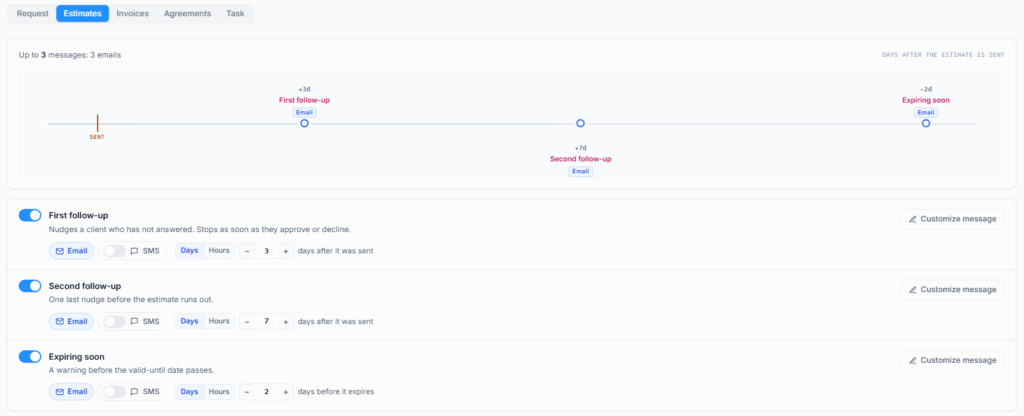
These reminders nudge a client who has not answered an Estimate yet. All three are off until you turn them on, and all three can count in days or hours.
| Message | Default timing | Default |
|---|---|---|
| First follow-up | 3 days after the Estimate is sent | Off |
| Second follow-up | 7 days after the Estimate is sent | Off |
| Expiring soon | 2 days before the Estimate’s valid-until date | Off |
- They go only to an Estimate that is Sent or Viewed.
- They stop as soon as the Estimate is accepted, declined, converted, expired or voided.
- If two reminders fall on the same day, only one goes out. Expiring soon wins, then Second follow-up, then First follow-up.
- Each reminder goes out once per Estimate.
Invoice Notifications #
| Message | Default timing or trigger | Default |
|---|---|---|
| Payment due soon | 3 days before the due date. The same switch also sends a “due today” note on the due date if the Invoice is still unpaid. | Off |
| Overdue reminder | Every 7 days after the due date, up to 2 times. | Off |
| Payment receipt | When a payment is recorded, including a part payment. It shows the payment and anything still owed. | Off |
- Due and overdue reminders go only to unpaid Invoices that are Sent, Viewed, Partially Paid or Overdue.
- They stop once the Invoice is paid or voided, and the overdue reminders stop after the number of times you set.
- A client who pays in parts gets one receipt for each payment you record.
Invoice Frequency Reminders for Your Team #
At the bottom of the Invoices tab is Invoice frequency reminders. Every Task has an invoice frequency: how often you plan to bill for it. This reminder tells someone on your team when a Task is ready to invoice. It never goes to the client. It only matters if your company has the Task Management add-on.
The section has one row, Ready to invoice, marked To your team. It is on by default, sent both In-app and by Email, to the Company admin.
- Keep the main switch on.
- Choose how it arrives: In-app (the bell in Office-X), Email, or both. At least one must stay on. If you turn both off, you see “Turn on in-app or email, or switch the reminder off.”
- Under Send to, choose Company admin (the Subscriber Admin, at their sign-in email) or A specific person.
- For A specific person, pick one employee in Choose an employee, for example Danny Ruiz. The list shows only active employees who have a seat. If you leave it empty, you see “Choose who receives the reminders”.
- Select Save changes in the bar at the bottom of the page.
When the reminder goes out depends on the invoice frequency set on each Task:
| Invoice frequency on the Task | When the reminder goes out |
|---|---|
| One-off task | When the Task is closed, but only if “Remind me to invoice this task when I close it” was ticked. |
| After each visit is completed | Each time a visit is marked complete. |
| Once when the task is closed | When the Task is closed. |
| Monthly on the last day of the month | On the last day of each month that has at least one visit. A month with no visits gets no reminder. |
| Custom schedule | On each date of the invoice schedule set on the Task, between its first and last visit. |
| As needed, no reminders | Never. You raise Invoices by hand. |
- Reminders for closing a Task or completing a visit go out at once.
- Month-end and custom-schedule reminders go out from 9 AM your company’s time on the due day, once per day for each Task.
- The reminder names the Task and says why it is due, for example “Month-end invoice due” or “Visit completed — ready to invoice”. It links straight to the Task, where you can raise the Invoice.
- The email uses the Task Invoice Reminder template. To change its wording or design, edit that template under Dashboard → Templates. If your company does not have the template yet, Office-X sends a plain email instead.
Good to know: if the person you picked later becomes inactive or loses their seat, reminders go to the Company admin instead, so none are lost. The next time you save this page, you see a message such as “Invoice reminder recipient: This employee is not active.” Choose someone else, or choose Company admin, and save again.
Agreement Notifications #
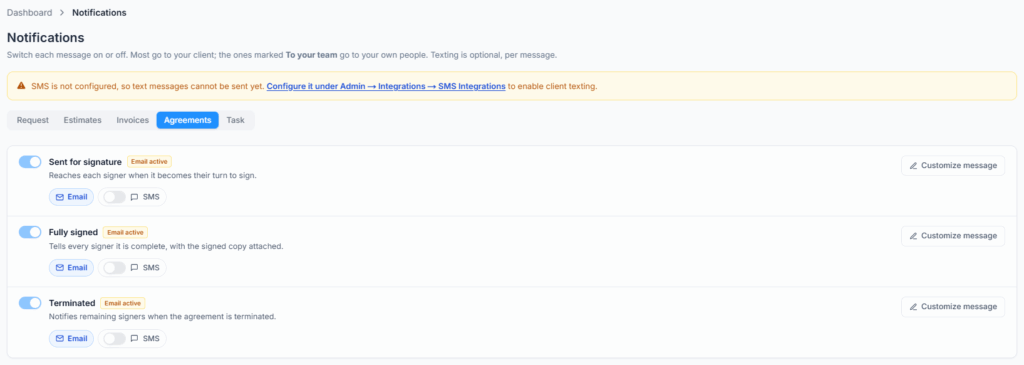
| Message | When it goes out | Control |
|---|---|---|
| Sent for signature | To each signer, when it is their turn to sign. | Email active (locked on). Optional SMS. |
| Fully signed | When the last signer signs. Every signer gets the signed copy. | Email active (locked on). Optional SMS. |
| Terminated | When you terminate the Agreement. The remaining signers are told. | Email active (locked on). Optional SMS. |
You cannot turn these emails off, because signing depends on them: the first one carries the signing link. You can add a text to each one. See the Agreements guide.
Task Notifications #
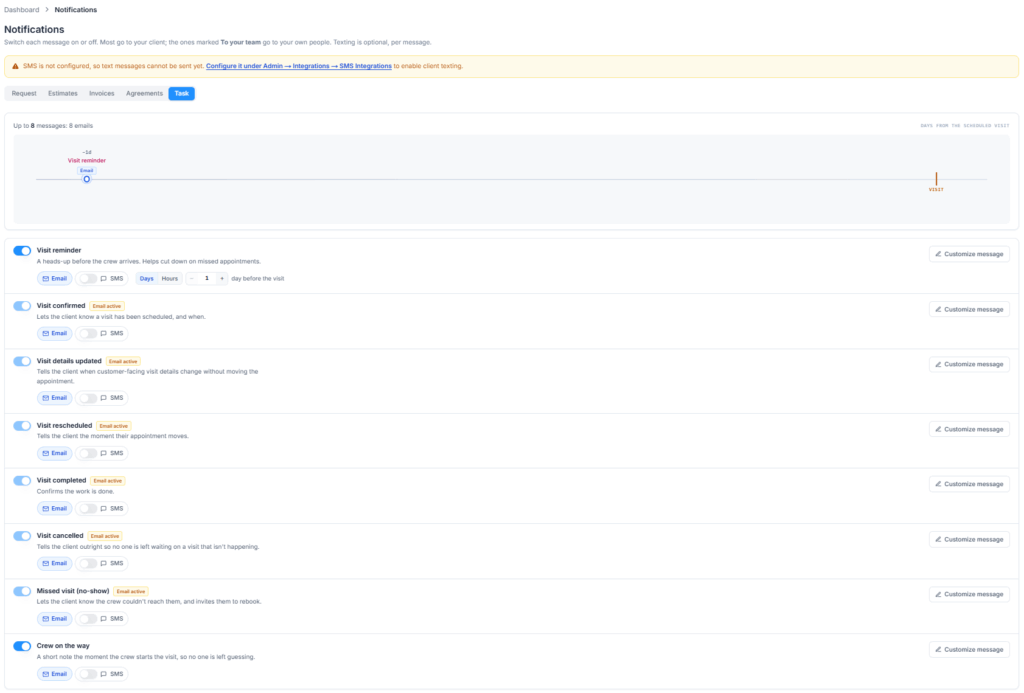
| Message | When it goes out | Default |
|---|---|---|
| Visit reminder | 1 day before a scheduled visit. You can change the timing, in days or hours. | Off |
| Visit confirmed | When a visit is booked. It first asks the client to confirm, then confirms the visit once they say yes. See below. | Email active (locked on) |
| Visit details updated | When the service name or the client’s address on the visit changes, but the time does not. | Email active (locked on) |
| Visit rescheduled | When the visit moves to a new time. It shows the old and new time. | Email active (locked on) |
| Visit completed | When the visit is marked complete. | Email active (locked on) |
| Visit cancelled | When the visit is cancelled. | Email active (locked on) |
| Missed visit (no-show) | When your team records that nobody was at the address. It asks the client to get in touch to rebook. | Email active (locked on) |
| Crew on the way | When the crew starts the visit. | Off |
Task Visits: Ask First, Then Confirm #
- When you create a Task, or move a visit to a different client, the client gets an email with the subject “Please confirm your service visit”. It has a Confirm my appointment button that opens Appointments in their Client Portal. For a repeating Task, the ask goes out for the first visit.
- The client confirms in the portal, or you record on the Task that they confirmed over the phone.
- Office-X then sends “Your service visit is confirmed”, plus the Visit confirmed text if SMS is on.
- The ask is email only. It never sends a text.
- If the client cannot confirm online (the portal is off, Appointments is hidden, or the client has no email address), Office-X sends “Your service visit is confirmed” right away.
- Moving a visit to a new time sends Visit rescheduled. It does not ask again.
Other Task Messages #
- Visit reminder goes only to visits that are Assigned, once per visit. If you reschedule the visit, the reminder is set again for the new time. On-site assessment visits from a request are not covered by this reminder.
- The locked-on visit emails are the client’s record of what happened to their visit. You can add a text to each one.
- Crew on the way is optional. Leave it off if you do not want a message to go out every time a crew starts a visit.
Set Reminder Timing #
Timed reminders have minus and plus buttons, and you can also type a number. The row reads like a sentence, for example “3 days before it is due” or “Every 7 days, up to 2 times”.
- Days: from 1 to 365.
- Hours: from 1 to 72. Hours are offered on every timed reminder: the three Estimate reminders, Payment due soon, Overdue reminder and Visit reminder.
- Switching between Days and Hours sets the number back to 1, so check it again.
- Overdue reminder has two numbers: the gap between reminders, and how many to send (1 to 10).
- What each one counts from: Estimate follow-ups count from the day the Estimate was sent. Expiring soon counts back from the valid-until date. Invoice reminders count from the due date. Visit reminder counts back from the visit.
- Office-X checks for due reminders every hour. A reminder goes out at the first check after its time, not at the exact minute.
SMS Requirements and Costs #
Texts go out only after you connect an SMS provider and a sender number under Admin → Integrations → SMS Integrations. Until then, the page shows “SMS is not configured, so text messages cannot be sent yet.” with a link, and every SMS switch is gray. See the Integrations guide.
- SMS is off by default on every message. You turn it on per message.
- A text always goes with an email. You cannot send a text on its own from this page.
- The client needs a mobile or phone number on their client record. Without one, the email still goes out, but the text does not.
- Every text ends with “Reply HELP for help or STOP to opt-out.” If a client replies STOP, Office-X stops texting that number. Texts start again only if they reply START.
- Your SMS provider bills by segment (a piece of about 160 characters). A long text can cost several segments, even though the client sees one message.
Customize an SMS Message #
- Switch the message on, if it is not locked on already. Customize message appears on the row.
- Select Customize message. A side panel opens on the SMS tab.
- Edit the text in the Message box. The Variables chips below it show the placeholders this message already uses, such as client_name. In the text, write each one inside double curly braces, for example {{client_name}}. Office-X replaces each one with the real value when the text goes out.
- Check What your client will see. It shows your text with sample values, the character count and the number of segments.
- Changed your mind? Select Reset to go back to the standard Office-X wording. Reset appears once you change the text.
- Close the panel, then select Save changes at the bottom of the page.
- A custom text can be up to 800 characters.
- Plain text fits 160 characters in one segment. An emoji or a non-Latin character lowers that to 70, and the panel warns you.
- When the text needs more than one segment, the panel says how many messages your provider will bill.
- If no SMS account is connected, you can still write the text. The panel reminds you that nothing will send yet.
Good to know: the “Reply HELP for help or STOP to opt-out.” line is added when the text goes out. The preview does not show it, so leave about 40 characters of room if you want to stay within one segment.
Customize an Email #
This page decides whether an email goes out and when. The email’s subject, wording and design live in Dashboard → Templates.
- Select Customize message on the row.
- Open the Email tab. It says “Edited in Email Templates, not here”.
- Select Open Email Templates.
- Open the matching template from the table below and edit it.
| Messages | Template to edit |
|---|---|
| Request received, New request (to your team) | Request |
| Assessment booking confirmation (the ask, the confirmation, and a moved visit), Appointment cancelled | Request Appointment |
| Assessment closed (to assigned employees) | Task |
| Estimate reminders | Estimate |
| Invoice reminders and receipts | Invoice |
| Agreement messages | Agreement |
| Task visit messages | Task Customer |
| Ready to invoice (team reminder) | Task Invoice Reminder |
Editing a template does not switch its message on or change its timing. Saving this page does not change a template. For more, see the Email Templates guide.
Save or Discard Changes #
As soon as you change a switch, a timing, a channel, the reminder recipient or a text, a bar appears at the bottom of the page: “Unsaved changes. Nothing is live until you save.”
- Save changes: saves every tab at once. You see “Notification settings saved”.
- Discard: puts every row, and the invoice frequency reminder, back the way they were when you opened the page.
- You do not need to save each tab separately. Switching tabs keeps your unsaved changes.
- Messages marked Email active always stay on, whatever is saved.
Delivery Requirements #
If a client says they did not get a message, check these first:
- The event happened. Switching a message on does not send anything by itself. It goes out when the record reaches that point, such as a due date or a completed visit.
- Your email sending is set up. Set up your company’s email server under Settings → SMTP (the gear icon at the top of the page) so messages go out from your own address.
- The client has an email address on their client record. Email is the main message; a text only goes with it.
- For texts: SMS is on for that message, your SMS account is connected, the client has a usable mobile or phone number, and they have not replied STOP.
- The records are linked. A reminder follows the client linked to the Estimate, Invoice or Task. Keep that link and the client’s contact details up to date.
Good to know: a message that fails never undoes the work behind it. A payment, a status change or a completed visit stays saved even if its email or text does not go out.
Activity Log #
Each save adds an “Updated client notification settings” entry to Activity Log. It lists every message whose on/off switch or SMS switch changed, with the old and new value. It also lists changes to the invoice frequency reminder: on/off, in-app, email and recipient. Timing and custom text are saved, but they are not listed one by one.
Recommended Setup Checklist #
- Go through every tab. Do not assume the defaults match how your company talks to clients.
- Turn on Estimate and Invoice reminders on purpose. They all start off.
- Keep Assessment booking confirmation on, and make sure Show appointments is on in Admin → Client Portal, so clients can confirm their visits online.
- Decide whether each locked-on Agreement and Task email also needs a text.
- Choose who gets the Ready to invoice reminder, and how.
- Connect and test your SMS account before you turn on client texts.
- Preview any custom text and check its segment count before you save.
- Review the matching email templates so the subject, branding and wording fit these settings.
